HHAeXchange+ Mobile App Self-Direction Log In

If you’re brand new to working with Consumers and/or have never logged on to the UMA app or HHAeXchange+ Mobile App app before, follow the instructions below. If you have used UMA or HHAeXchange+ Mobile App and have recently updated the app, follow the Log In instructions at: HHAeXchange+ Mobile App Log In to get the app ready to record your EVV shifts.
Do not begin the sign up process until you receive the Verification email and the Activation Code email from noreply@hhaexchange.com. Check your spam/junk folder if you do not have them in your inbox.
-
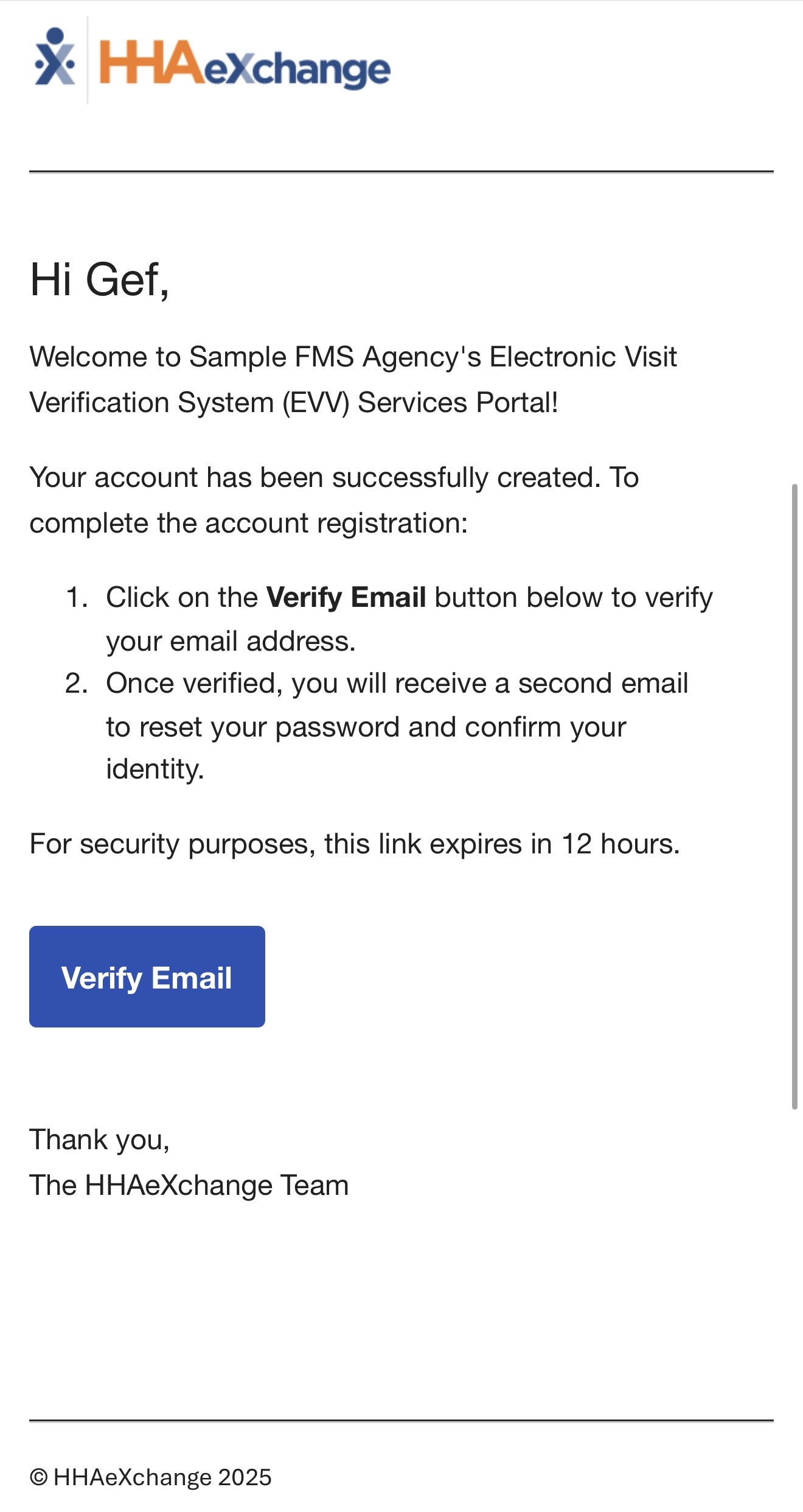
In the verification email, tap Verify Email.
Email Subject: Welcome to HHAeXchange+ - Verify your email
Email from Address: noreply@hhaexchange.com
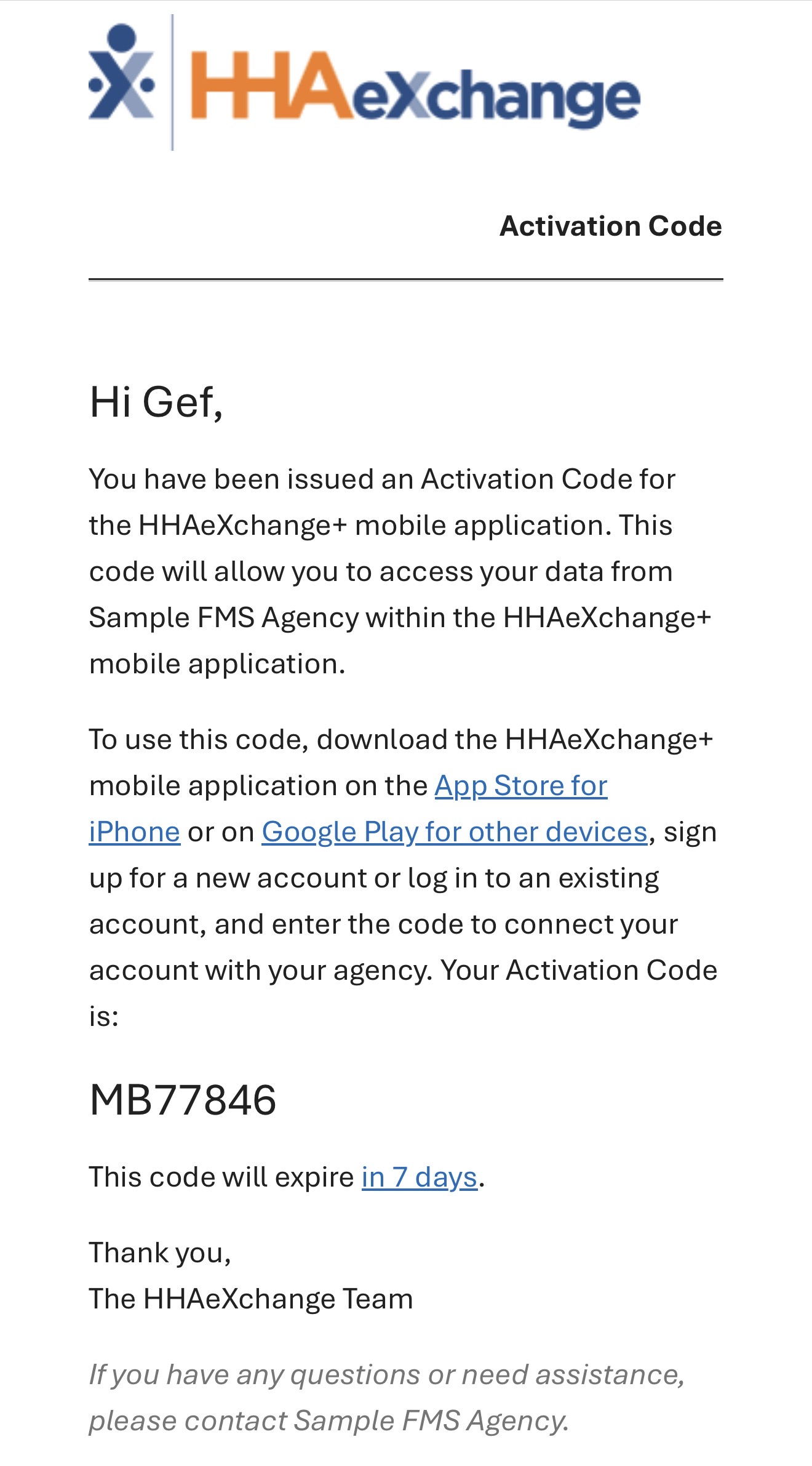
Email Subject: Welcome to HHAeXchange+ Activation Code
Email from Address: noreply@hhaexchange.com
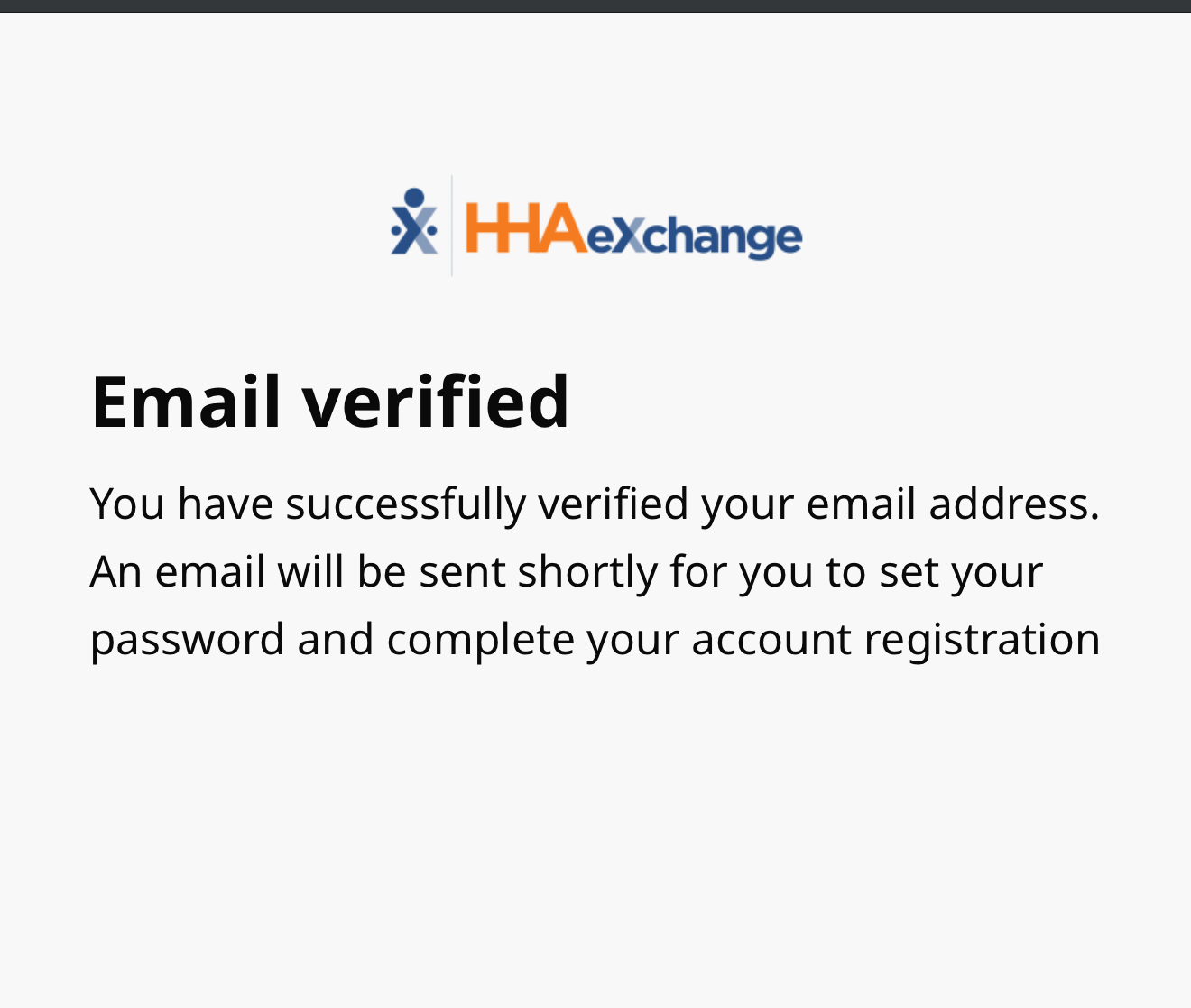
The system will display a success message.
-
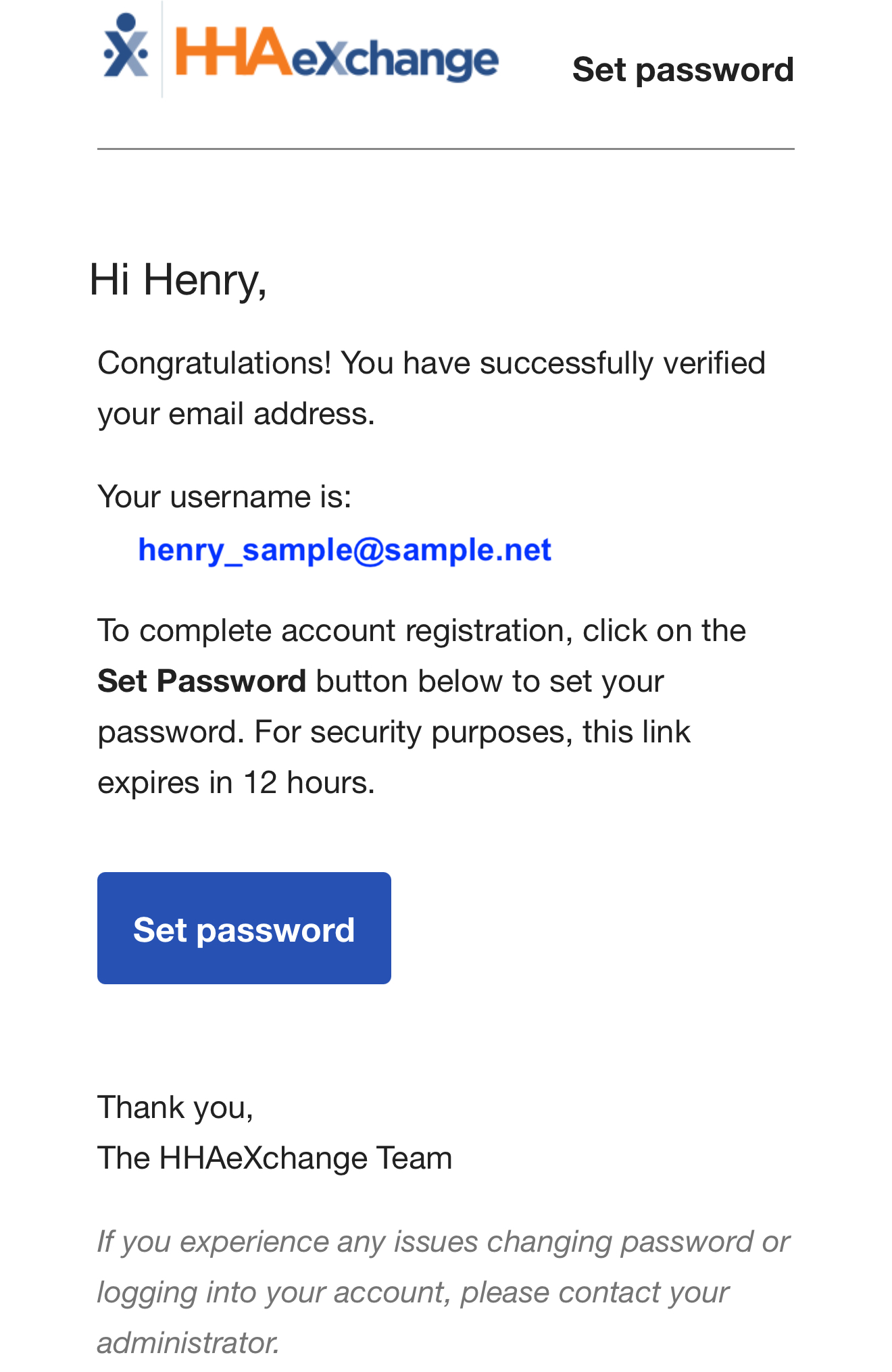
From your email inbox, tap Set Password in the Set your password email.
Email Subject: Welcome to HHAeXchange+ - Set your password
Email from Address: noreply@hhaexchange.com
-
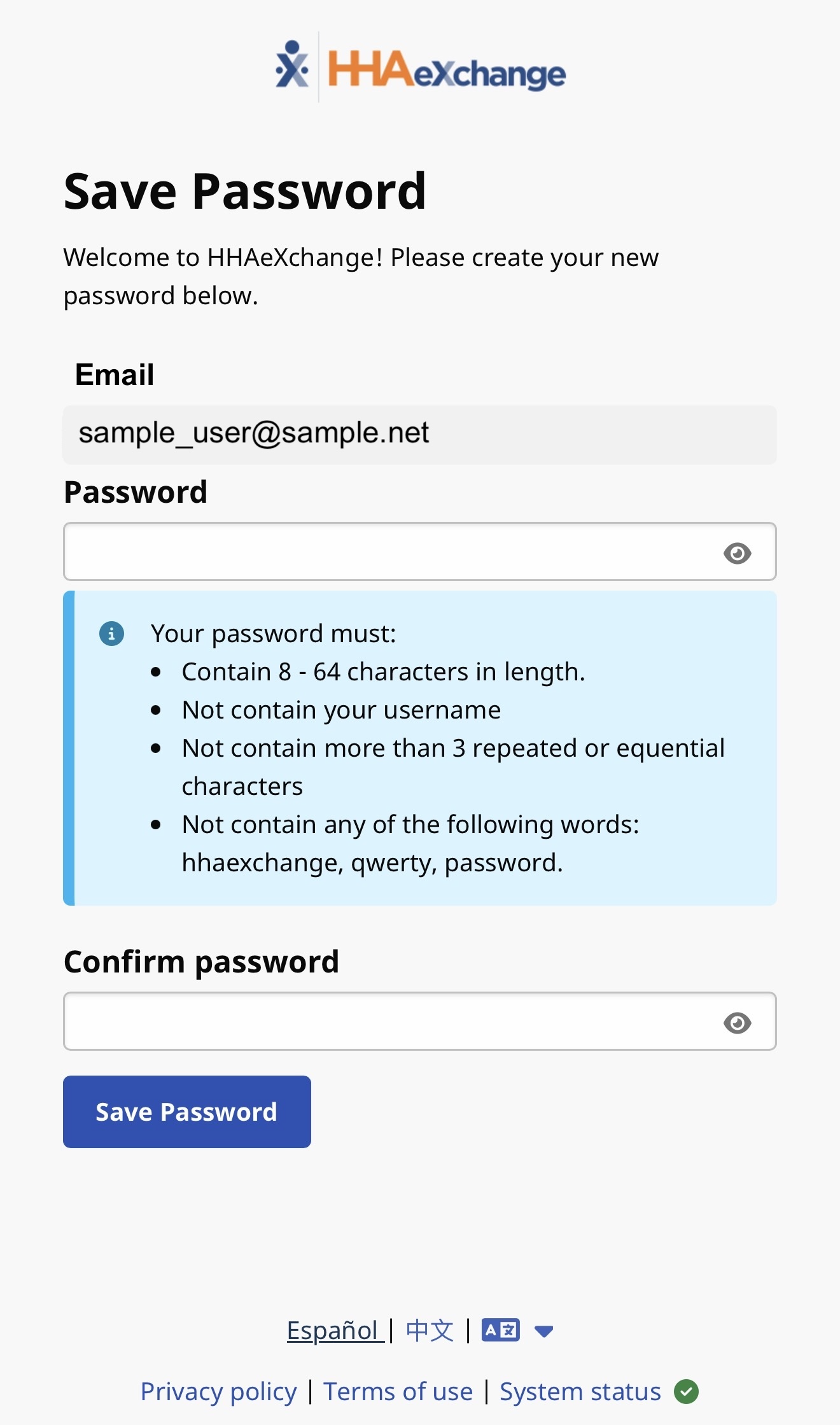
On the Set Password Page your email address is pre-filled in. Enter a password in both fields, then tap Save Password.
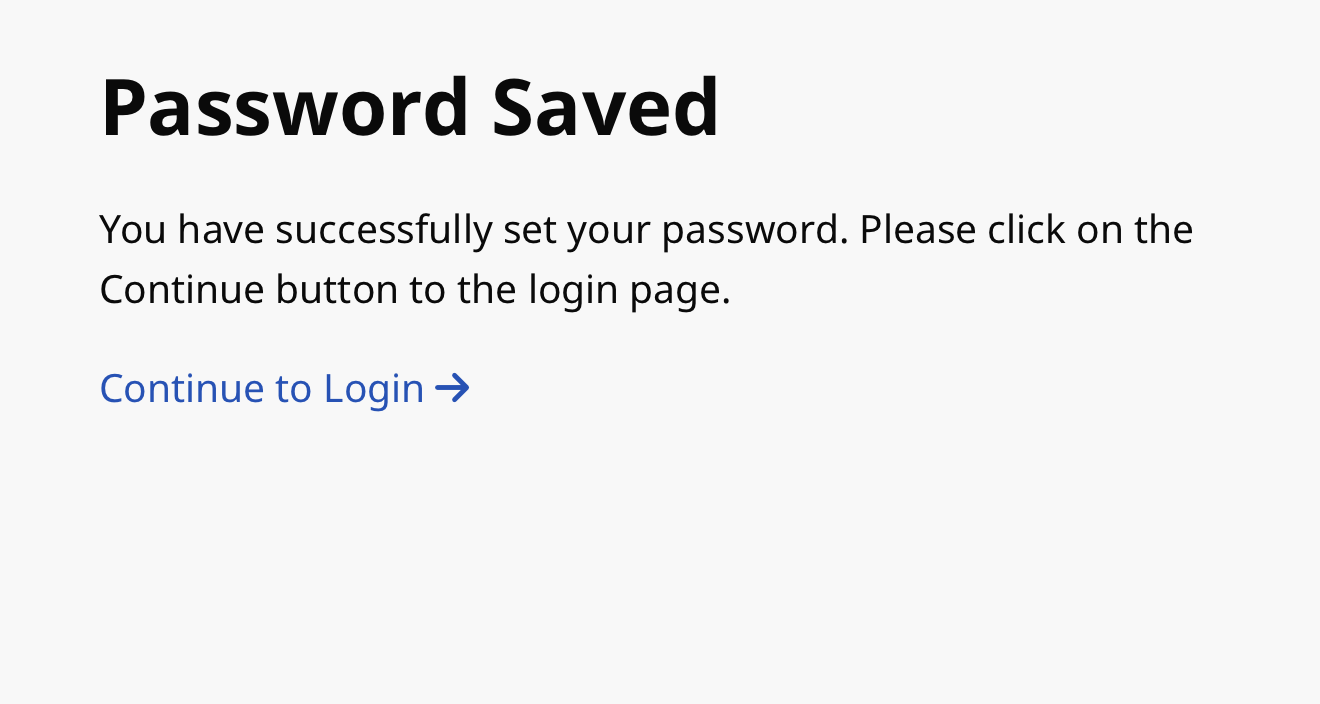
The password saved message displays. Return to the app to log in.
-
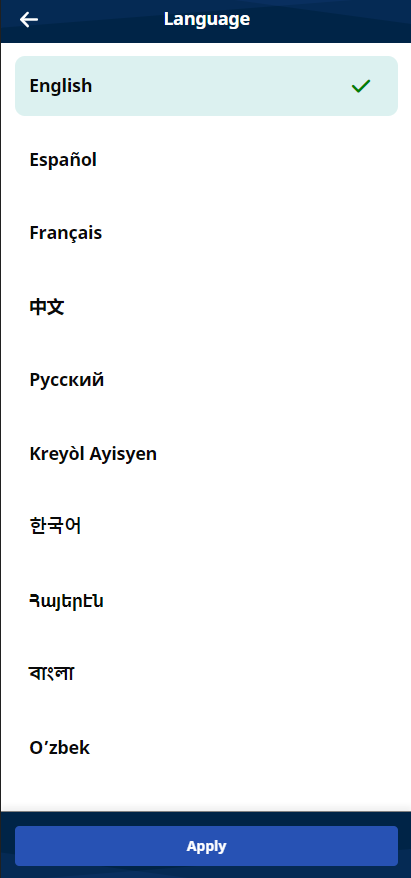
Select your preferred language and tap Apply.
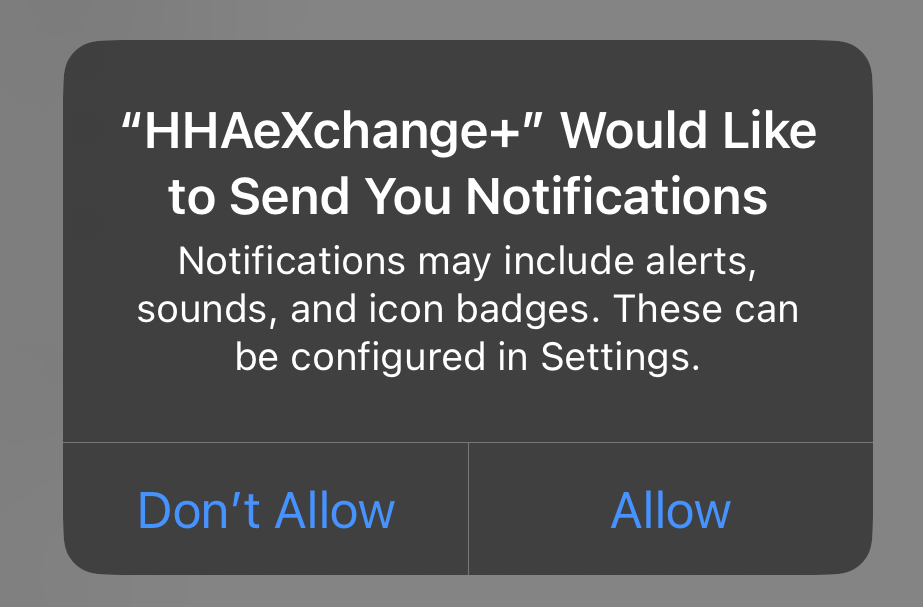
Apple device users will be asked to Allow Notifications before selecting a language. Tap Allow when prompted.
-
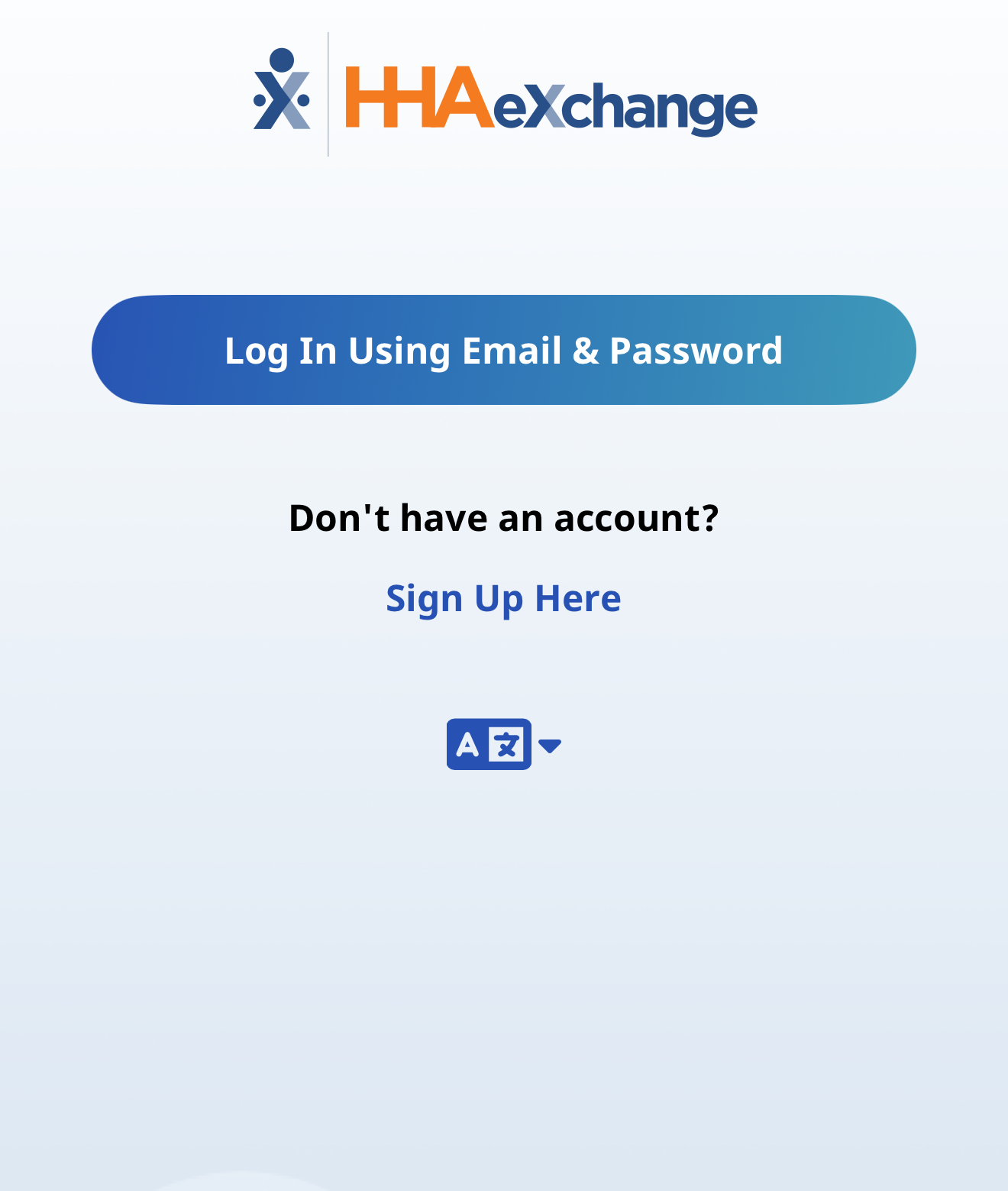
Tap Log In Using Email & Password.
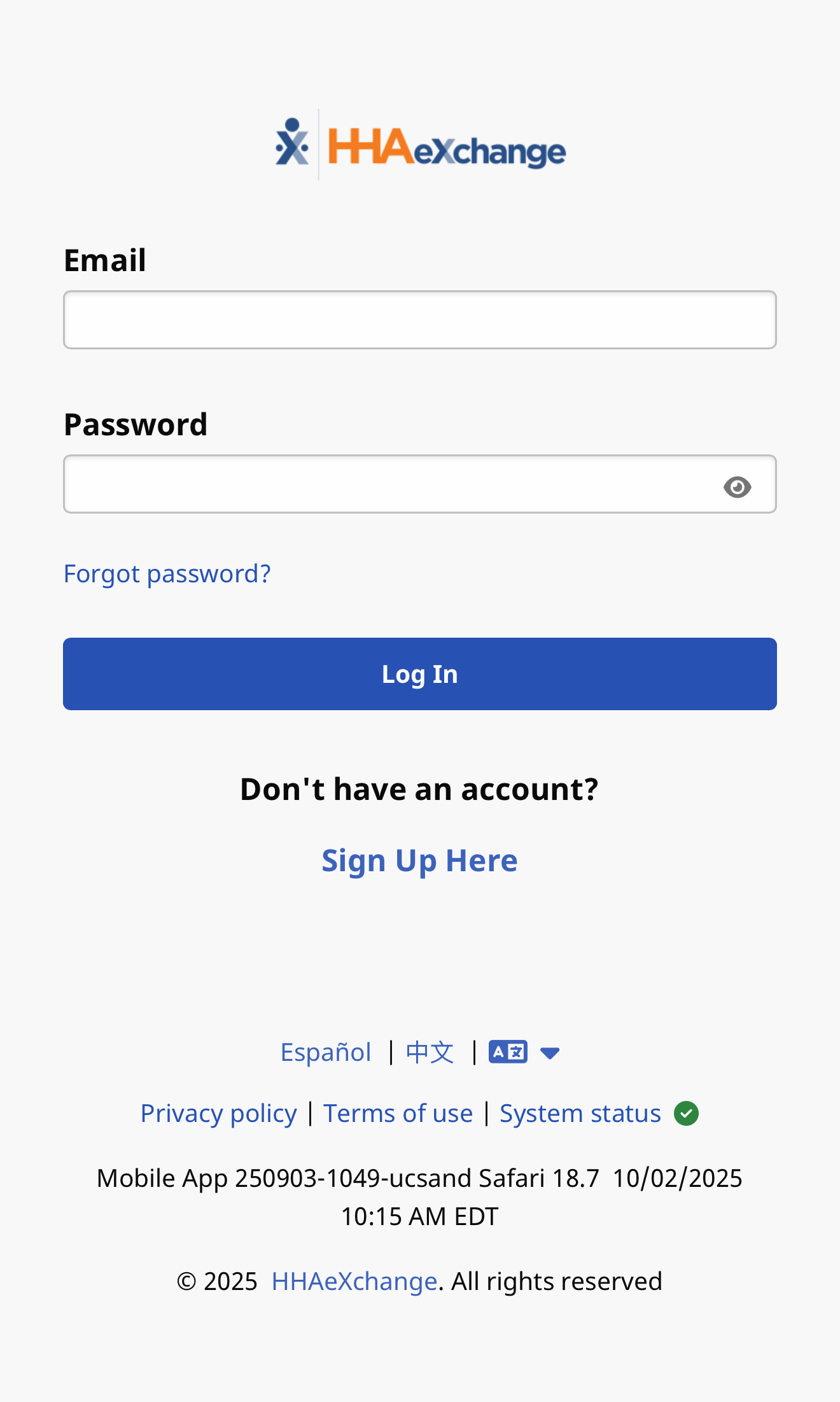
On the Login page, type your Email Address and Password, then tap Log In.
Tap the eye icon to see your Password entry.
-
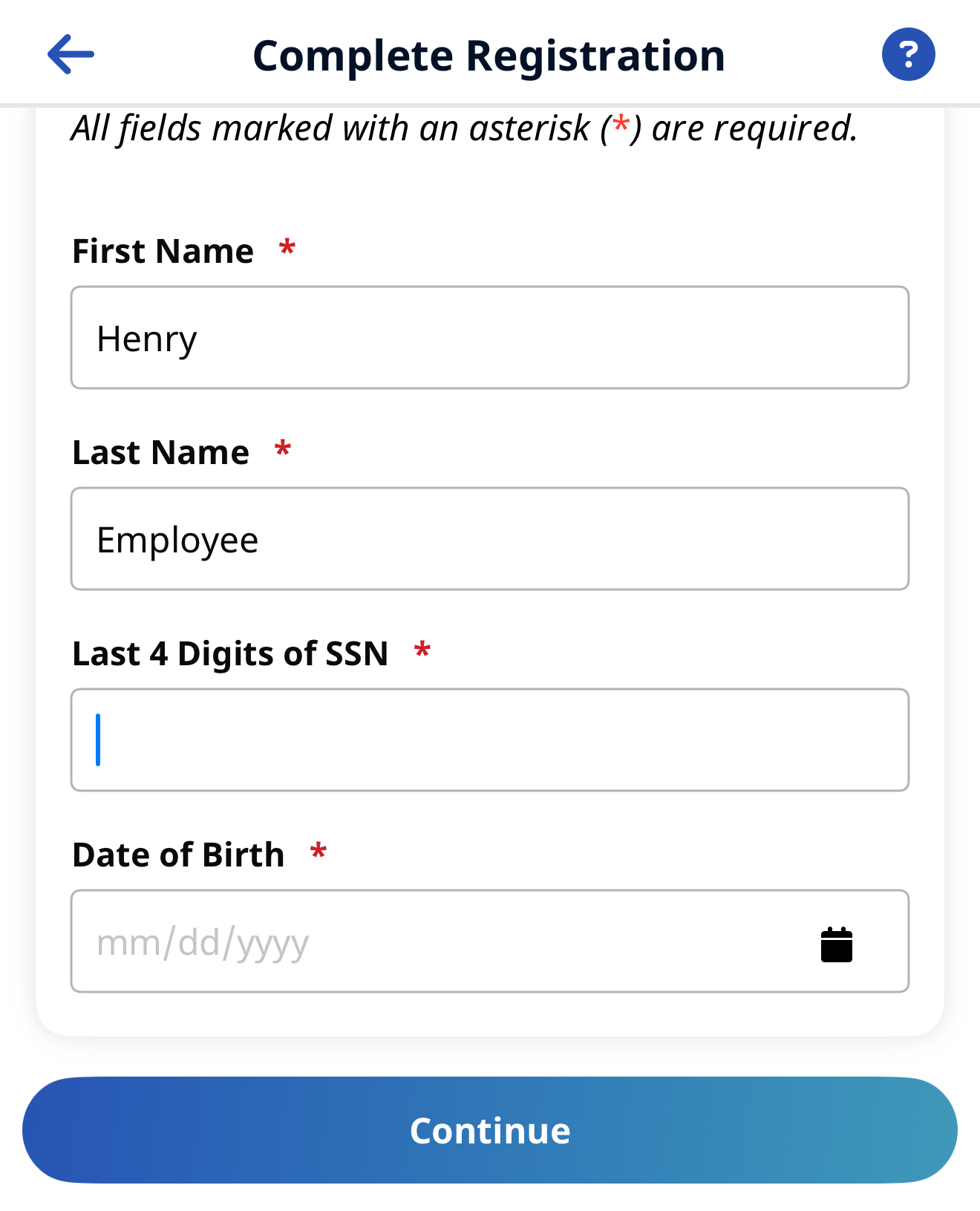
Complete your registration by entering the last four digits of your Social Security Number (SSN) and full Date of Birth (DOB), then tap Continue.
Your SSN and DOB must match the information on file with your Agency/FMS Provider to proceed with registration.
-
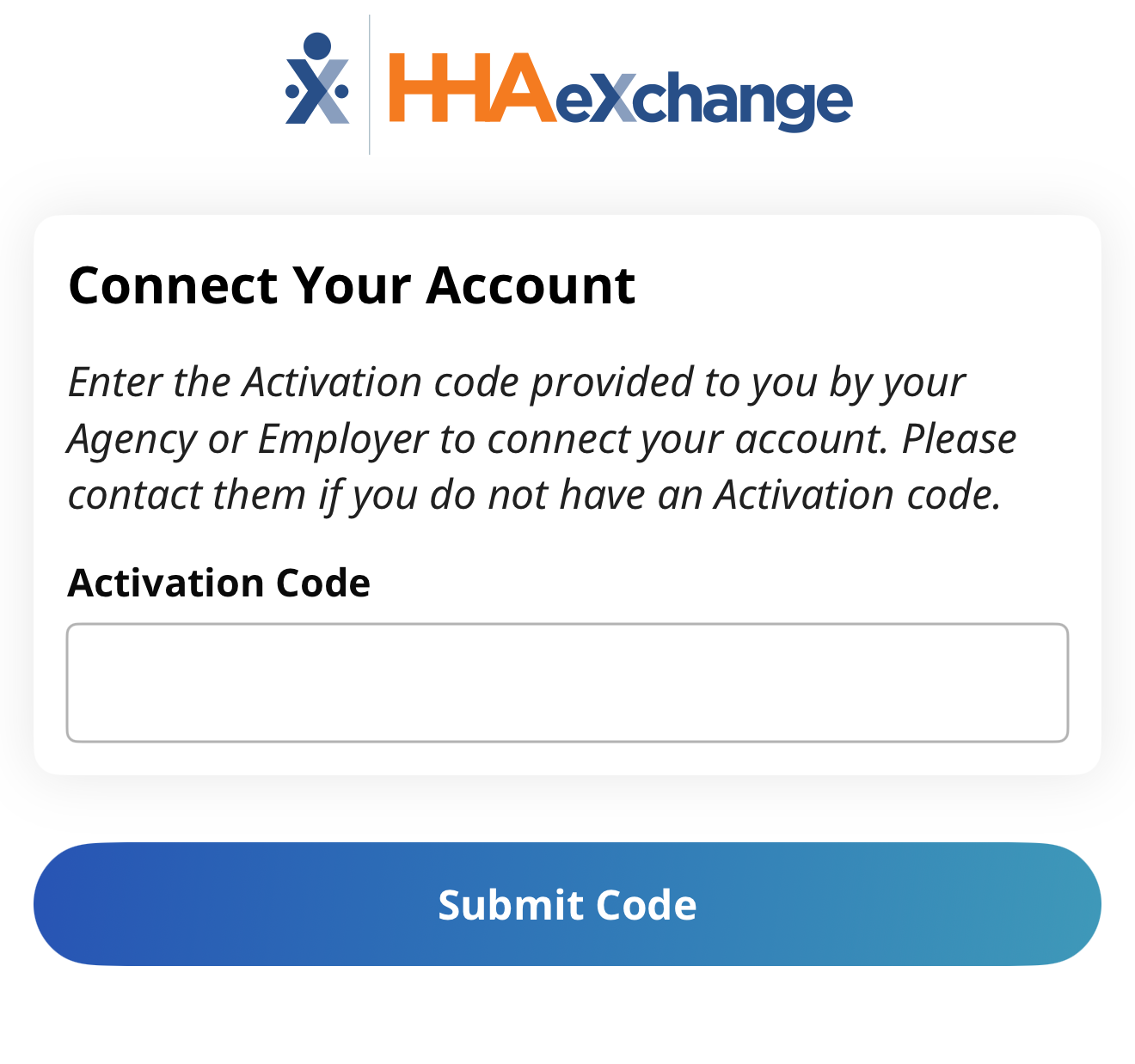
Enter your activation code from the Activation Code email. Tap Submit Code.
-
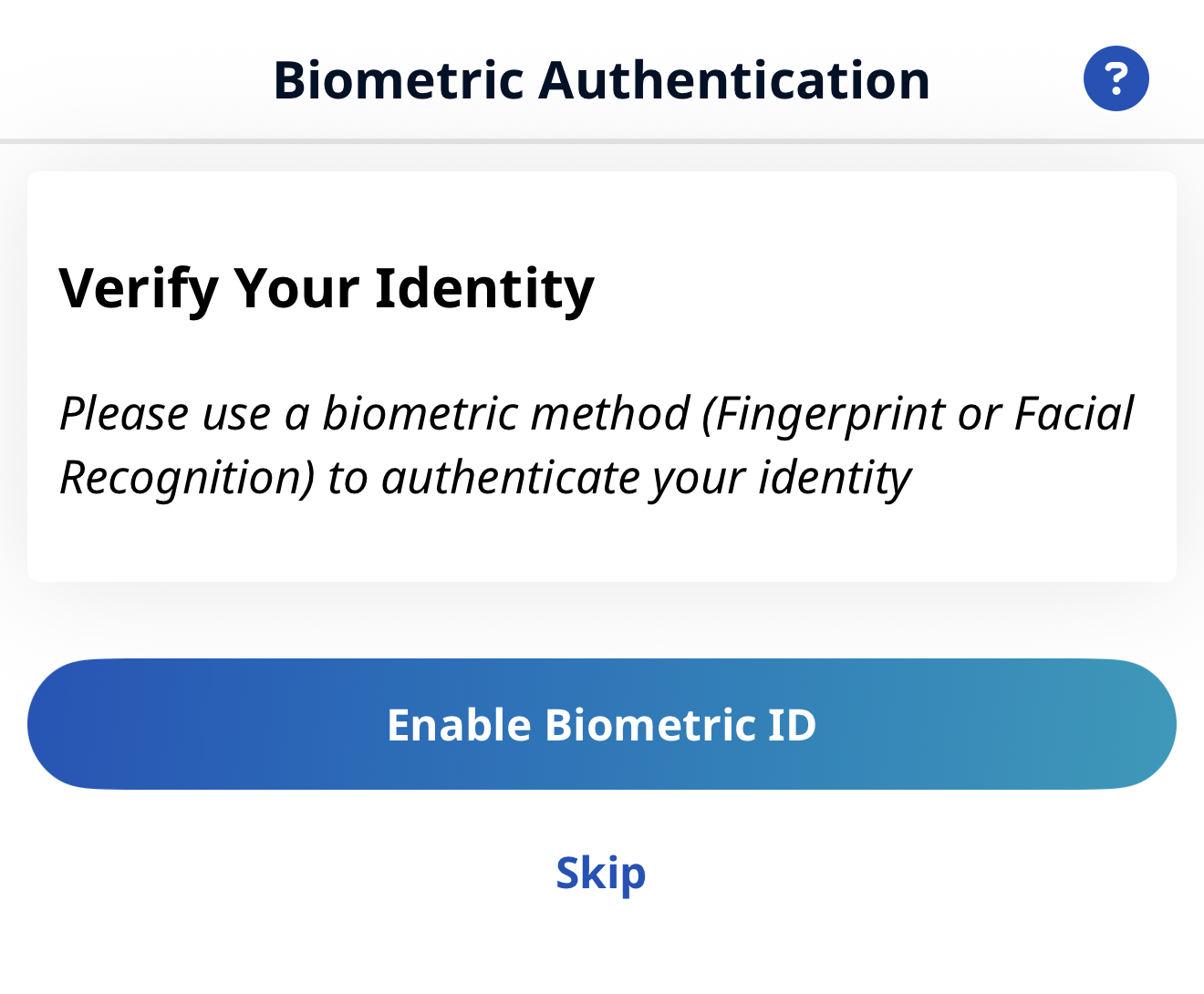
You can enable Biometric Authentication to log in with Face ID or a fingerprint. Tap Enable Biometric IDor Skip, if prompted Tap Allow. You will see a confirmation screen. Tap Continue.
Biometric Login is for single-user devices only. If you use a shared device for clock in/out, you will not be able to use biometric login.
This is not a required step; biometric login can be turned on/off from the app menu later.
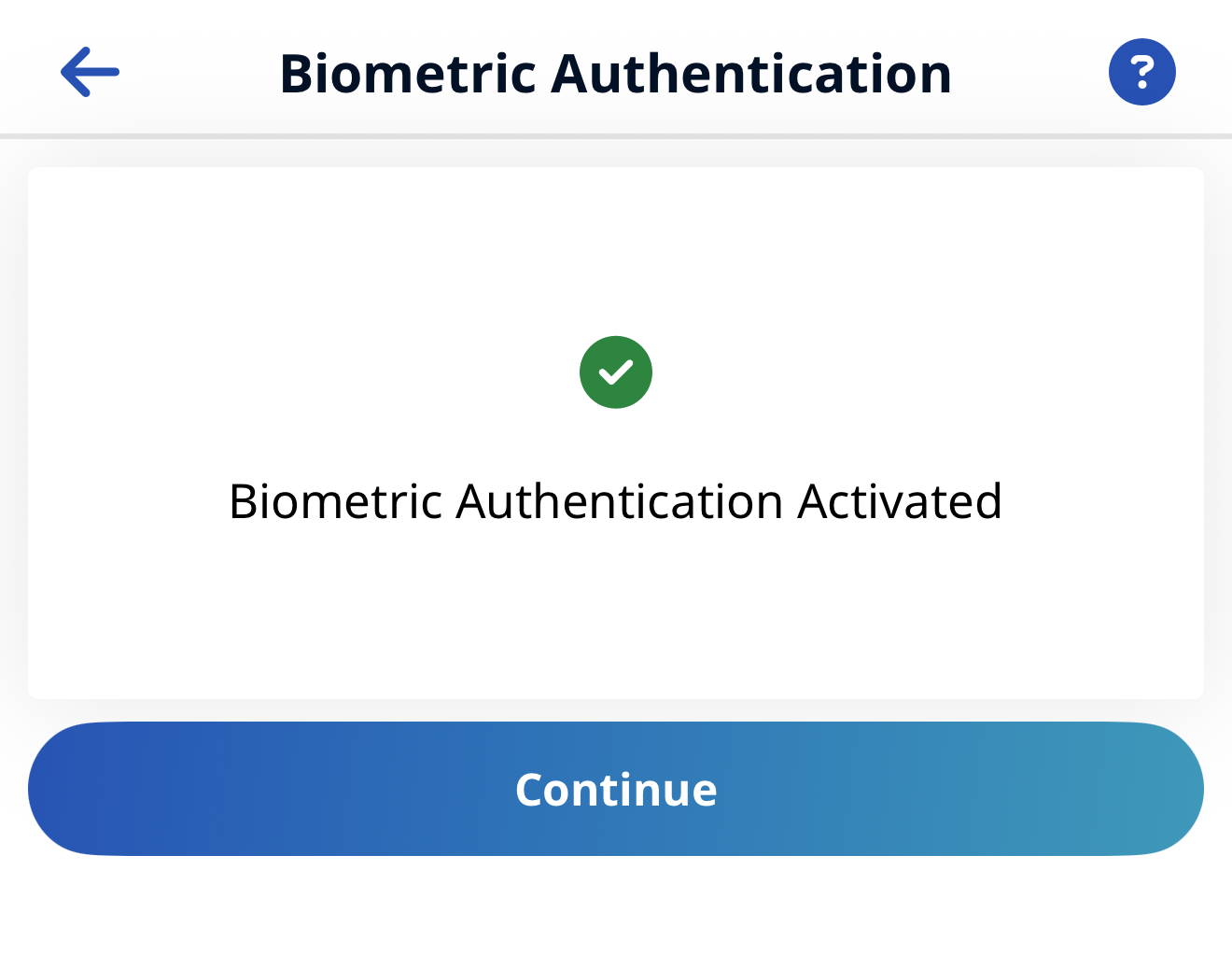
If you chose to add a fingerprint or FaceID for log in, you will see a confirmation message. Tap Continue.
-
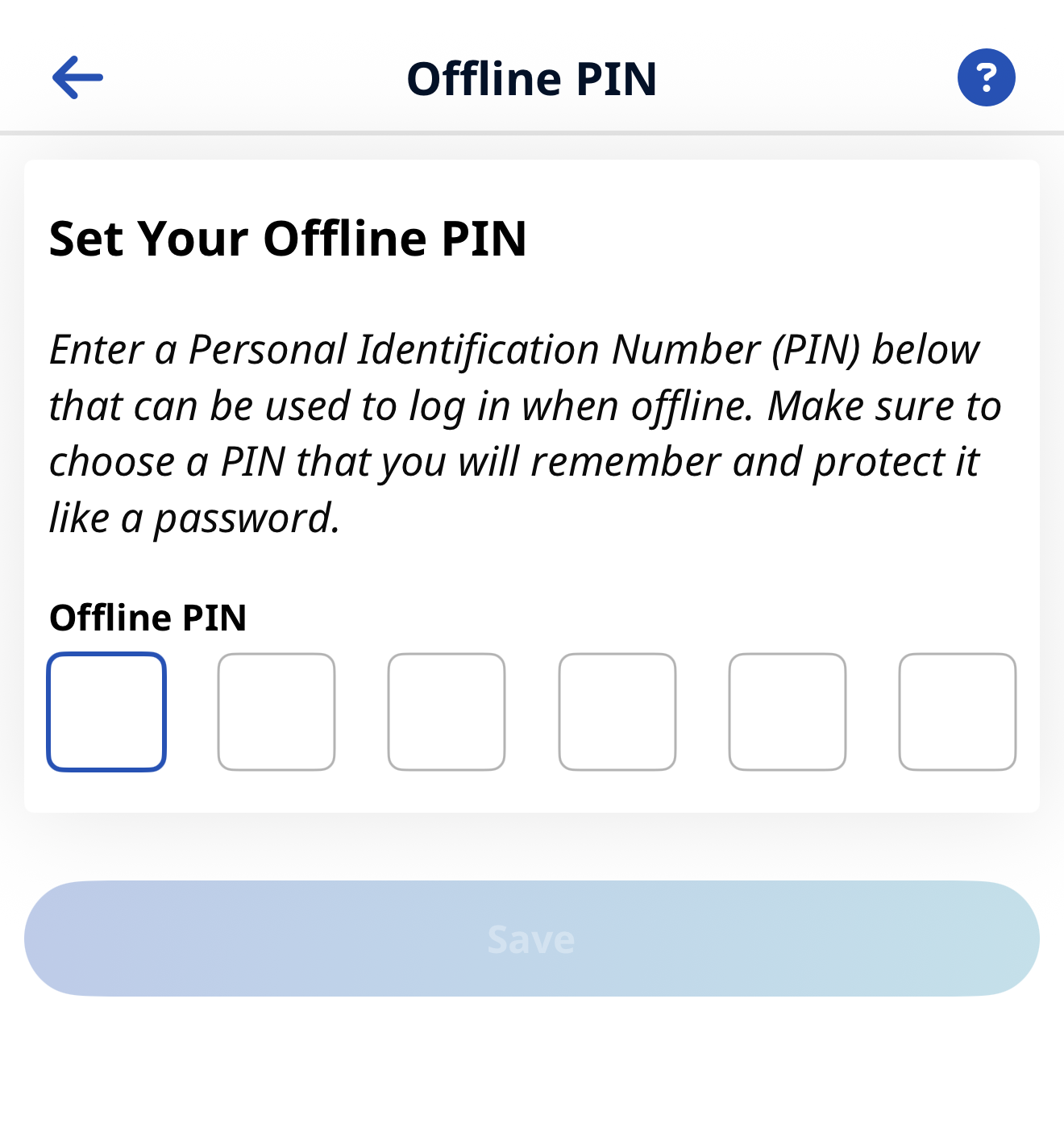
Set your offline PIN by entering a six-digit number on this screen. Offline PINs are used to access the app and record visits even if you have no wifi or cellular connection. After entering a PIN, tap Save.
-
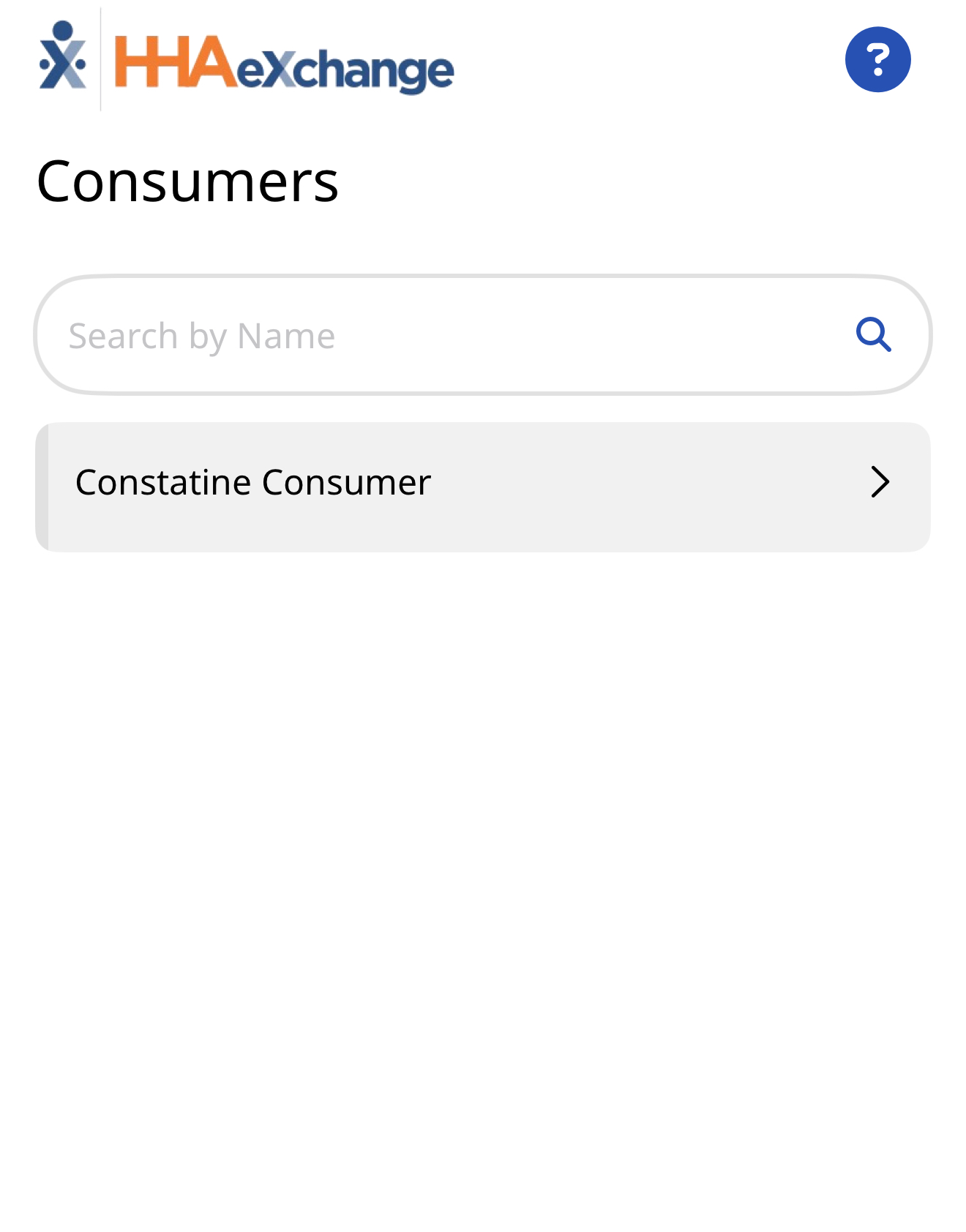
The app opens to the Consumers screen and displays all Consumers currently connected to you.
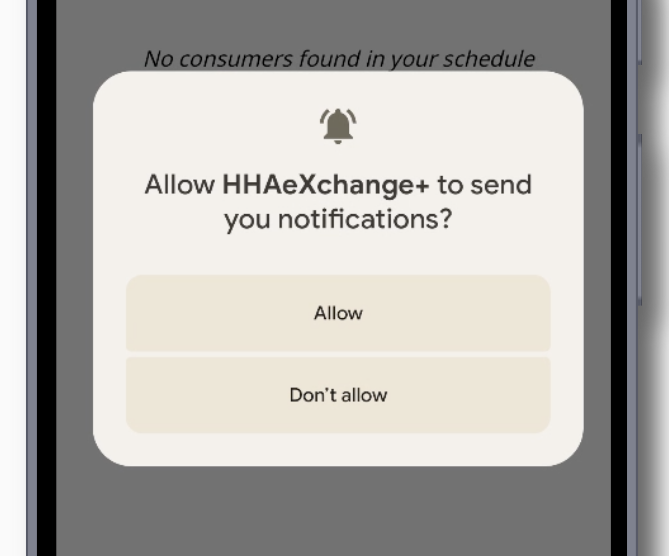
Android device users will be asked to Allow Notifications before going to the Consumers screen. Tap Allow when prompted.
From the Log In page, you can perform the following tasks:
-
Log In to the Mobile App.
-
Change the Mobile App User Password with the Forgot Password function.
-
Change the language in which the Mobile App and Mobile App Help are displayed by tapping the Select Language icon.
From the Log In page footer, you can access the Mobile App's Privacy Policy and Terms of Use.
On the Log In Page, type your valid Email Address and Password, and then tap Log In.
Tap Not you? in Email to enter a different Email Address. To see the characters entered in Password, tap the eye icon in the Password field.
You are logged in, and the Consumers page is displayed.