CareIntegrity (Conflict Management)
CareIntegrity helps providers identify visit records that may need investigation, including overlapping caregiver visits and visits with too little time to travel between locations. These potential conflicts can occur when caregivers work across multiple agencies.
Use CareIntegrity to:
-
Identify potential scheduling and visit-record issues.
-
Review visit details and determine whether records need correction or further investigation.
-
Communicate with other providers, document findings, and track follow-up.
A conflict indicates a potential inconsistency that needs review; it does not establish that an error or fraud occurred. Regular review helps providers identify inaccurate records earlier and maintain documentation of their investigation.
To access the feature, sign in to the HHAeXchange Provider Portal and go to Action > CareIntegrity (Conflict Management). Contact your agency administrator if you need access.


| Term | Definition |
|---|---|
| Conflict | A set of visits that overlap, either partially or entirely. |
| Conflict Type |
Refers to the nature of the conflict. Click the Information icon (i) next to the Conflict Type header in the dashboard and pages where Conflict Types are displayed to see the definition:
|
| Conflict Status |
Current status of the conflict, which matches the status in the provider portal:
|
| Unresolved Impact | Estimated monetary value of conflicts that are not yet resolved. It consists of a Shift calculation which takes into account the billable value of the entire duration of the visit and an Overlap calculation which only estimates the financial impact based on the amount of time the two visits overlap. |
| Restricted | This legend displays when the patient is associated with a different payer. In this case, Restricted is shown instead of PHI/PII. |
The Dashboard tab under Action > CareIntegrity (Conflict Management) summarizes conflicts by type, agency, caregiver, patient, and payer. Use these summaries to identify patterns and decide where to focus your review.
The CareIntegrity Overview section at the top of the Dashboard tab summarizes today's conflicts and unresolved and resolved/no-resolution visit values for the reporting periods shown. Review the labels on each metric to identify its period and calculation.
Shift refers to the billable value of the entire visit. Overlap refers to the estimated value of the overlapping portion of the visits.
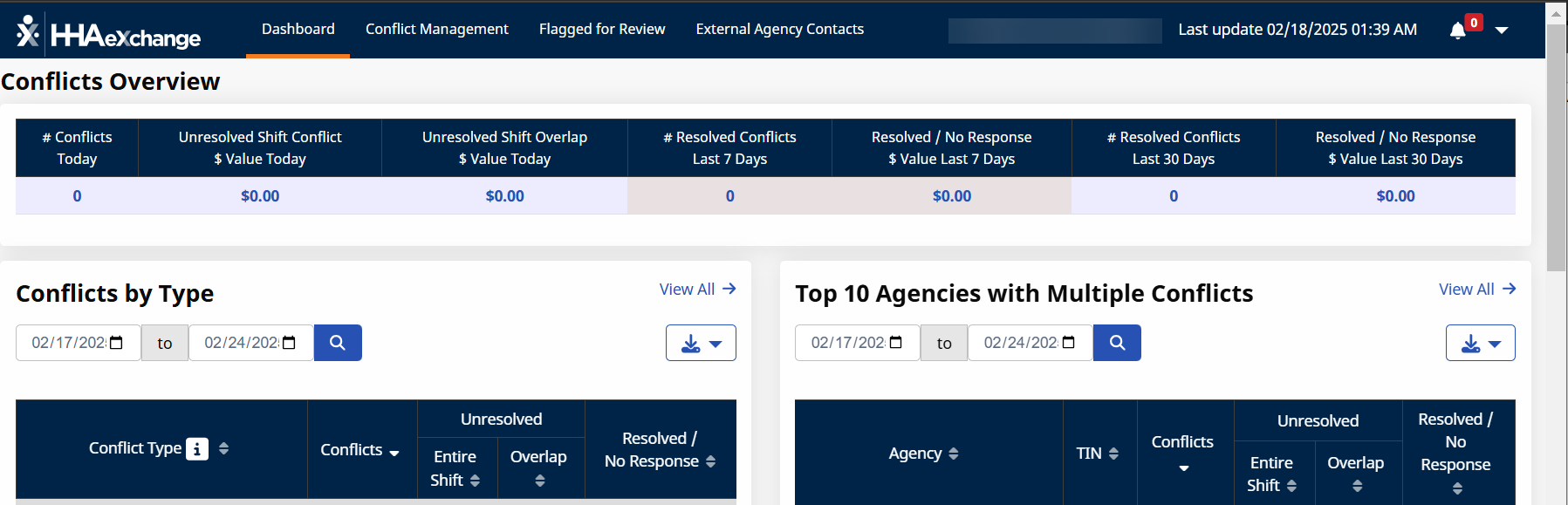
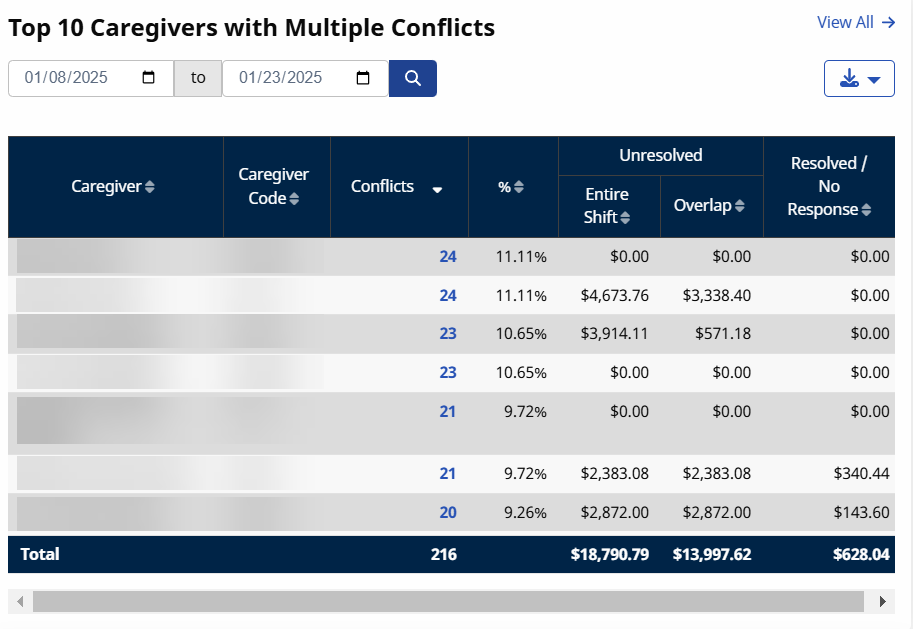
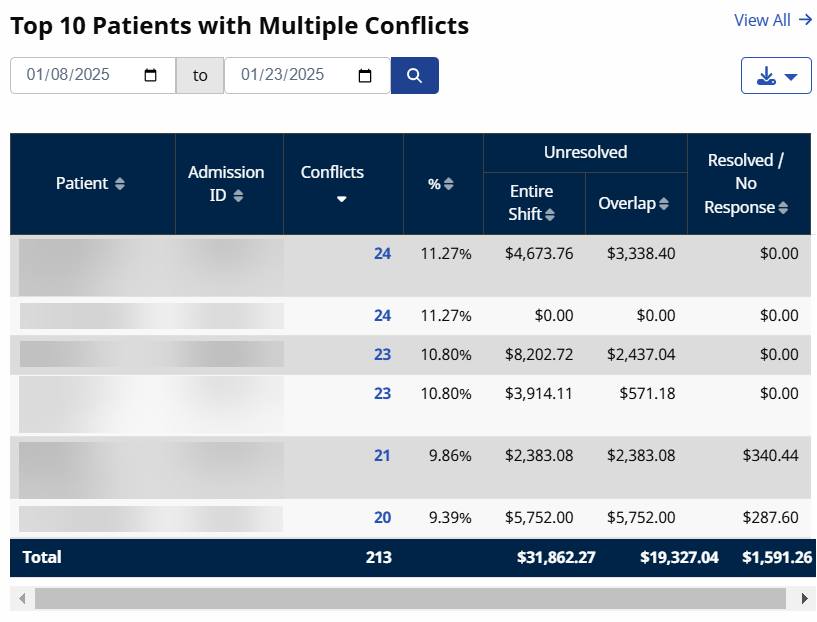
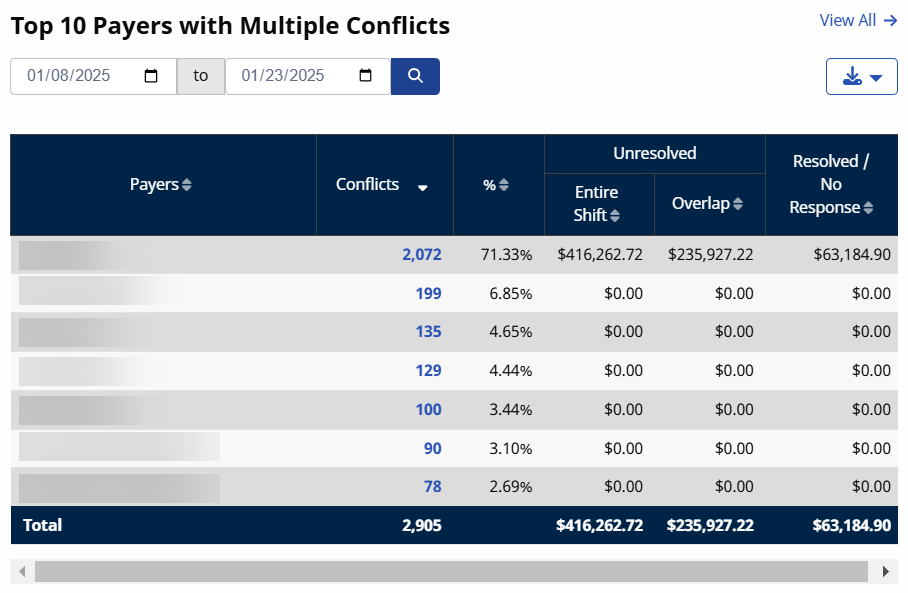
To change the date range for a dashboard, enter a date range and select the Search icon. Use the Export  button to export dashboard data. Select a blue conflict count to open the associated conflict records in the Conflict Management tab.
| Dashboard |
Type |
|---|---|
| Conflicts by Type |
Shows the number of conflicts by category.
Use to identify the number and monetary impact of the conflicts depending on their nature. Click the Information
|
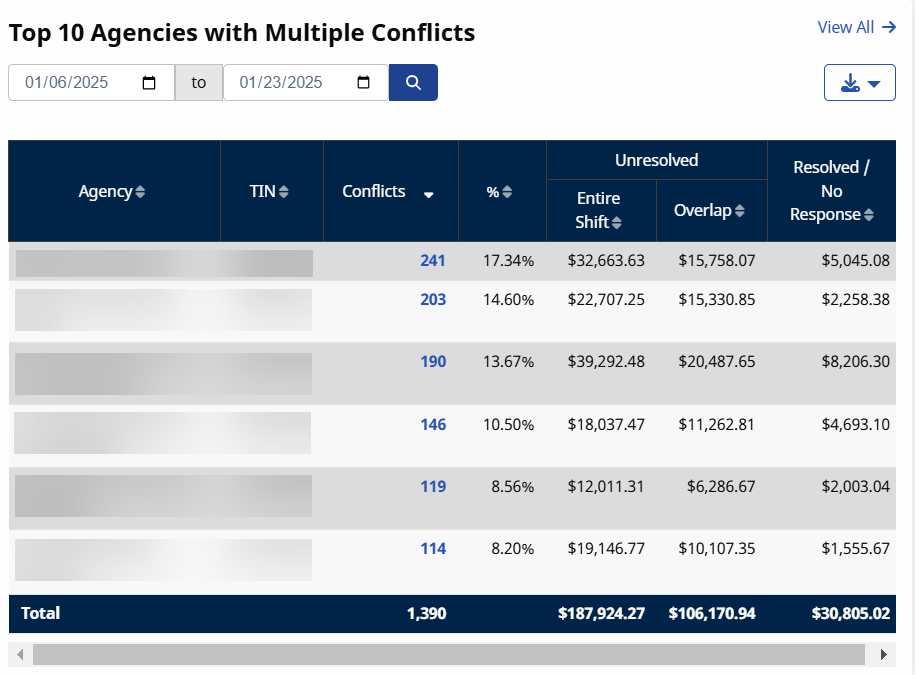
| Top 10 Agencies with Multiple Conflicts |
Lists providers with whom the most conflicts occur.
|
| Top 10 Caregivers with Multiple Conflicts |
Identifies the caregivers associated with the greatest number of conflicts.
|
| Top 10 Patients with Multiple Conflicts |
Identifies the patients associated with the greatest number of conflicts.
|
| Top 10 Payers with Multiple Conflicts |
Identifies the payers associated with the greatest number of conflicts.
|
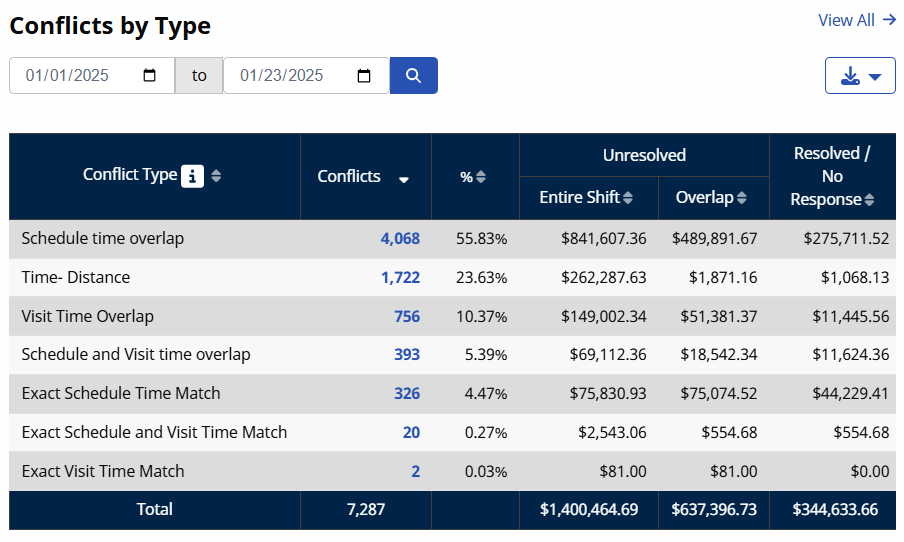
 icon within the Conflict Types header to display the definition of the conflict types listed.
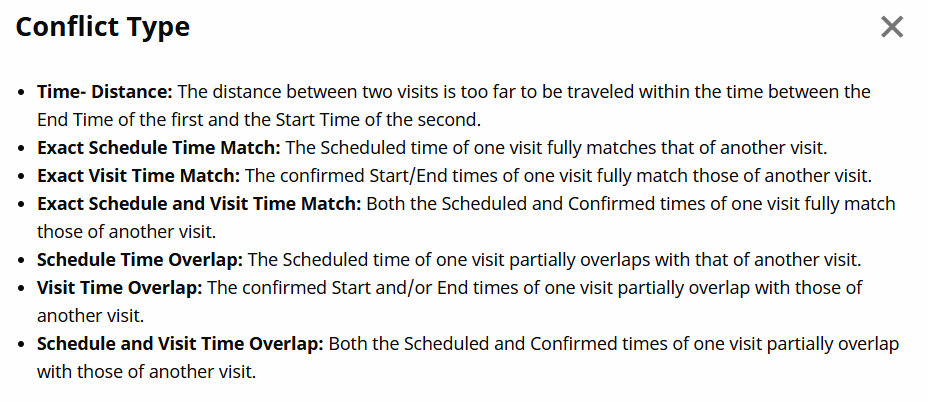
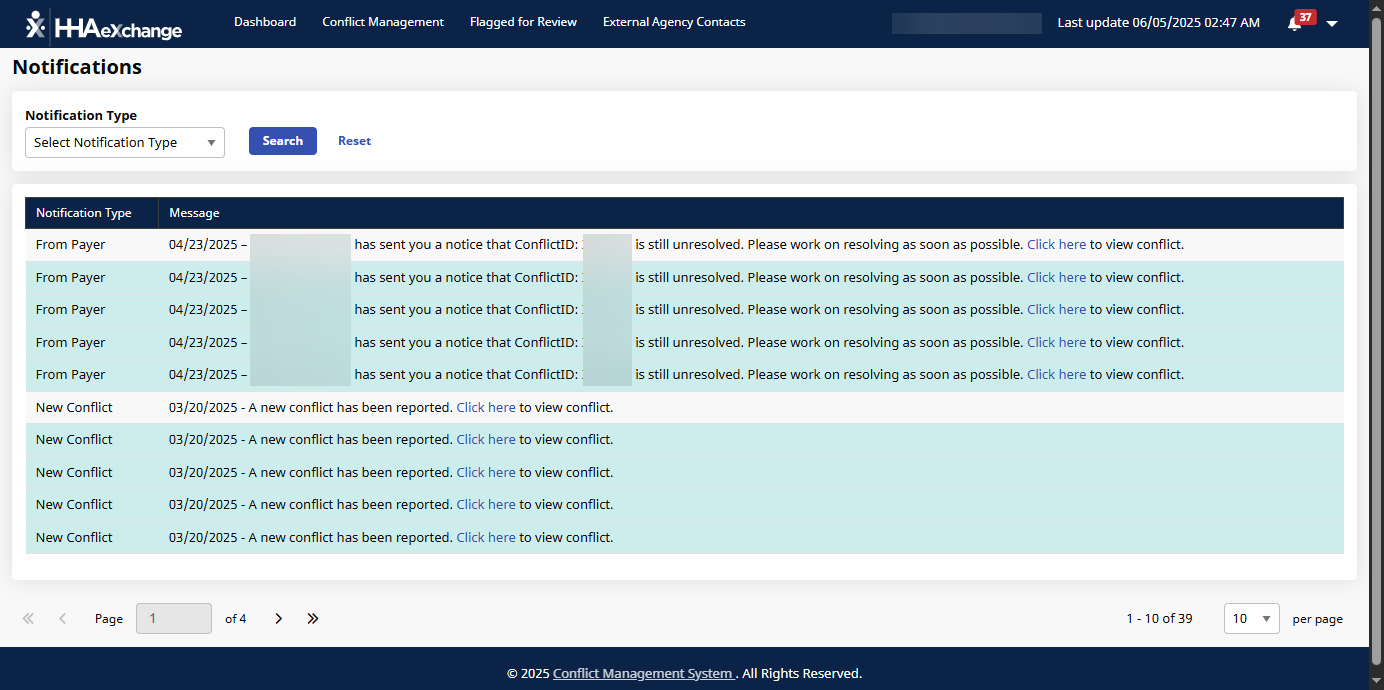
The Notifications feature under the Bell icon displays CareIntegrity notifications.
-
You can search notifications by the Notification Type.
Notification Type Definition
New Conflict New Conflicts. No Response Notifications without a response. Resolved Resolved notifications. From Payer Automatic Reminders from the Payer. Communication From Provider Messages manually sent from the Provider. Communication From Payer Messages manually sent from the Payer. -
Select the Click here link to view the conflict.