Prebilling Hold: Schedule Visit Start Date Mismatch
The Schedule Visit Start Date Mismatch prebilling hold applies to any visit where the schedule date does not match the start date of the visit. This typically happens in overnight visits that begin on one day and end on the next. This hold can be prevented by ensuring that the visit does not cross over midnight.
For example, suppose a visit is scheduled from midnight to 8 AM, and the Caregiver clocks in at 11:55 PM; technically, the day before the scheduled visit. In this case, the system holds the visit in Prebilling with the Schedule Visit Start Date Mismatch hold.
This hold can be resolved by applying any of the options described below.

Complete the following steps to manually update the visit to remove the Schedule Visit Start Date Mismatch prebilling hold.
-
Go to Billing > Prebilling Review.
-
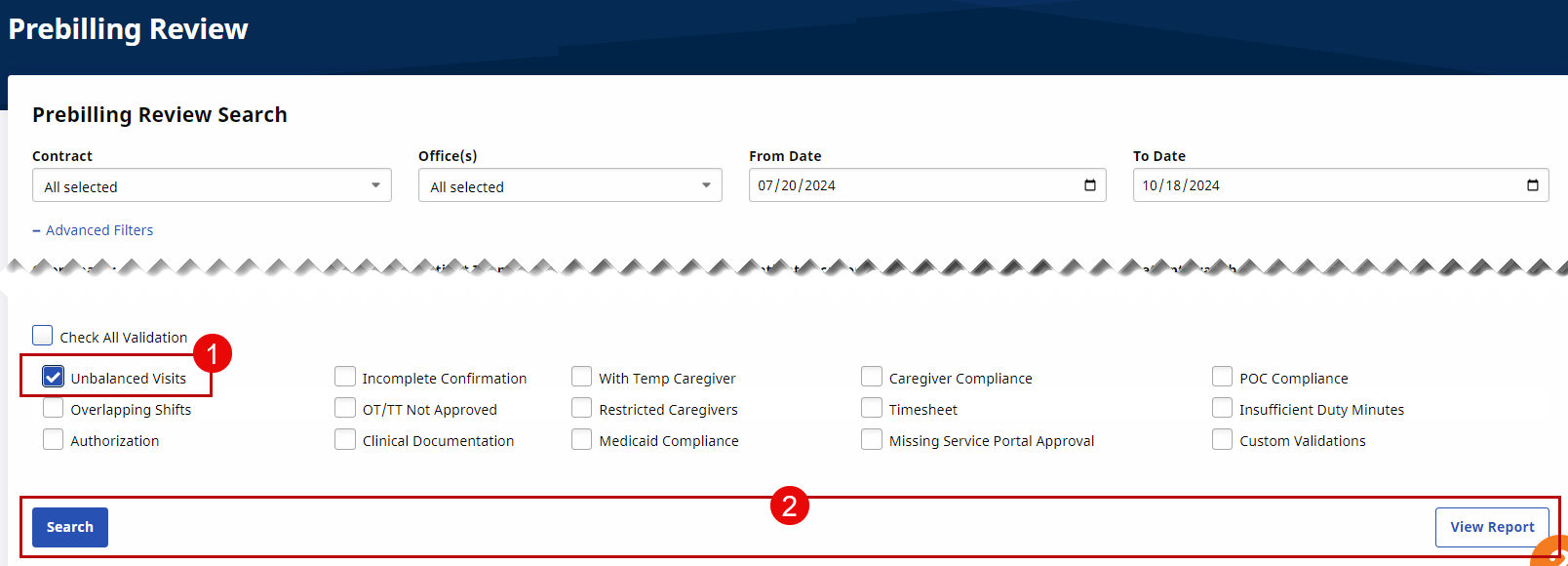
Select Unbalanced Visit from the Check Validations section of the Advanced Filters. Click Search to generate inline results or click View Report to download an excel spreadsheet with the results.
-
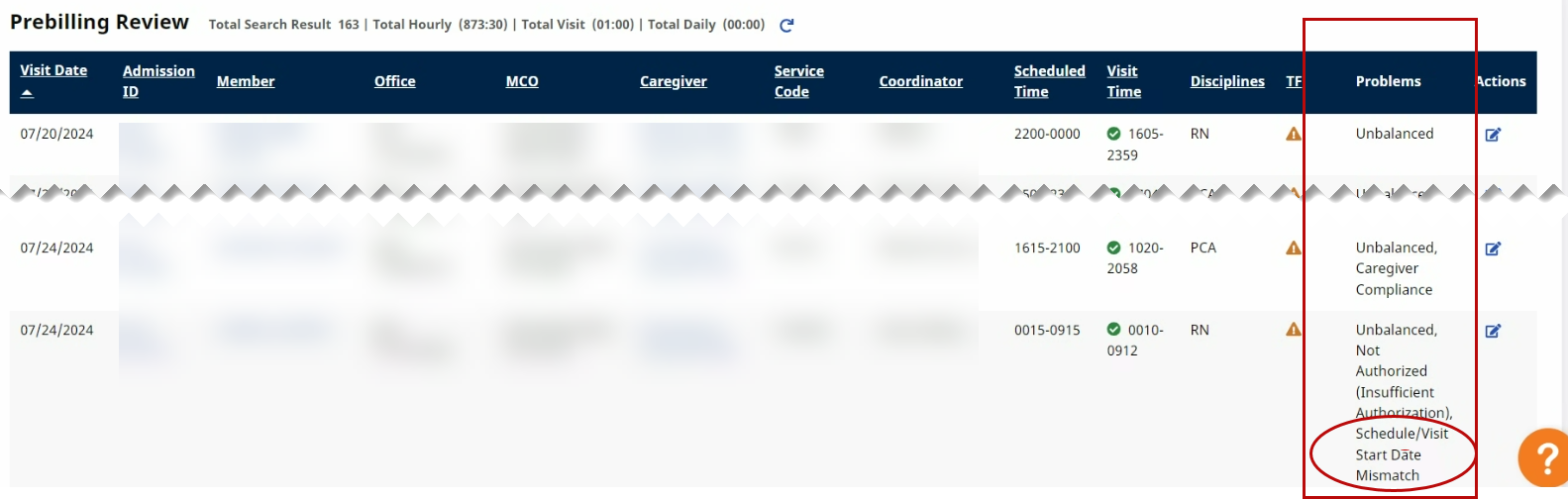
Identify the visit(s) with the Schedule/Visit Start Date Mismatch prebilling issue under the Problem column, when viewing from the search results. If viewing the report from a download, then filter by the Problem column in the spreadsheet.
-
On the system, from the search results, click the Edit icon under the Actions column for the applicable visit row to route to the Visit Info tab.
-
On the Visit Info tab, adjust the visit date and time to match with the scheduled visit. Click Save to update.
-
Once saved, this particular hold is removed from Prebilling Review.
The visit can still remain in prebilling if other holds are applied.
To avoid manual updates in the future, there are two options an agency has to reduce the risk of visits crossing over midnight.
Use the Automatic Split Shift feature where the EVV system supports overnight shifts that do not require Caregivers to Clock In and Clock Out multiple times per shift.
Refer to the Automatic Splitting of Overnight Shifts topic for details and instructions.
Use the Mobile App Consecutive Shifts feature. Click What is the consecutive shifts feature? FAQ topic to learn more about this feature. More details are also available on the Mobile Consecutive Shifts topic, showing how it displays on the Mobile App.
Mobile App features are enabled in Office Setup, in the Mobile App section. Refer to the Mobile Section in the Admin Office Setup topic for description and instructions to enable the feature.