Caregiver Compliance: General Requirements Tab
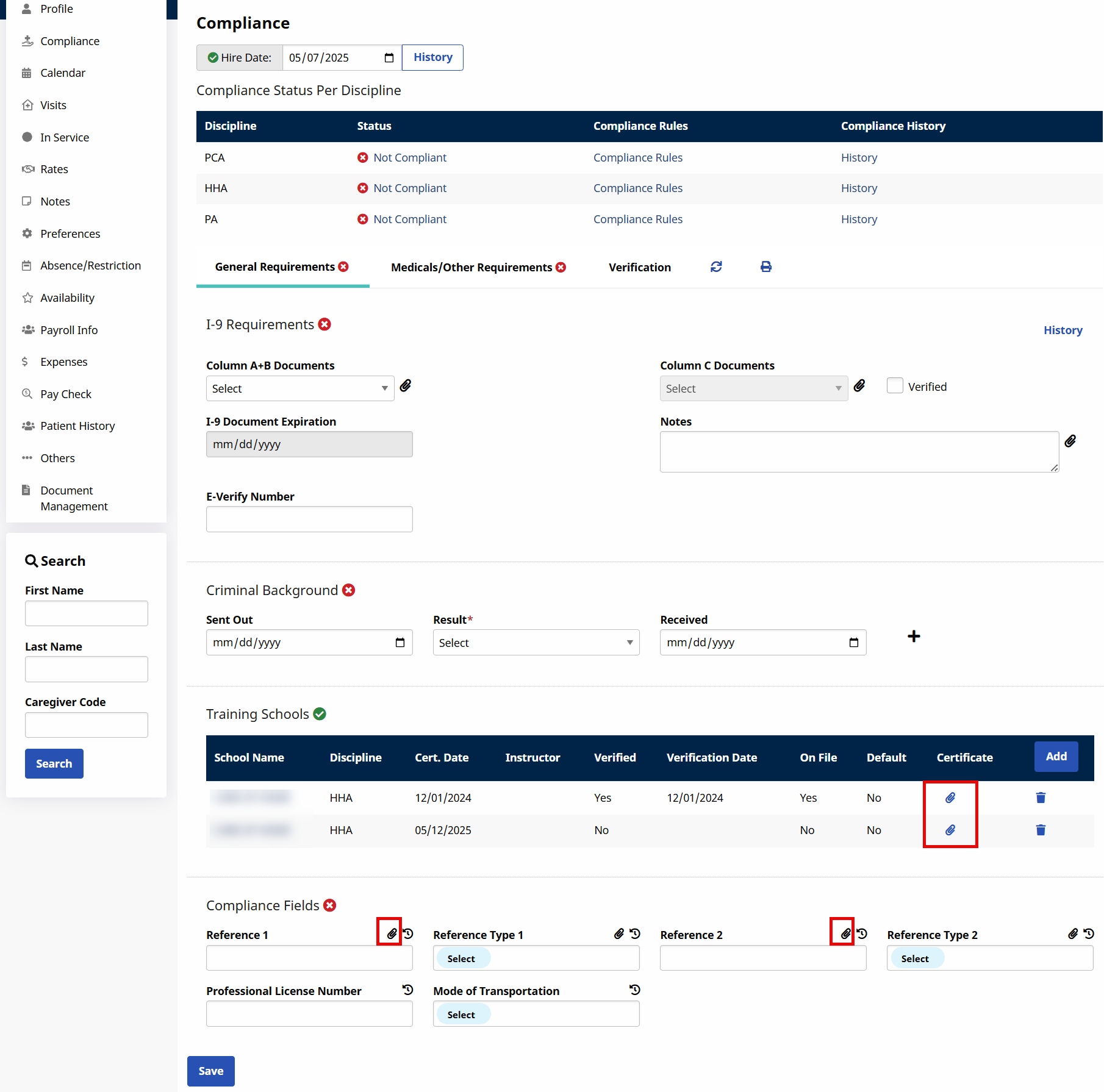
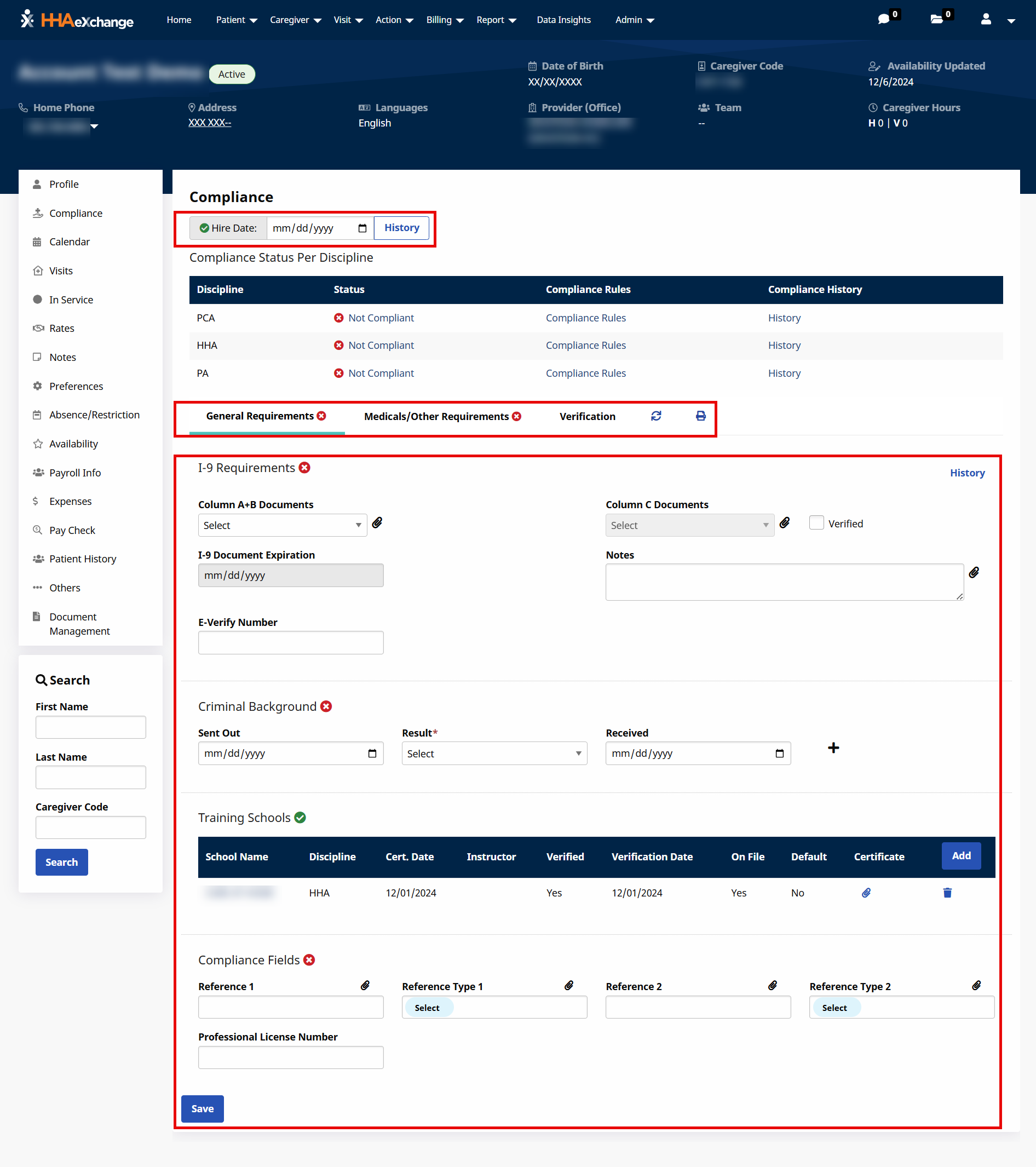
On the General Requirements tab, under Caregiver > Search Caregiver > Compliance, there are six sections including Hire Date, Discipline/Status, I-9 Requirements, Criminal Background, Training Schools, and Compliance Fields. The Hire Date and Discipline Status sections are standard on the page; however, the other sections must be set to Show in Compliance Setup details to be displayed on the page. The following covers each of these sections.

A Caregiver's Compliance page, under Caregiver > Search Caregiver > Compliance, can be manually refreshed to see whether compliance requirements have been met for a specific section. Click the Refresh icon to refresh all tabs on the Caregiver's Compliance page.
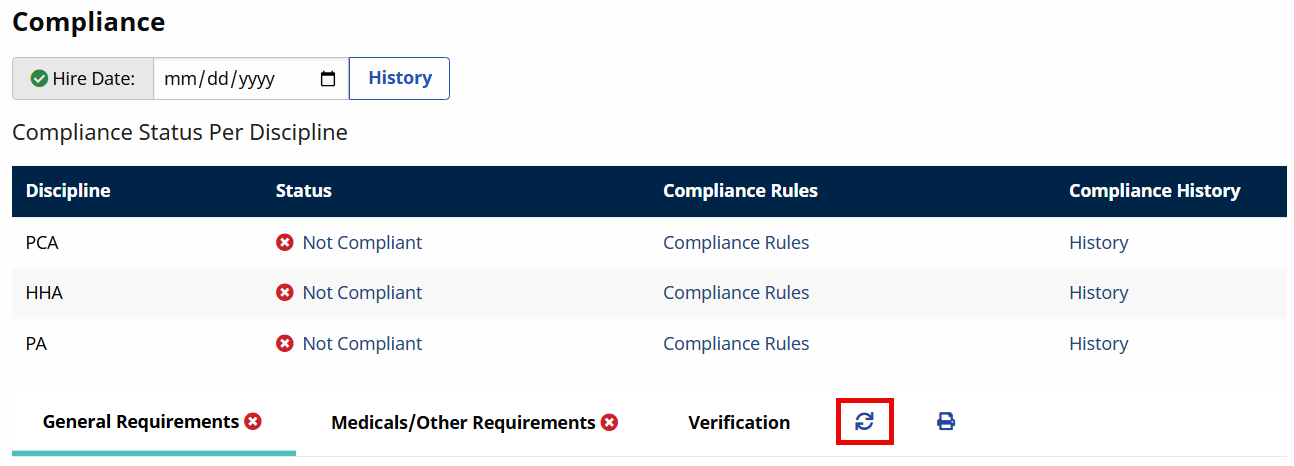
The Refresh button refreshes the page once the recalculation process is complete. In most cases, this process completes within seconds; however, recalculation may take several minutes depending on the pending tasks on the Process Monitor.
A static Hire Date field, under Caregiver > Search Caregiver > Compliance, is displayed (a default compliance requirement for all Caregivers). The Hire Date field is a required field for all Caregiver Compliance and can only be edited on the General Requirements tab.
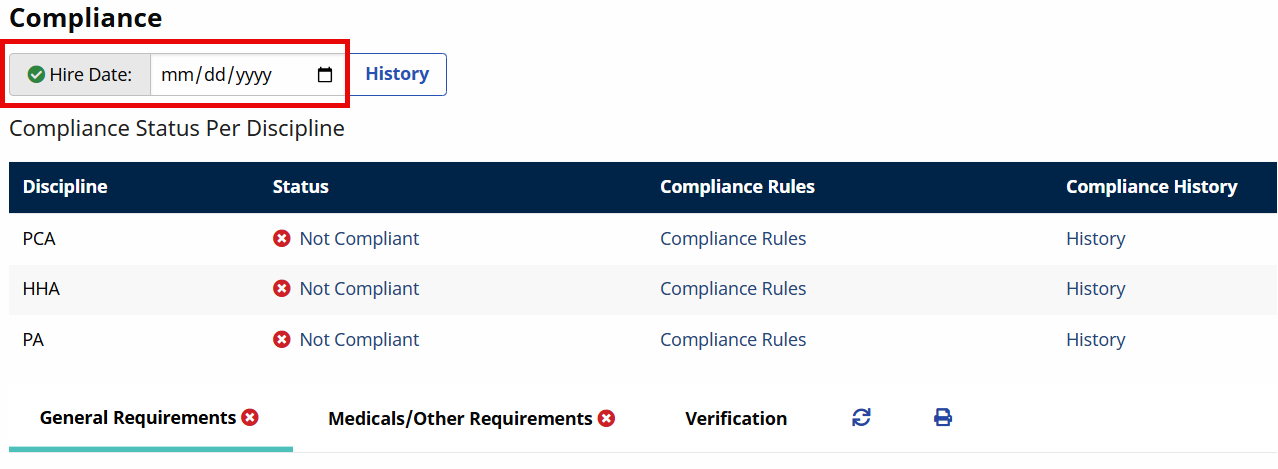
Refer to the Hire Date as Required Field for Caregiver Applicant/Employee Compliance section featuring Applicant Type Caregivers.
Medical and OtherCompliance items generated via the Hire Date only consider the initial value entered in this field. If the Hire Date is edited, HHAeXchange alerts the user that the Caregiver’s Compliance Requirements have already been calculated based on the initial Hire Date. Saving a new Hire Date does not change the Caregiver’s Compliance Requirements. Changes to existing Medical and Other Compliance items must be managed manually.
Scheduling logic is based on the Caregiver Hire Date Validation at Time of Schedule checkbox on the Agency Profile page. See the Caregiver Scheduling and Availability section for more information.
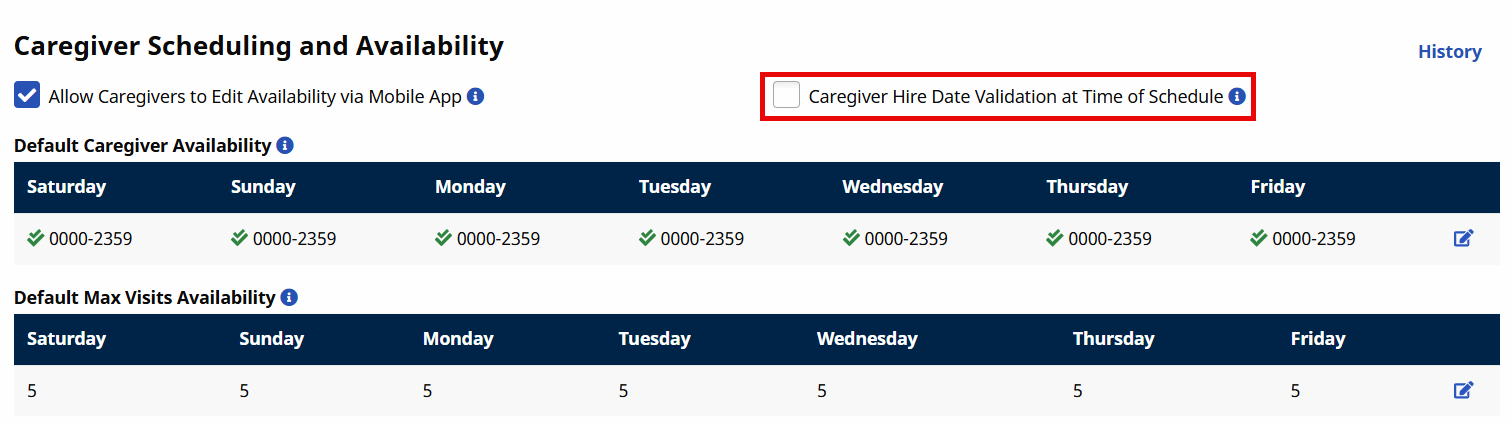
If a Caregiver’s Hire Date is edited, HHAeXchange validates whether the new date conflicts with any Scheduled, Confirmed, or Billed Visits, as follows:
-
If the edited Hire Date conflicts with Billed Visits, then HHAeXchange issues an error message and does not allow the value to be changed.
-
If the edited Hire Date conflicts with Scheduled/Confirmed Visits, HHAeXchange issues an alert warning the user that saving the entered date removes the Caregiver from these Visits. Select Yes to save the new Hire Date or No to remove the edited value and reinstate the existing Hire Date.
In the Discipline Status and Compliance Rules section, under Caregiver > Search Caregiver > Compliance, the Caregiver’s Disciplines are listed, each one with a unique compliance status.
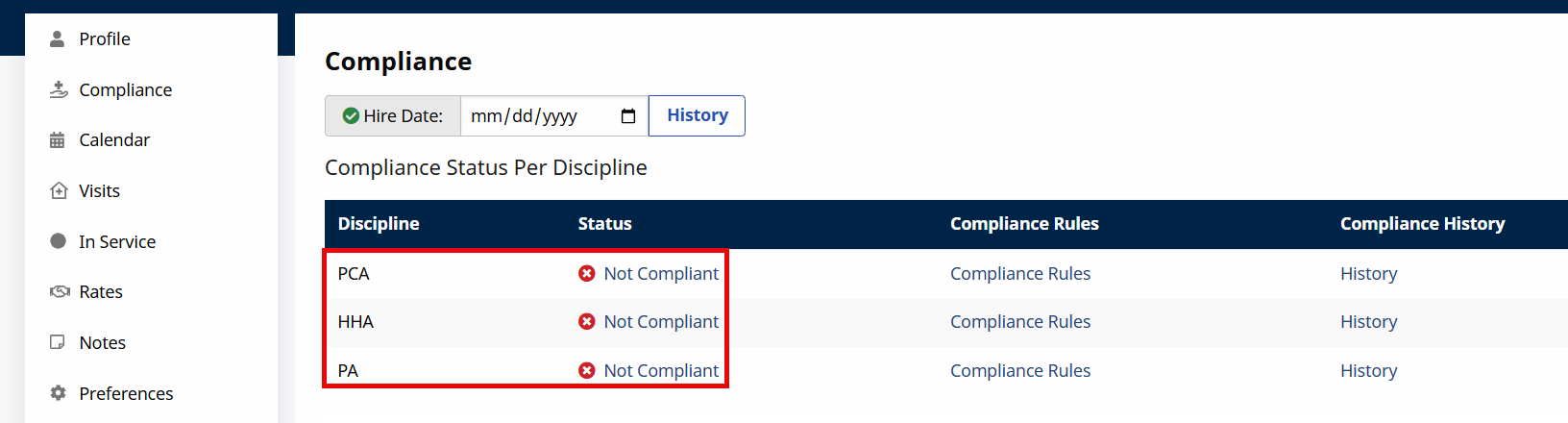
Under Caregiver > Search Caregiver > Compliance, under the Status column, click the Compliant (with a Green check) or Not Compliant links (with a red X icon) to view a Caregiver’s current Compliance Status by Discipline. A Caregiver is displayed as Non-Compliant if at least one rule is not compliant for the selected Discipline.
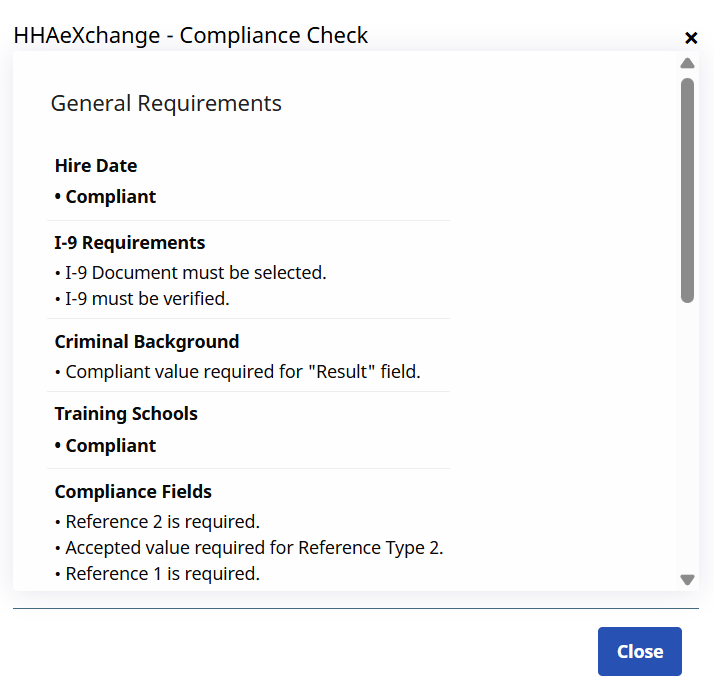
Click the Compliance Status link to view the rules and requirements for the Discipline. The Compliance Check window opens displaying the Caregiver’s Compliance Status as noted in the following table.
|
Section |
Subsections |
|---|---|
|
General Requirements |
Hire Date, I-9 Requirements, Criminal Background, Training Schools, Compliance Fields. |
|
Medicals |
Active Medicals in the Compliance Setup |
|
Other Compliance |
Each additional Active compliance item (Other Compliance) in the Compliance Setup. |
| In-Service | Lists whether the Caregiver is compliant or non-compliant |
If a Caregiver is compliant, a green Compliant label is displayed in the In-Service subsection. If not Compliant, then the Compliance Rule is displayed in bullet form, listing what is yet to be fulfilled such as I-9 must be verified.
The In-Service Compliance Window in Admin allows you to choose the preferred compliance tracking method for your agency.
| Option | Best For | What it Means | Example Scenario | Result |
|---|---|---|---|---|
| 2 Years (730 days) | Agencies using rolling compliance | Tracks last 730 days continuously |
|
|
| Calendar Year | Agencies with annual requirements | Resets Jan 1 each year |
|
|
Subsections not set to show in the Compliance Setup do not appear in the Compliance Check window. Subsections set to show but are not required in the Compliance Setup read as follows: Compliance not required for [section].
The Training Schools subsection simply states whether the Caregiver is compliant or not (with no additional requirements listed).
Required Medicals which have been manually entered with no Generate Upon conditions state: [Medical] must be completed with Accepted Selection prior to due date.
Required Medicals, whether automatically or manually entered (if past due date with no entry), state [Medical] is overdue. In these cases, (if saved without an Accepted Selection), the Compliance Check states: Selected [Medical] result is not an Accepted Selection.
Under Caregiver > Search Caregiver > Compliance, click the Compliance Rules link under the Compliance Rules column to view a Caregiver’s current Compliance Rules by Discipline.
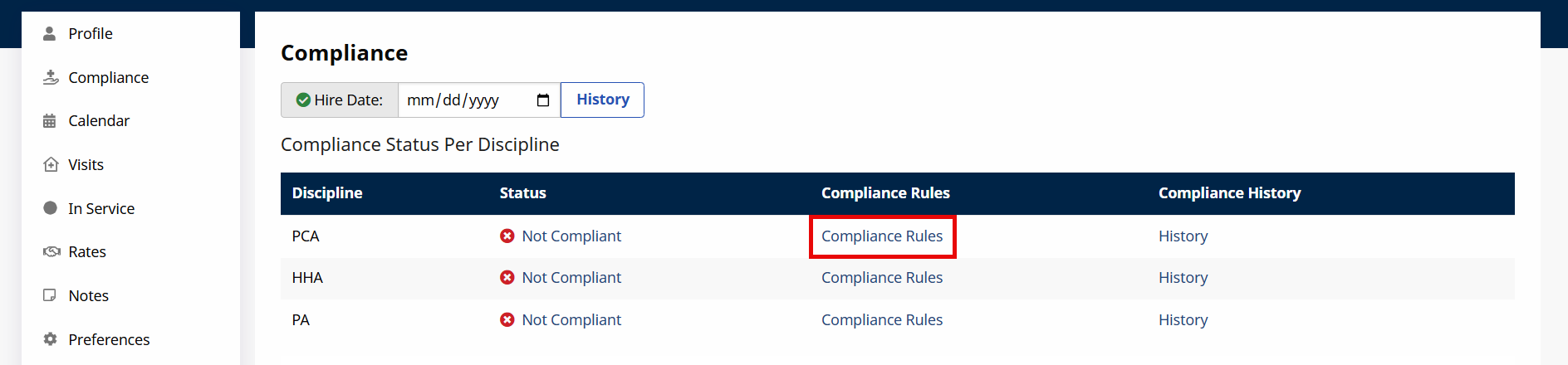
The Compliance Rules window opens displaying the Caregiver’s Compliance Rules in four main sections and corresponding subsections as noted in the following table. This window displays only the rules set to Show at the Compliance Setup level.
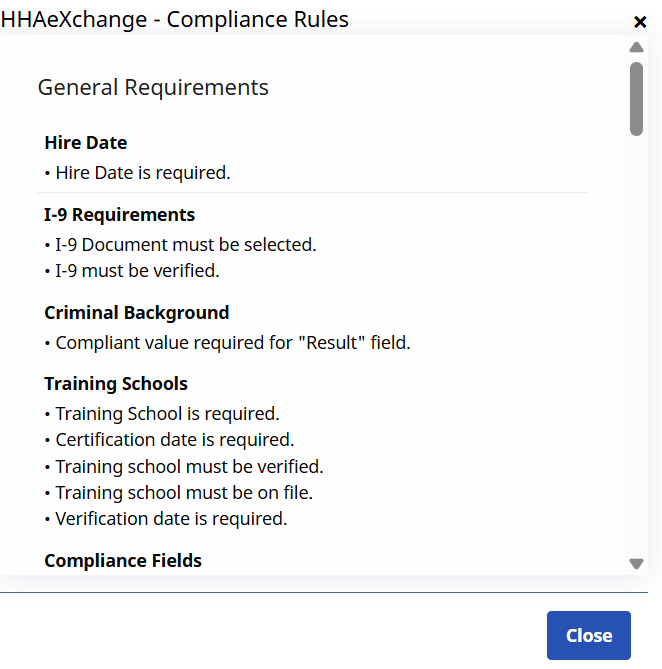
If a section is set to Show but not Required for a given Compliance Setup, then the rule displays the section in the Compliance Rules with the message stating: Compliance not required for [section].
|
Section |
Subsections |
|---|---|
|
General Requirements |
Hire Date, I-9 Requirements, Criminal Background, Training Schools, Compliance Fields. |
|
Medicals |
Active Medicals in the Compliance Setup |
|
Other Compliance |
Each additional Active compliance item (Other Compliance) in the Compliance Setup. |
|
In-Service |
Indicates whether In-Service is required or not. |
Under Caregiver > Search Caregiver > Compliance, use the Compliance History column to view and update a Caregiver’s Compliance Status for a specific Discipline. Click the History link to open the Compliance History for the corresponding Discipline.
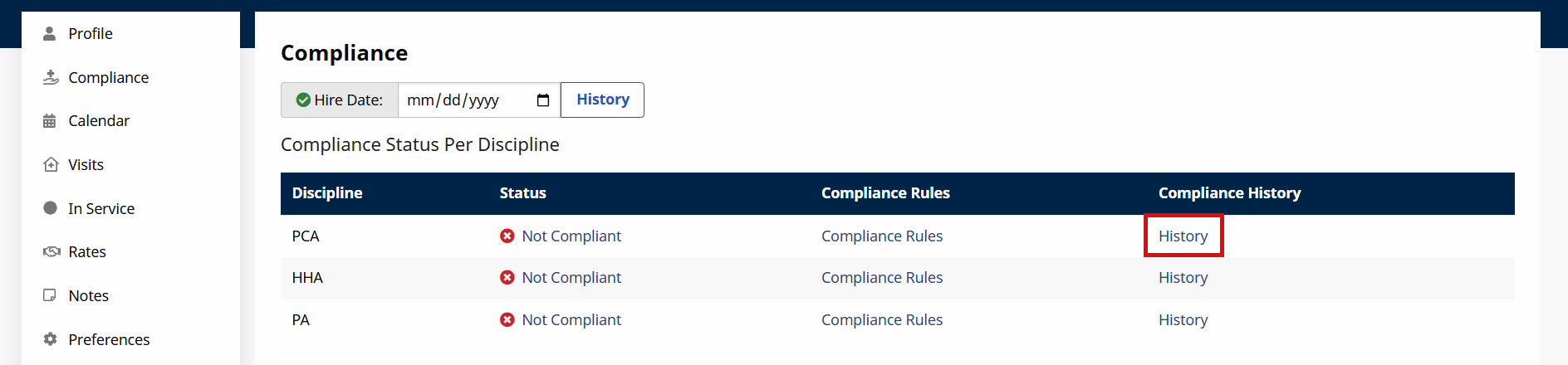
On the Compliance History window, the Date, Status, and Issues columns are displayed. This window provides 6 months of the Caregiver’s Compliance History for the selected Discipline; where users can edit information for the last 6 months. Click Save to save updates.
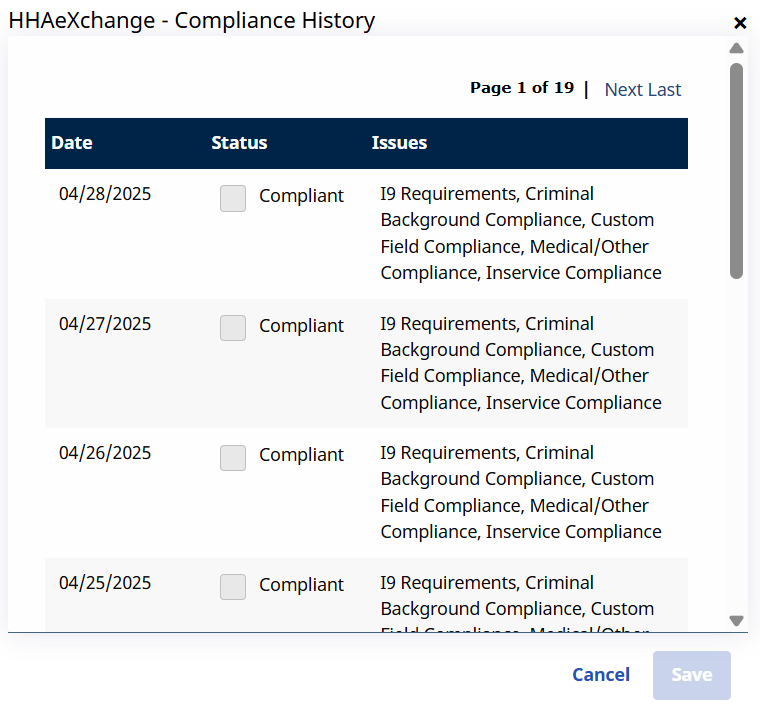
Permission to edit information on this window is role-based. Refer to Permissions section.
|
Field |
Description |
|---|---|
|
Date |
Caregiver Compliance date. |
|
Status |
Provides the status of Compliance for the line item on respective date. |
|
Issues |
Provides the reason for Non-Compliance for the line item. |
Once saved, the compliance line item indicates Edited on the Compliance History window. Based on this, Visits which fall under the specified dates are evaluated on the Prebilling Review under the Caregiver Compliance problem.
This feature is enabled by HHAeXchange by default for all Providers on the New Caregiver Compliance environment. For more information see the Permission to Edit Compliance History topic.
I-9 document values under Caregiver > Search Caregiver > Compliance are hard-coded into HHAeXchange based on federal requirements (see Column A, B, and C documents).
|
Column A |
Column B |
Column C |
|---|---|---|
|
If a Column A document is selected, users do not have to enter a Column C document for compliance. |
If a Column B document is selected, then users must enter a Column C document for compliance. |
Only required if a Column B document is selected, then users need to enter a value for the Column C Documents field to save the page. |
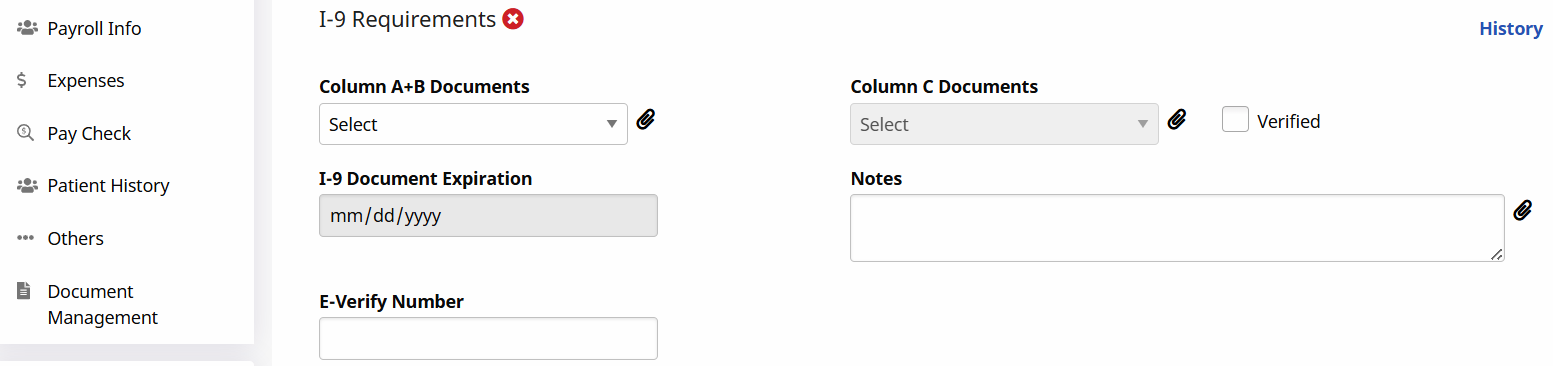
Values do not have to be entered to save data on the Caregiver's Compliance page. If a document is set to Expire, a value must be entered for the I-9 Document Expiration field on the Caregiver's Compliance page to save the selection. If a document is set to Require Re-Verification, the Caregiver is no longer compliant after the set value for the I-9 Document Expiration field has passed.
I-9 items marked as required on the Compliance Setup page are not required to save the General Requirements page; designating I-9 items as required means they are required for compliance as set at the Compliance Setup level. For more information, see the Compliance Setup topic.
-
If a selected I-9 Requirement is set to expire, then the I-9 Document Expiration field is required to save the selected value.
-
If the E-Verify Number is selected on the Compliance Setup, then it is required for compliance. Same applies to Require Verification.
Users may edit whether each document expires and/or requires reverification. Supporting documents can be loaded using the paperclip icons. Green icons indicate that a document is loaded on the section.
If a document is set to Expire, a value must be entered for the I-9 Document Expiration field on the Caregiver Compliance page to save the selection. If a document is set to Require Re-Verification, the Caregiver is no longer compliant after the set value for the I-9 Document Expiration field has passed.
In the Criminal Background section under Caregiver > Search Caregiver > Compliance, items appear on a single row for a cleaner look. To accommodate additional criminal background checks, click the plus icon to add a new row and complete the pertinent fields (Sent Out, Result, and Received).

-
If an additional row has been created in error or no longer applicable, each row contains a minus icon to remove information.
-
If values have been entered for the row, HHAeXchange displays a confirmation message asking the user to confirm removing the row.
-
The minus icon displays for unsaved rows only; if the item is saved in the database, then the delete icon does not display. If all values are removed from any row, HHAeXchange automatically deletes that row.
Next to the Result dropdown, once a selection is made, a paperclip icon becomes available for attaching documents.
If a criminal background check is set to required for a specific Caregiver Discipline, then all Caregivers under said Discipline, within the same linked office in the Compliance Setup, must follow the set rules to be and remain compliant. When an Accepted Compliant value is entered for the Result field, the Caregiver is compliant.
Values are not required for the Sent Out and Received fields. If values are entered for these fields, be sure that the Sent Out (date) value occurs before the Received (date) value; otherwise, HHAeXchange displays a validation alert for correction.
If the Training School is set as required for a specific Caregiver Discipline, under Caregiver > Search Caregiver > Compliance, then all Caregivers under the Discipline, within the same office in the Compliance Setup, must follow the set rules to be and remain compliant.
In this section, the following information is provided: School Name, Certification Date, Instructor, Verified, Verification Date, On File, Default, Certificate (attachment) and Delete function (if/as needed).

To attach a certificate, click the paperclip icon to upload as prompted. To add a Training School record for a Caregiver, click the Add button. Duplicate Training School records cannot be duplicated.
The HHAeXchange – Add Training School window opens. Complete the fields as prompted. The only required field is Training School which is selected from the Compliance Item Manager list.
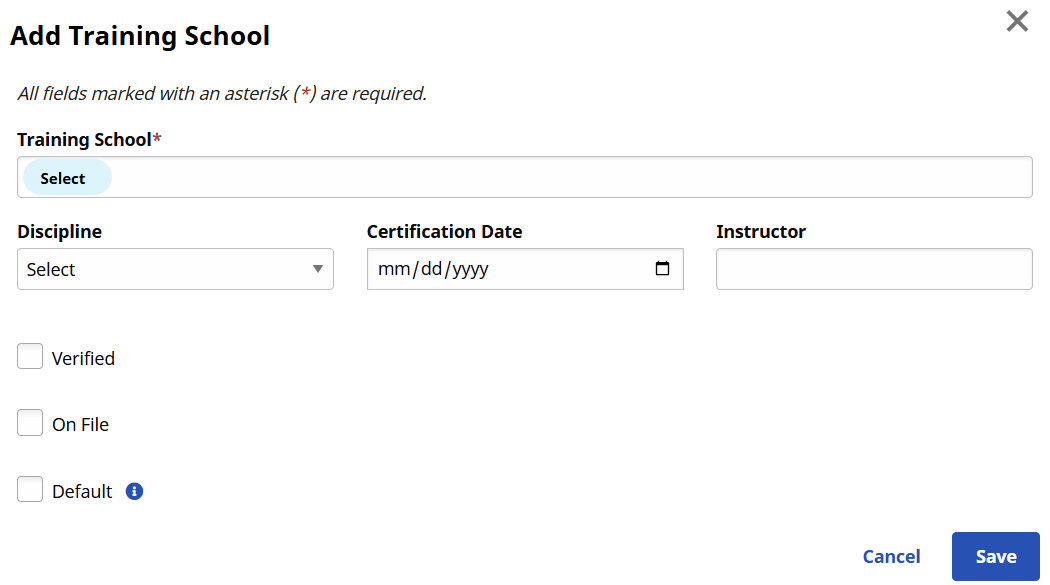
If the selected training school is closed, ensure that the certification date occurs before the set closed date; otherwise, the Caregiver is not compliant. The closed date cannot be prior to the Caregiver’s hire date.
The selected Discipline for the training school record does not need to match the Caregiver’s Discipline. A single training school record must fulfill all requirements set on Compliance Setup for the Caregiver to be compliant.
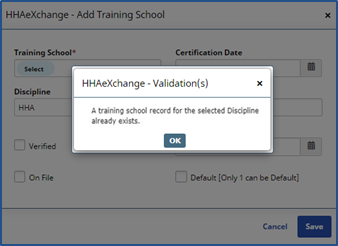
Multiple Training School records for the same training school can be added for a given Caregiver, under Caregiver > Search Caregiver > Compliance, for certifications in various Disciplines. See the Discipline column in the Training Schools section displaying the applicable Discipline.

If an overlapping Training School record is entered with an existing Discipline for the same Training School (duplicate record), then a validation message appears.
If a Compliance Field, under Caregiver > Search Caregiver > Compliance, is set as required for a specific Caregiver Discipline, then all Caregivers under the Discipline, within the same linked office in the Compliance Setup, must follow the set rules to be and remain compliant.
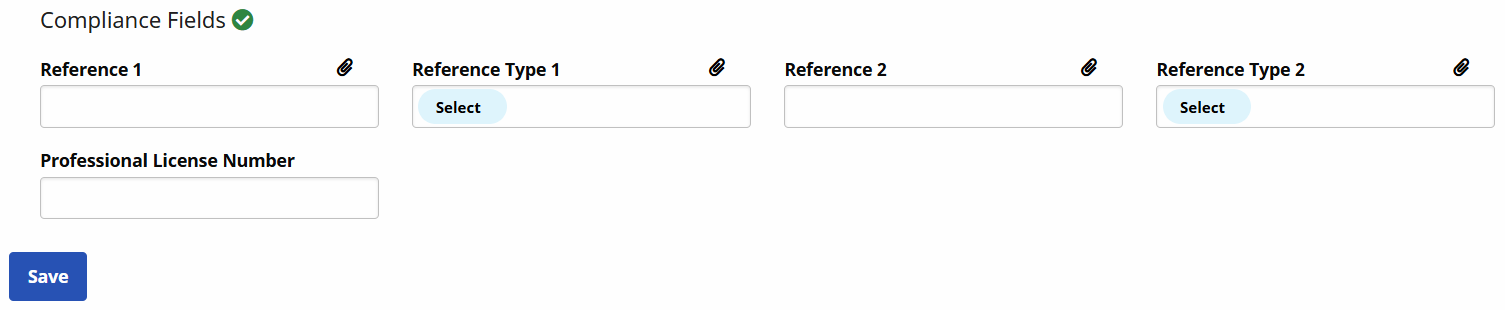
Providers can set up fields for document uploads (such as Caregiver References) in any of the Custom Compliance fields. For more information see Upload Document for Custom Compliance Field.
Once document uploads are enabled for compliance fields, paperclip icons appear on the Caregiver's Compliance page under Caregiver > Search Caregiver > Compliance. For example, the Reference 1 and Reference 2 fields on the Caregiver's Compliance page have the paperclip icon to allow document upload.