Compliance Setup Medicals/Other Requirements Tab
The Medicals/Other Compliance tab is located on the updated Caregiver Compliance page under Caregiver > Search Caregiver > Compliance.
Under the Medicals/Other Compliance tab, there are four sections to include Hire Date, Compliance Status Per Discipline, Medicals, and Other Compliance. As with the General Requirements tab, the Hire Date and Compliance Status Per Discipline sections are standard on the page; however, the other sections must be set to Show in the Compliance Setup to be displayed on the page. The following pages cover each of these components.
From the Medicals/Other Requirements tab, a user can view rules and determine necessary updates. Rules that expire need updating based on regular requirements as determined during compliance setup. Under the Status column, items highlighted in yellow indicate a Pending status which means that the item is within 30 days of the due date. Items highlighted in red indicate that the item is overdue and that the Caregiver is no longer compliant for that medical or compliance Item.
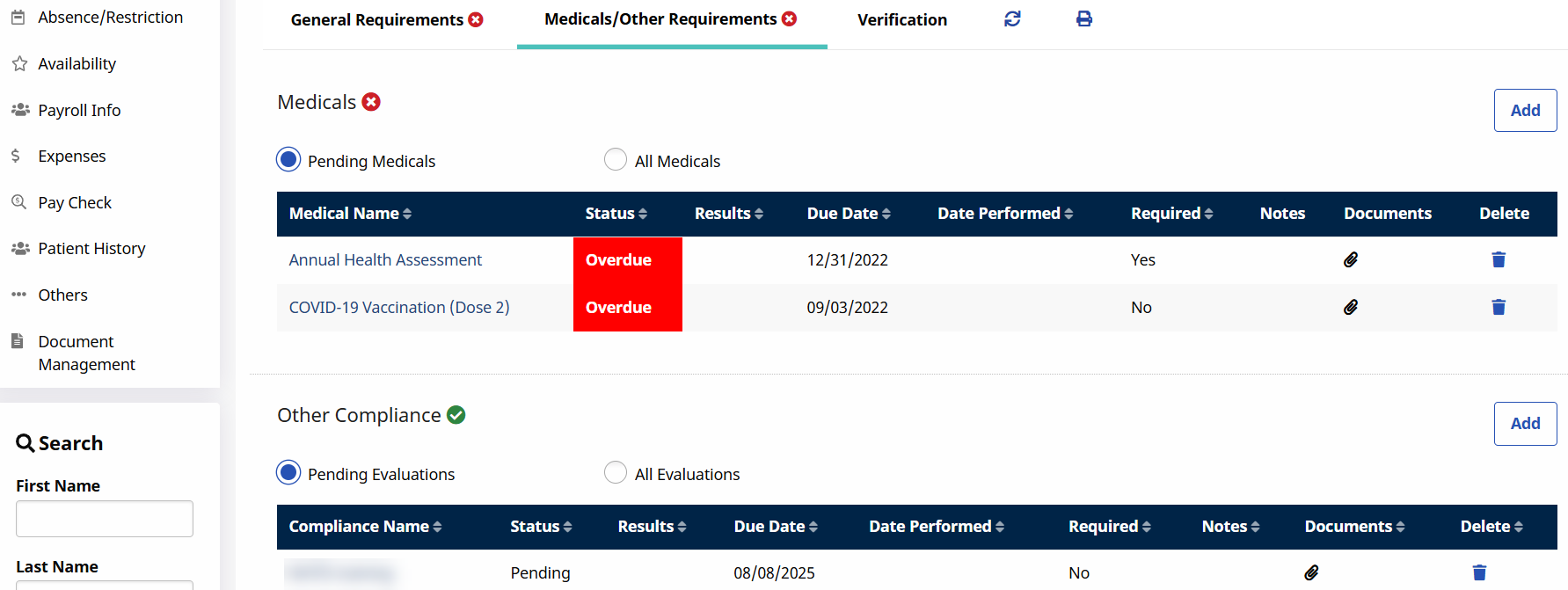

To manually apply a new Medical requirement, click the Add button in the Medicals section of the Medicals/Other Requirements tab under Caregiver > Search Caregiver > Compliance.

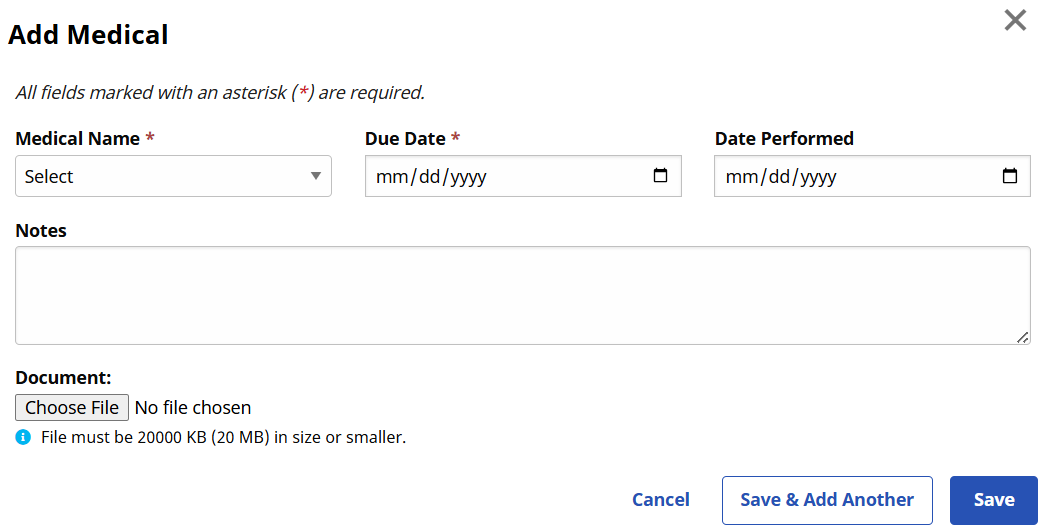
Complete the necessary fields when the Add Medical window opens. Fields marked with a red asterisk are required.
|
Field |
Description |
|---|---|
|
Medical Name |
Select a medical item from the list configured for the associated compliance setup. Medical records may be duplicated. |
|
Due Date |
Specify the date when a result is required for the medical item. |
|
Date Performed |
Specify the date when the medical item was performed. |
|
Result |
Select the result for the dropdown menu. |
|
Notes |
Add applicable notes. |
|
Upload File |
Attach supporting documents. |
To manually apply a new compliance item, click the Add button in the Other Compliance section of the Medicals/Other Requirements tab under Caregiver > Search Caregiver > Compliance. Complete the necessary fields when the Add Compliance Item window opens. Fields marked with a red asterisk are required.

Medicals and Other Compliance tab items under Caregiver > Search Caregiver > Compliance may be automatically generated based on compliance setup details and triggered by the Caregiver’s hire date and the entered results for another item. Items automatically added using the hire date condition are only applied once for each Caregiver. If the hire date is changed or deleted, HHAeXchange does not apply the automatically generated items a second time.
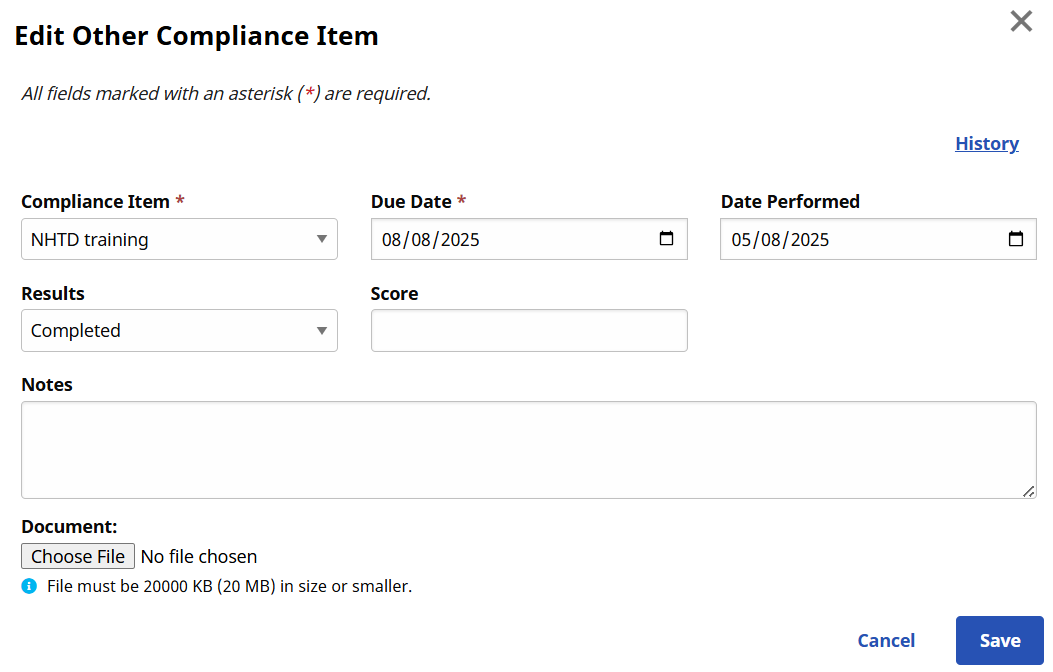
To edit a medical or other compliance item, go to the Medicals/Other Requirements tab under Caregiver > Search Caregiver > Compliance. When editing a medical or other compliance item (whether added automatically or manually), a Results value must be entered if a Date Performed has been entered or vice versa, to save the edit.
Medical items are required for each Discipline on a medical-by-medical basis, based on the compliance setup details. Compliance is calculated based on whether a required medical item has the accepted selection (Results) entered for a given Caregiver.
Based on the Compliance Setup, if a required Medical item is saved with a non-accepted Result, the Caregiver shows as Not Compliant. The same applies if a set due date for a given required Medical item has passed but no Result values have been saved.
For recurring, automatically generated Medical items, a Caregiver is compliant if they have a record with an accepted selection on record and the Pending record is not past the due date. Medical items that are not required do not factor into the compliance calculation for a given Caregiver.
Medical items that are manually deleted are no longer calculated for that specific Caregiver’s Compliance. If a Medical item is added back to the Caregiver Compliance page, and is required per the Compliance Setup, it is then calculated in the Caregiver Compliance.
Each Results field value, under Caregiver > Search Caregiver > Compliance, has matching medical/compliance items. Review the table below for details.
|
Medical / Compliance Item |
Results / Required |
Generates Upon |
|---|---|---|
|
Rubeola |
|
|
|
Rubeola MMR1 |
|
|
|
Rubeola MMR2 |
|
|
|
Rubella |
|
|
|
Rubella MMR |
|
|
|
PPD/QFT *PPD and QFT are separate Medicals with the same Results/Conditions |
|
|
|
Chest X-Ray |
|
|
|
TB Screen |
|
|
|
Pre-employment Physical |
|
|
|
Annual Health Assessment |
|
|
|
Drug Screen |
|
|
|
Hepatitis Step 2 |
|
|
|
Hepatitis Step 3 |
|
|
|
Flu Vaccine / Face Mask |
|
|
HHAeXchange captures data for Deleted Medicals and Other Compliance items for reporting purposes.
Other Resources