How do I manage patient authorizations for linked contracts?
Providers can’t edit authorization details for UPR linked contracts. HHAeXchange turns off editing for these contracts to protect providers from changing values that may cause rejected claims. If the payer changes any details on their HHAeXchange system, that edit is automatically shown on the provider's platform.
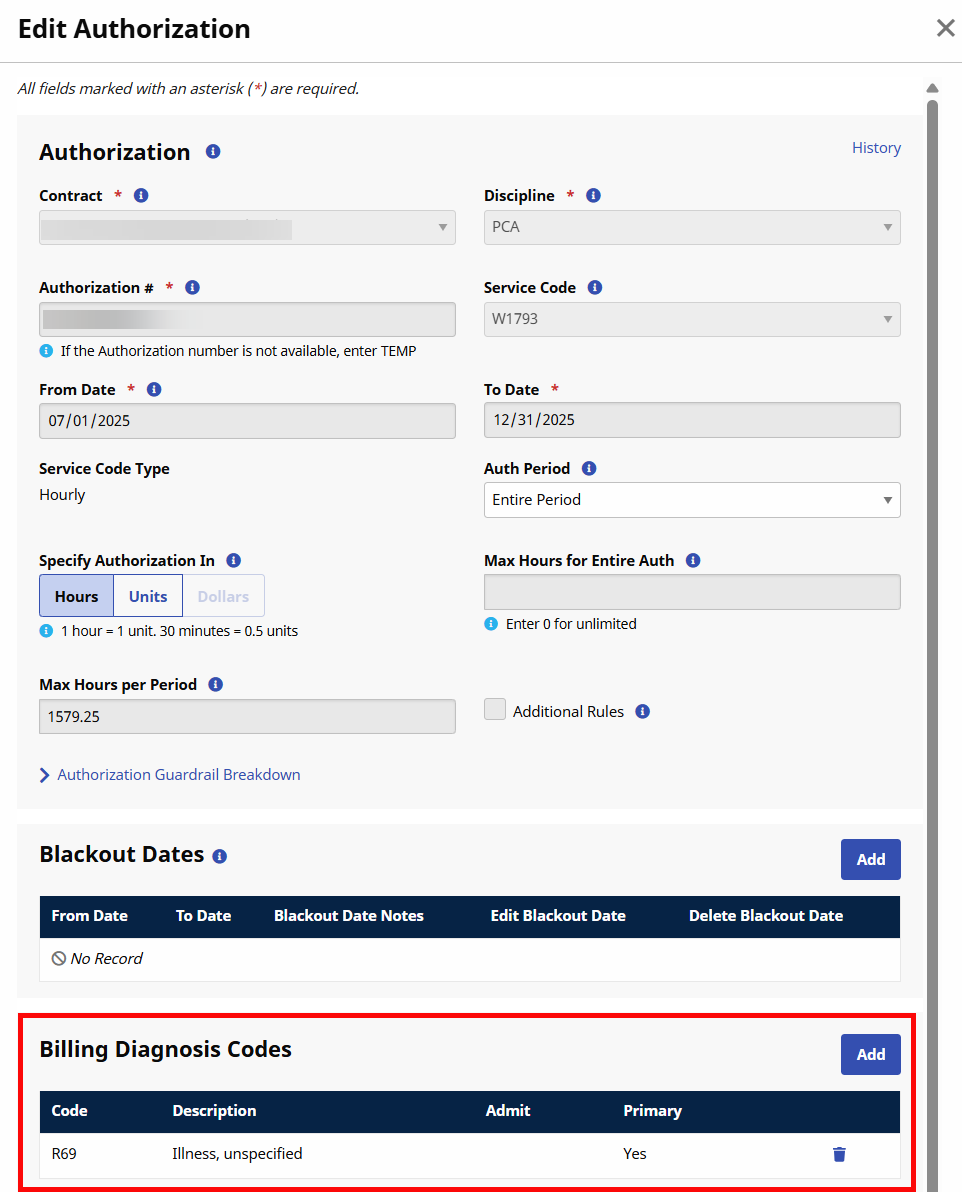
For UPR linked contracts, payers control patient authorization information with most fields locked, including the Billing Diagnosis Code fields. You won't see the diagnosis code table for these types of authorizations.
The Diagnosis Codes for authorizations coming from the Payer are read-only Billing Diagnosis Codes on the provider platform.
If a provider has access to the patient's clinical pages under Patient > Clinical, they can enter and manage other diagnosis codes, surgical codes, and other clinical information without affecting the information received on the authorization from the payer.

This function only applies to hourly rate types. Payers can restrict entire period authorizations to prevent providers from over utilization (over-servicing the member). Guardrail settings decide how providers distribute the authorization, ensuring that units are available throughout the entire period until the scheduled end date.
Refer to the Guardrails topic for full details on this feature.
For UPR contracts, when a payer sends a placement, authorization fields are usually locked. Providers can set an authorization guardrail for the entire period of authorizations for UPR contracts. This preserves the payer’s overall authorization limit but allows the provider to subdivide the authorization period (monthly, weekly, or daily) totals and use the Additional Rules function.
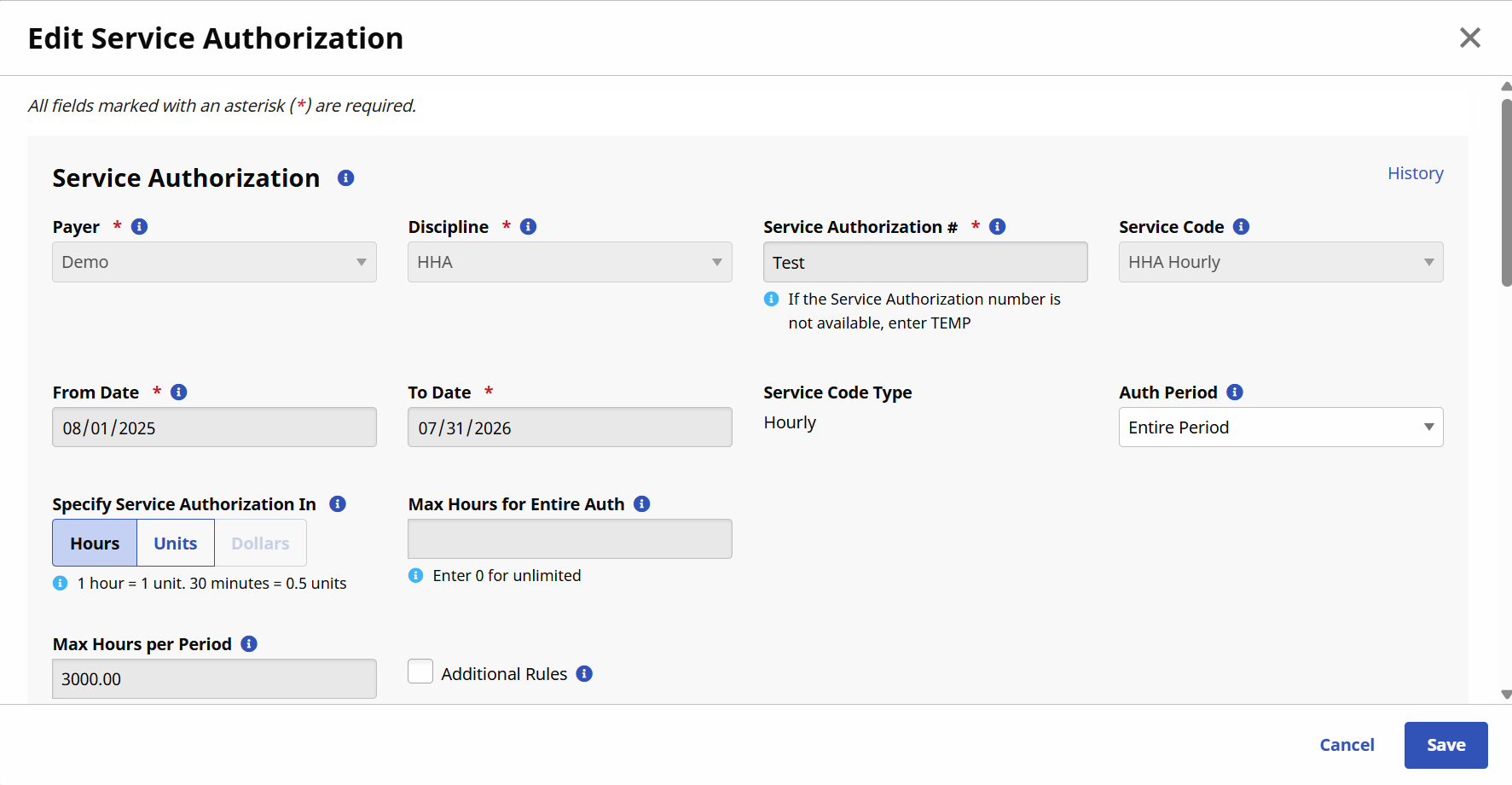
When the payer sends an entire period authorization, the provider can edit the Auth Period field on the Patient Authorization page.
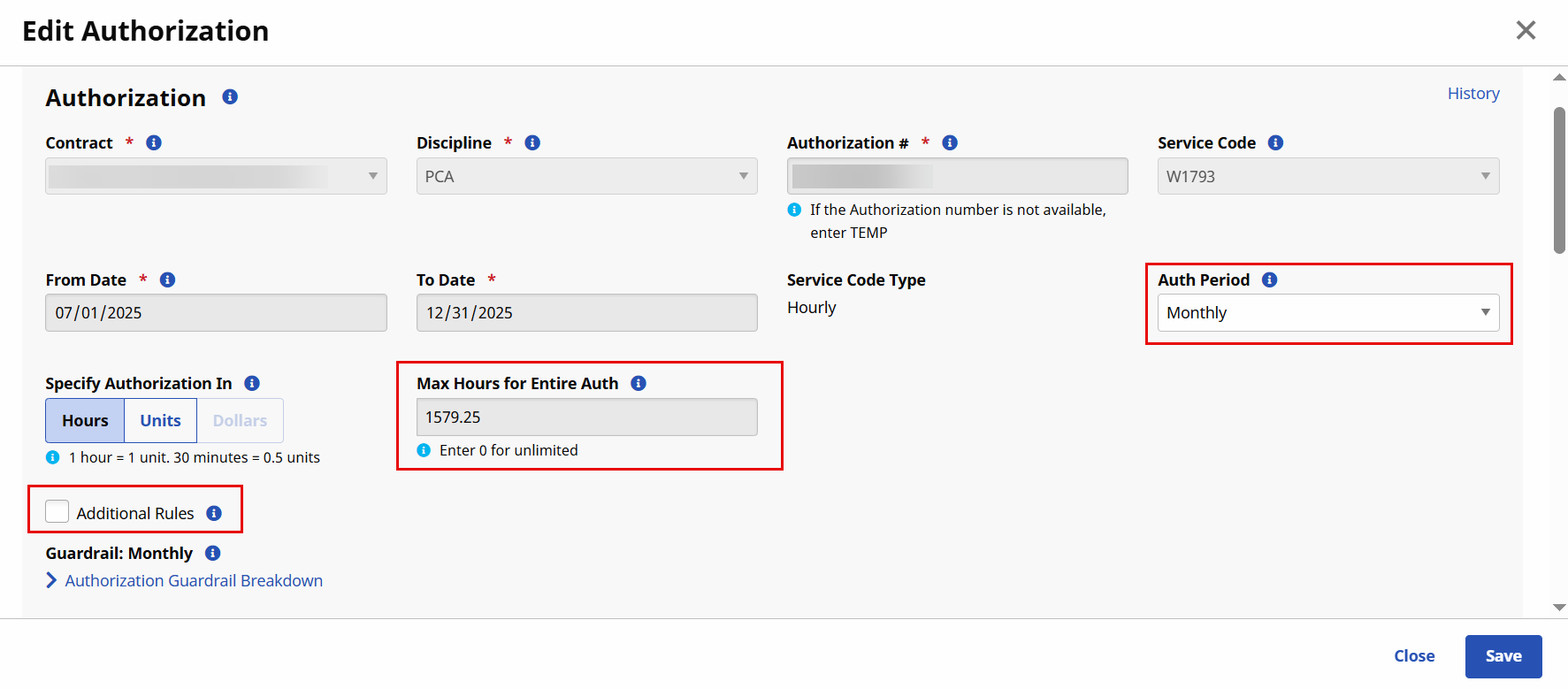
If the provider selects any other period type, the system moves the value from the Max Units per Period field to the read-only Max Units for Entire Auth field. The Additional Rules checkbox also becomes available to edit.
The system requires an authorization before you can release the visits from Billing Review and bill for them.
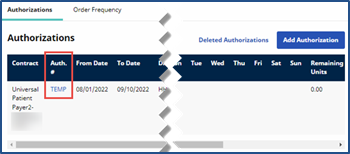
If a payer doesn’t send an on-time authorization for a patient, you can create a TEMP authorization. This allows you to schedule visits and pay caregivers until the payer sends the authorization. The system holds visits with a TEMP authorization at billing review.
-
Go to Patient > Authorizations/Orders.
-
Click Add to open the Patient Authorization page.
-
Select the UPR Linked Contract from the Contract list.
-
If disabled, the Auth Number displays as TEMP and is not editable.
-
If enabled, the Auth Number is an editable field and is blank by default.
-
-
Complete the required fields.
-
Click Save.
-
When the payer sends the official authorization, update applicable visits and bill for them. Delete the TEMP Authorization.
-
When the payer sends the placement, accept the placement (UPR linked contract).
-
Merge the placement with the temporary patient record and manually change the contract on the Schedule tab to the UPR linked contract.
The following are examples and recommended resolutions to handle missing Patient and/or Authorization scenarios.
|
Scenario |
Recommended Steps |
|---|---|
|
Brand New Placement with Authorization |
Review and accept Pending Placement. A Patient Record with access to Internal and UPR Linked Contracts is created with an authorization. |
|
Brand New Placement without Timely Authorization |
When the official Payer Authorization is received, two authorizations now exist for the Patient.
|
|
No Timely Placement or Authorization |
When the official Payer Placement and Authorization are received.
|