Vital Signs Module
This feature is activated by HHAeXchange System Administration. Contact HHAeXchange Support Team for details, setup, and guidance.
The Vital Signs module allows Caregivers to record and track key health measurements during a visit, such as blood pressure, temperature, pulse and more. Capturing vitals in one centralized place helps ensure accurate documentation, better visibility into client health, and continuity of care.
By default, Clinical Modules are only available during skilled visits, as they are intended for use by medical practitioners. If you want unskilled Caregivers to be able to use the Vital Signs Module, make sure to Set Up Clinical Modules for Unskilled Visits.

You can set up different vital sign ranges for different age ranges.
To set a vital sign range:
-
Go to Clinical > Reference Table Management > Vital Signs.

-
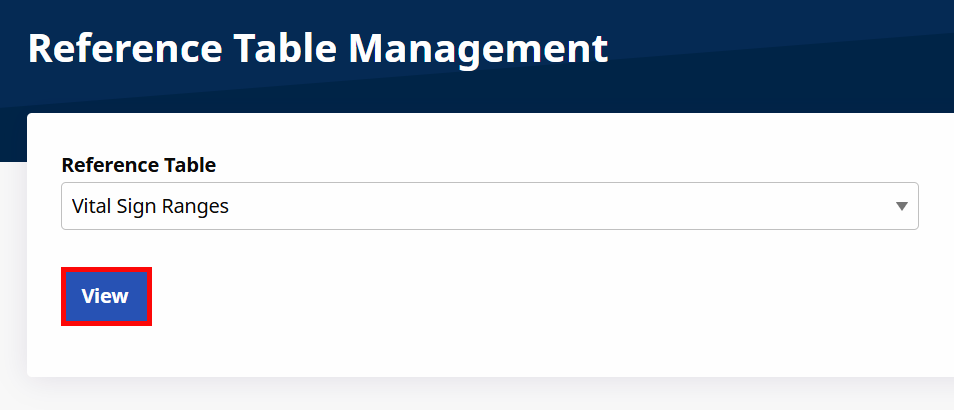
Select Vital Sign Ranges under the Clinical/MD Order section in the Reference Table dropdown and click View.
-
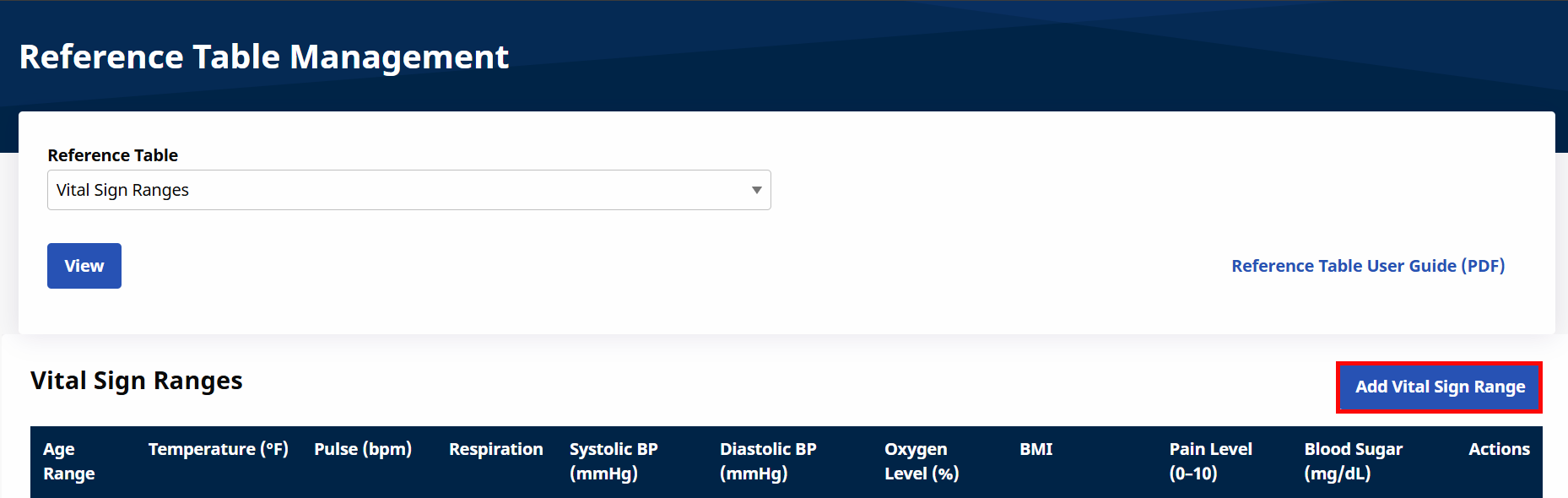
Click Add Vital Sign Range.
-
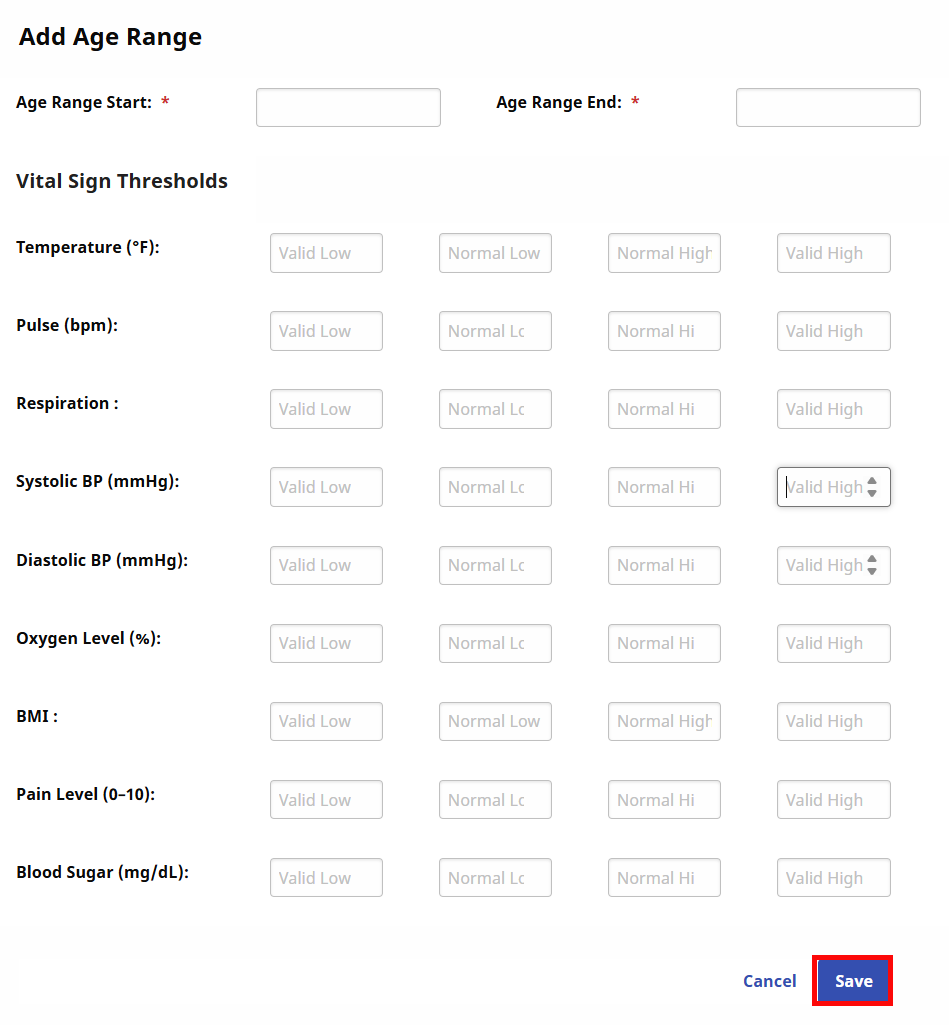
The Vital Sign Ranges window opens. Enter Age Range Start and Age Range End.
-
Enter the threshold values for each vital sign and click Save.
Make sure to review the ranges for accuracy.
-
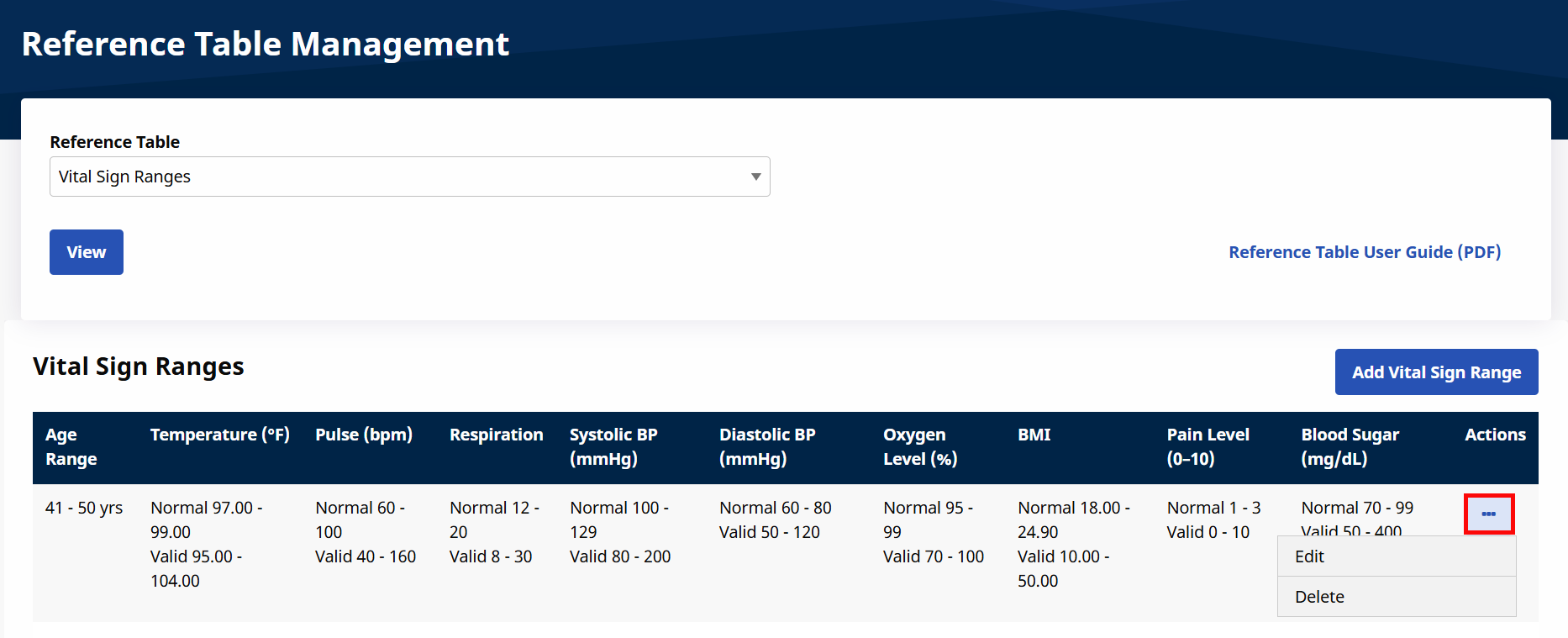
The entered ranges appear in the Reference Table. You can edit or delete a range by clicking the Ellipsis under the Actions column.
To log vital signs:
-
Click on Vital Signs in the left navigation panel of the Patient Profile.
-
Click the Add Vital Signs button on the right side of the screen.
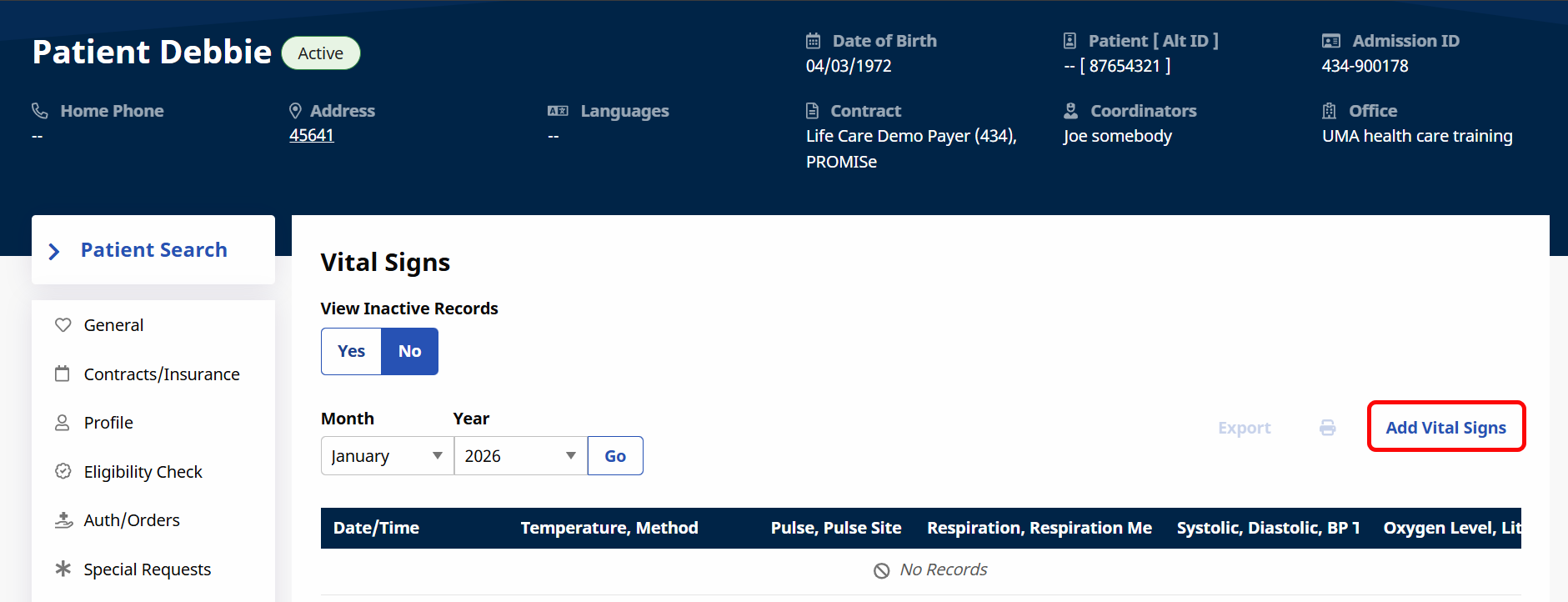
-
The Add New Vital Signs window opens. The Recorded Date and Time Taken are set automatically but can be edited. Select the appropriate visit from the Associated Visit dropdown.

-
The following vital signs can be recorded:
-
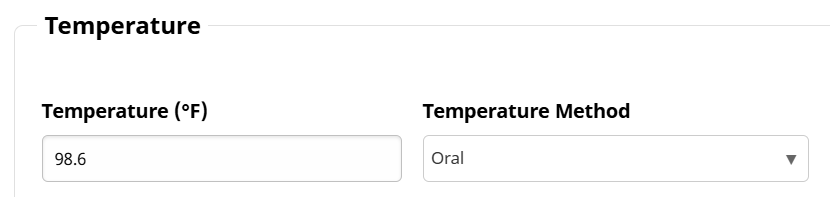
Temperature in °F with Method of taking
-
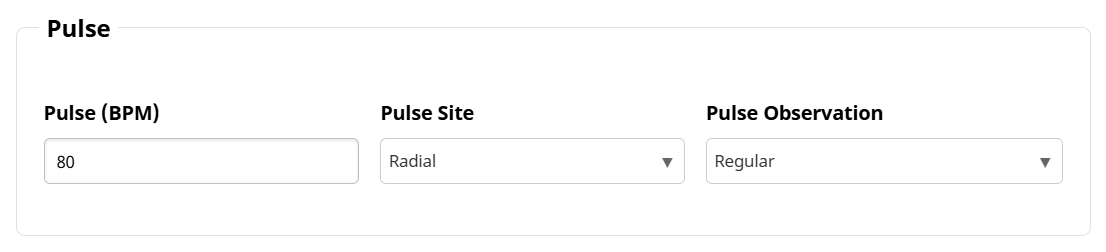
Pulse with Site and Observation
-
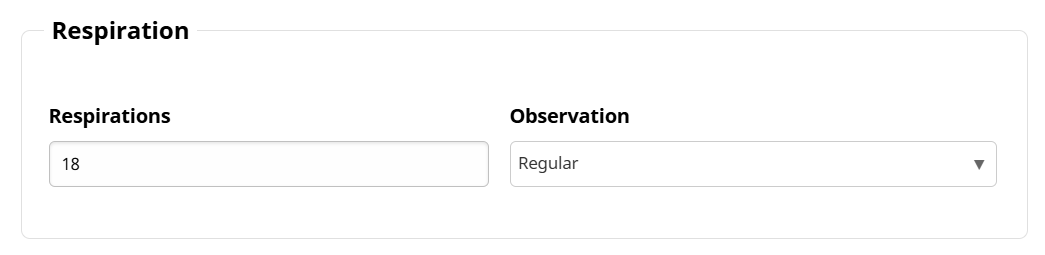
Respiration with Observation
-
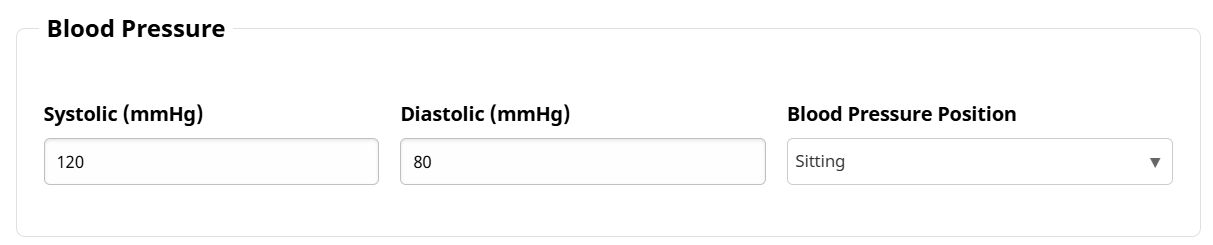
Blood Pressure with Position of taking
-
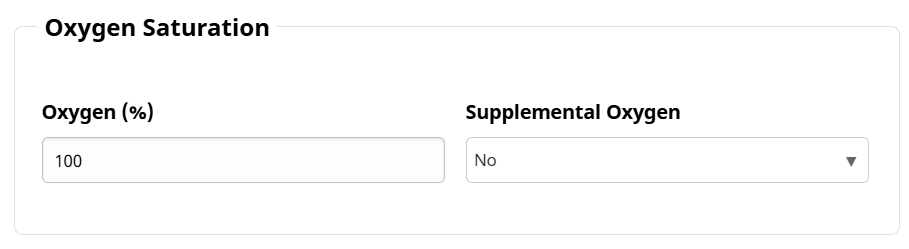
Oxygen Saturation and whether or not Supplemental Oxygen was used
-
Height and Weight and an automatically-calculated BMI

-
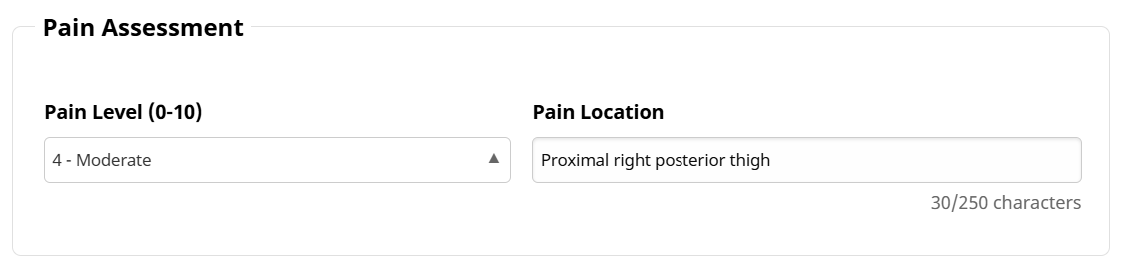
Pain Assessment and Location
-
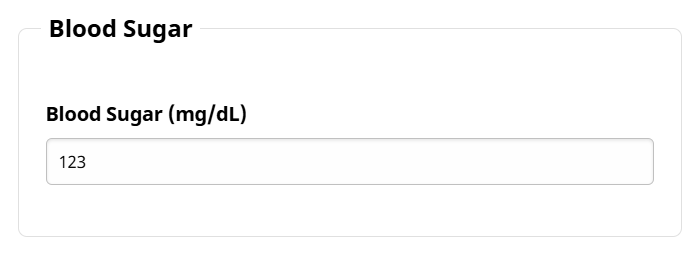
Blood Sugar
-
-
Click the Save button to save the entered vital sign(s).
-
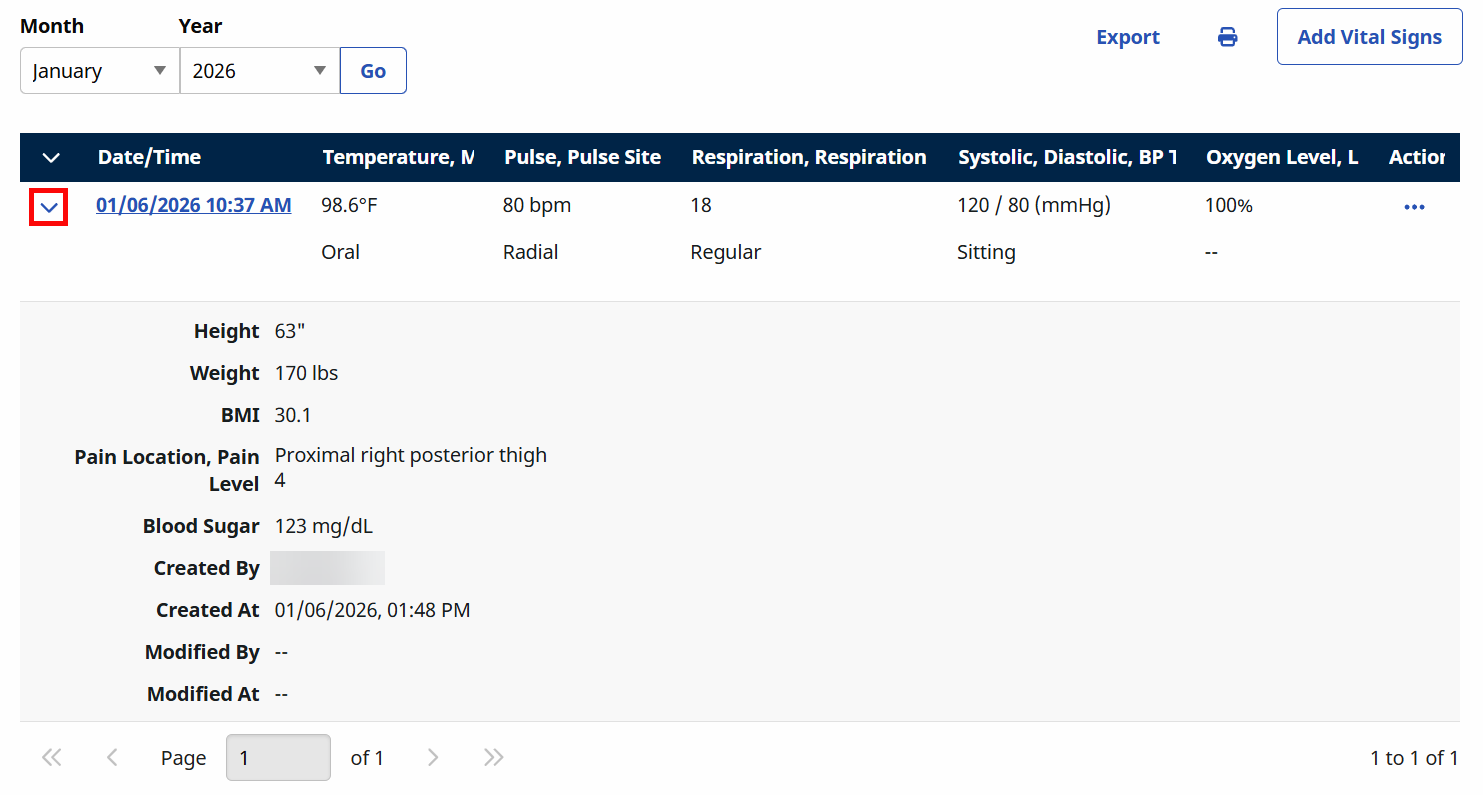
The entered vital signs appear on the Vital Signs page. Temperature, Pulse, Respiration, Blood Pressure and Oxygen Saturation appear directly on the main screen, while the rest can be viewed by clicking on Chevron to the left of the date.
To edit entered vital signs:
-
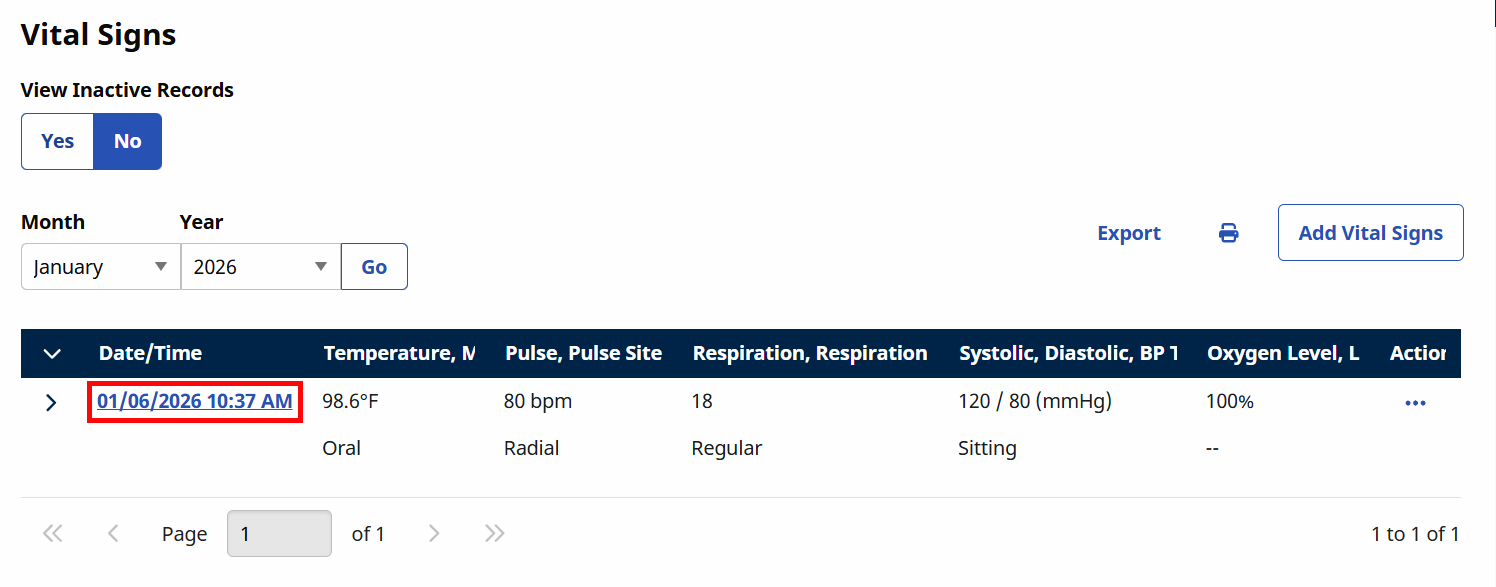
Click the date of the record you want to edit.
-
The Edit Vital Signs window opens and is identical to the Add New Vital Signs window.
-
Make your edits.
-
Click the Save button to adjust the record.
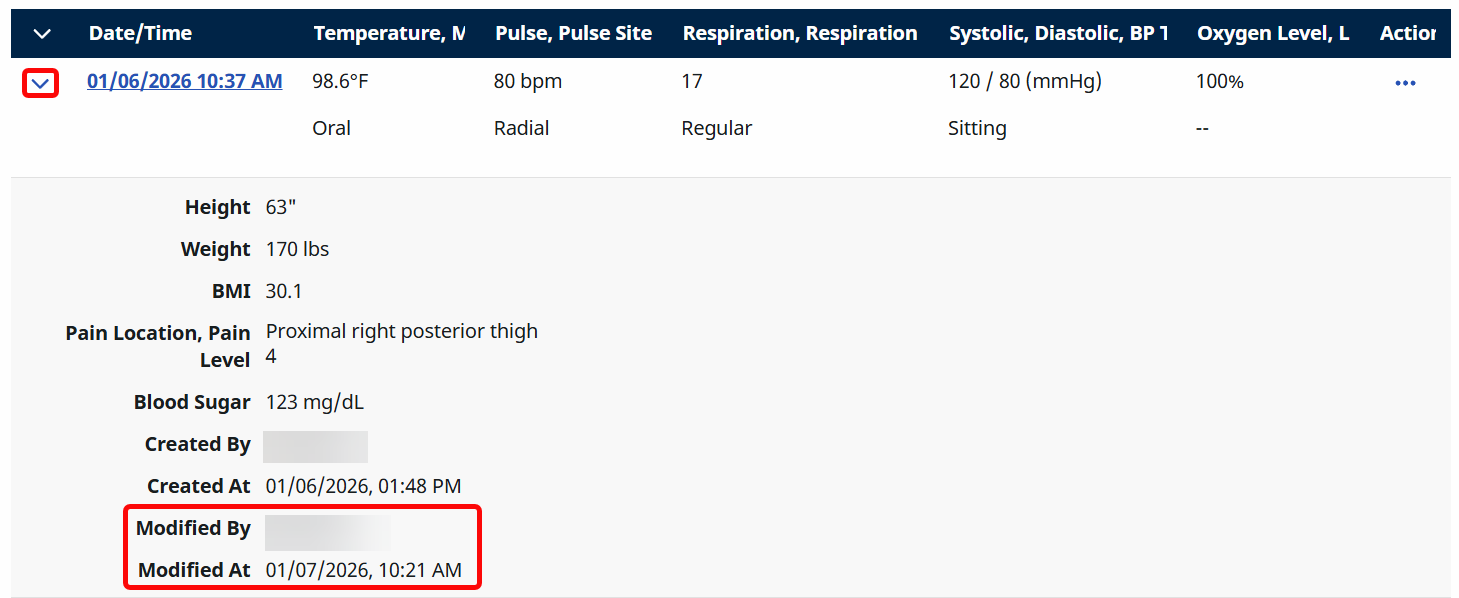
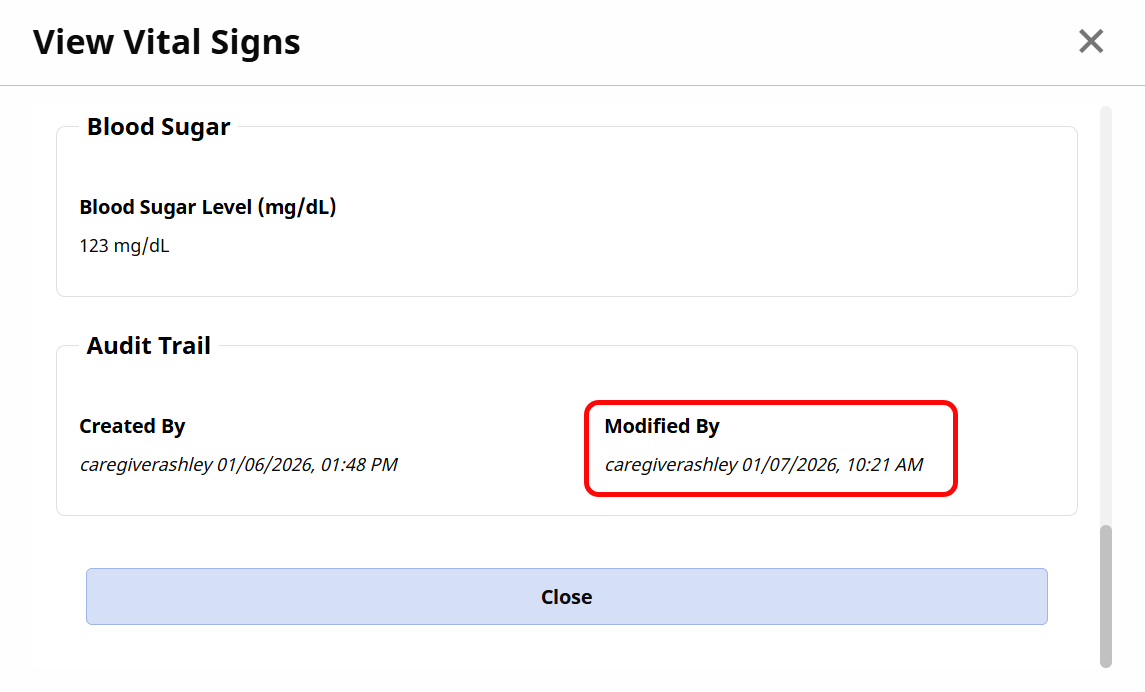
- You can view the audit trail of when the record was edited and by whom in the Chevron section or by selecting View from the Actions menu and scrolling down to the bottom of the record.
-
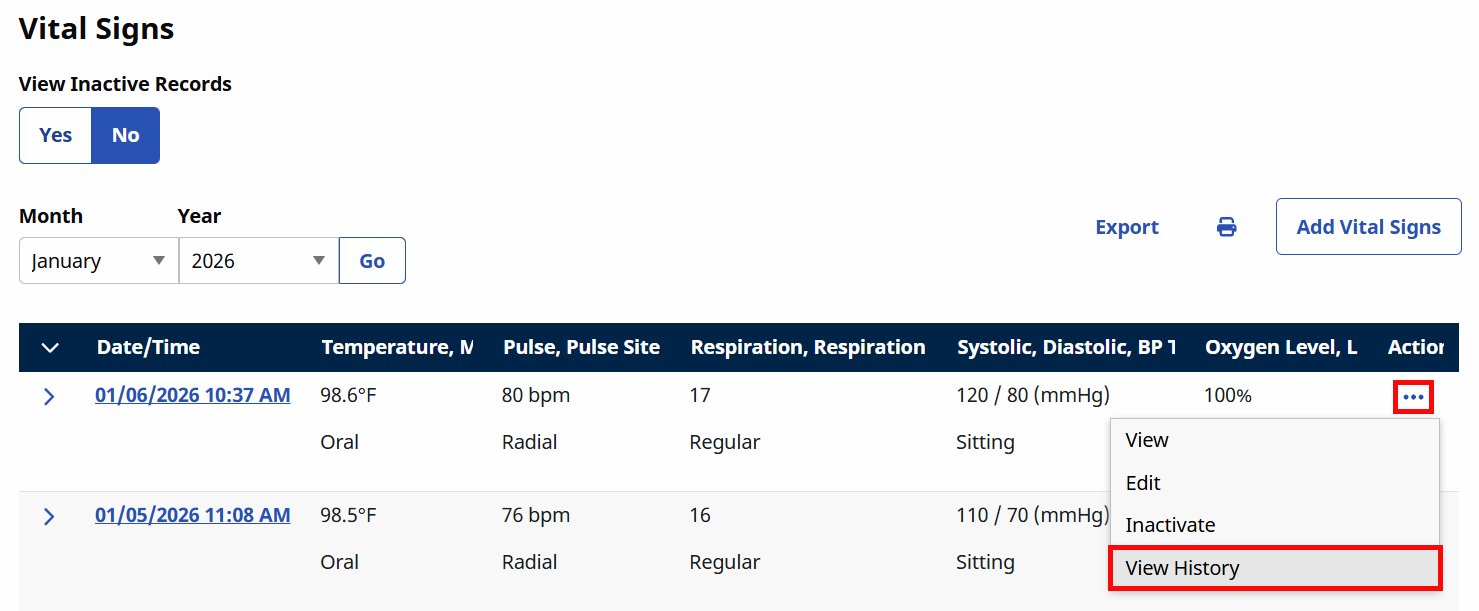
To view a detailed history of changes, click the Ellipsis under the Actions menu and select View History from the dropdown menu.
-
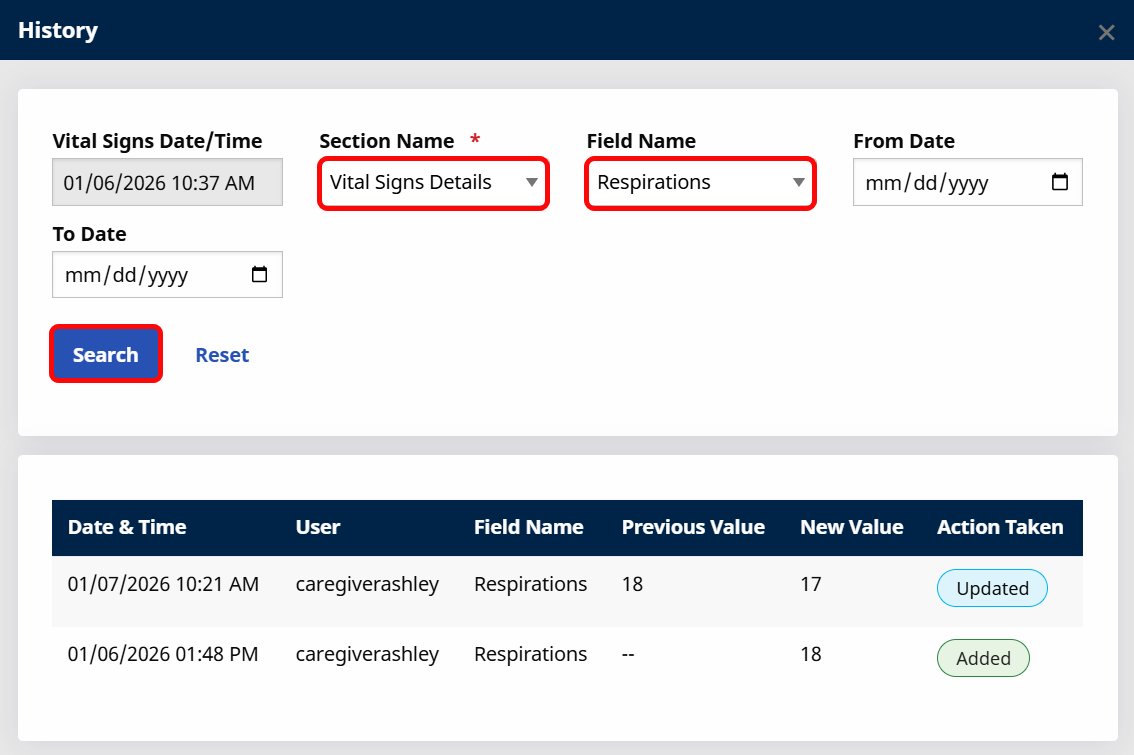
The History panel opens. Select a Section Name and Field Name from the dropdowns. Optionally, you can also select a From Date and To Date for the time frame the changes were made. Click Search.
The changes that were made are displayed in the table below.
You can inactivate a vital sign record if it was entered incorrectly — for example, if the wrong value, unit, client, or visit was selected.
Vital sign records should be inactivated only when they were entered by mistake and do not accurately represent the Patient’s condition.
To inactivate a record:
-
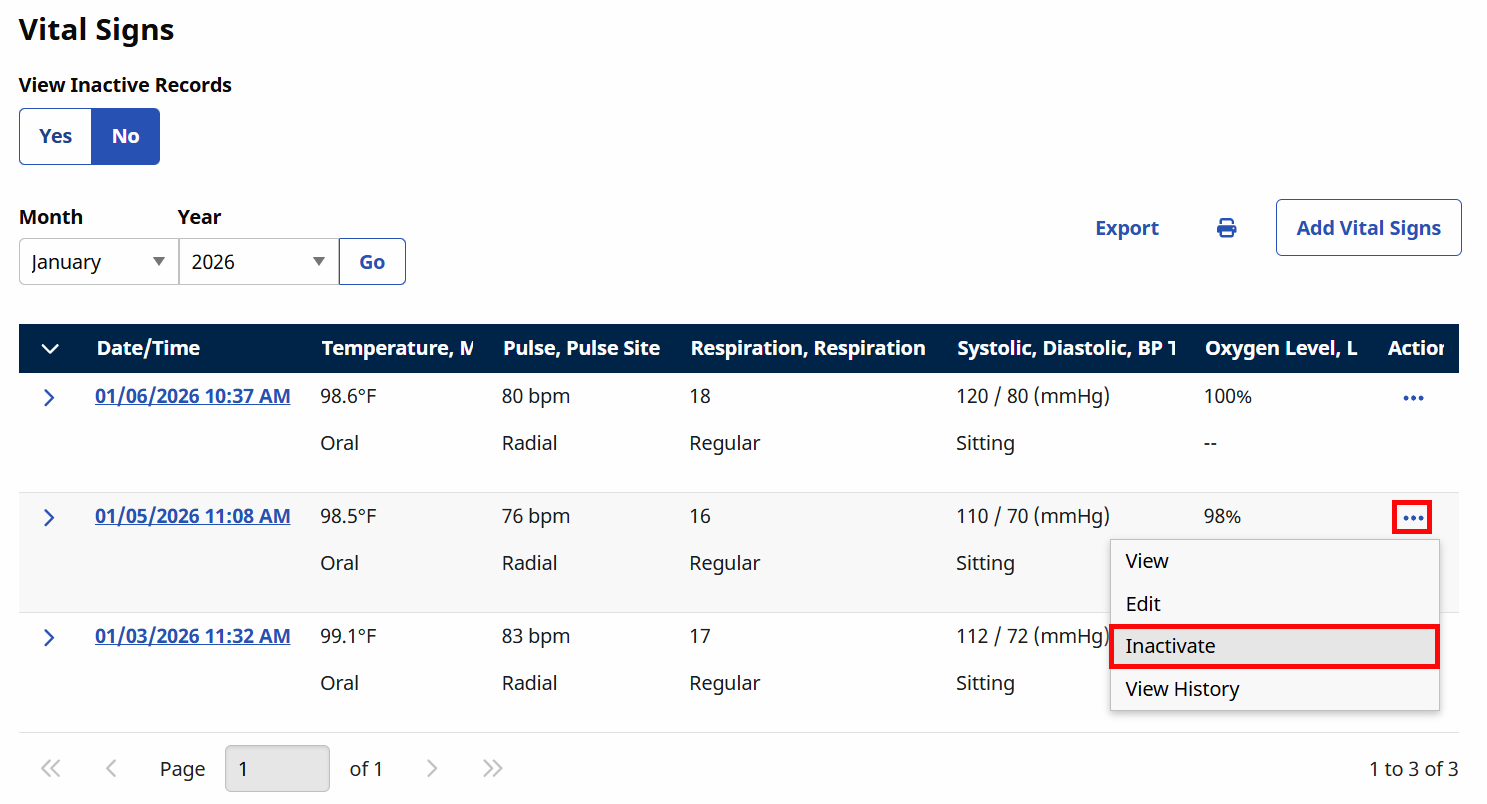
Click on the Ellipsis under the Actions column for the record you want to inactivate. Select Inactivate from the dropdown menu.
-
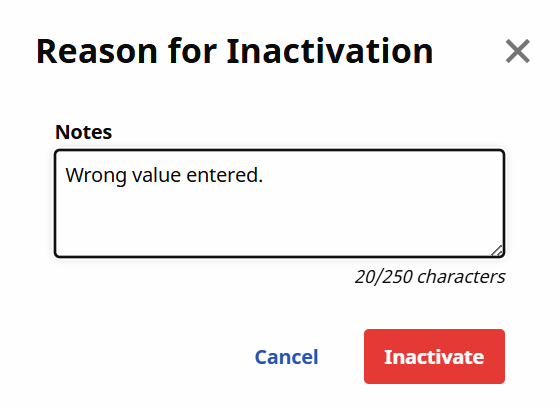
The Reason for Inactivation window opens. Enter the reason in the Notes field and click the Inactivate button.
-
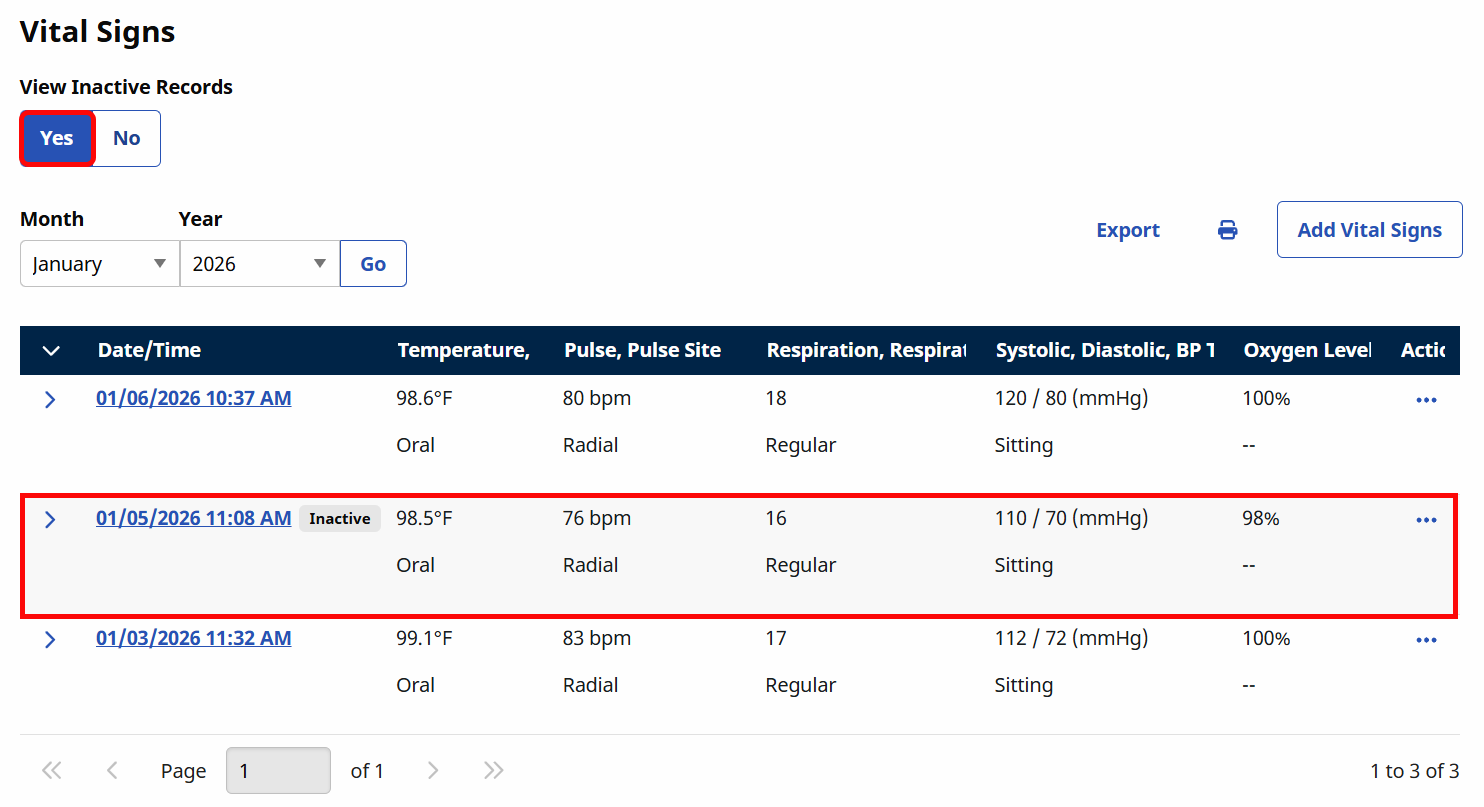
The record is removed from the main Vital Signs page. Inactivated records can be viewed by switching the View Inactive Records toggle at the top of the page to the Yes position.
Inactive records have an Inactive marker to the right of the date.
-
To reactivate an inactivated record, click on the Ellipsis under the Actions column for the record you want to reactivate. Select Reactivate from the dropdown menu.
-
The Reason for Activation window opens. Enter the reason in the Notes field and click the Reactivate button.
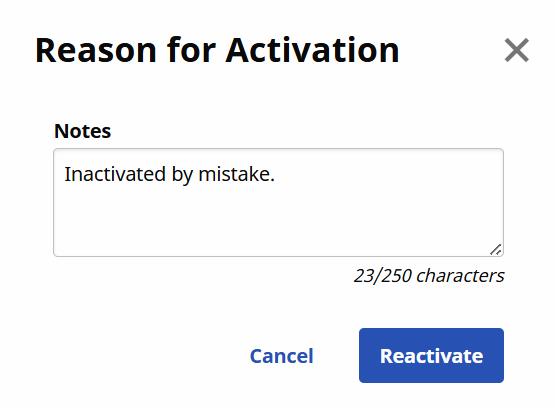
The record returns to the main Vital Signs page.
Vital sign records can be exported as a PDF and as a CSV file.
To export a PDF:
-
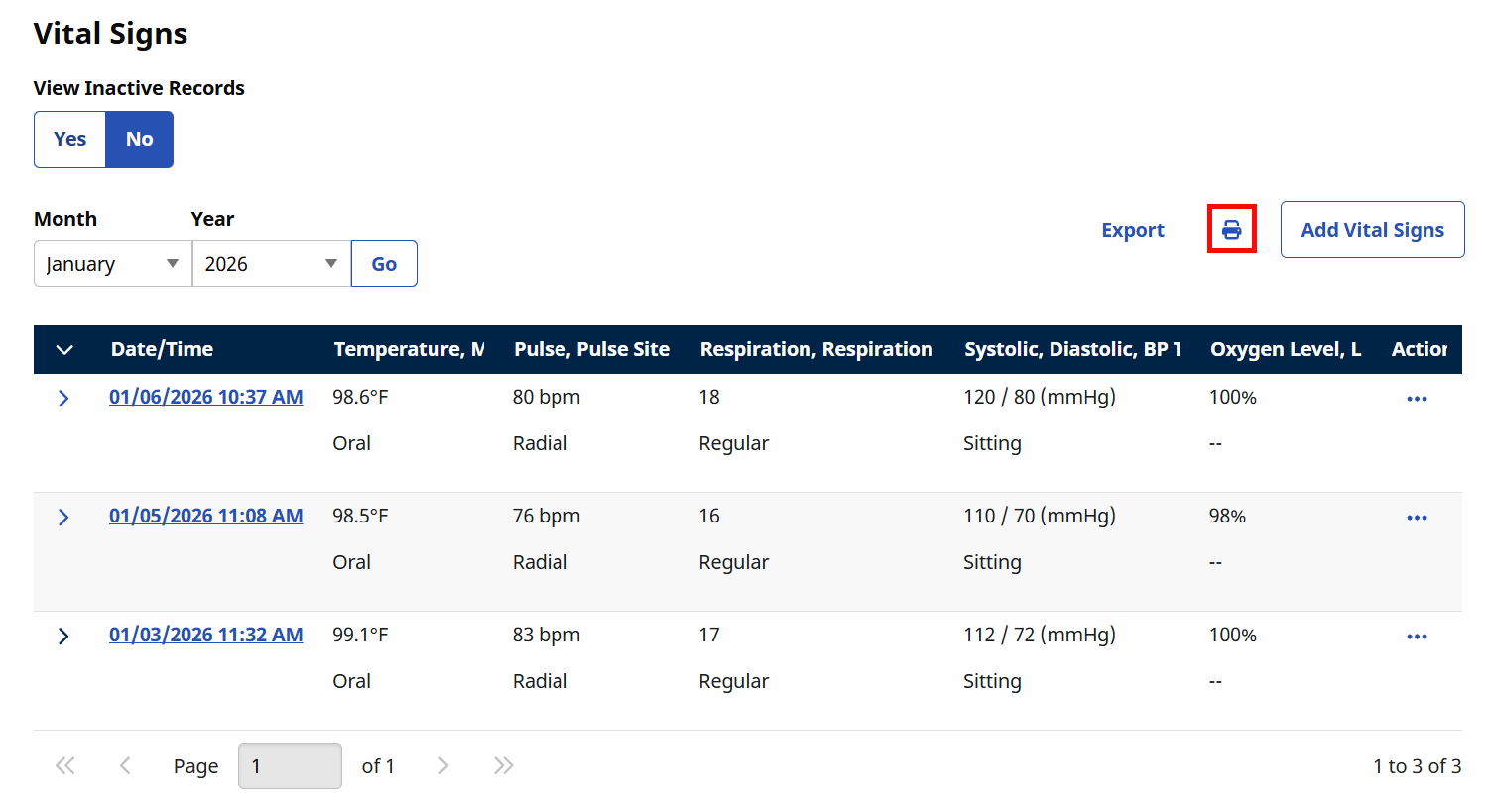
Click the Printer icon above the table of vital signs.
-
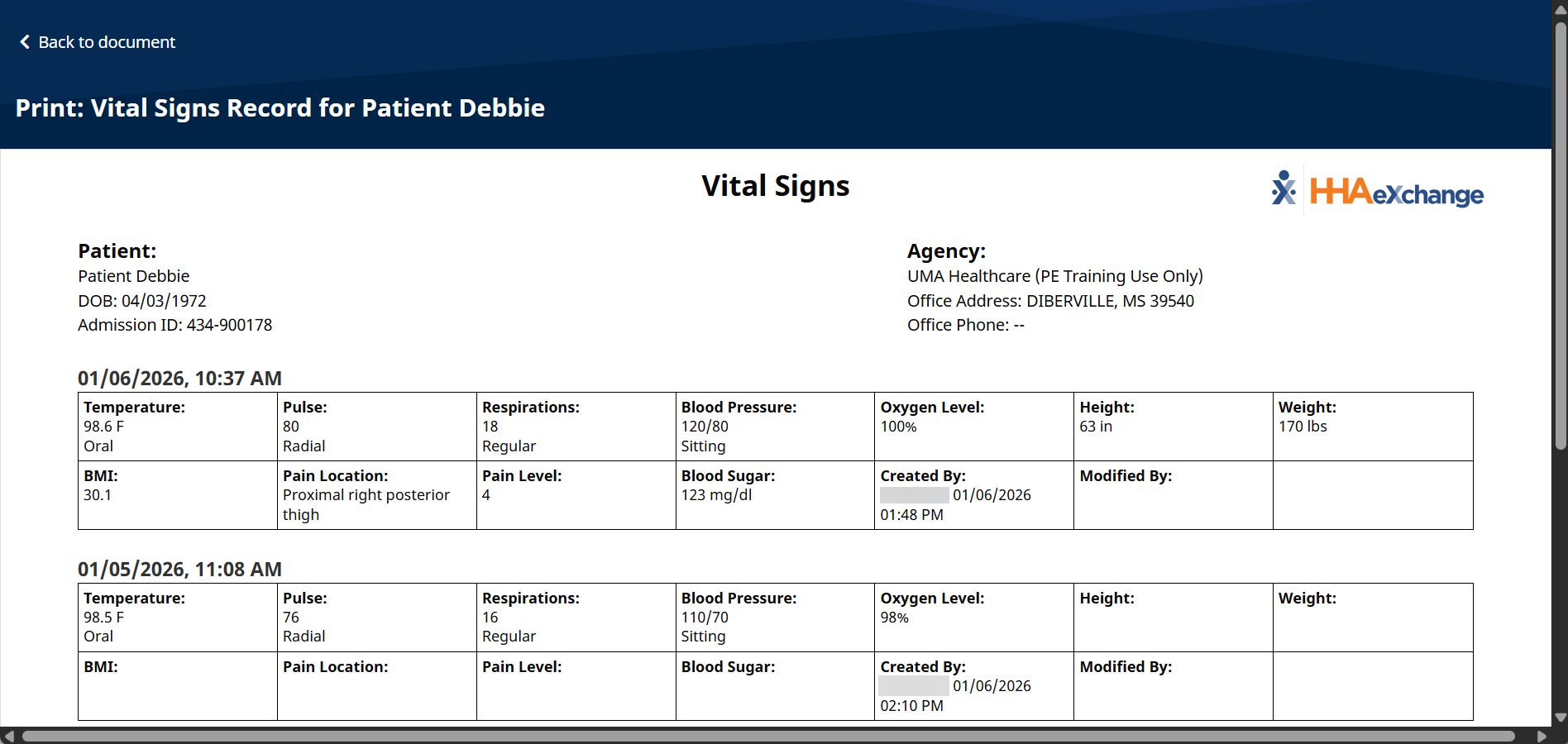
A window opens with a listing of the Patient's vital signs records.
-
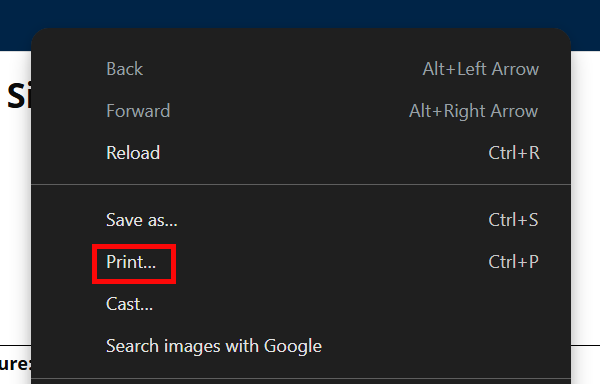
Right click anywhere on the page, and select Print....
-
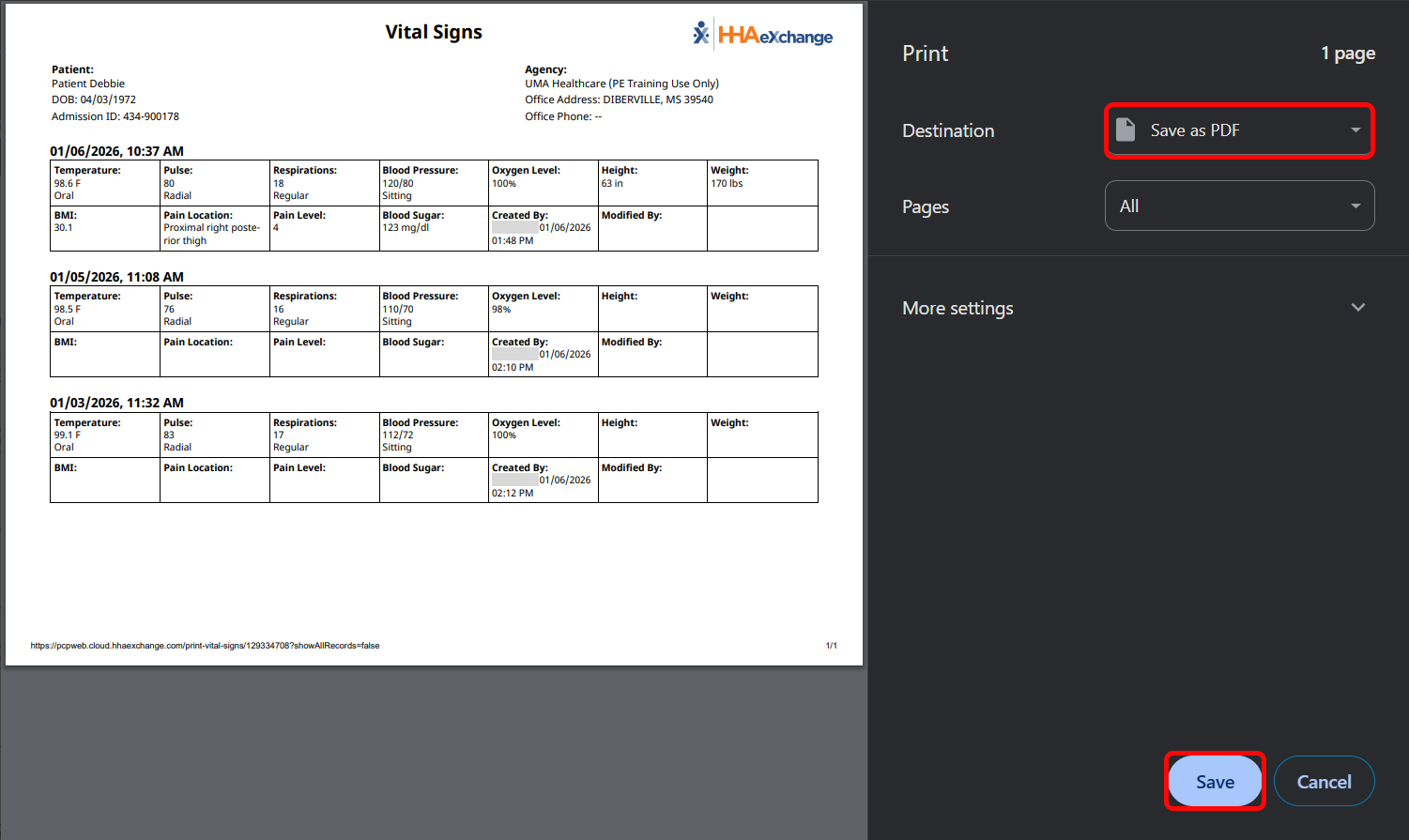
The Print window opens. Under the Destination dropdown, select Save as PDF. Click the Save button.
-
Save your PDF in the desired destination on your computer.
To export a CSV:
-
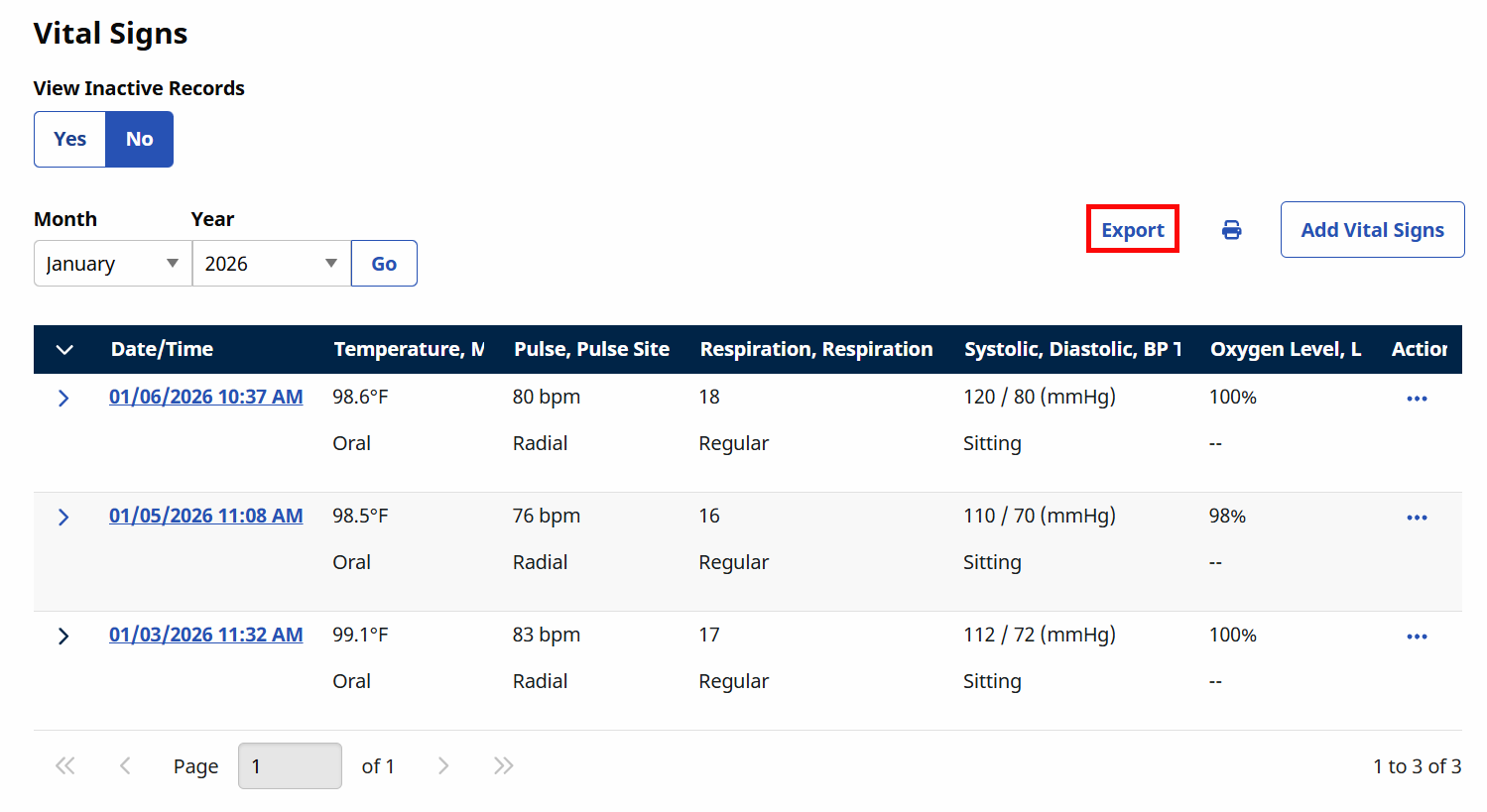
Click the Export link above the table of vital signs.
-
The CSV file automatically downloads to your computer.
