Wound Tracking Module
This feature is activated by HHAeXchange System Administration. Contact HHAeXchange Support Team for details, setup, and guidance.
The Wound Tracking module allows care providers to document and monitor wounds over time, including location, measurements, and status changes. Keeping wound information up to date helps support continuity of care, track healing progress, and ensure accurate clinical documentation.
By default, Clinical Modules are only available during skilled visits, as they are intended for use by medical practitioners. If you want unskilled Caregivers to be able to use the Wound Tracking Module, make sure to Set Up Clinical Modules for Unskilled Visits.

To add a new wound:
-
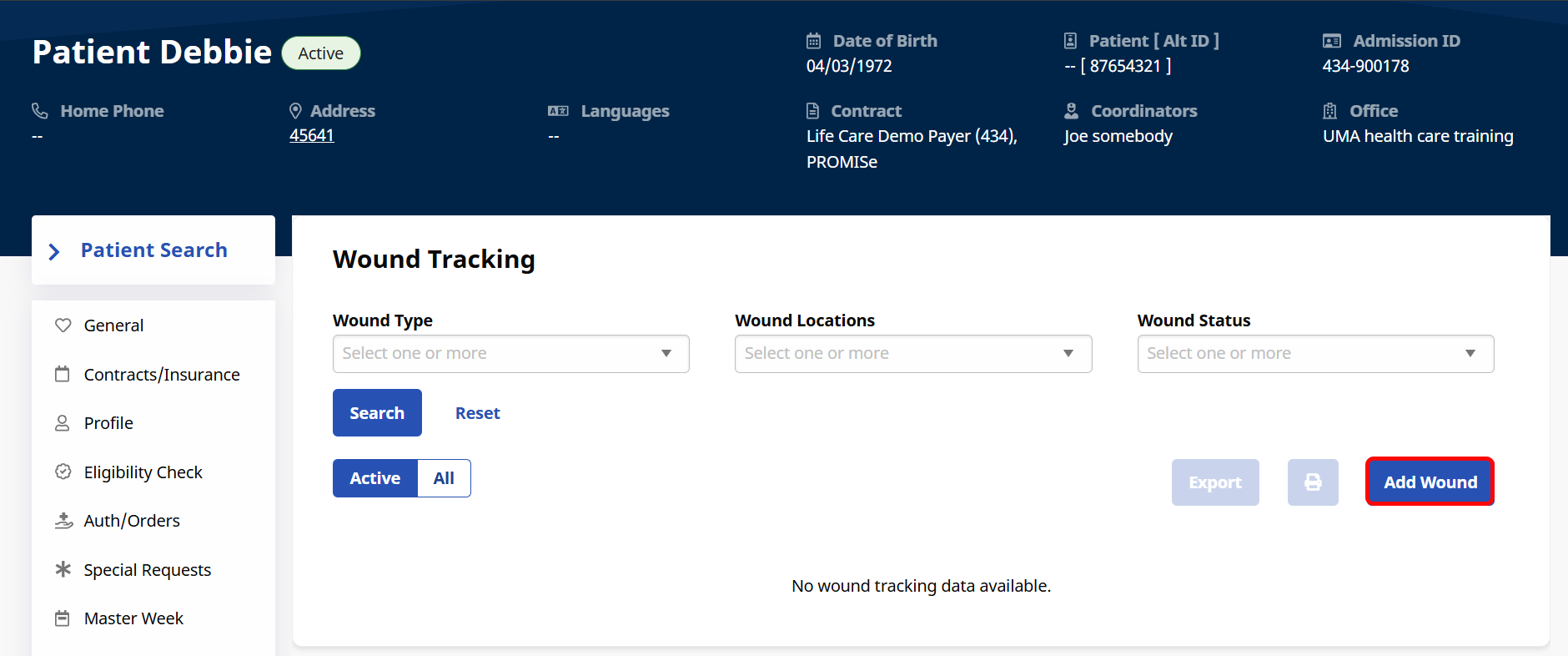
Click on Wound Tracking in the left navigation panel of the Patient Profile.
-
Click the Add Wound button on the right side of the screen.
-
The Add New Wound window opens. Enter the following details:
-
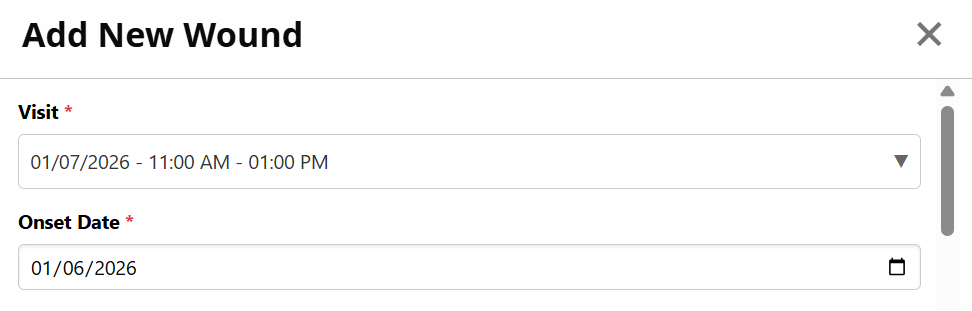
Visit: Select the visit during which you are tracking the wound.
-
Onset Date: Select the date when the wound appeared.
-
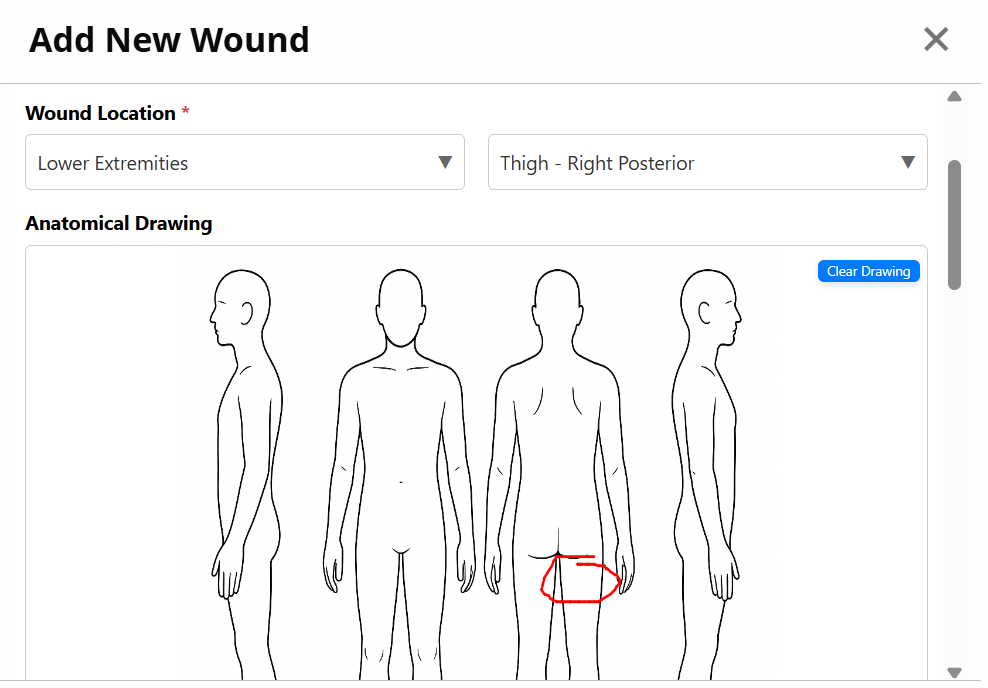
Wound Location: Select the main location from the dropdown, and then specify the location from the second dropdown.
-
Anatomical Drawing: Mark the spot on the drawing where the wound is located. Click Clear Drawing to start over.
-
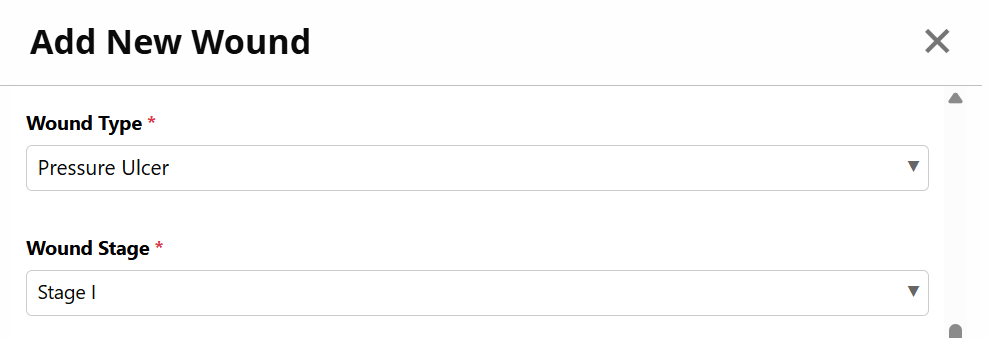
Wound Type: Select a wound type from the dropdown, and if applicable, select a Wound Stage.
-
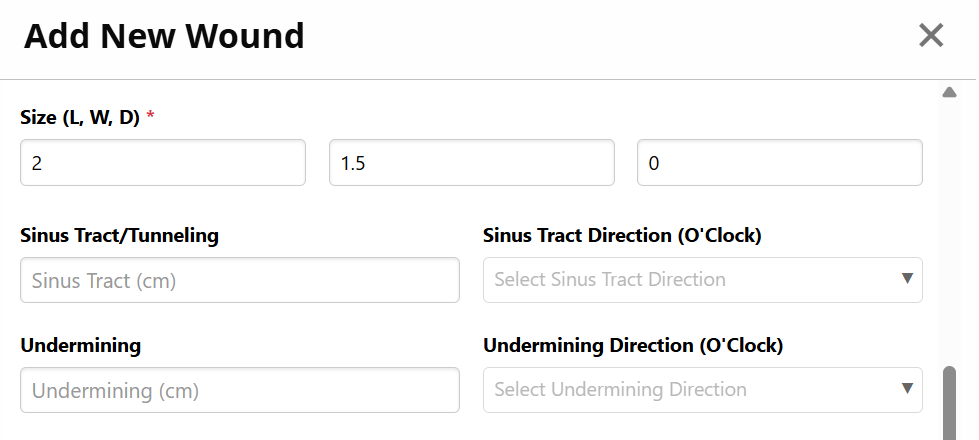
Size: Enter the Length, Width and Depth of the wound in centimeters. Each dimension must be entered as at least 0.1.
-
Sinus Tract/Undermining: If applicable, enter the size and direction of sinus tracts/undermining.
-
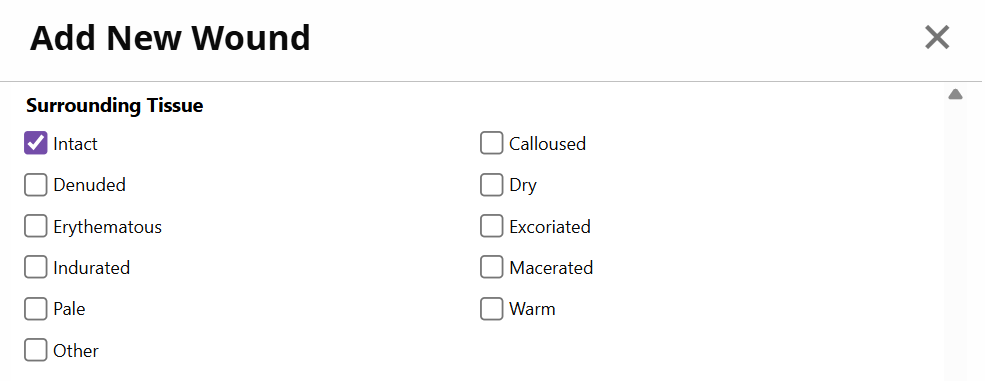
Surrounding Tissue: Check the boxes that describe the tissue surrounding the wound.
-
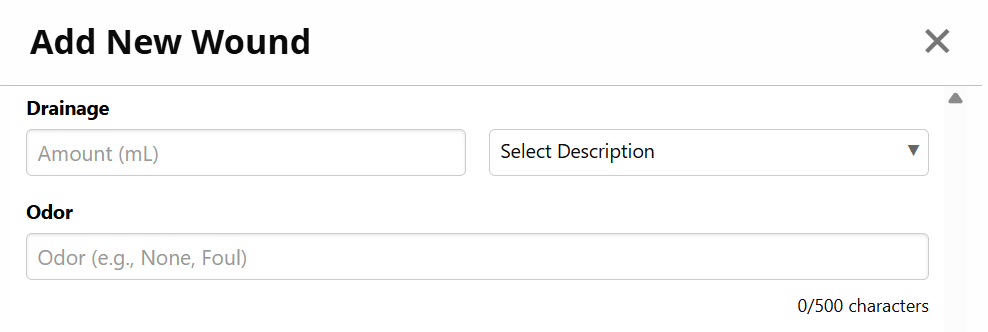
Drainage/Odor: If applicable, enter the drainage amount and description, and the odor of the wound.
-
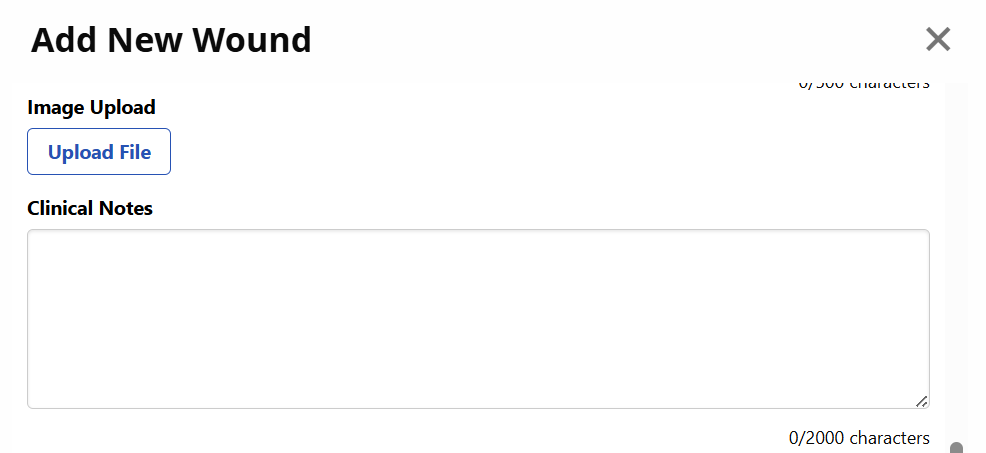
Image Upload/Clinical Notes: Upload an image of the wound and type out clinical notes.
-
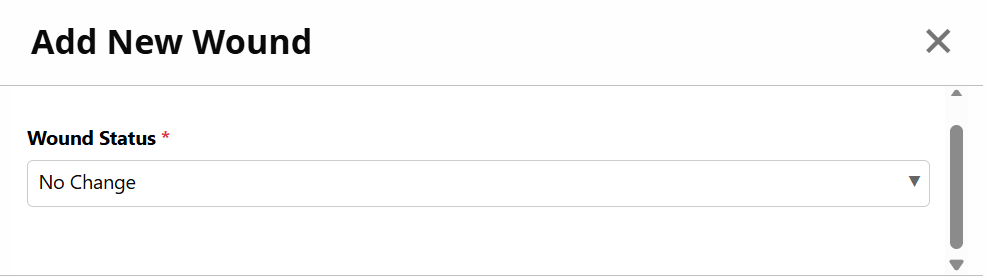
Wound Status: Select the status of the wound from the dropdown.
-
Click Save.
-
-
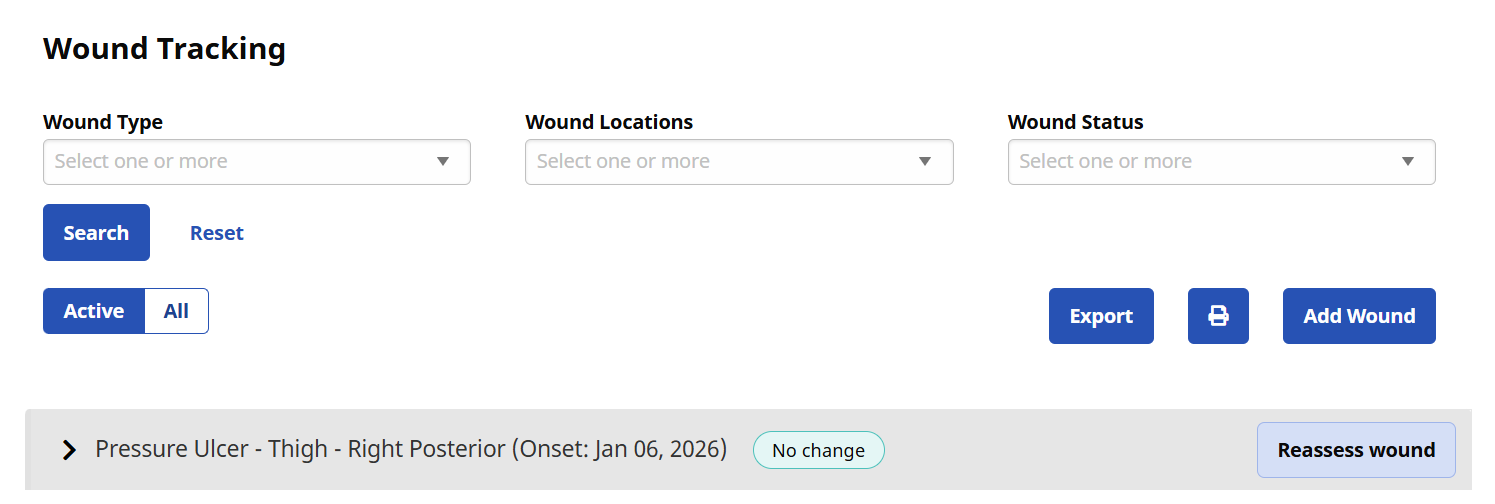
The wound appears on the main Wound Tracking page
To reassess and update the status of an existing wound:
-
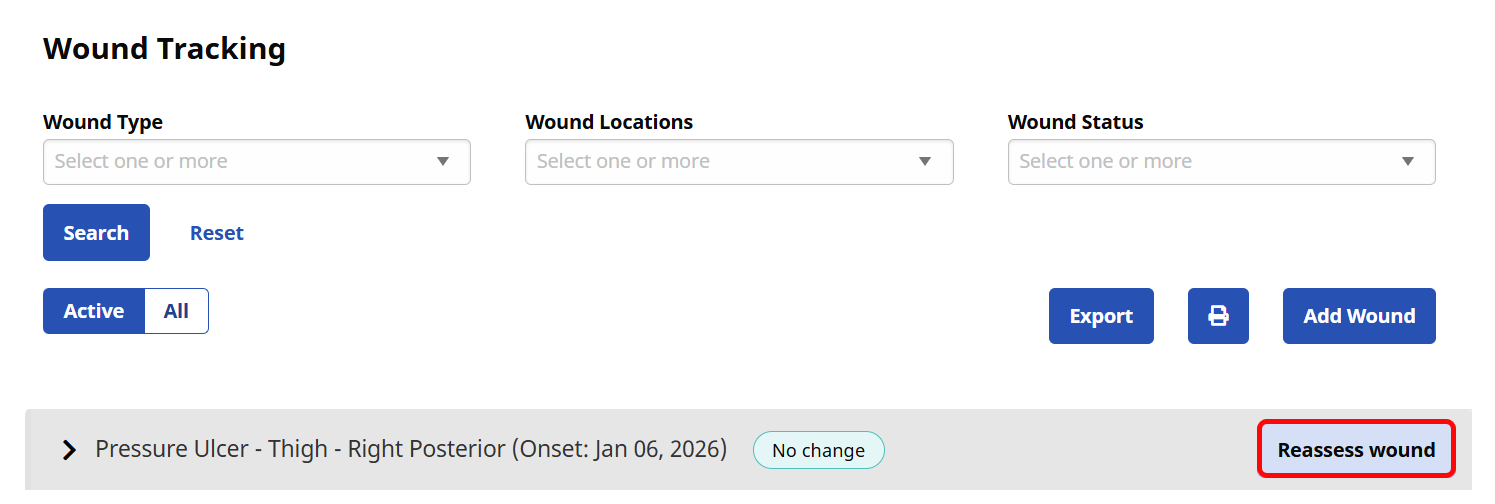
Find the wound you want to reassess and click Reassess wound.
-
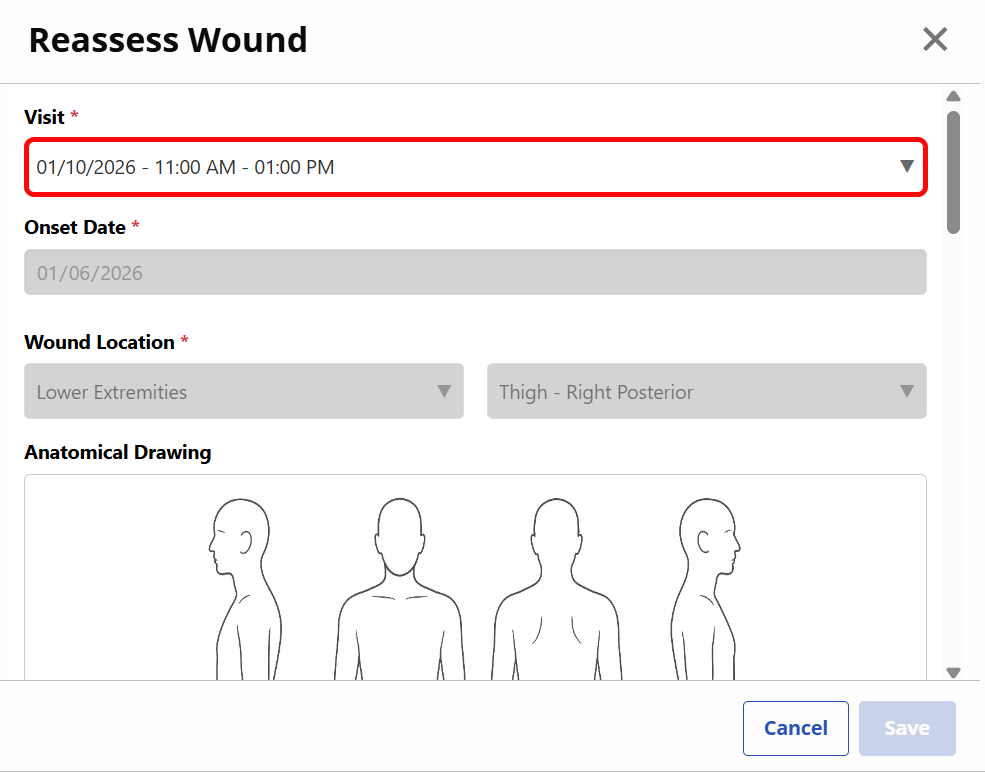
The Reassess Wound window opens. Select the Visit when the reassessment is happening.
-
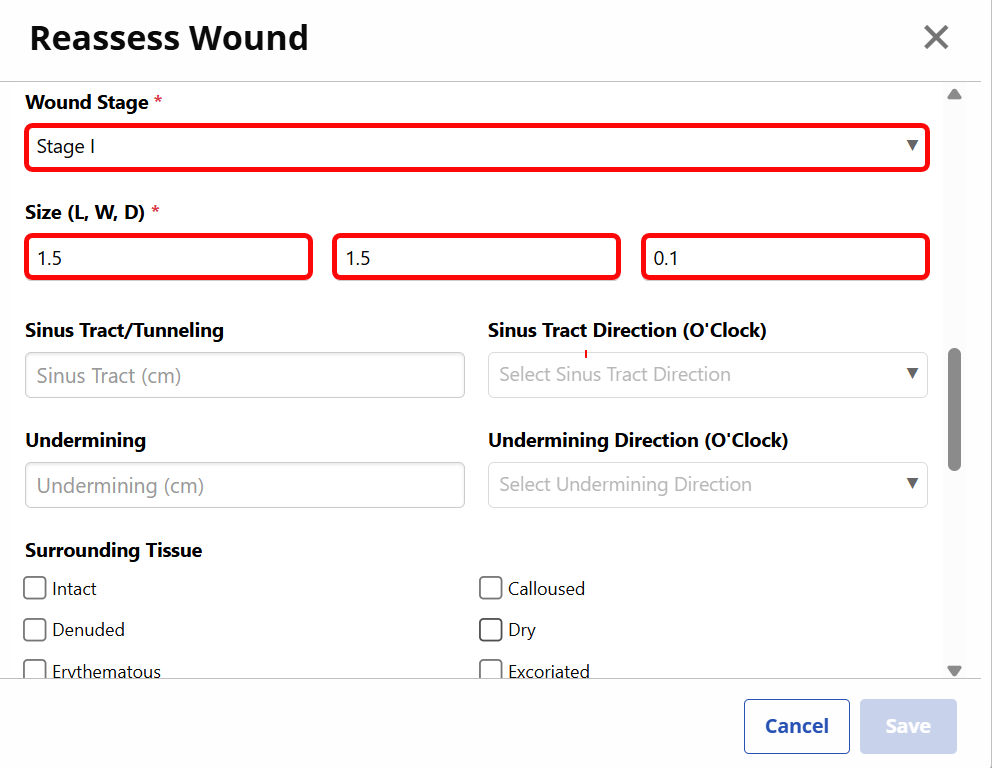
Update the Wound Stage and Size fields (required). You can also update any other descriptive fields.
-
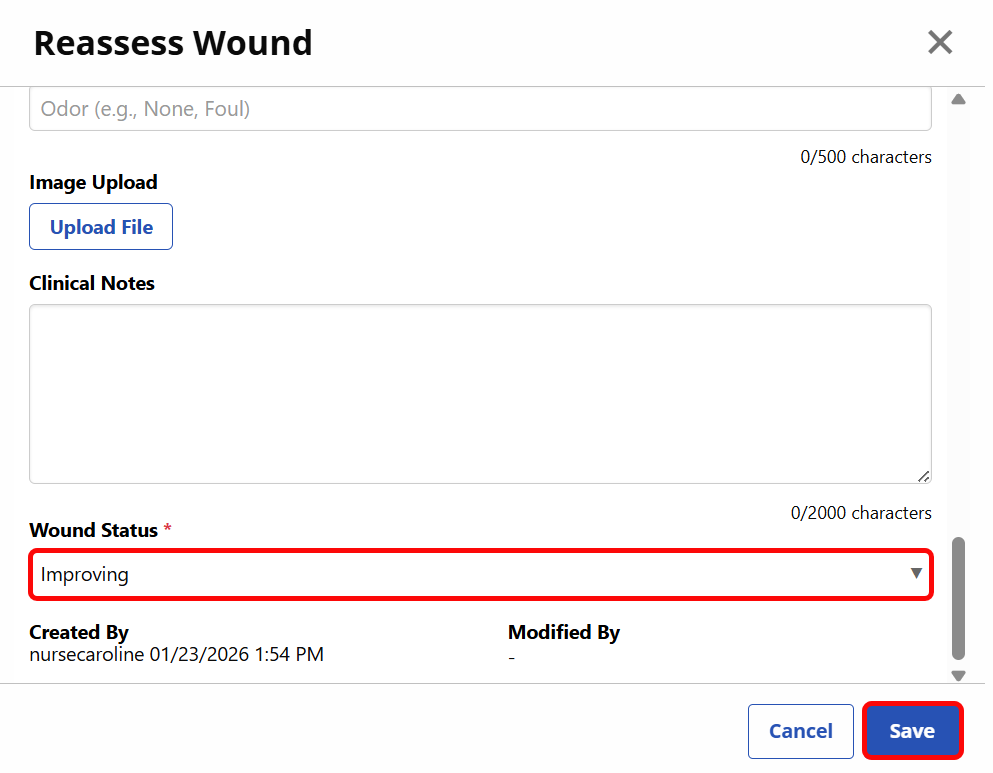
Update the Wound Status. Click Save.
-
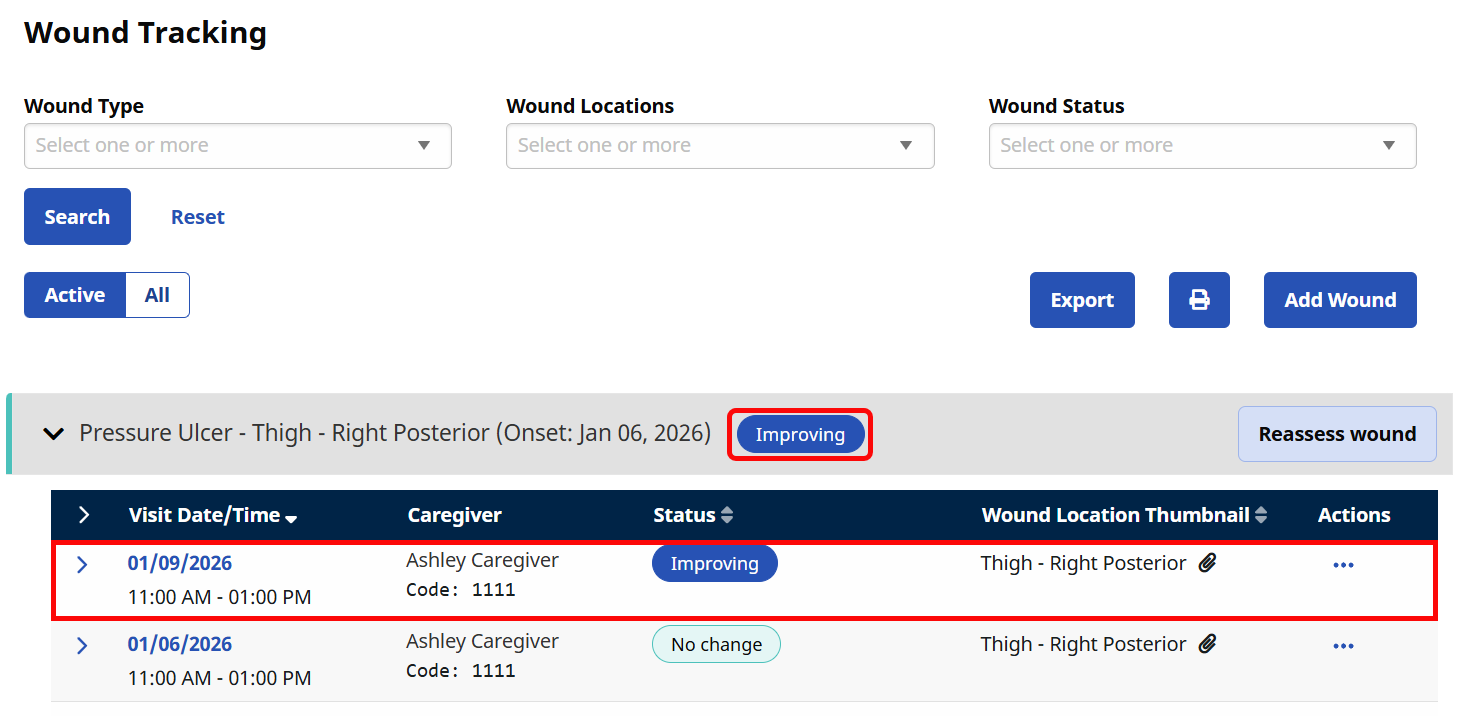
The reassessment is added to the top of the wound tracking list, and the Wound Status is updated (if applicable).
You can inactivate a wound record if it was entered incorrectly — for example, if the wrong value, client, or visit was selected.
Wound records should be inactivated only when they were entered by mistake and do not accurately represent the Patient’s condition.
-
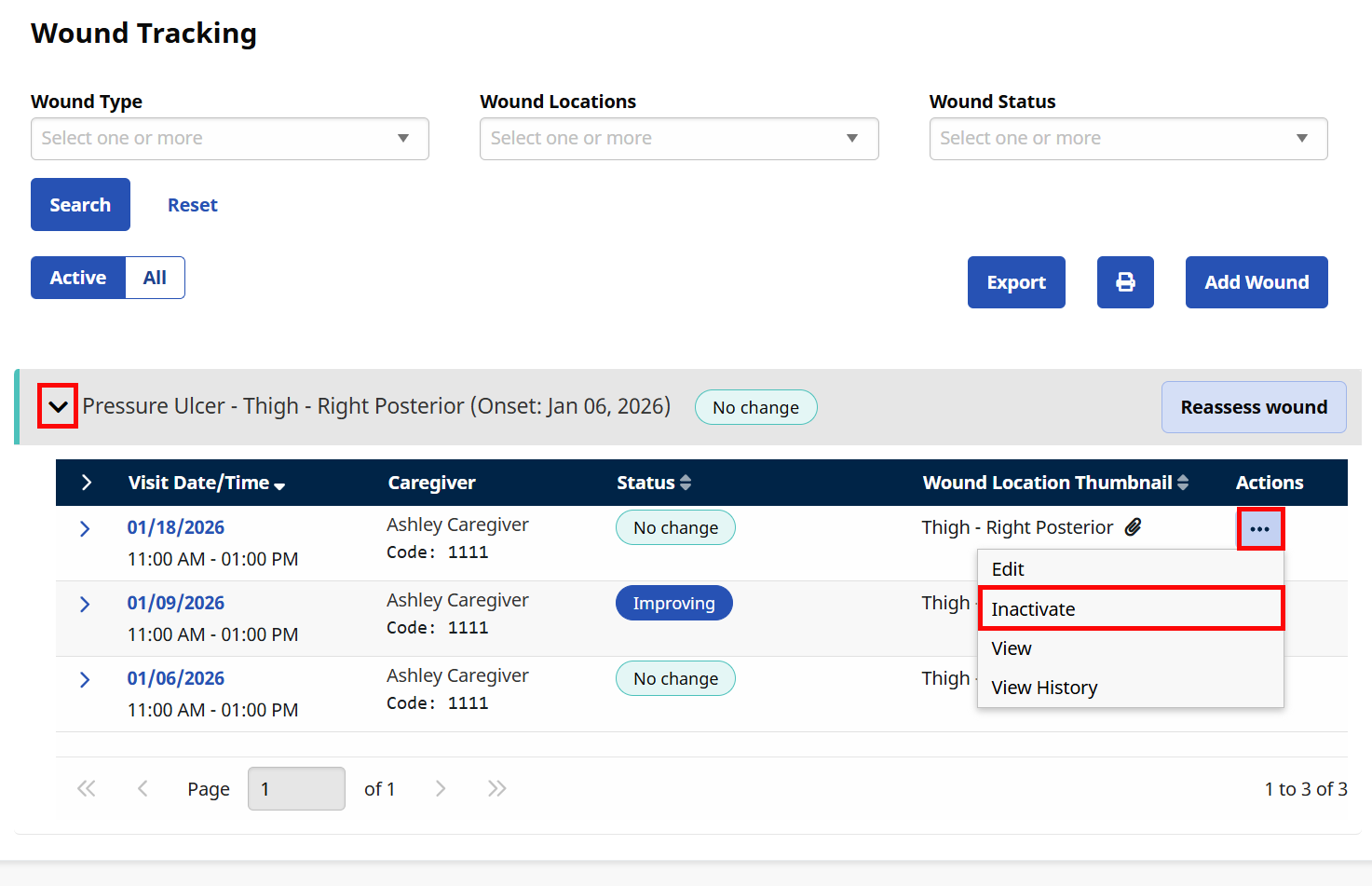
Click the arrow to the left of the wound.
-
Find the record you want to inactivate and click the Ellipsis Icon under the Actions column. Select Inactivate.
-
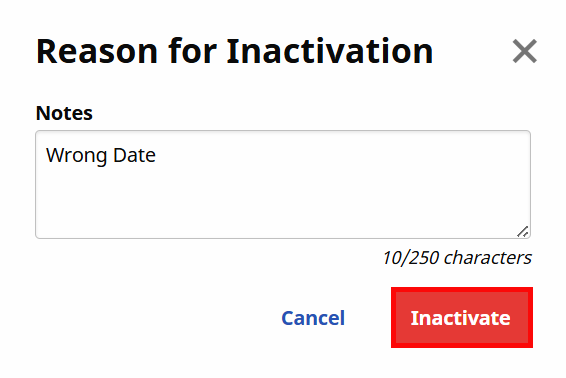
Enter the Reason for Inactivation in the Notes field. Click Inactivate.
-
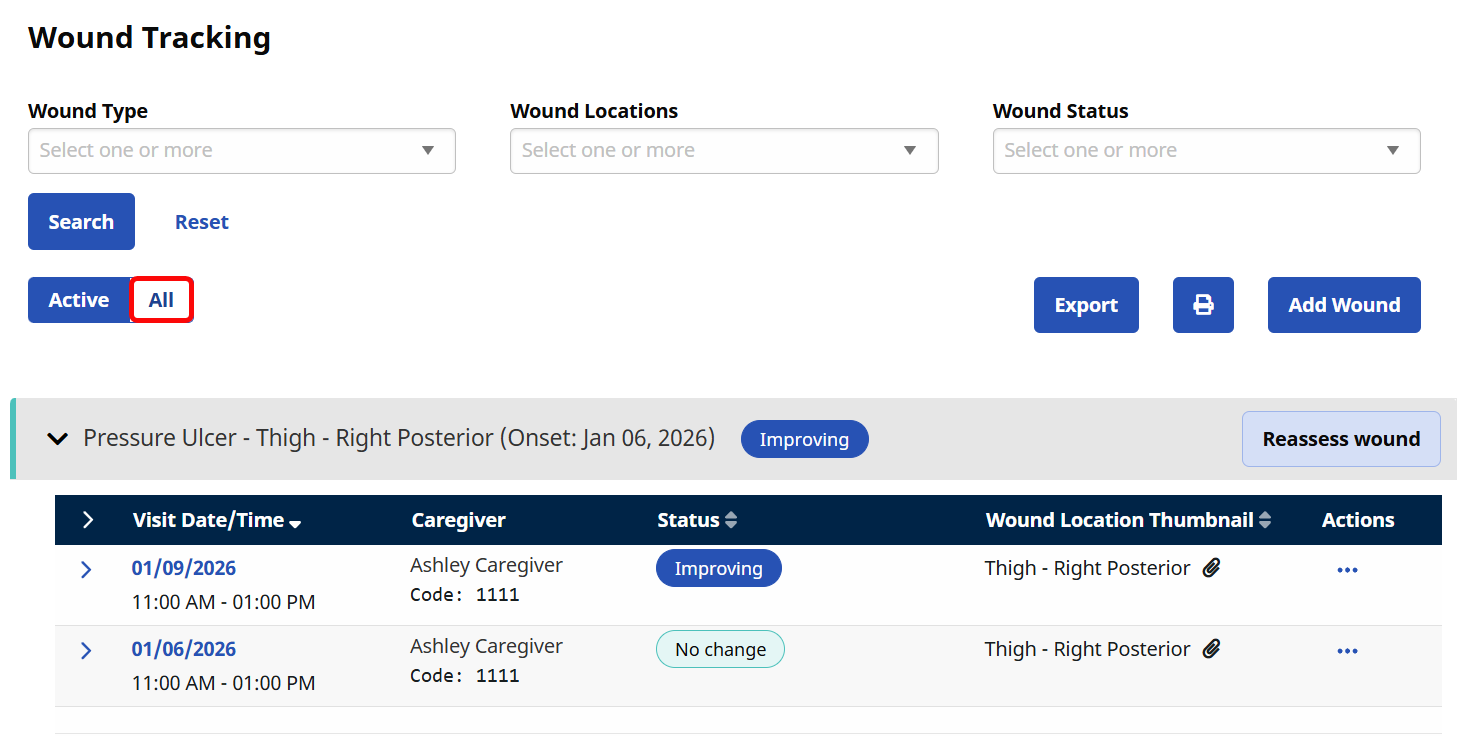
The record disappears from the main Wound Tracking page. It can still be viewed by clicking the All toggle.
Wound records can be exported as a PDF and as a CSV file.
To export a PDF:
-
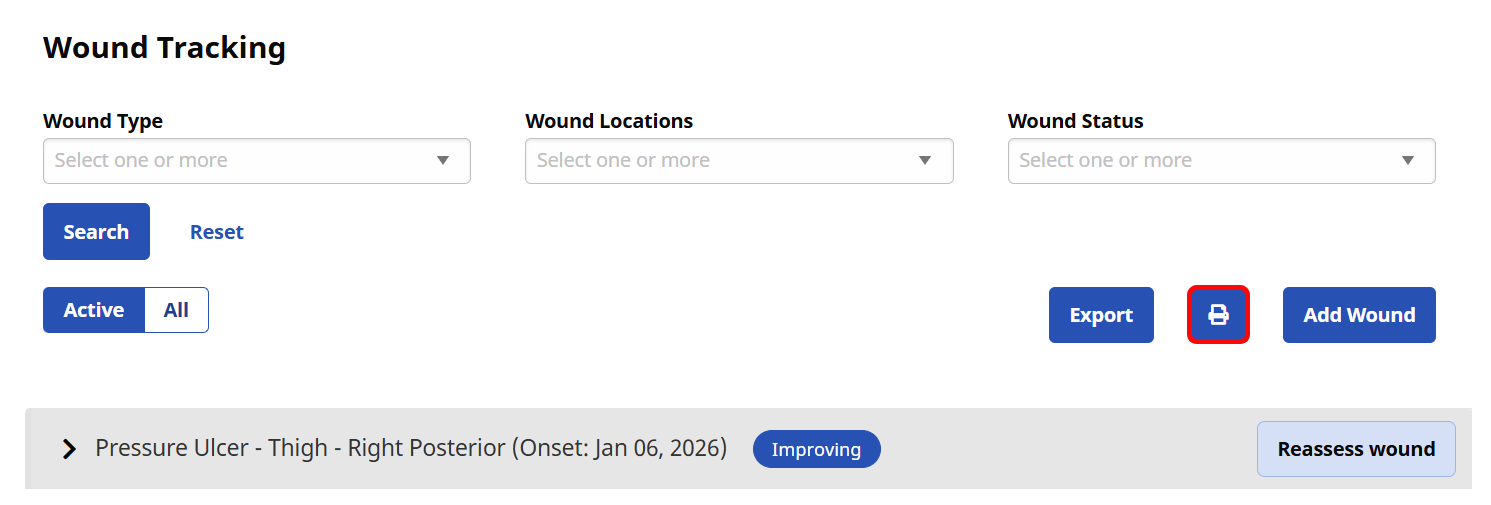
Click the Printer icon above the list of wounds.
-
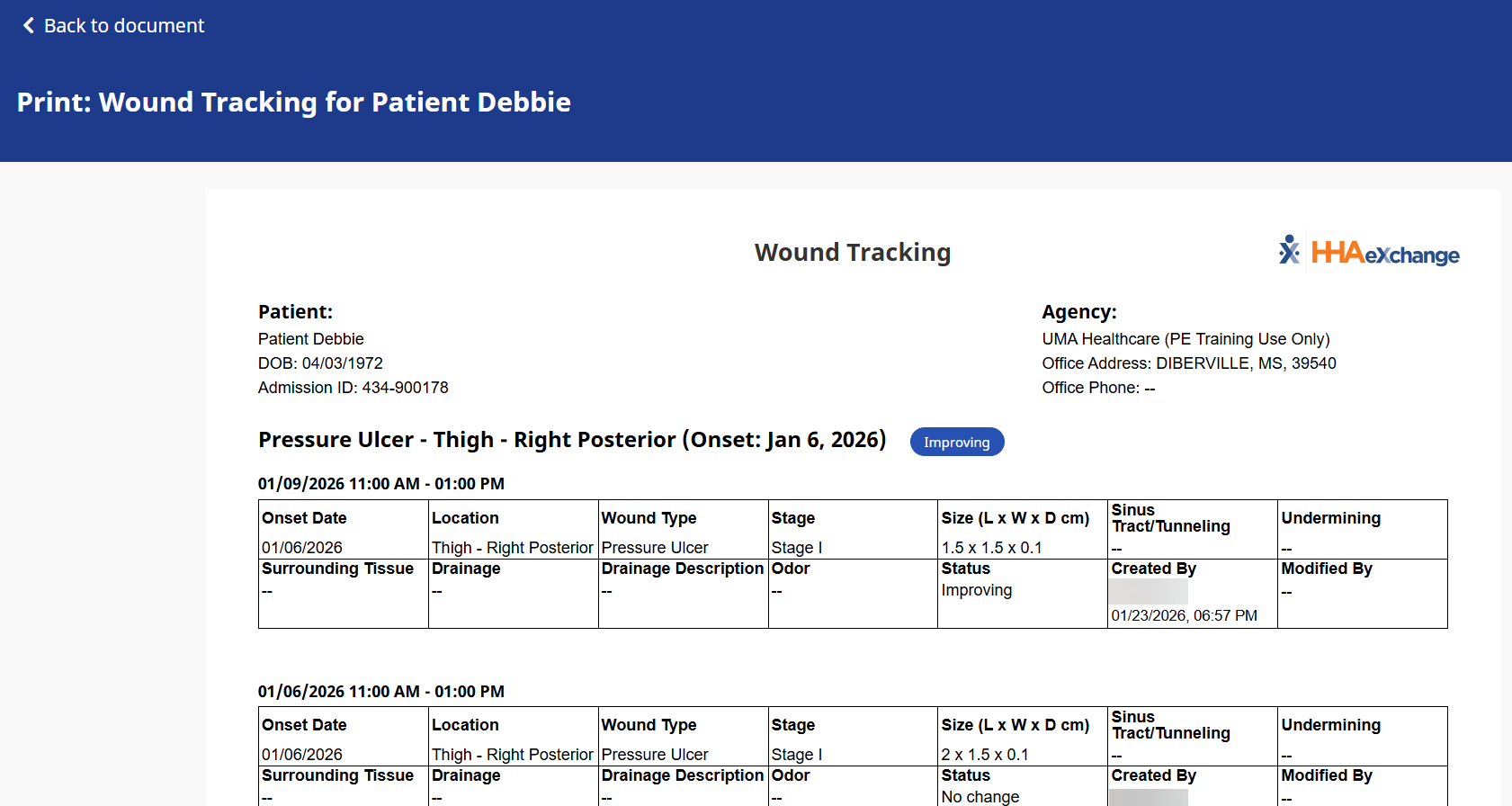
A window opens with a listing of the Patient's wound records.
-
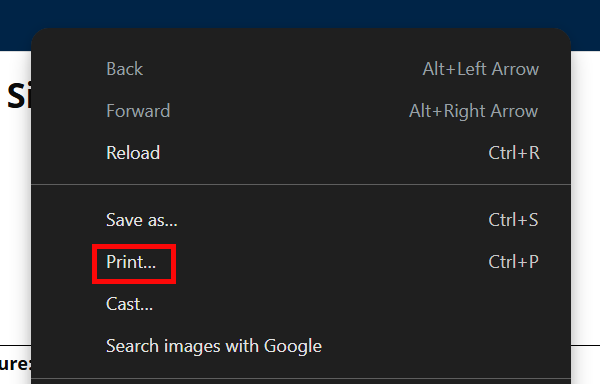
Right click anywhere on the page, and select Print....
-
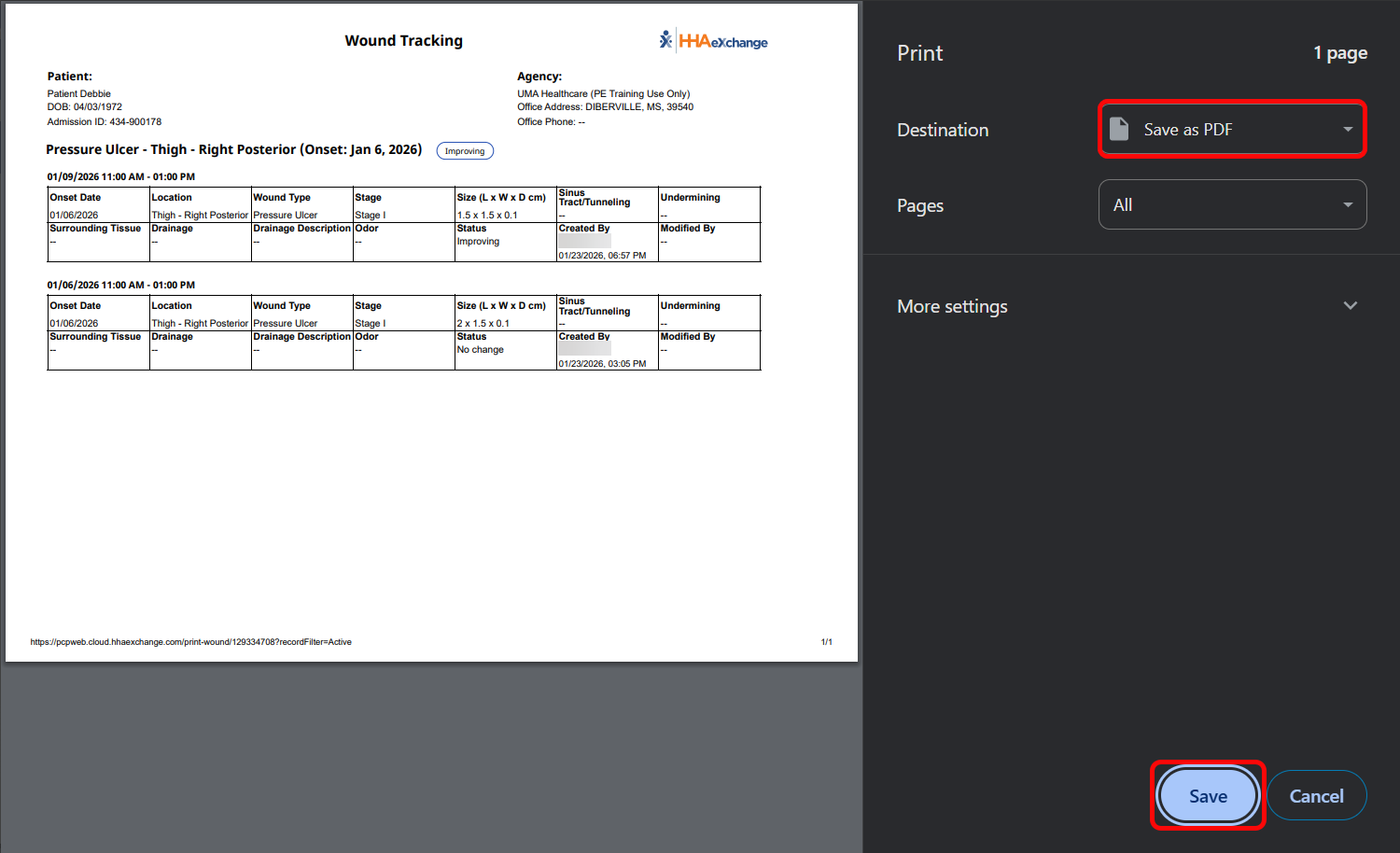
The Print window opens. Under the Destination dropdown, select Save as PDF. Click the Save button.
-
Save your PDF in the desired destination on your computer.
To export a CSV:
-
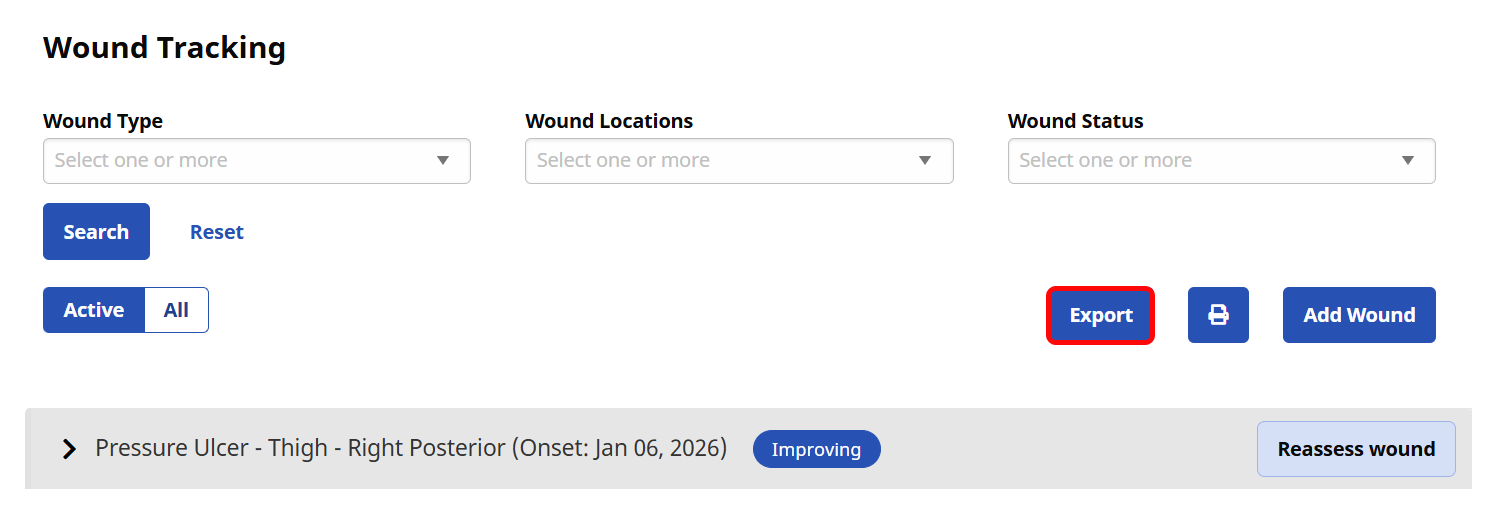
Click the Export button above the list of wounds.
-
Save the CSV file in the desired destination on your computer.