eMAR Module
This feature is activated by HHAeXchange System Administration. Contact HHAeXchange Support Team for details, setup, and guidance.
The eMAR (Electronic Medication Administration Record) Module helps care providers accurately document medication administration in real time. It provides a clear, centralized view of scheduled medications, completed doses, and missed or refused medications, supporting safer care and better compliance.
By default, Clinical Modules are only available during skilled visits, as they are intended for use by medical practitioners. If you want unskilled Caregivers to be able to use the eMAR Module, make sure to Set Up Clinical Modules for Unskilled Visits.

Medications are added to the eMAR roster via the Med Profile page of the Patient Profile. For more information on how to add, update or remove medications, see the following help topic: Med Profile.
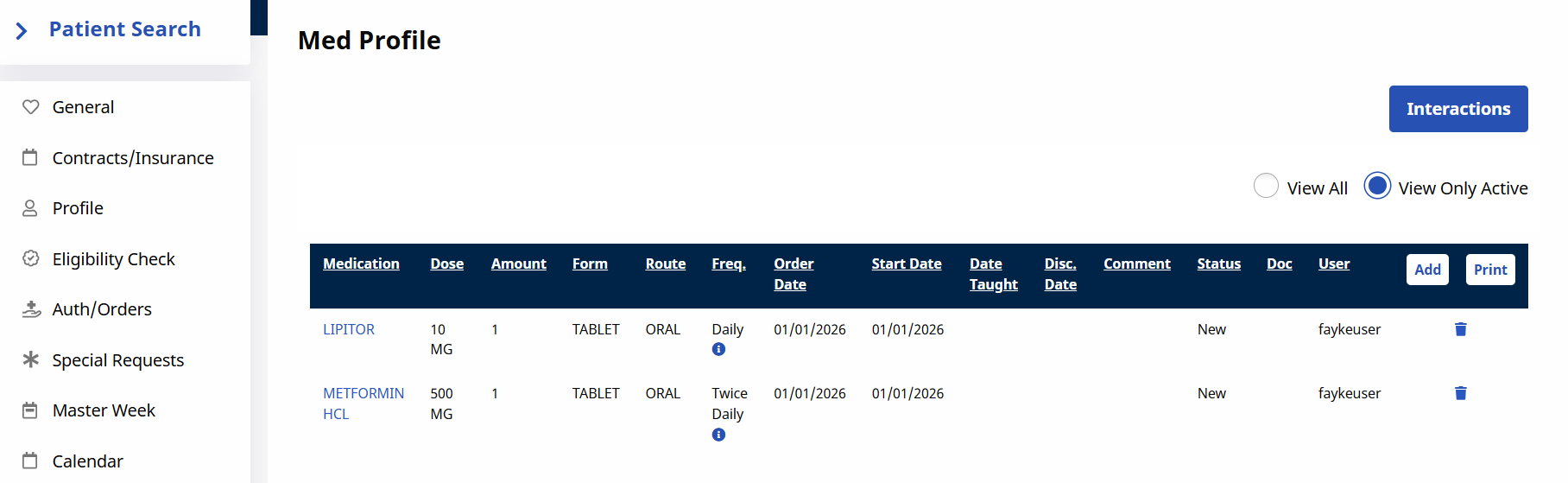
When you select a Frequency, default administration times are automatically added. Review and update the Administration Schedule section on the Med Profile page to match the Patient’s required times.
Complete the eMAR for every scheduled medication, even if the medication is not given.
To log medication in the eMAR Module:
-
Click on eMAR in the left navigation panel of the Patient Profile.
-
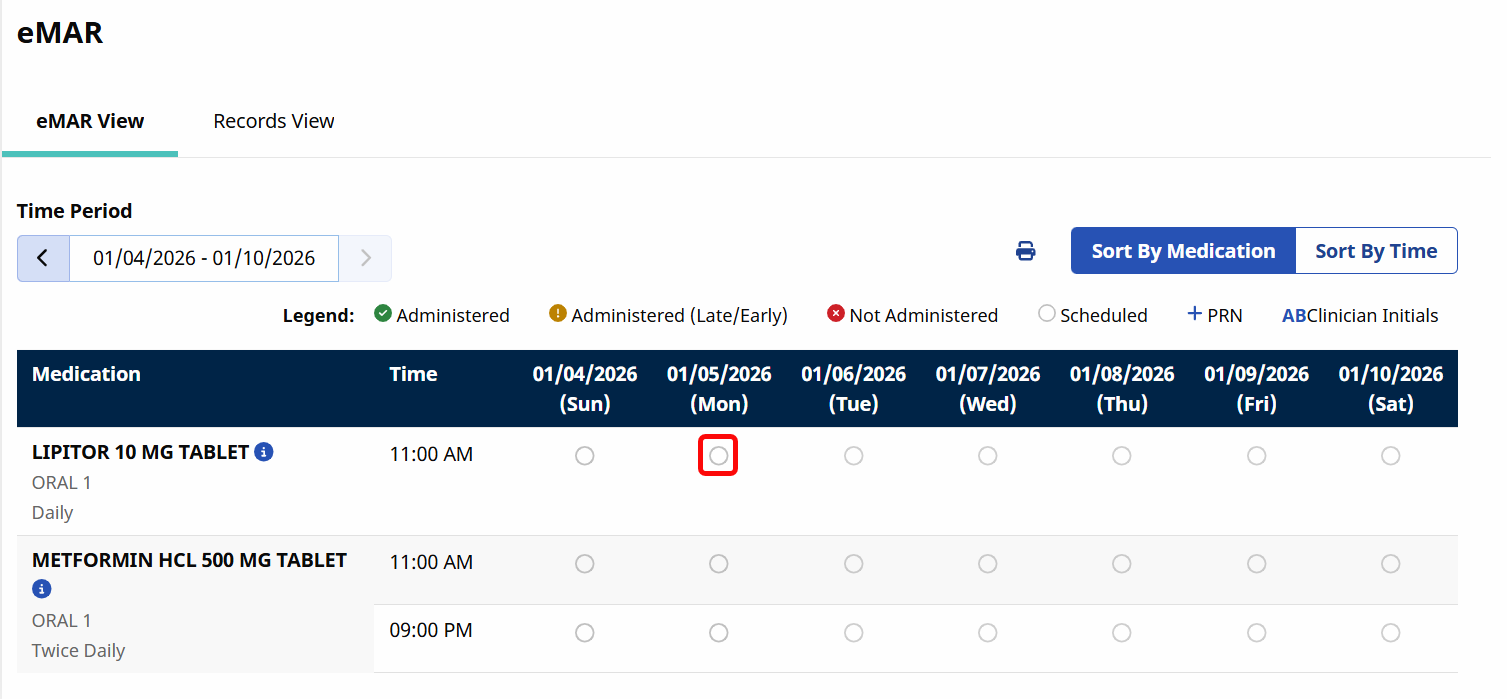
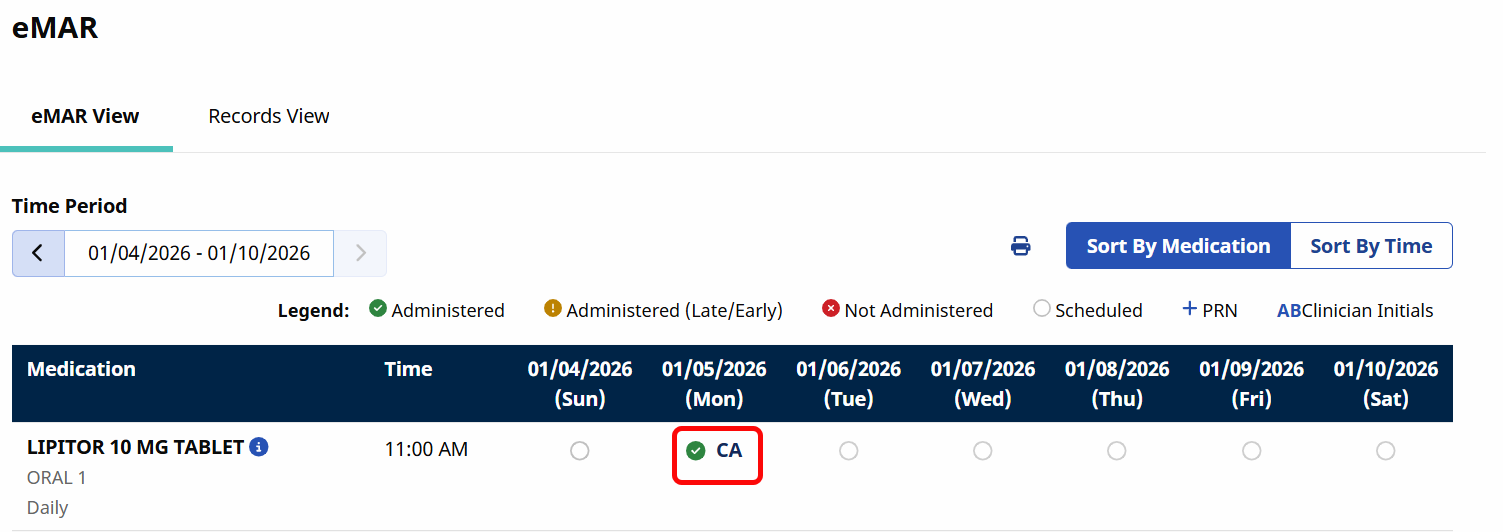
Find the medication you are logging as well as the date and time, and select the appropriate Radio Button. In the example below, the Caregiver is logging Lipitor on 01/05/2026 at 11:00 AM.
-
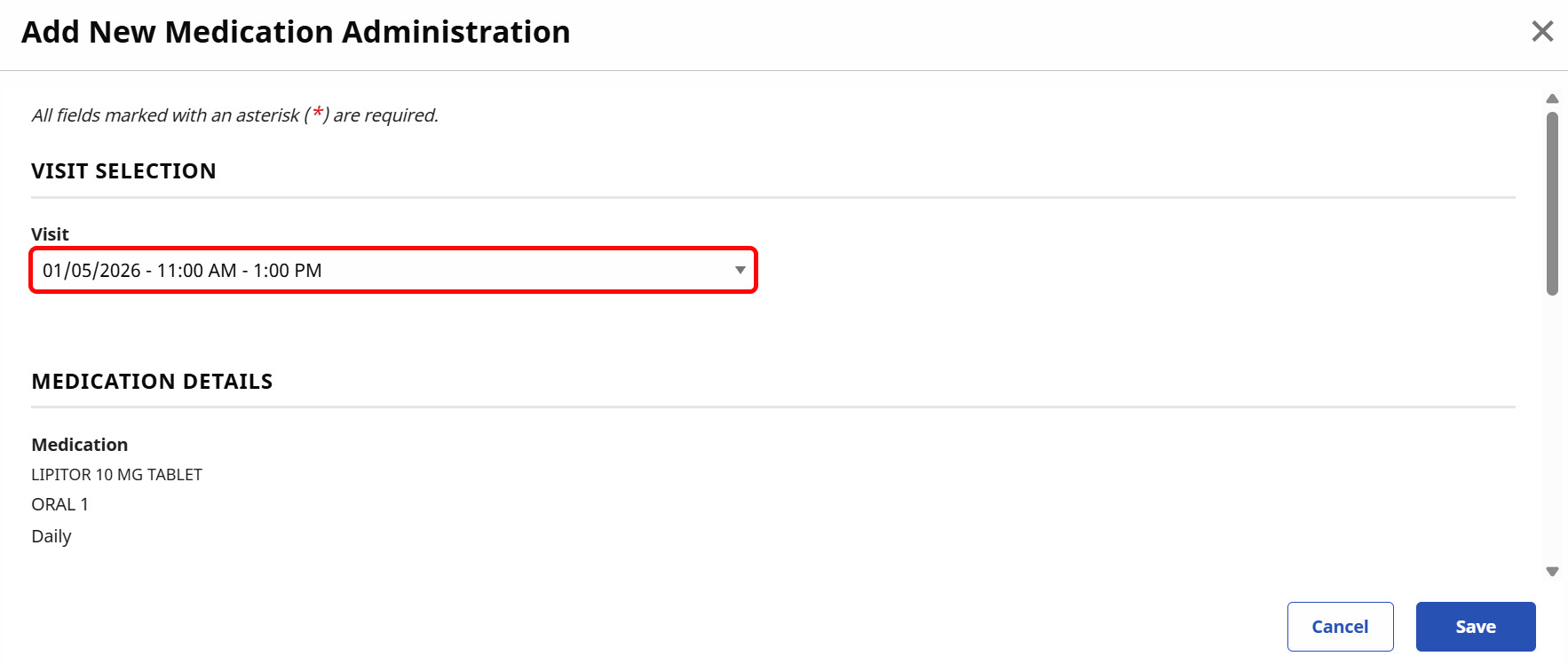
The Add New Medication Administration window opens. In the Visit dropdown, select the Visit.
-
Scroll down to the Administration Details section. You can adjust the Time Administered by typing in a new time, and the Administration Status by selecting an alternative from the dropdown.
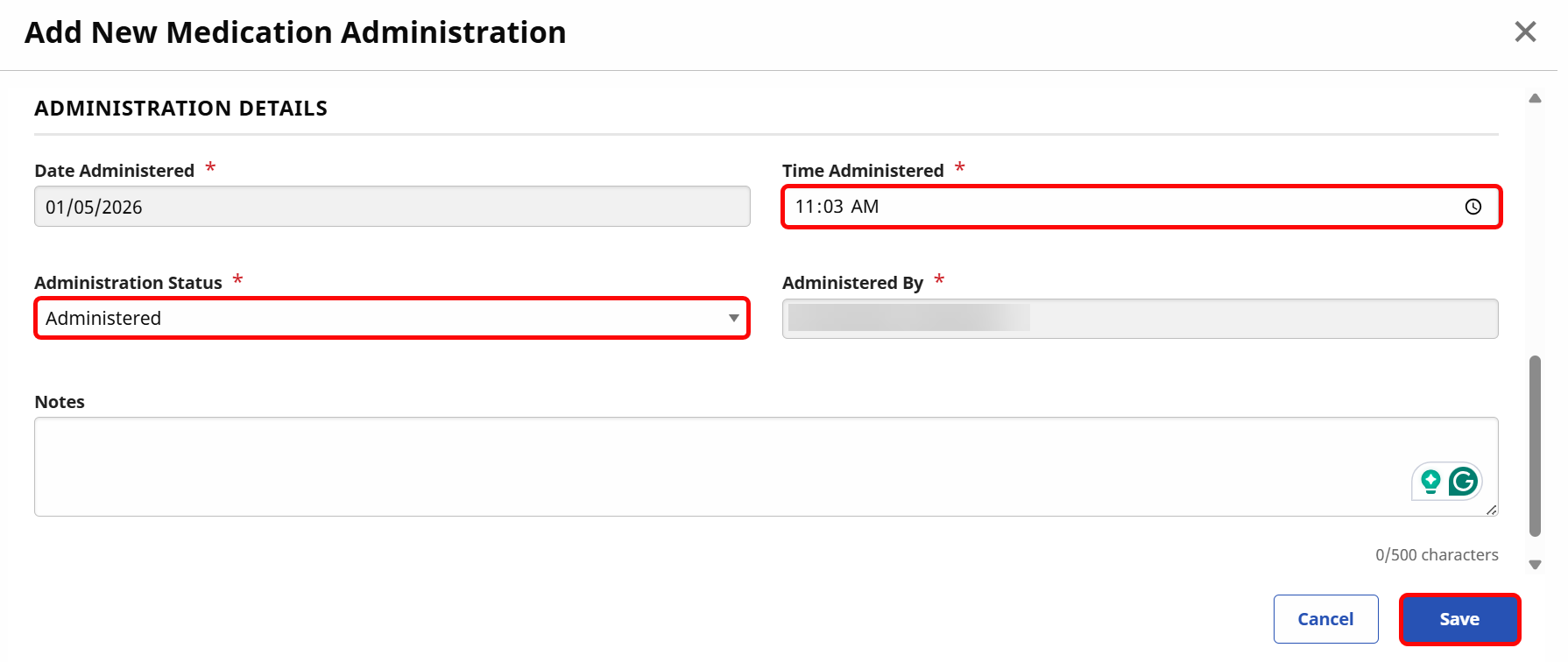
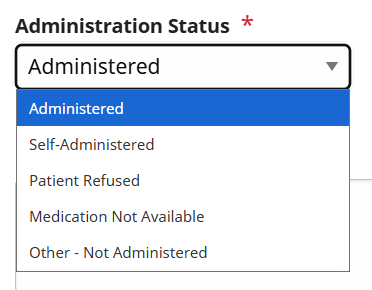
The available Administration Statuses are:
-
Administered: Select if the medication was properly administered.
-
Self-Administered: Select if the Patient administered the medication independently.
-
Patient Refused: Select if the Patient refused to take the medication.
-
Medication Not Available: Select if the medication was not available for administration.
-
Other - Not Administered: Select if the medication was not administered for any other reason.
-
-
Add medication Notes if necessary.
-
Click Save to save the record.
If the medication has been administered, the record appears in the eMAR Module with a Green Checkmark and the administrating Caregiver's Initials.
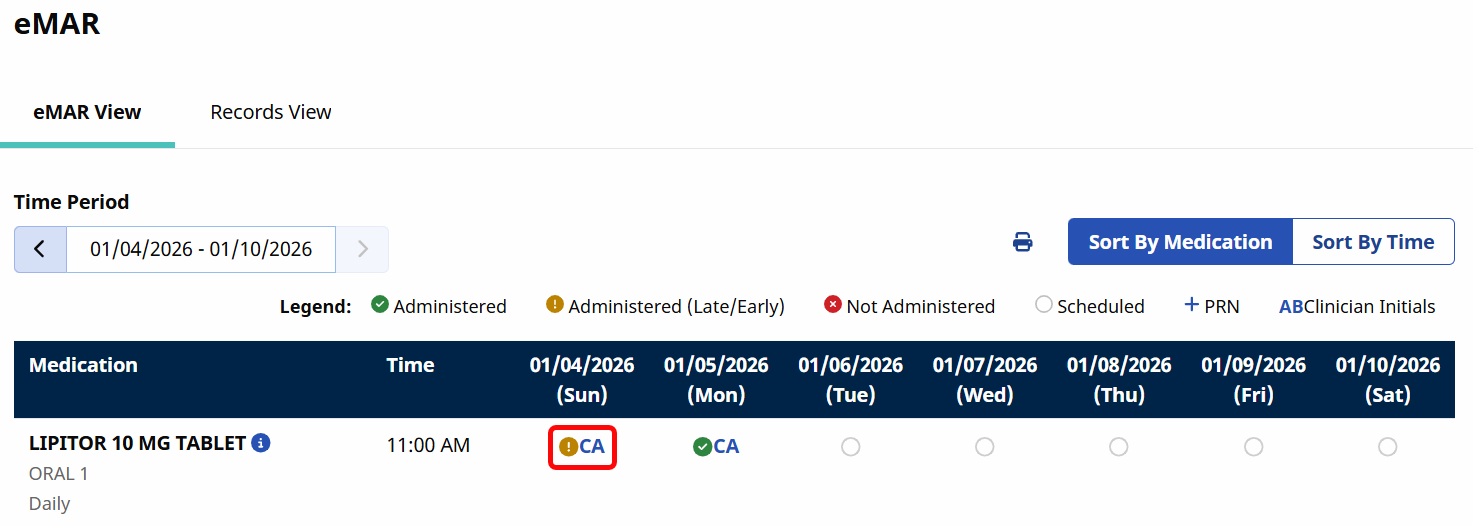
If the medication was administered late, the record appears in the eMAR Module with a Yellow Exclamation Point and the administrating Caregiver's Initials. Hover over the Yellow Exclamation Point to see when the medication was administered.
If the medication has not been administered, the record appears in the eMAR Module with a Red X. Hover over the Red X to see the reason the medication was not administered.
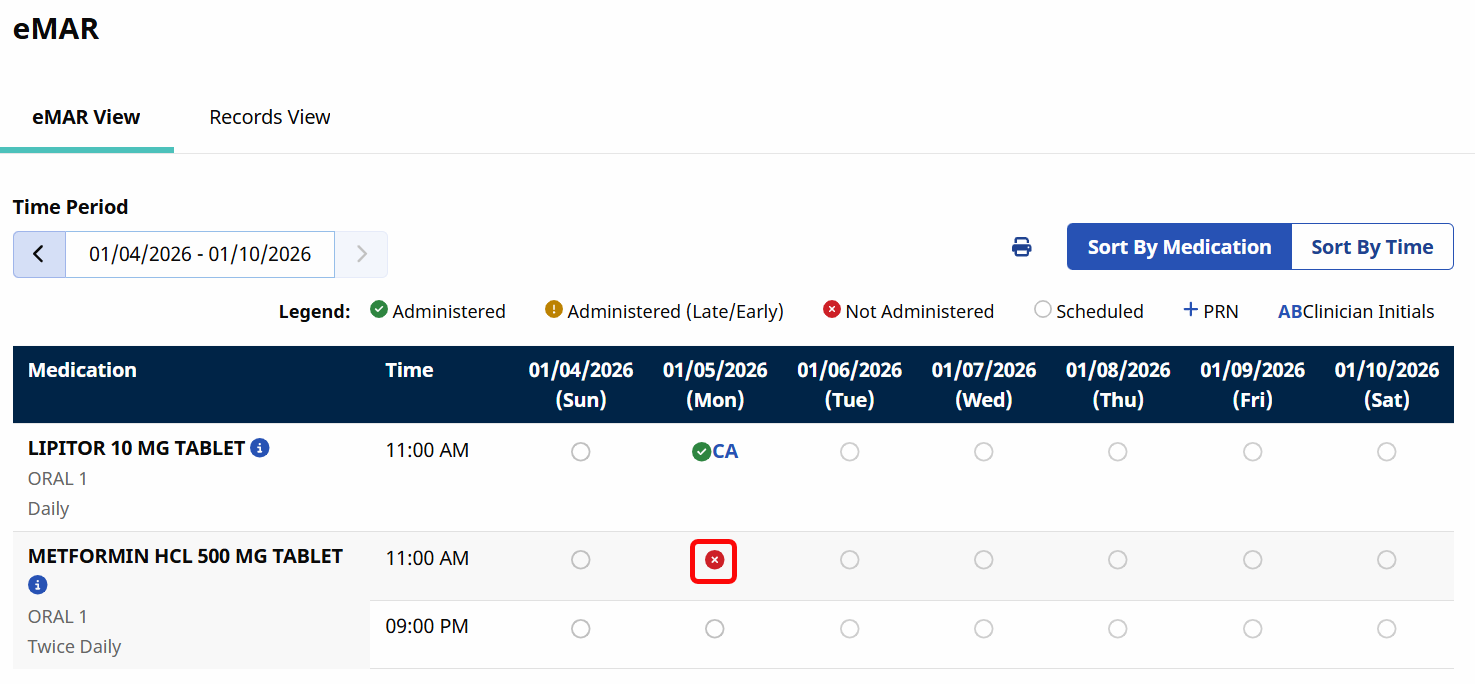
If an eMAR was signed in error, you can unsign it to update the entry with the correct information.
To unsign an eMAR record:
-
Click on the log on the eMAR Module screen — the Green Checkmark, Yellow Exclamation Point, or Red X, depending on the record.
-
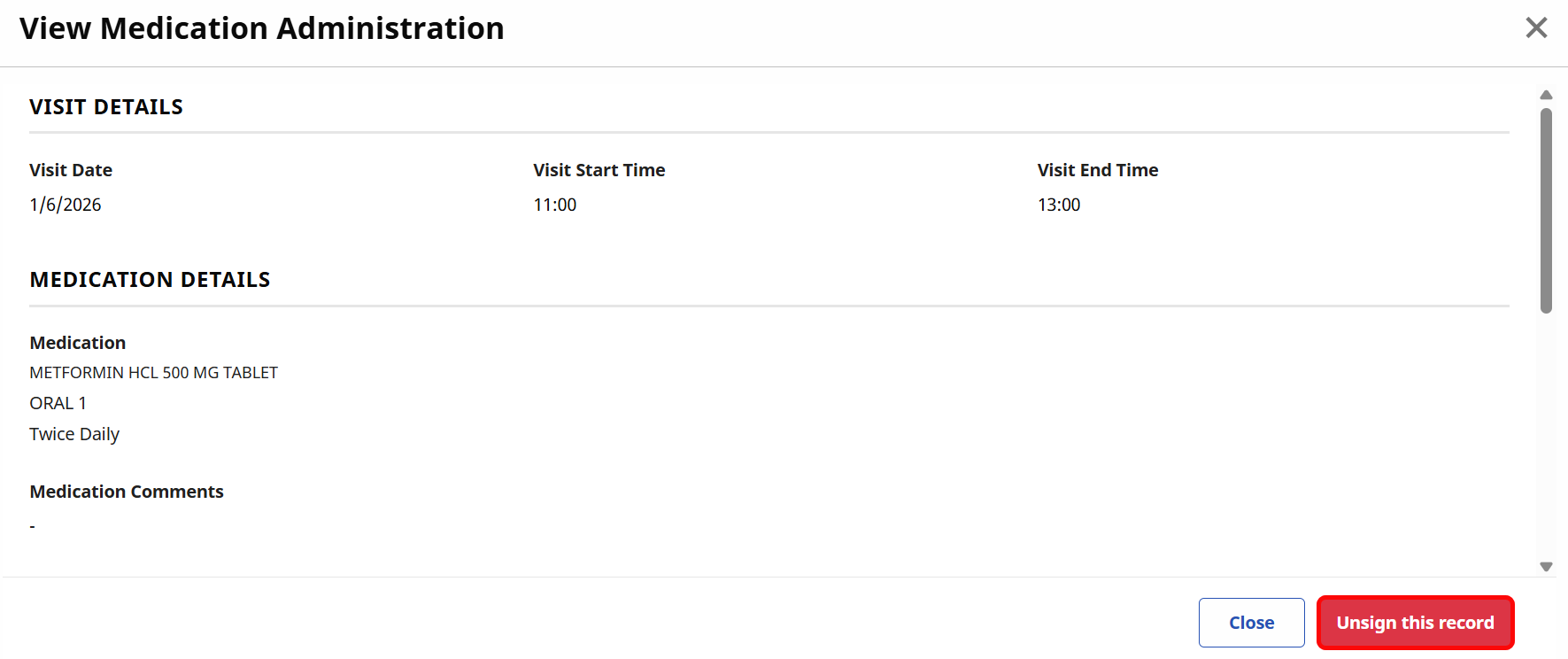
The View Medication Administration window opens. Click the Unsign this record button.
-
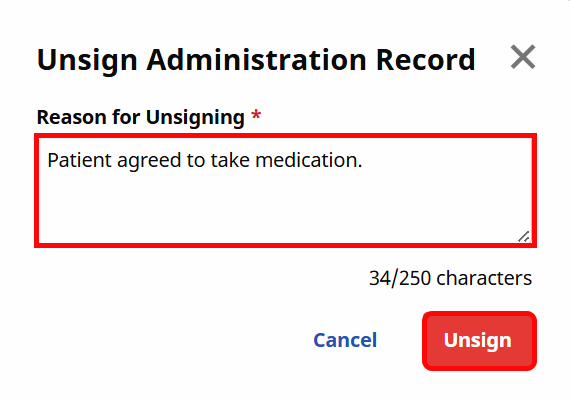
The Unsign Administration Record window opens. Enter a Reason for Unsigning and click Unsign.
The record now appears unsigned on the eMAR Module page.
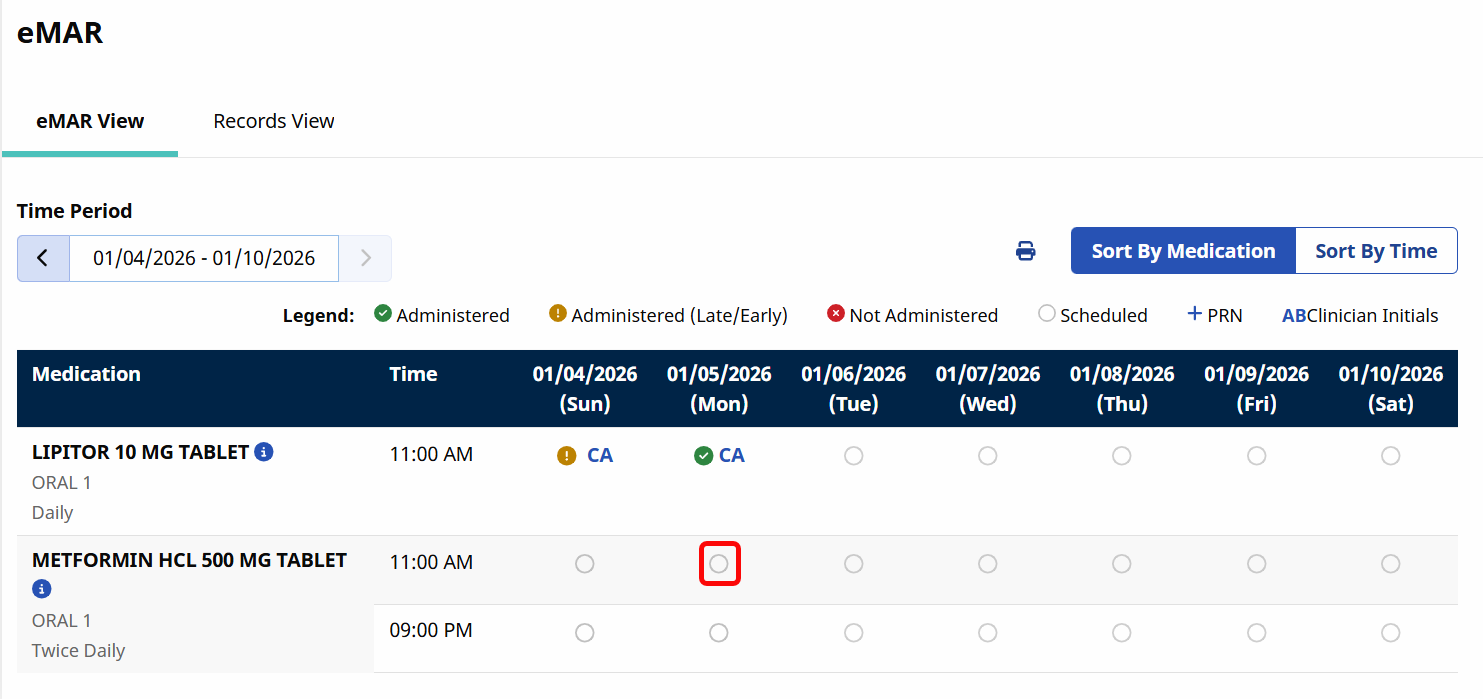
Make sure to re-log the medication with the correct information after unsigning the record.
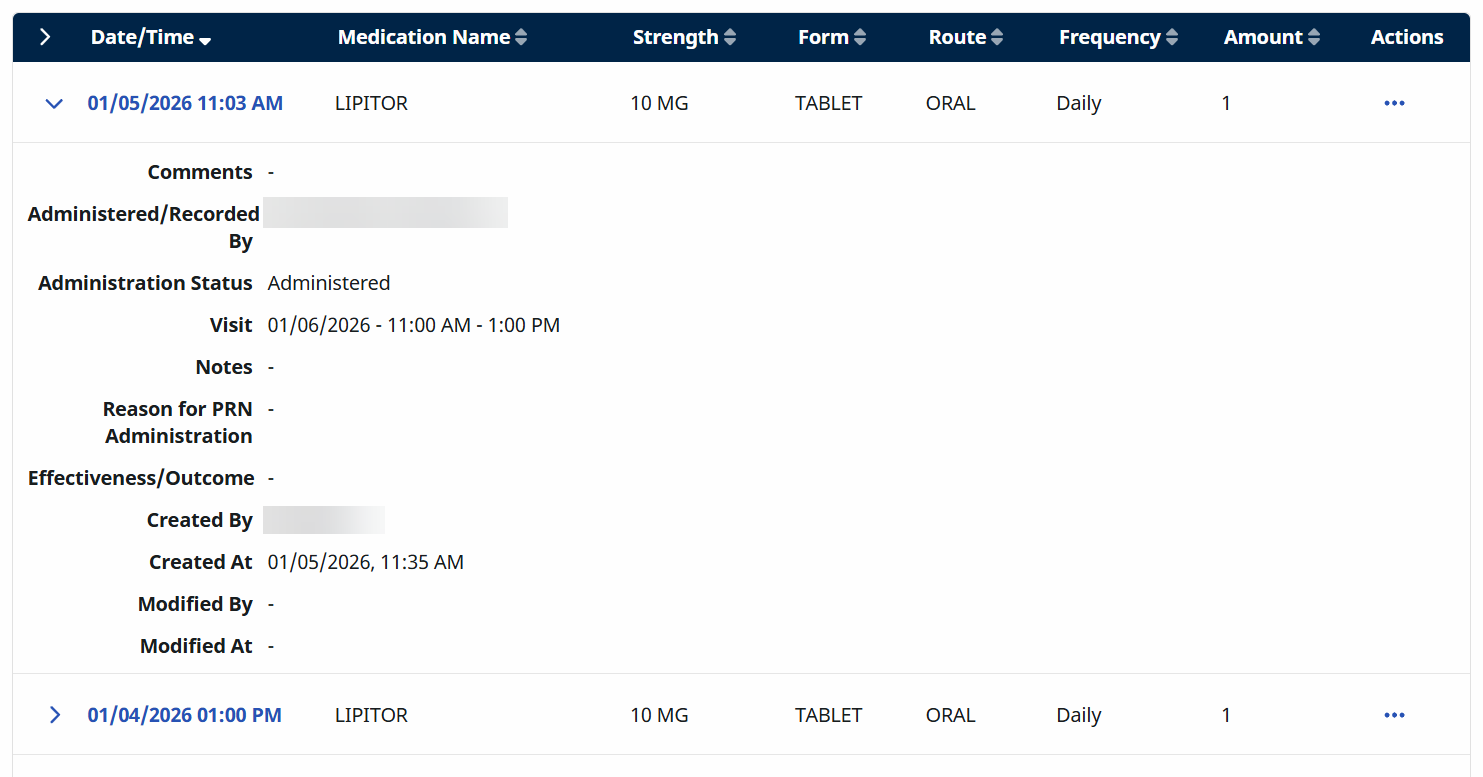
The Records View tab of the eMAR Module allows you to see a list of all logged eMAR records for easy viewing.
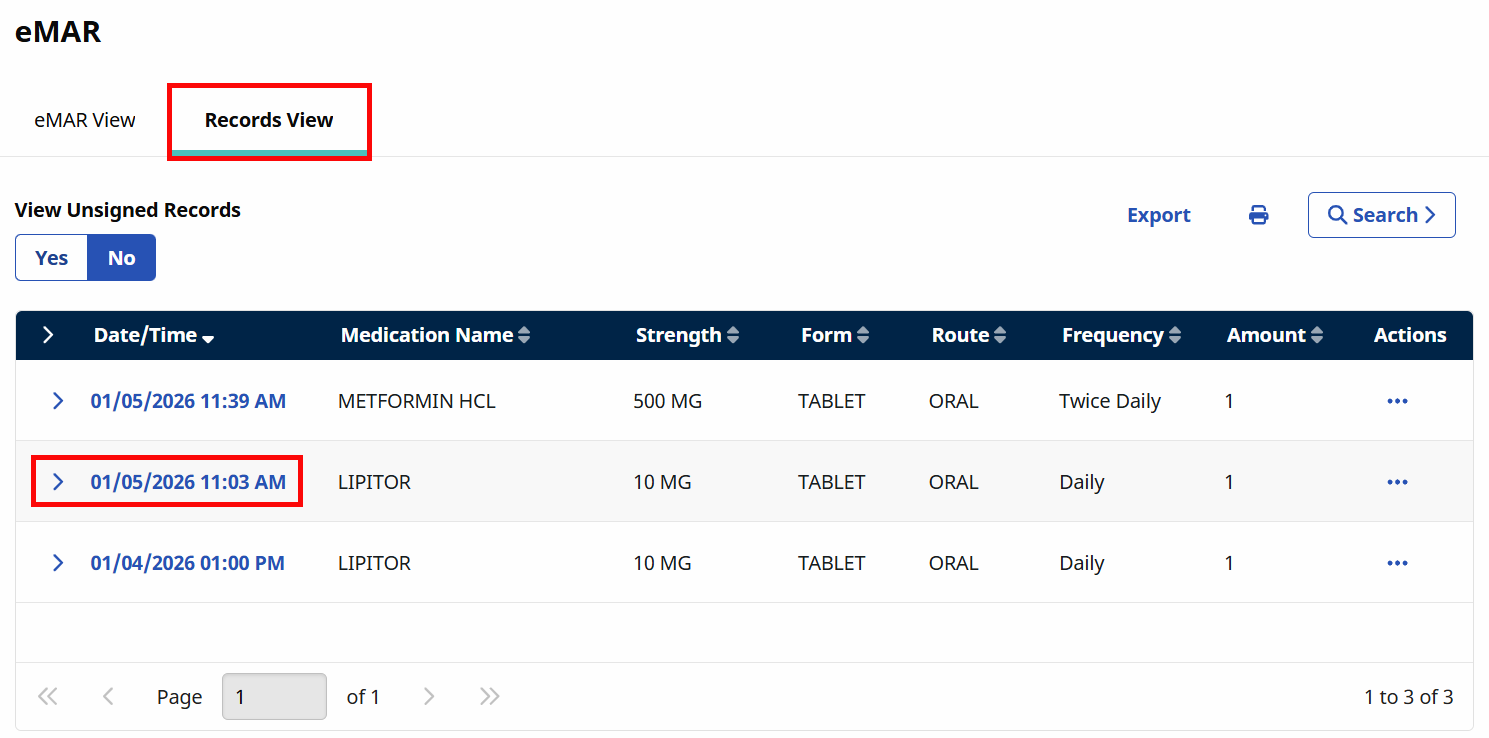
Click on a date to see the details of that medication log.