Employer Dashboard
The Employer Dashboard under Payroll > Employer > Employer Dashboard allows you to run and edit payroll, complete setup tasks, and review pending and completed payroll.

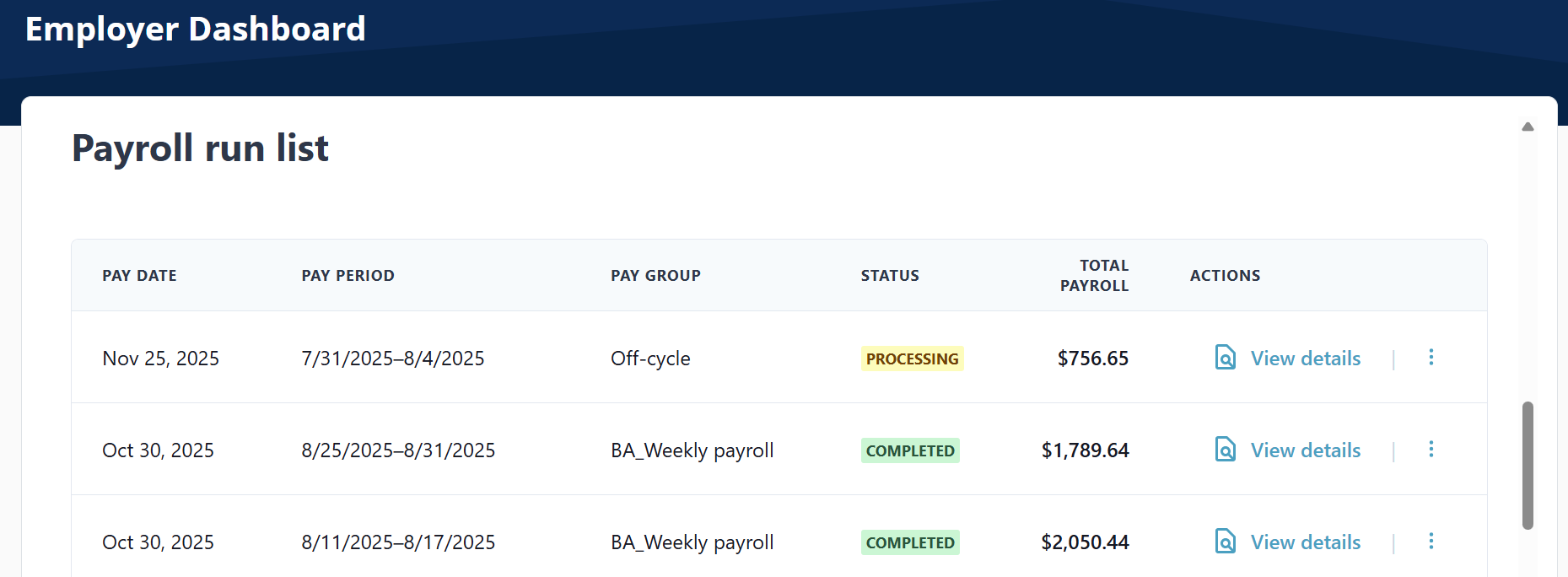
Review pending payroll in the Payroll run list section of the Employer Dashboard.
-
Select View Details to see more details about the Payroll Run.
If you make a mistake on a payroll run, you can cancel the payroll run from this page.
Changes can only be made until the Payroll Run is in a Completed status. Once in a Completed status, any changes need to be managed in the next scheduled Payroll Run OR in an Off-Cycle Payroll Run.
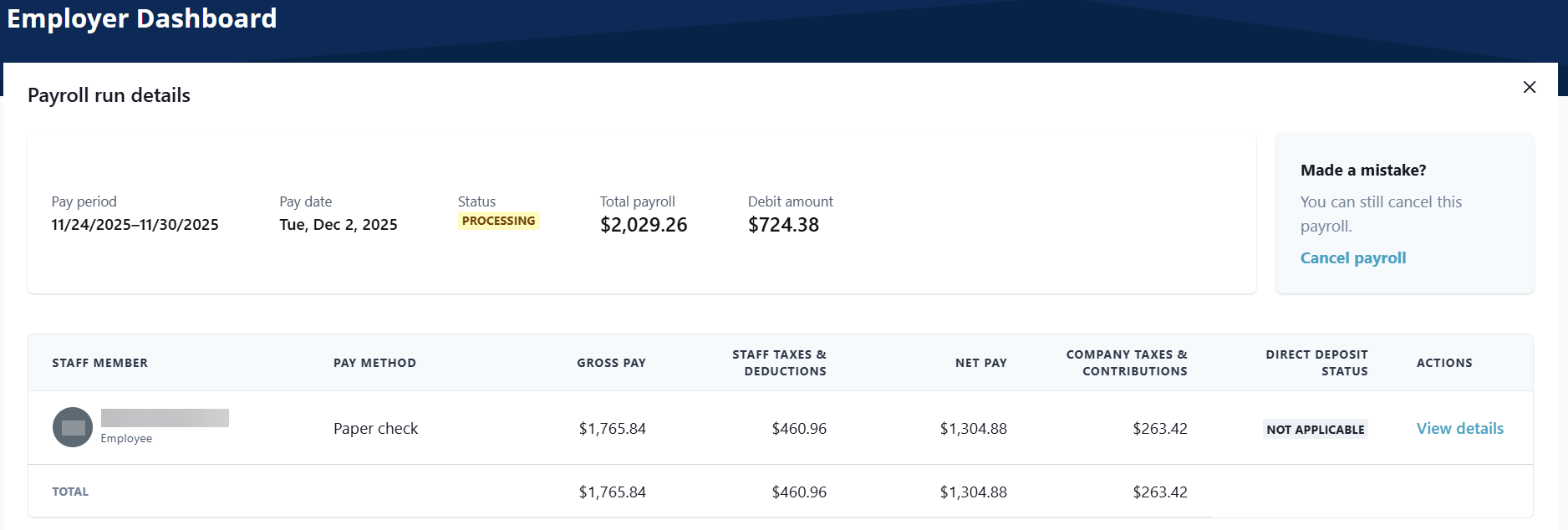
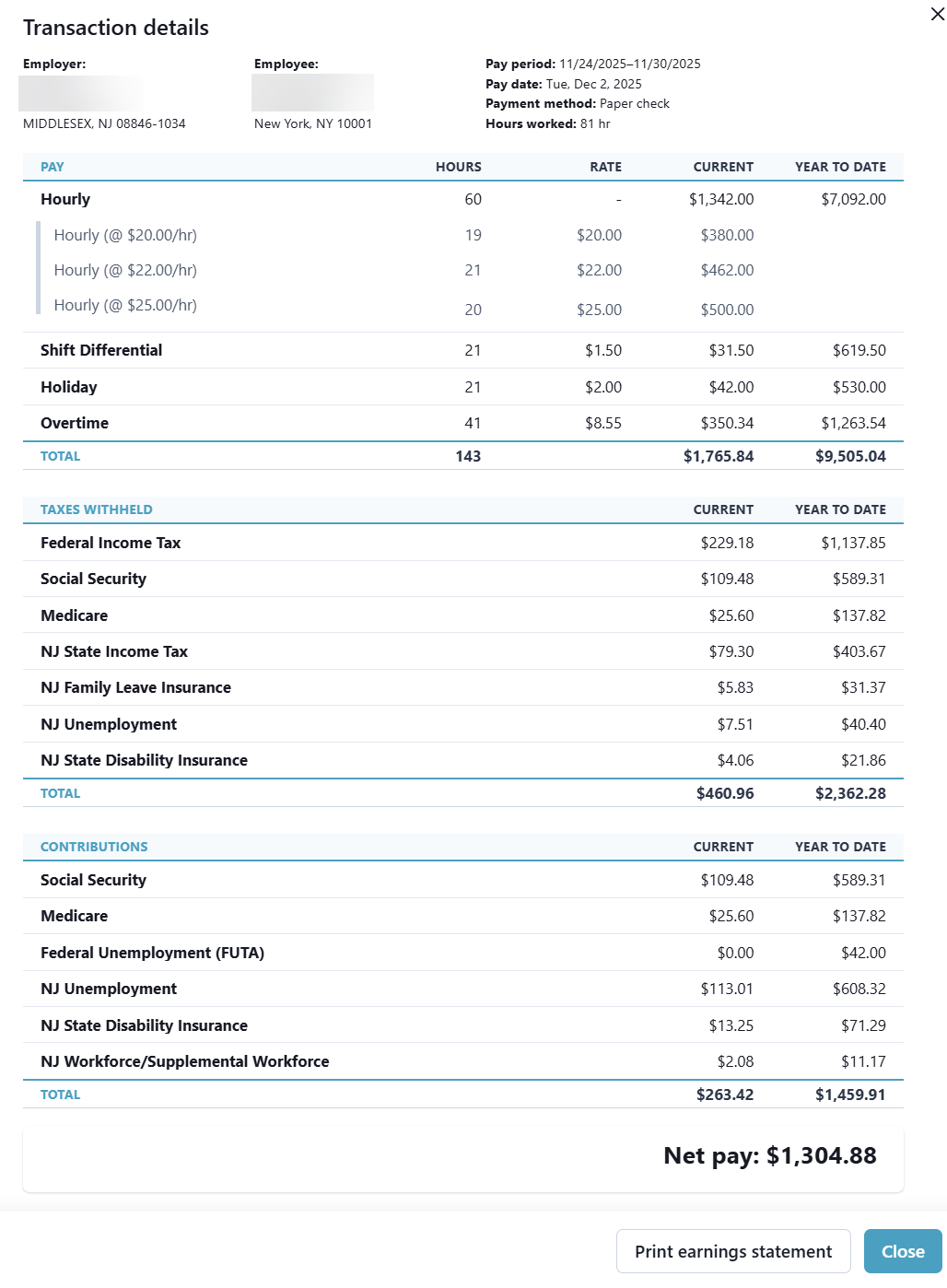
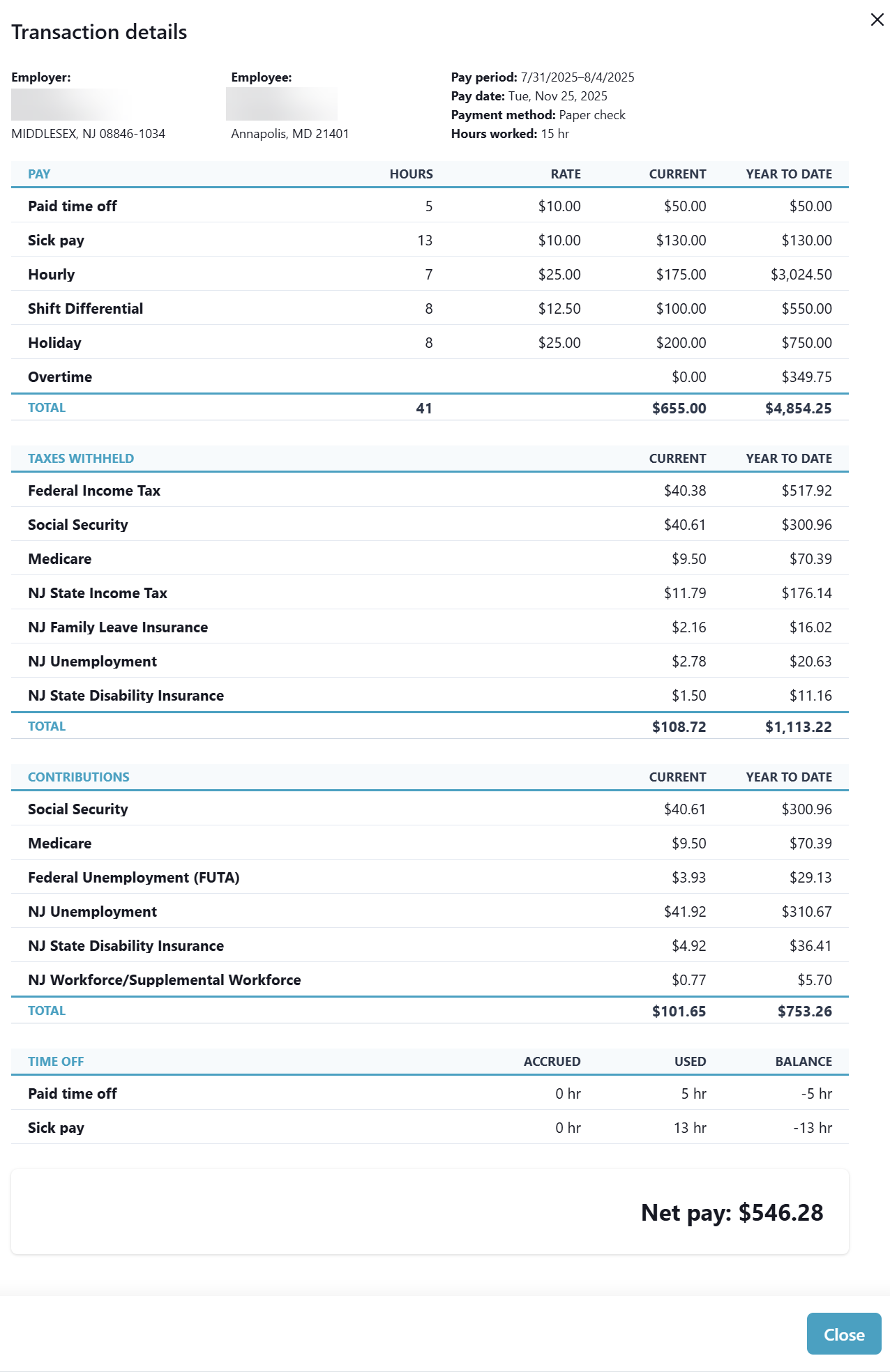
The View Details button under the Actions column opens the Transaction Details window.
-
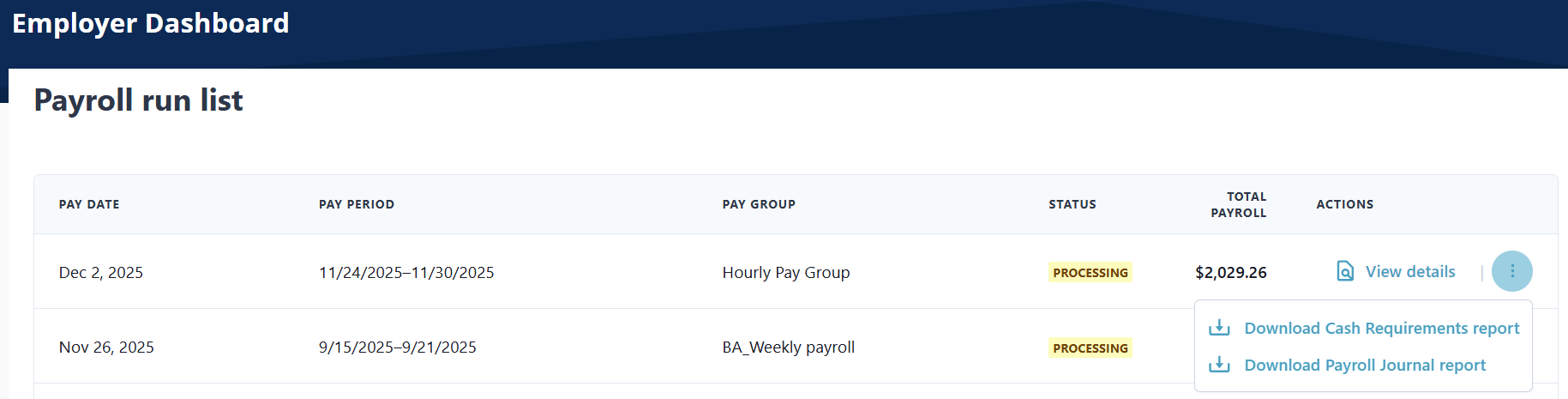
Select the Ellipses to download the Cash Requirements Report or Payroll Journal Report.
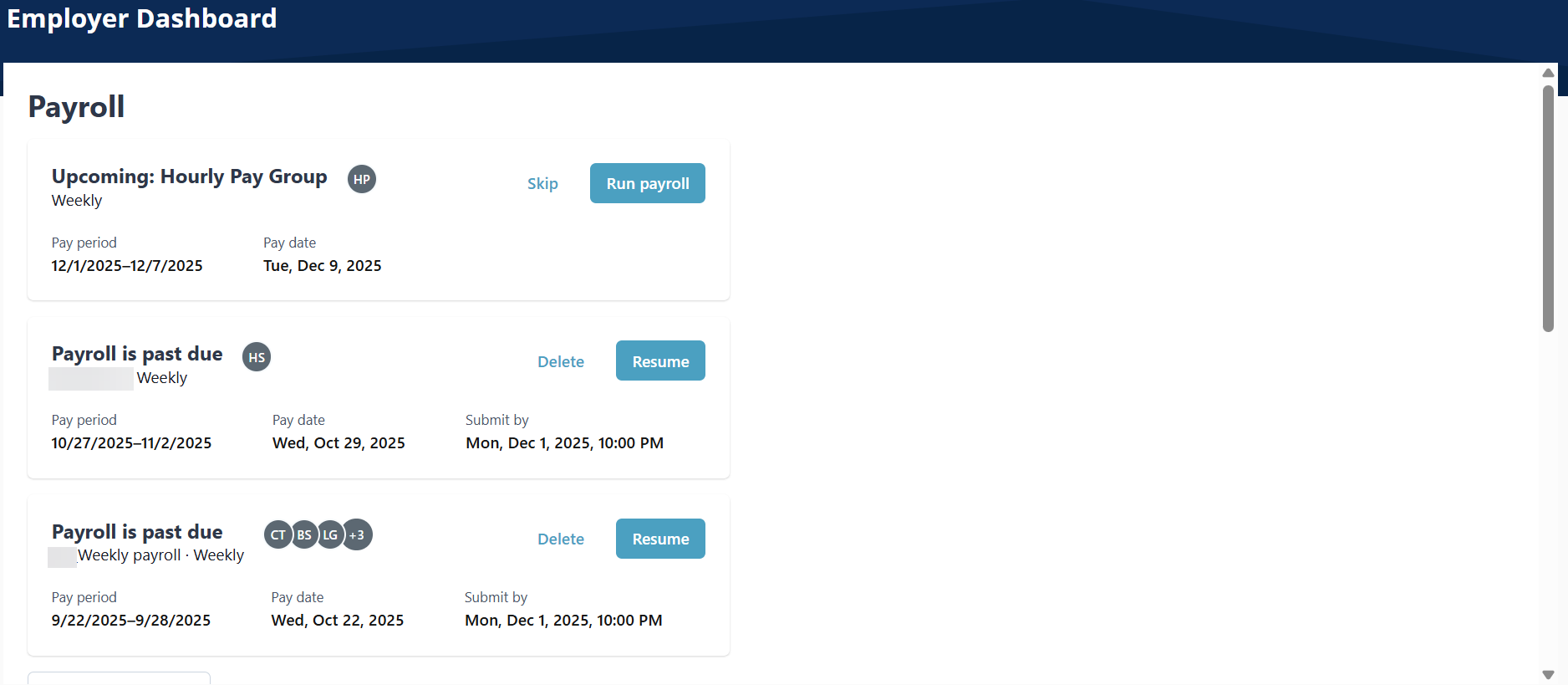
Run payroll in the Payroll section of the Employer Dashboard. All created Pay Groups display in this section.
-
Go to Payroll > Employer > Employer Dashboard.

-
Select the Run payroll button to start the payroll process. The button name changes to Resume after you start the payroll process.
-
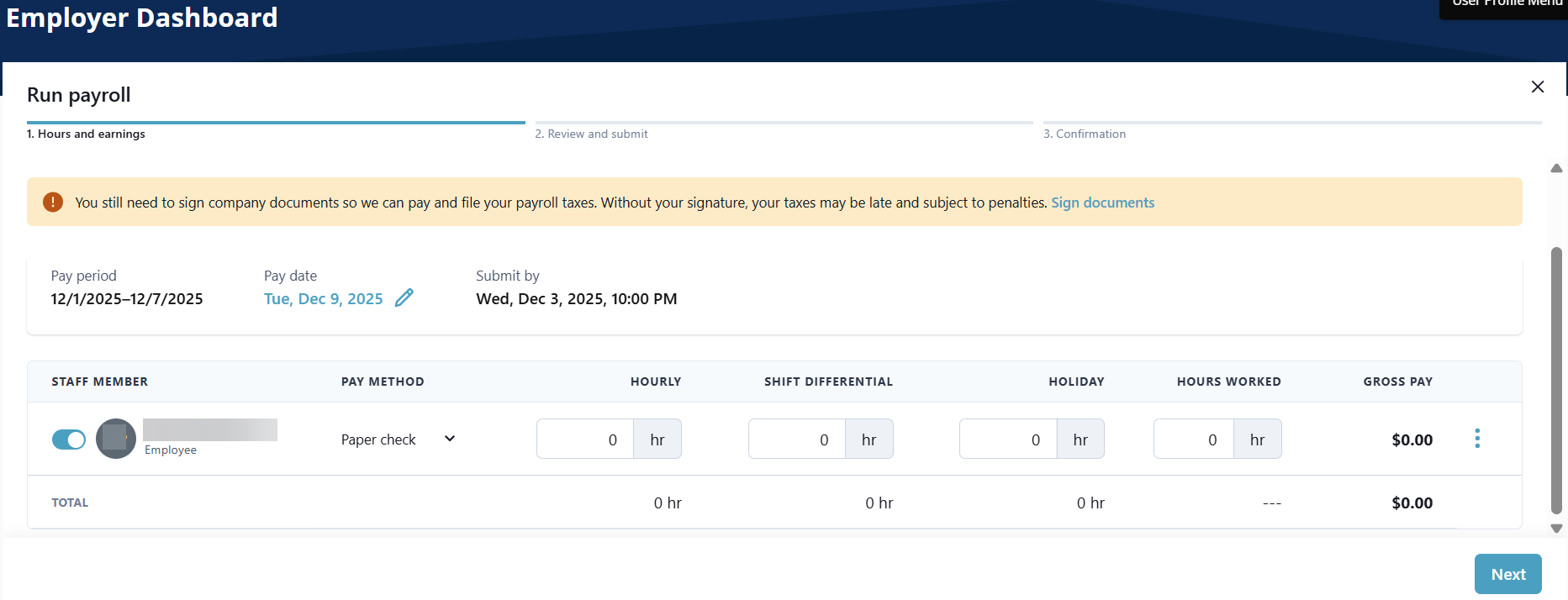
Review payroll entries on the Hours and earnings tab.
-
Deselect any Worker from the Staff Member column to remove from the payroll run.
-
Make any manual updates in the displayed fields.
-
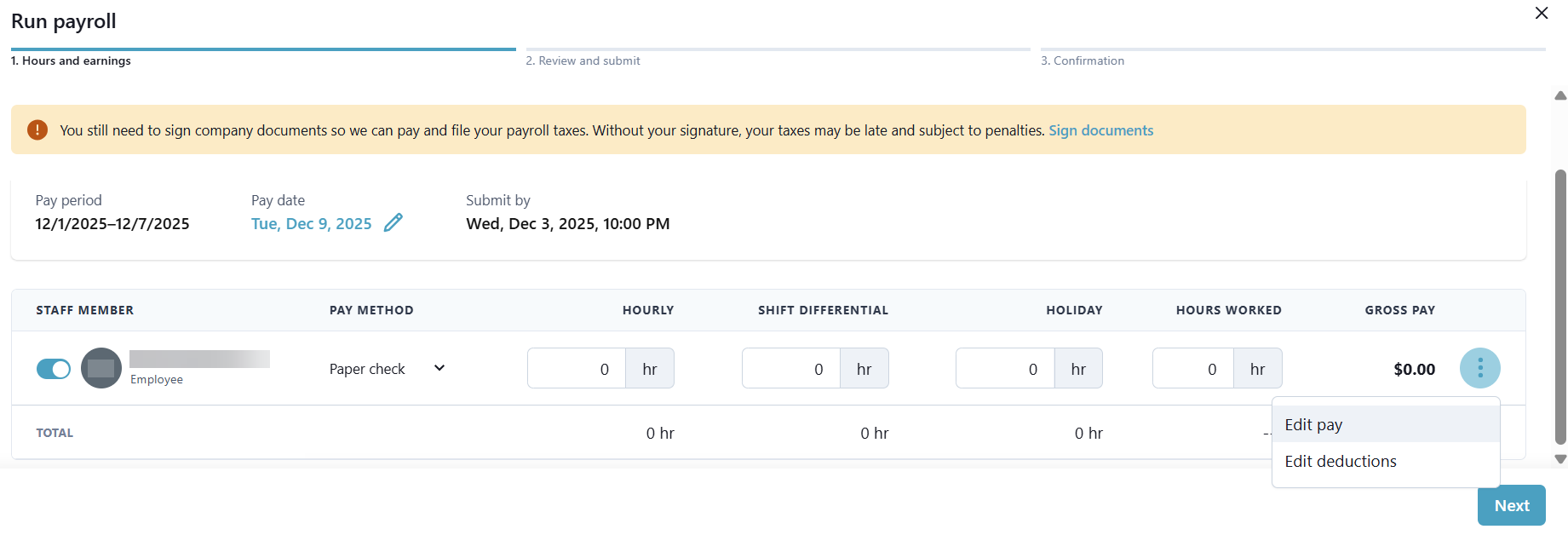
Select the Ellipses in the Gross Pay column to access the Edit pay, Edit deductions, Manage Time Off, or Add Memo selections.
-
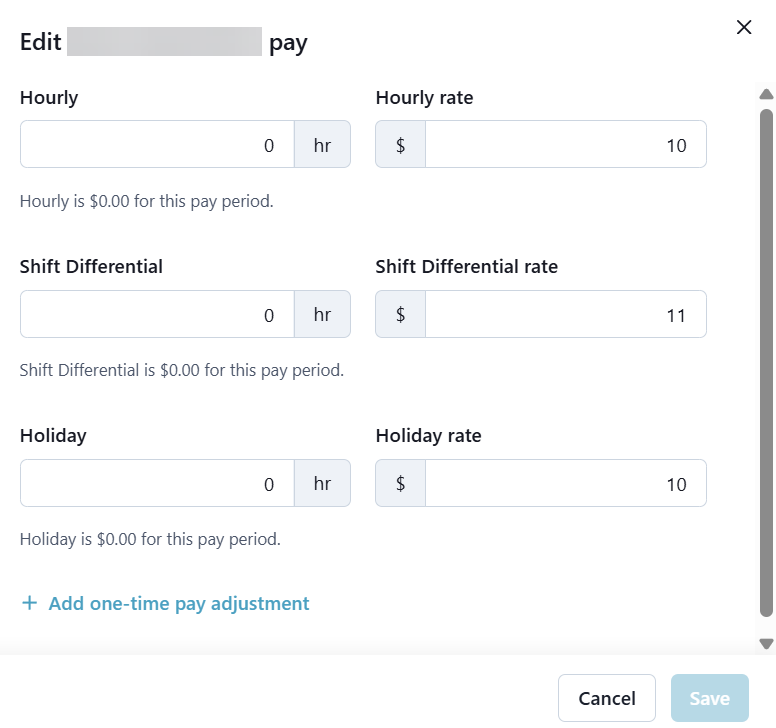
Edit Pay - Update the fields if necessary. Select the Add one-time pay adjustment button. Complete the fields that display, and then select Save.
-
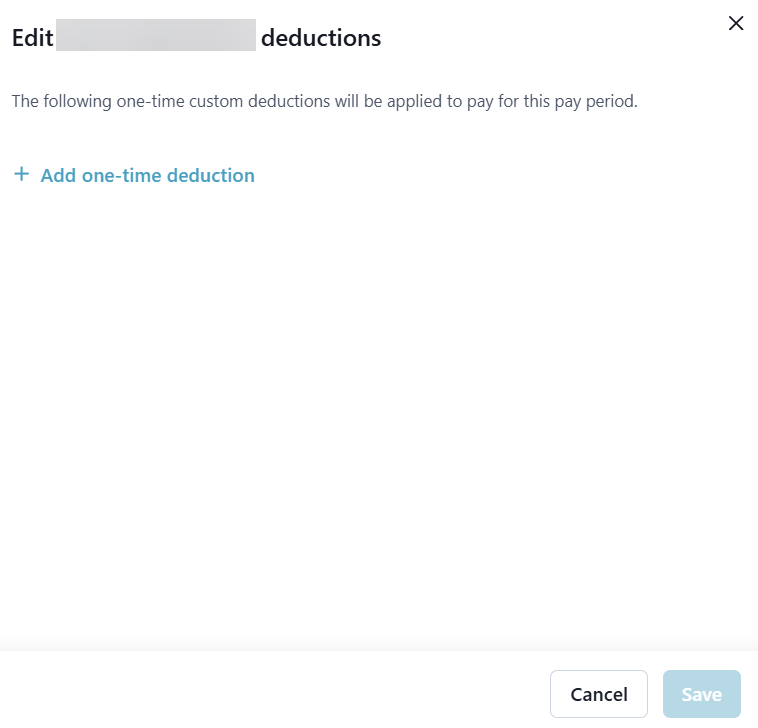
Edit deductions - Select the Add one-time deduction button. Complete the fields that display, and then select Save.
-
Manage Time Off - Select Add a new time off, complete fields, and then select Save.
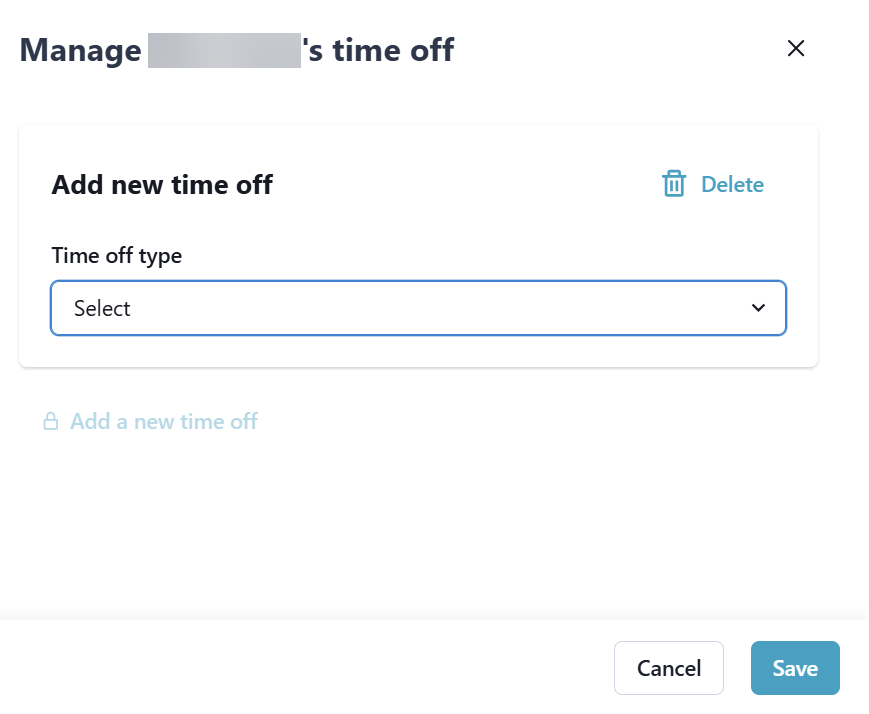
Only use this option for Admin workers if you are tracking PTO in HHAeXchange. Otherwise, use this option to process all time off requests when running payroll.
-
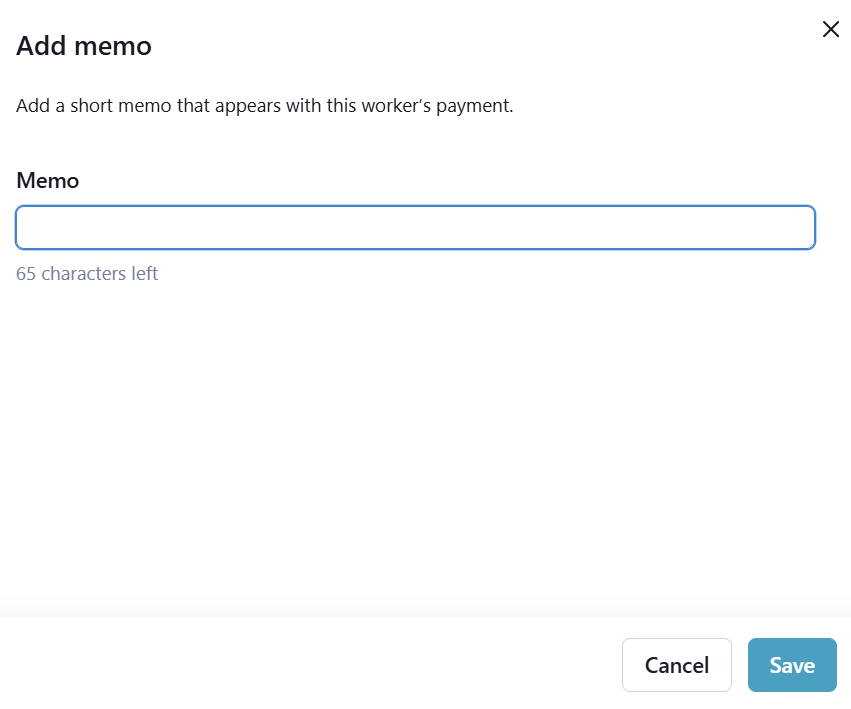
Add Memo - Add memo, and then select Save.
-
-
-
Select Next.
-
On the Review and Submit tab, review all changes, and then select Submit payroll.
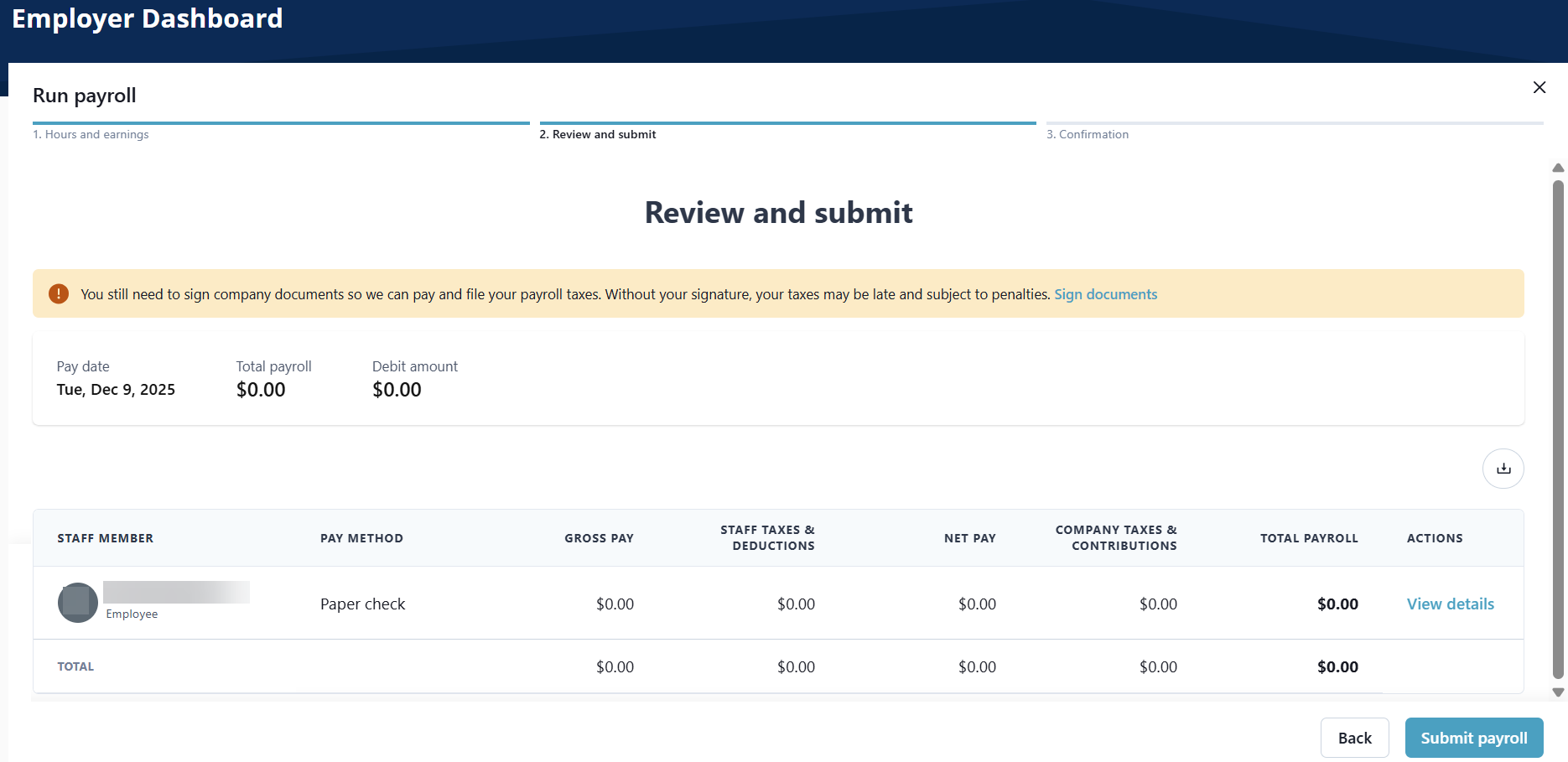
Select View details under the Actions column to review the Transaction details page, if necessary.
-
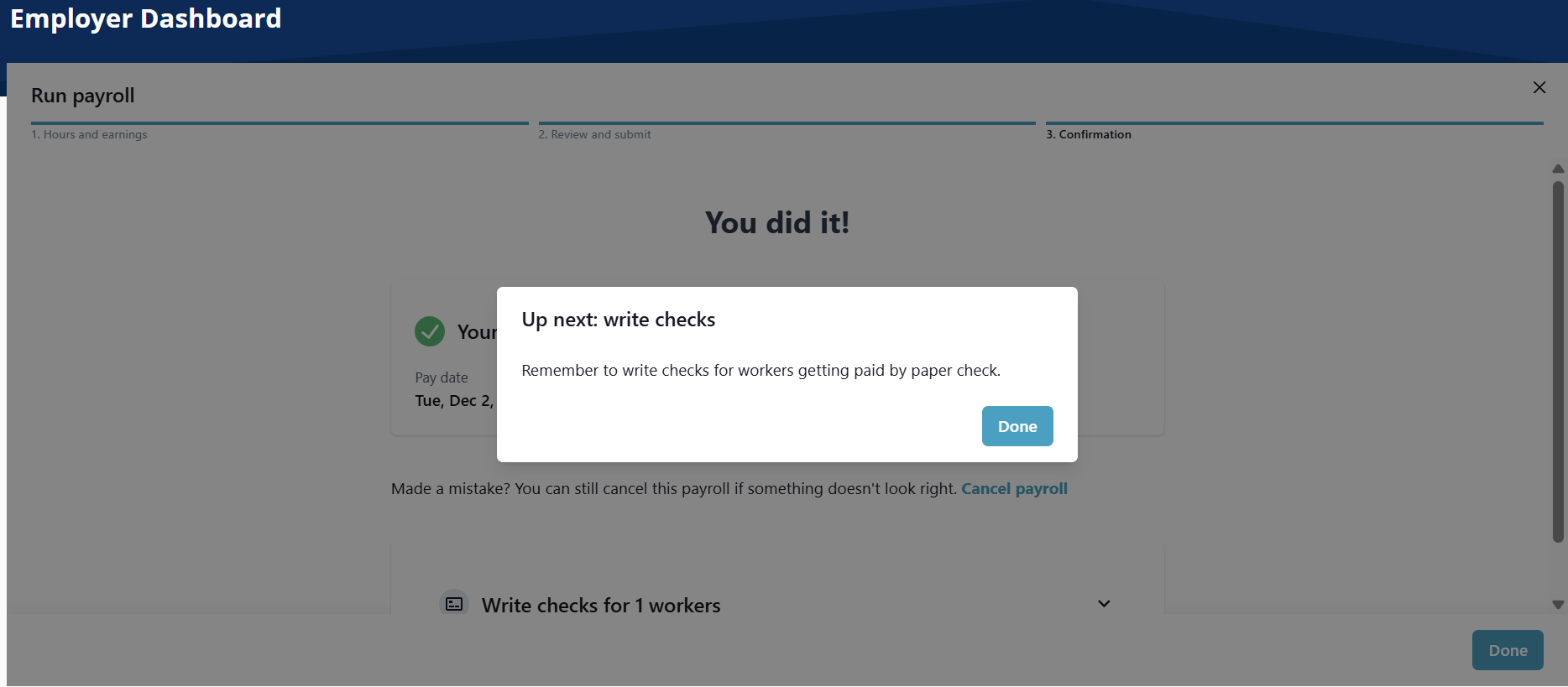
Select Done if the Write paper checks reminder displays.
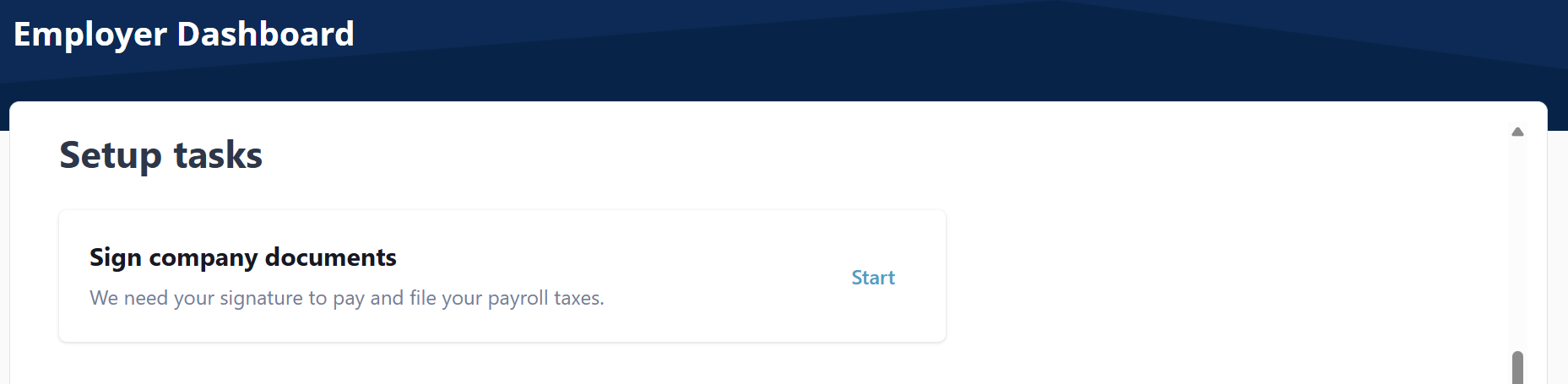
Sign company documents in the Setup Tasks section of the Employer Dashboard. Select Start to open the Sign Documents window to display documents that need to be signed.
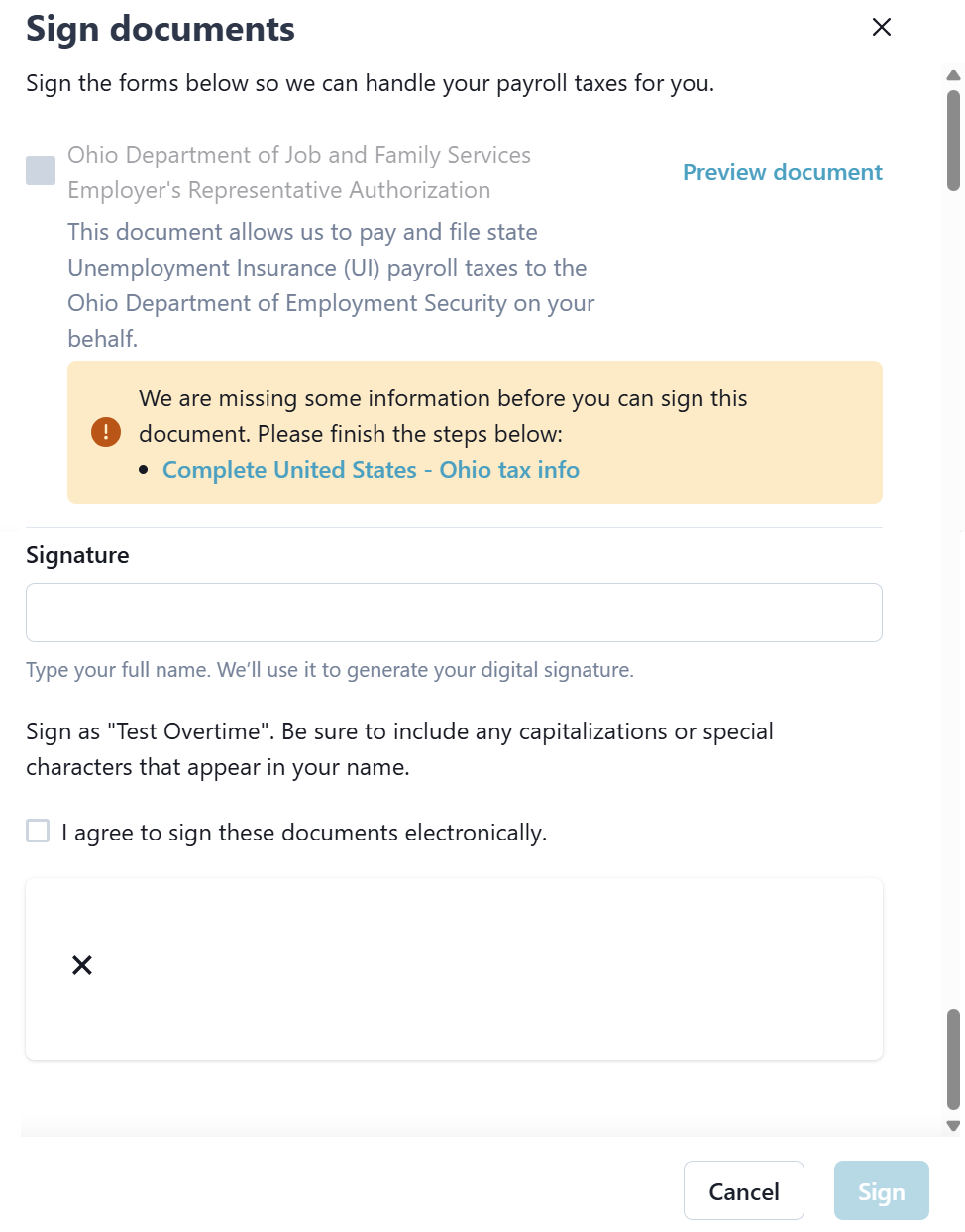
Preview documents, type your name in Signature field, select the toggle to agree to sign electronically, and then select Sign. The signature populates and the document is signed.
Supporting Resources