Employer Payroll Pay Groups
The Pay Groups feature under Payroll > Employer > Employer Profile > Pay Groups, let employers create groups for workers based on how frequently they are paid. Payroll is processed using these groups on the Employer Dashboard. Create pay groups with the following pay frequencies:
|
Pay Frequency |
Pay Periods in a Year |
|---|---|
| Weekly | 52 |
| Bi-weekly (every other week) | 26 |
| Semi-monthly (twice a month) | 24 |
| Monthly | 12 |

-
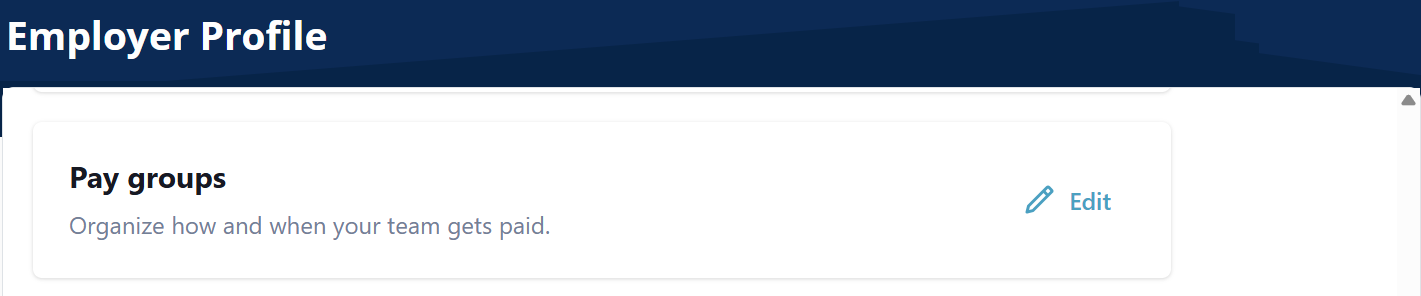
Go to Payroll > Employer > Employer Profile, and then select the Pay groups Edit button. The Pay groups window opens.
-
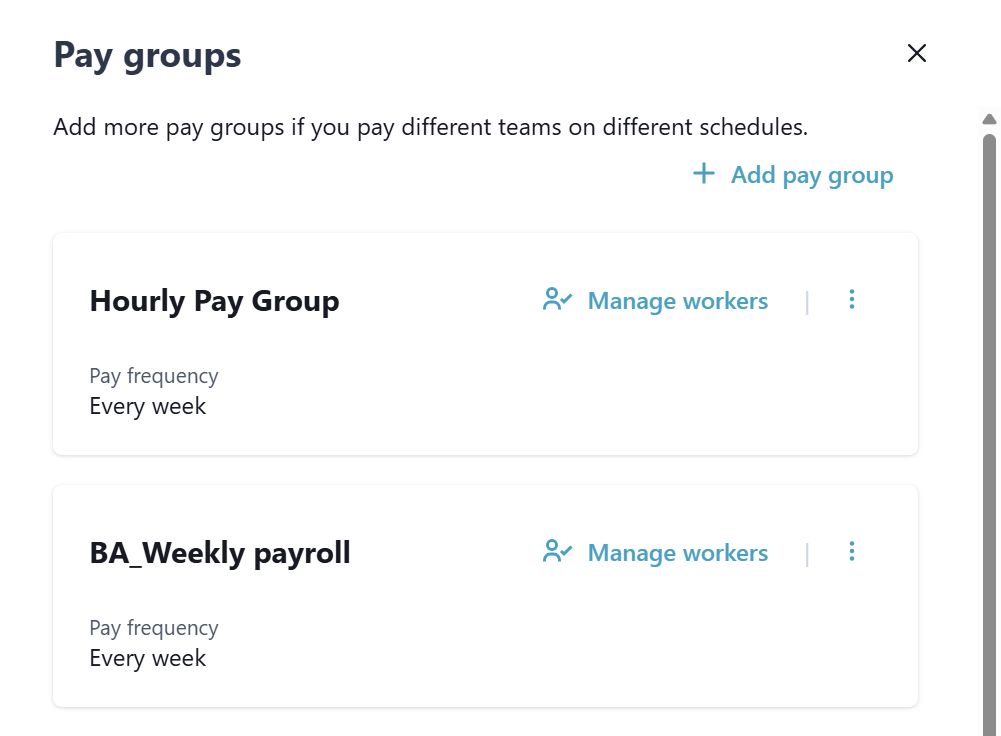
Click the + Add pay group button.
-
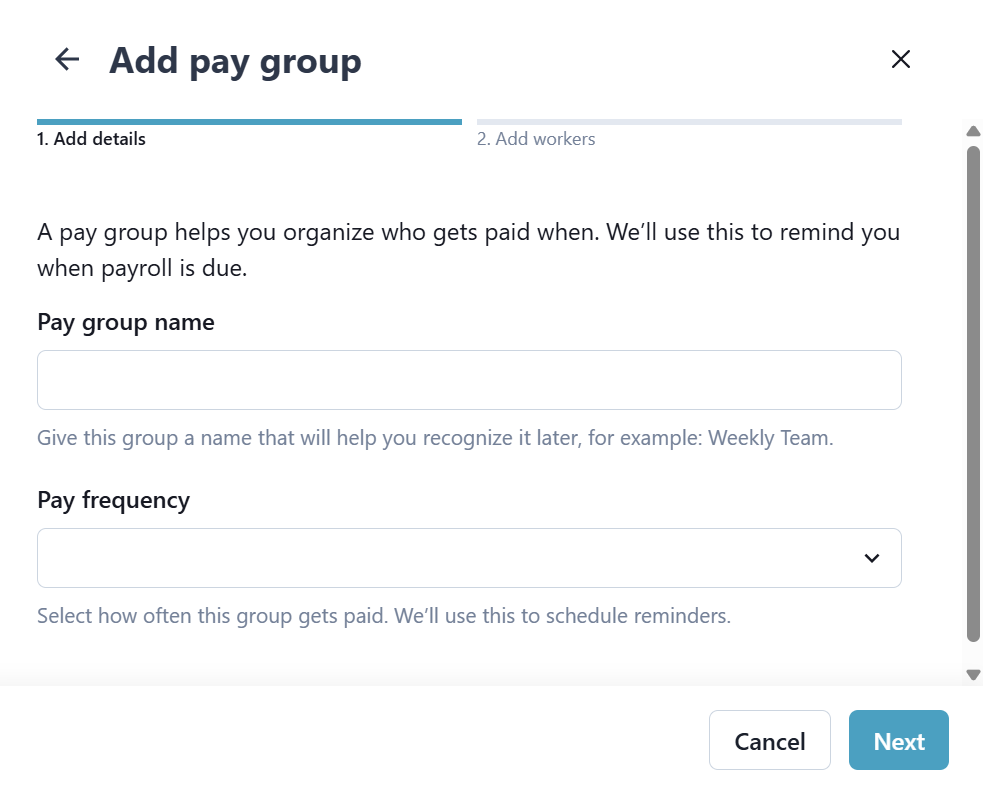
On the + Add pay group window, complete all fields, and then select Next.
To automatically add future hires to the new pay group, turn the Set as default pay group toggle on. If this toggle is not selected, then new Employees must be manually added to the group.
-
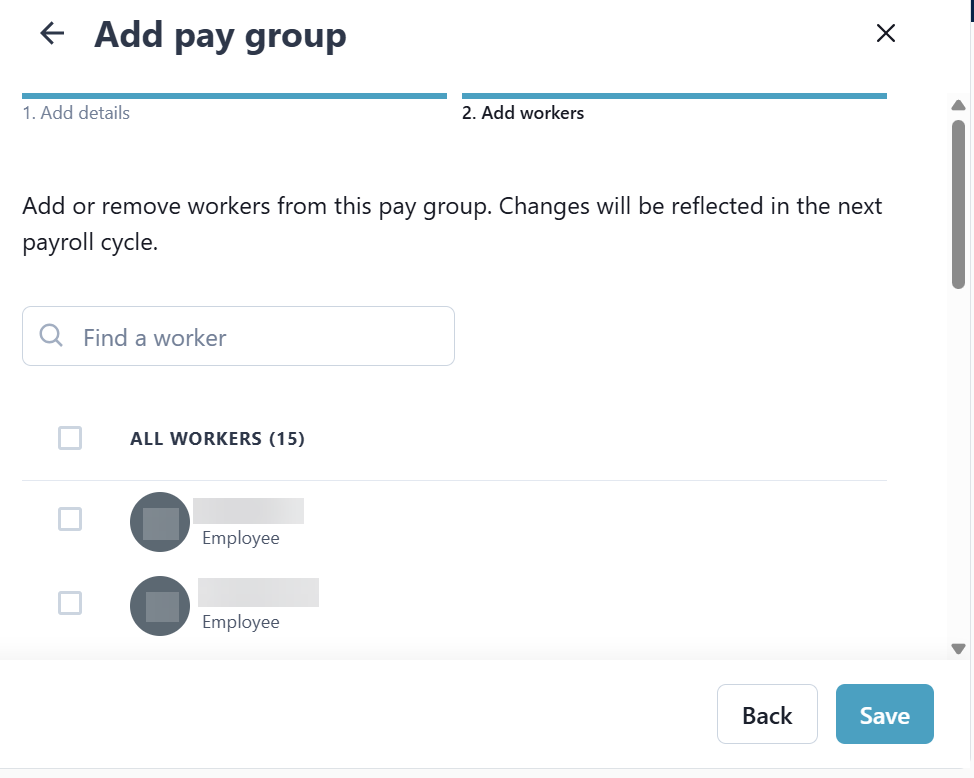
On the Add workers screen, select the checkboxes of the workers you want to add to the Pay Group.
Use the Find a worker search to look for a specific Employee, or select the All Workers checkbox to select all Employees.
-
Select Save.Your Pay Group is created.
-
Go to Payroll > Employer > Employer Profile, and then select the Pay groups Edit button. The Pay groups window opens.
-
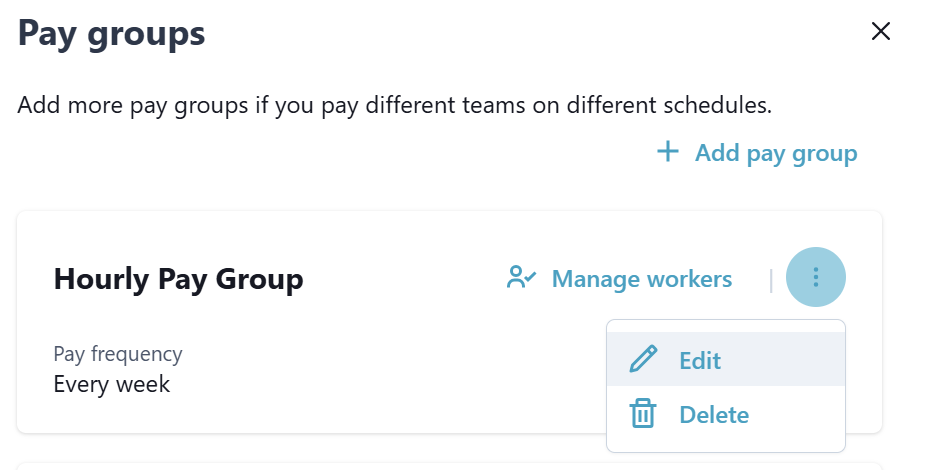
Click the Ellipses button on the Pay Group you want to edit, and then select Edit.
-
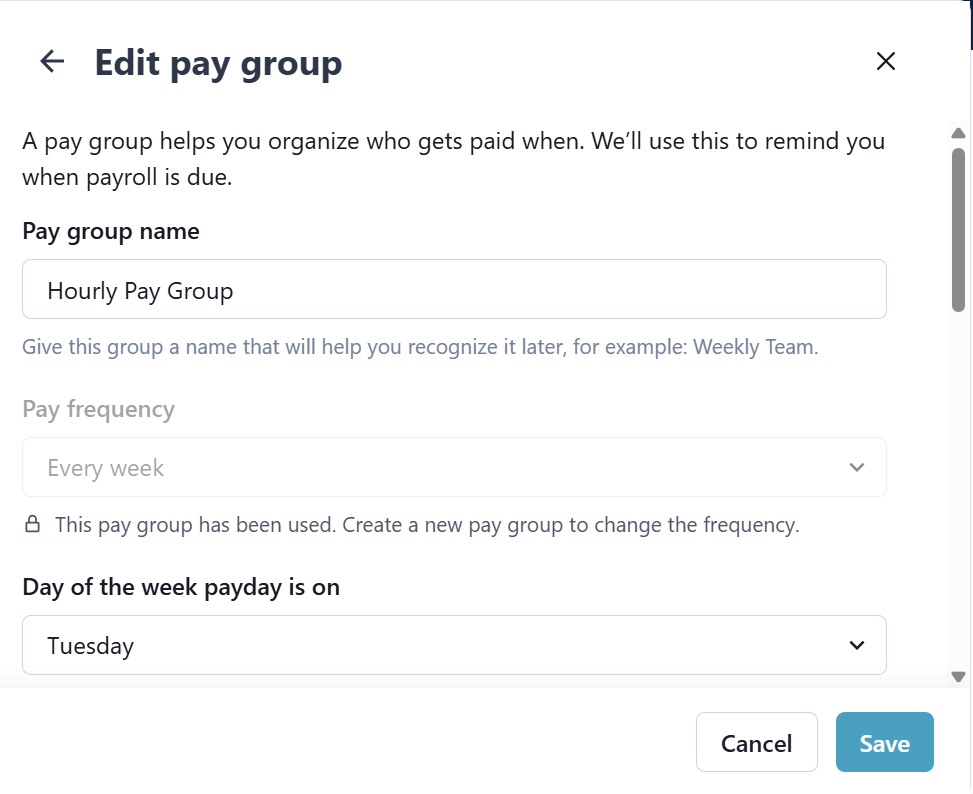
On the Edit pay group window, update necessary fields, and then select Save.
Turn the Set as default pay group toggle on, to automatically add future hires to the new pay group. If this toggle is not selected, then new Employees must be manually added to the group.
-
Go to Payroll > Employer > Employer Profile, and then select the Pay groups Edit button. The Pay groups window opens.
-
Click the Ellipses button on the Pay Group you want to edit, and then select Manage workers.
-
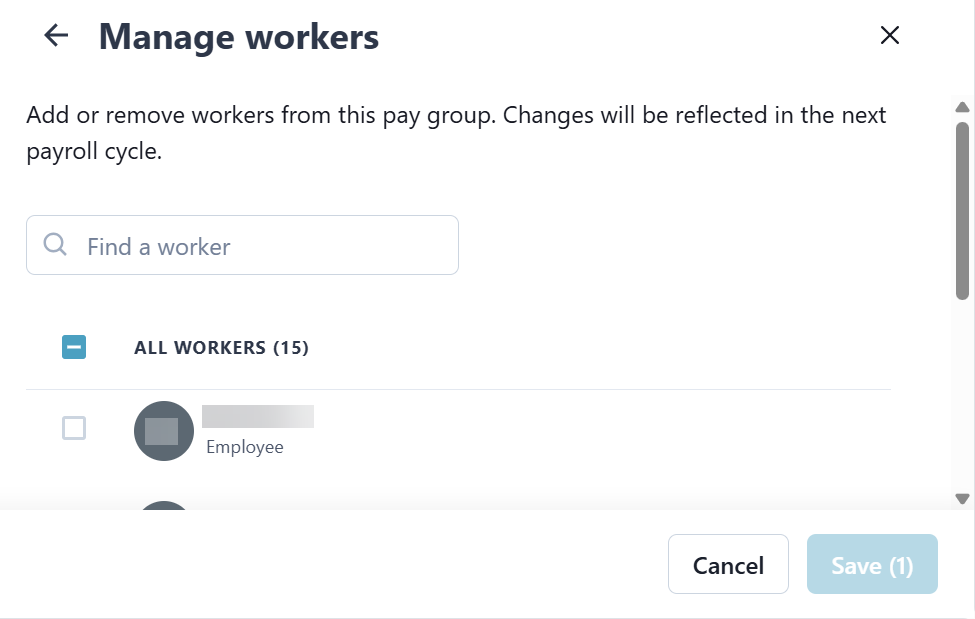
On the Mange workers window, select the checkboxes of the workers you want to add to the Pay Group.
Use the Find a worker search to look for a specific Employee, or select the All Workers checkbox to select all Employees.
-
Select Save.