Change Password
Follow these steps to change your password in the Non-Homecare Portal:
-
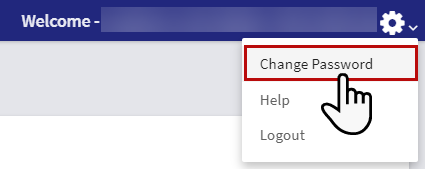
Click the gear icon and select Change Password.
-
The Change Password screen opens. Enter your Current Password and a New Password. Click the Eye icon to view the password as you type.
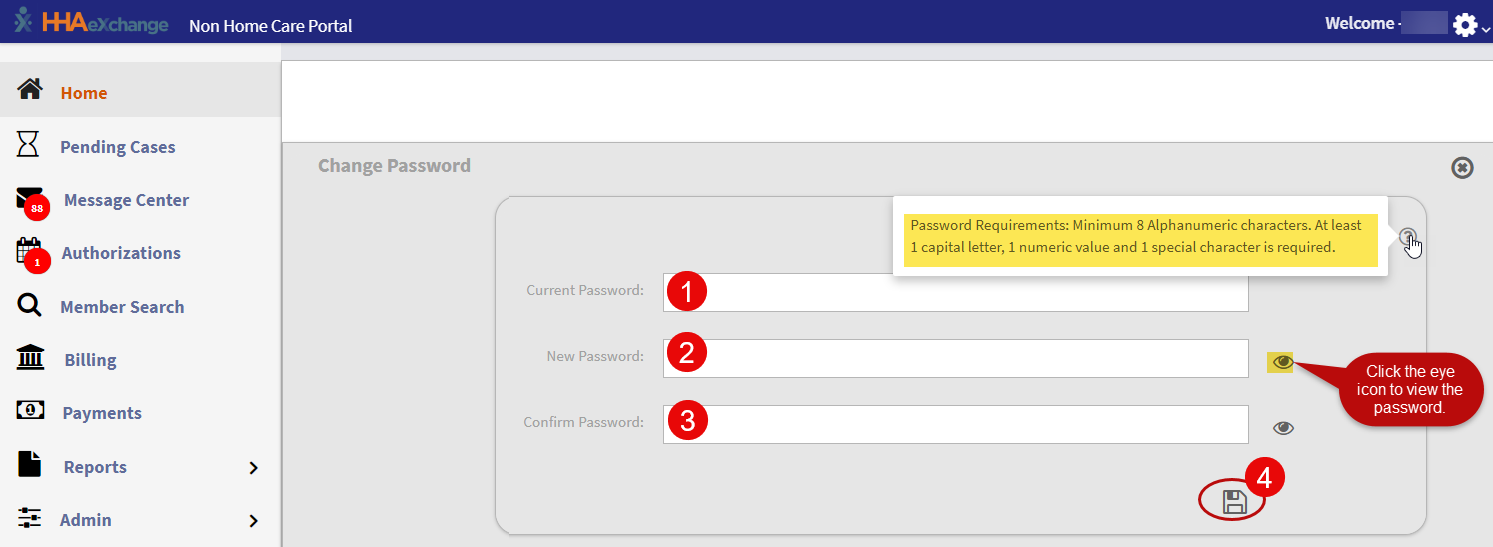 Passwords require at least 8 characters with at least one uppercase letter, one number, and one special character.
 -
Re-enter the new password in the Confirm Password field.
-
Click the Save icon to save the new password.

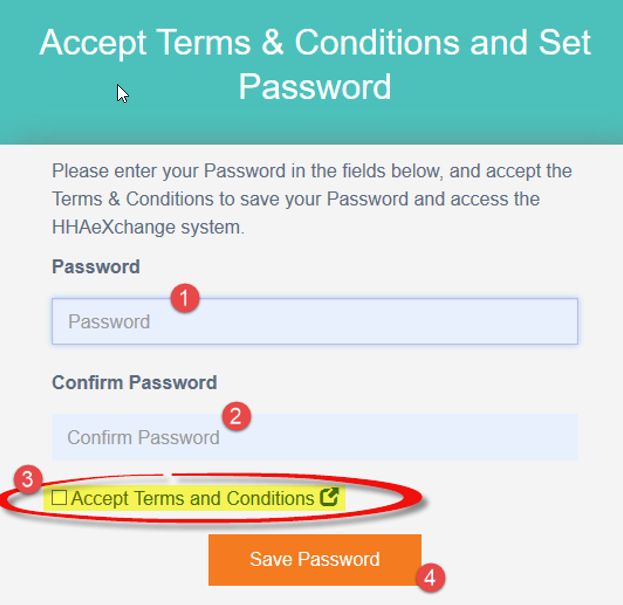
When an Agency Admin creates a new user account, the system sends the user an email with a link to set up their password.
-
Open the email and click the Create Password link.
-
On the Create Password screen, enter a new password and confirm it.
-
If required, select Accept Terms and Conditions.
-
Click Save Password to continue.
-