Approve a Shift in Services Portal
When a Caregiver records a shift with EVV, that shift is automatically approved by the Caregiver. It is then the responsibility of the Consumer or Representative to review the shift in the Services Portal and place it in Approved Locked status.
As a Consumer or Representative, complete the following steps to approve a shift.
-
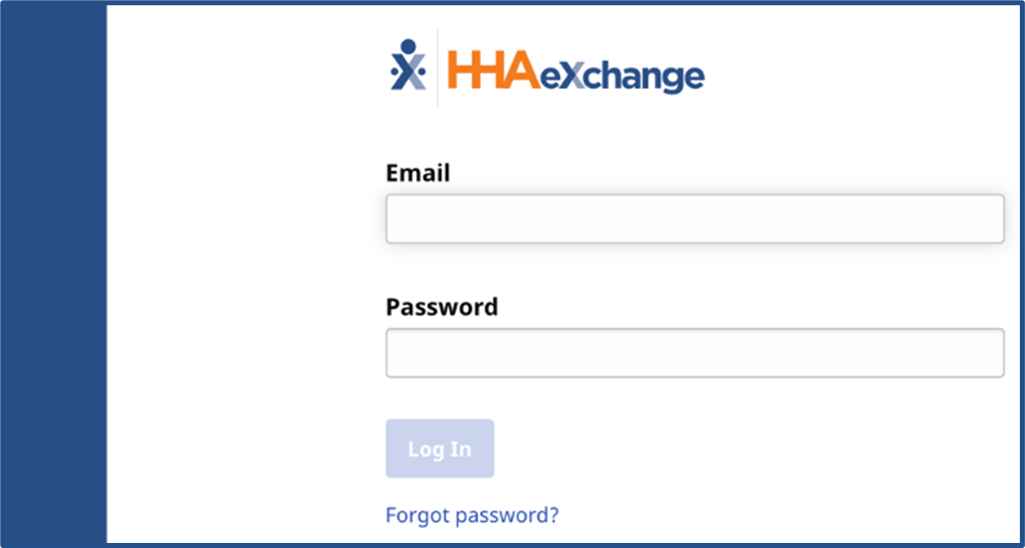
Log in to the Services Portal.
-
On the Shifts page, select the Show shifts requiring action from me only checkbox. Click Search at the bottom of the form.

-
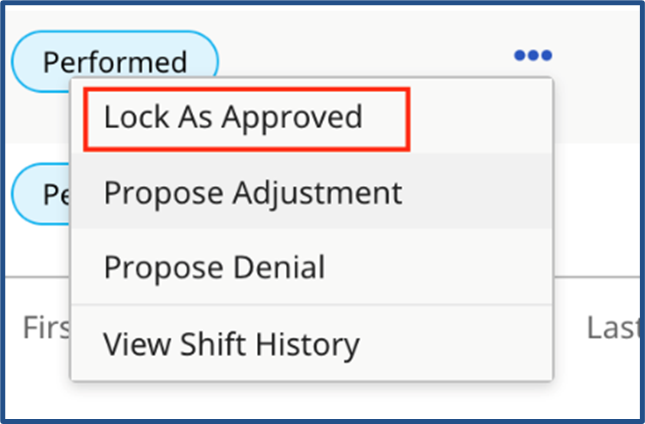
When search results are displayed, review the shift data. If the shift is correct, click the Ellipsis… in the Actions column. Select Lock as Approved.
-
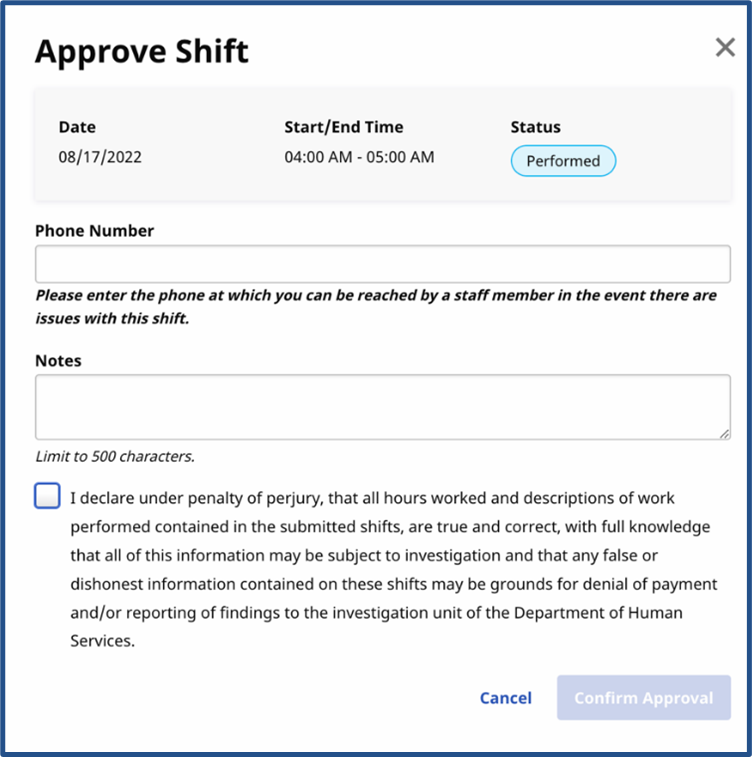
When the Approve Shift page is displayed, click the checkbox to the left of the confirmation statement to confirm the shift.
-
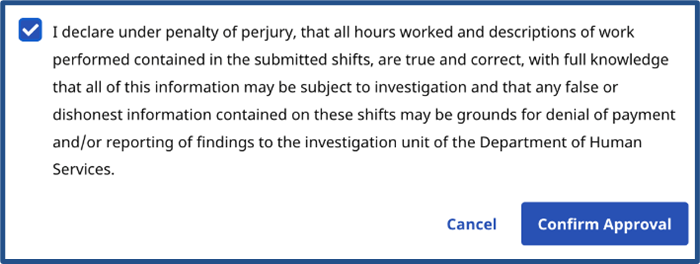
Click Confirm Approval to approve.
-
The shift is placed in Approved Locked status.
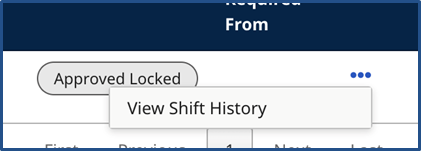
In Approved Locked status, a shift cannot be edited, and the status of the shift cannot be changed by the Consumer, Representative, or Caregiver. The only available option in the Action Menu is to View Shift History. If any changes are needed, the Consumer, Representative, or Caregiver must contact the Provider Agency.