Visit Maintenance Feature
The Visit Maintenance feature under Visit > Visit Maintenance, you can do the following:
-
Check the status of a visit.
-
Easily fix EVV Exceptions and Prebilling Exceptions.
-
Quickly link EVV to visits.
-
View visit authorization status and details.

Go to Visit > Visit Maintenance > select desired filters on the Visits tab. Use the filter options to narrow the results that display. Select Search. Visits display below.
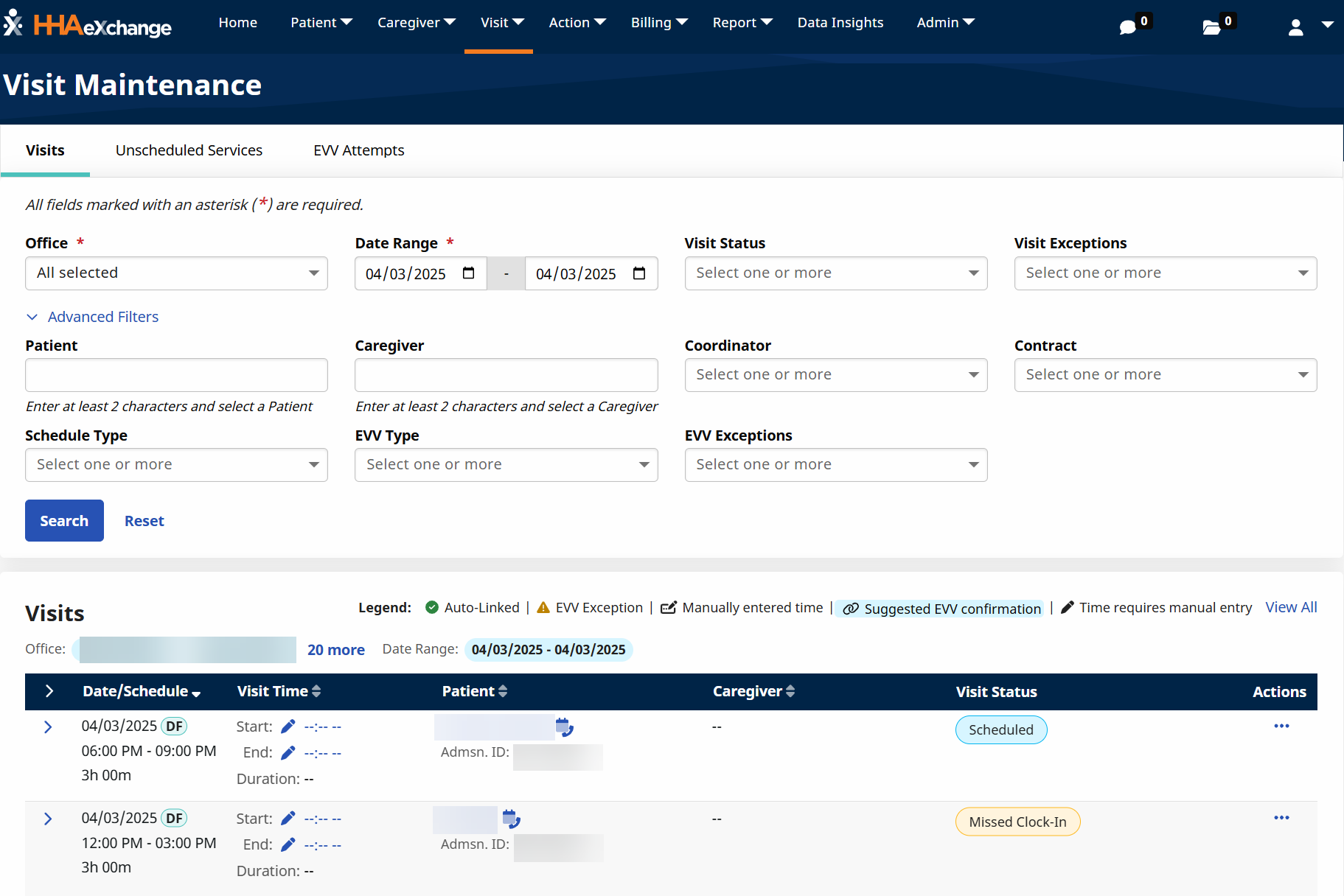
Use the desired filters to return relevant visits. Some of the key filters include:
-
Visit Status: Filters by visits that are Scheduled, Completed, In Progress, Missing clock-in, or Incomplete.
-
Visit Exceptions: Filters by results based on any Prebilling exceptions currently preventing visits from invoicing.
-
EVV Exceptions: Filters by visits which are not confirmed, but have EVV exceptions which are likely attempts by the Caregiver to confirm that shift.
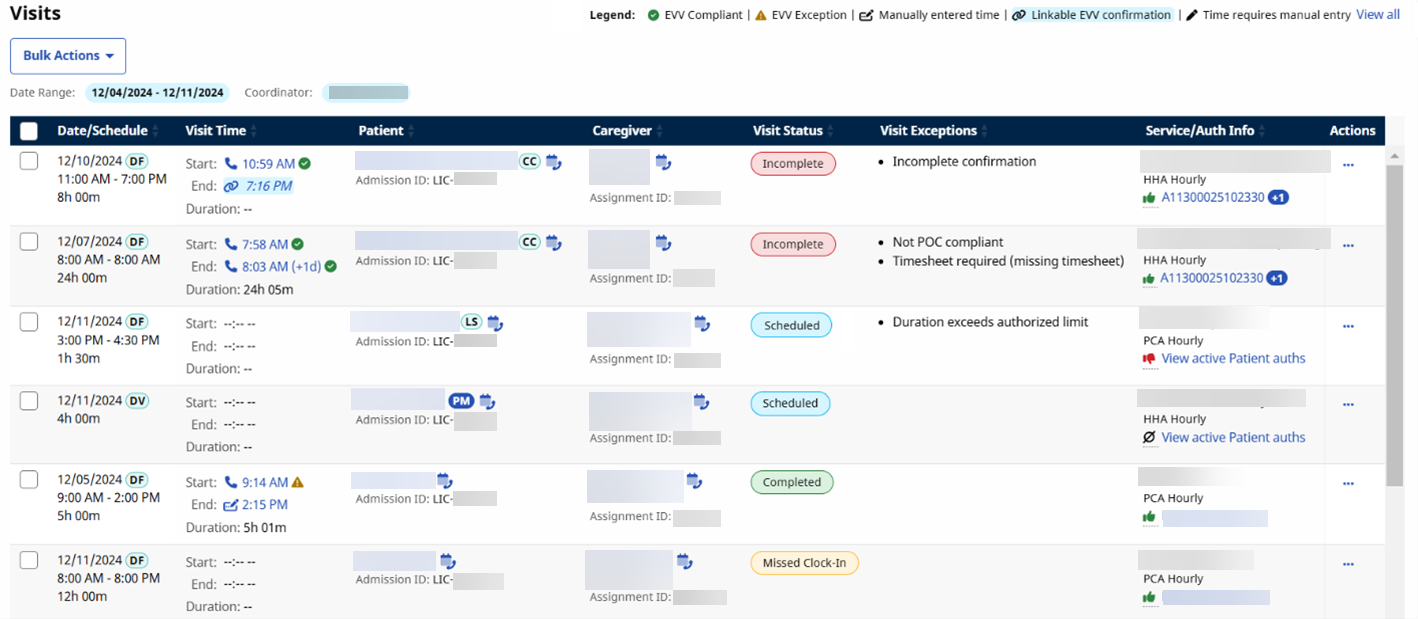
Visits display with the following information:
-
Date/Schedule - displays the date, time, schedule duration, and schedule type of the visit.
-
Visit Time - displays the confirmed start time, end time, and duration of the visit.
Icons display in this section to show the confirmation method of Mobile/GPS, IVR, FOB, or Manual.
-
Green checkmarks indicate the EVV auto-linked without manual intervention.
-
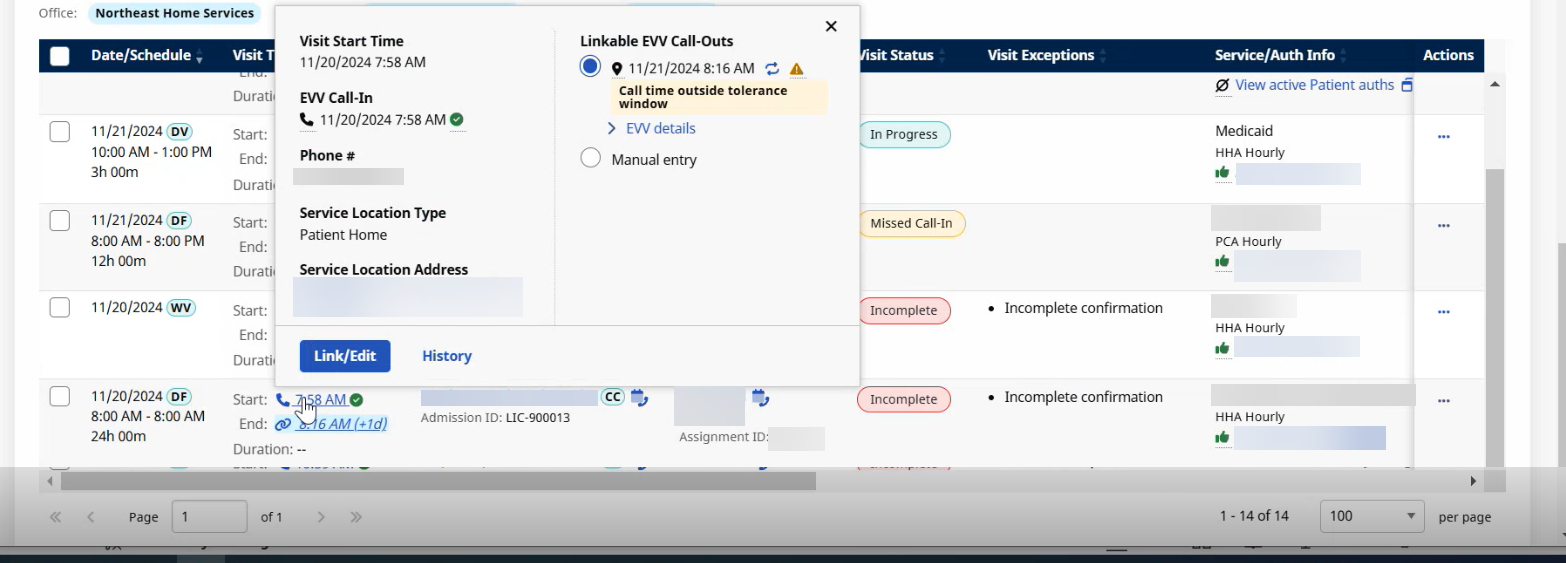
Times with a blue background and chain link icon indicate a linkable EVV is available. This EVV is not linked to the visit for EVV Exception reasons, but may be an attempt by the Caregiver to confirm the service.
-
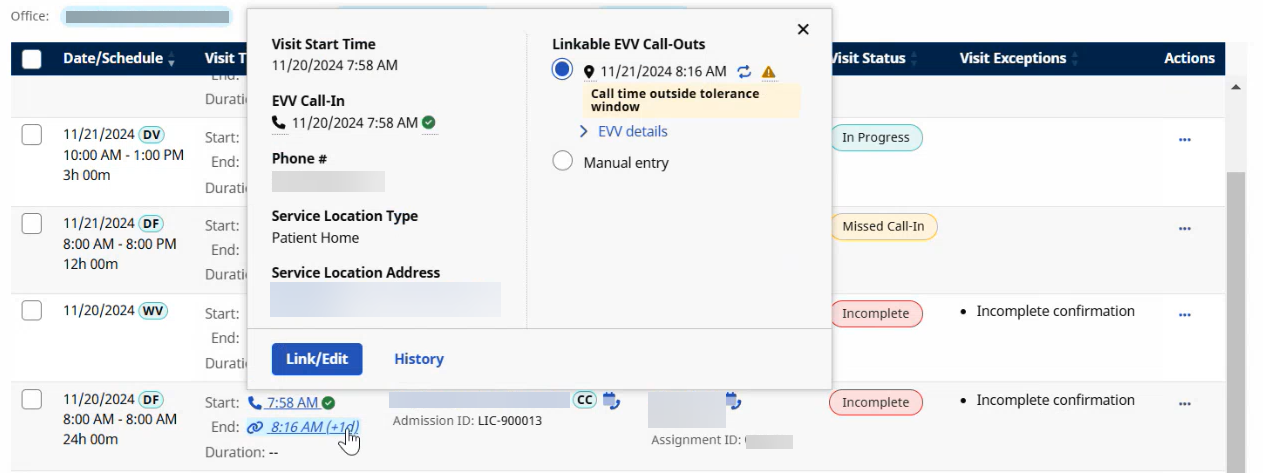
Pencil icons indicate a visit time was manually added or edited.

-
-
Patient - displays the patient name, admission ID, and more.
-
Hover over the patient name for more patient information.
-
Click the patients name to go to the patient profile.
-
Click the Phone icon to see contact phone numbers.
-
-
Caregiver - displays the caregiver information assigned to the visit.
-
Hover over the caregiver name for more caregiver information.
-
Click the caregivers name to go to the caregiver profile.
-
Click the Phone icon to see contact phone numbers.
-
-
Visit Status - displays the status of the visit. Statuses indicate:
-
Completed – Both confirmed visit start time and visit end time have been entered.
-
Incomplete – The scheduled visit end time has passed, and the visit is missing confirmed end time or both start and end time.
-
In Progress – The confirmed visit start time is entered. The confirmed visit end time is not entered, and the visit has not reached its scheduled end time.
-
Missed Clock In – The confirmed visit start time has not been entered, and the visit schedule start time has passed.
-
Scheduled – The visit is scheduled for a future date/time.
-
-
Visit Exceptions - displays the prebilling exceptions relevant to the visit.
-
Service/Auth Info - displays the visit Contract and Service Code, along with the Authorization status for the visit.
-
Icons display for visits in a status of Authorized, Unauthorized, or No Authorization Required.
-
The Authorization applied to the visit displays as a link. Hover to see Authorization details. If multiple Authorizations are used, an indicator displays how many additional Authorizations are applied.
-
-
Actions - displays additional actions.
-
View Visit Edit Details: Go to the Visit details window to adjust other visit information.
-
View Patient Details: Go to the Patient Profile.
-
View Caregiver Details: Go to the Caregiver Profile.
-
Delete Visit: Delete the visit after logging a Delete Visit Reason.
-
The primary function of the Visits tab is to review visits that lack completed confirmation details and to resolve those exceptions.
Hover over the Visit start or end times to see confirmed visit information.
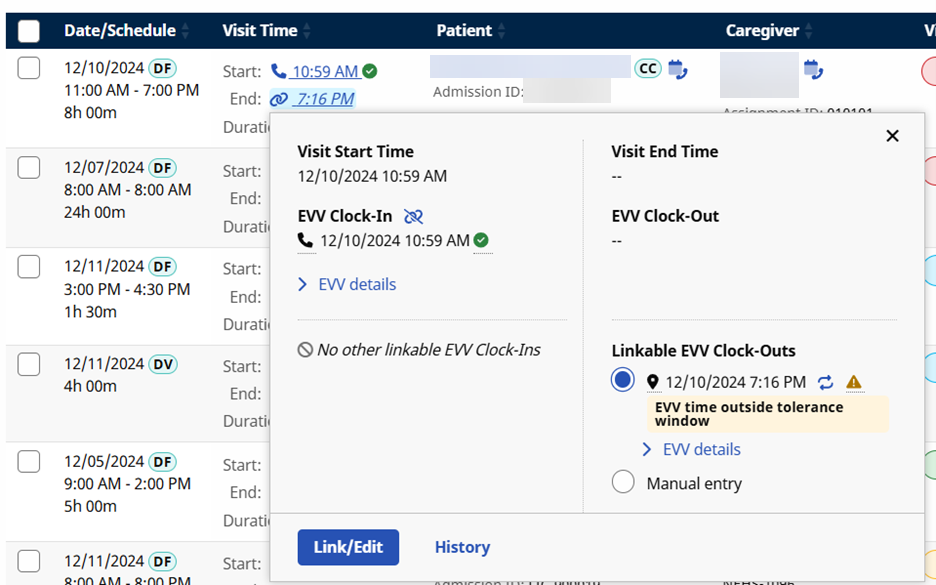
Click the EVV Details link to see more information. If any potential linkable EVV exists for the visit, it displays below along with EVV Exception reasons and additional EVV details.
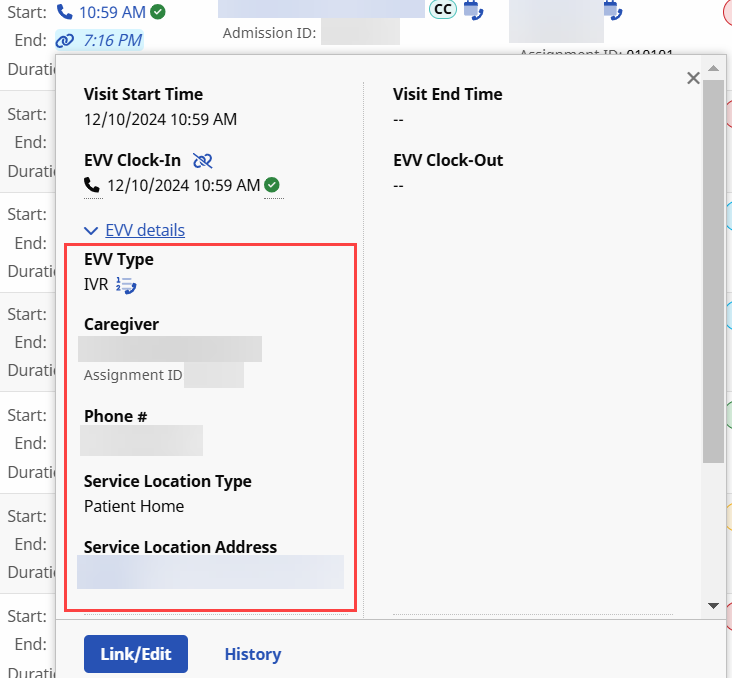
Click the Link/Edit button to open the Link EVV/Edit Visit Times window. Use the Link EVV/Edit Visit Times window to link, unlink, or manually link EVV Call-Ins to EVV Call-Outs.

Previously-entered Visit Start and Visit End Time information displays. Use the fields below the EVV Call-In and EVV Call-Out information to manually adjust times, Service Locations Address and/or Service Location Type.
Enter Visit Edit Reason, Action Take, and Note fields to capture visit exception documentation. These fields display within the Visit Info tab of the visit.
Select Save to update the visit.
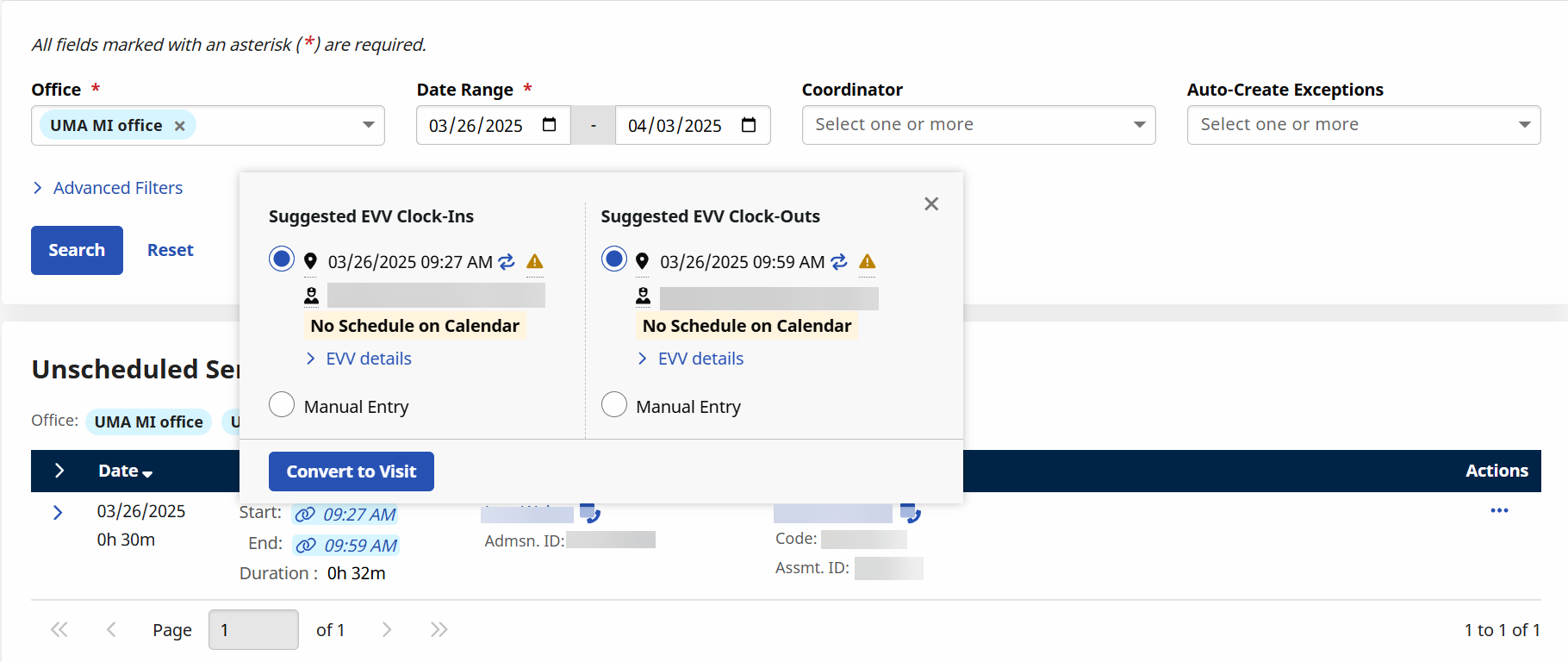
EVV attempts that correspond to a Patient without a scheduled visit that day display on the Unscheduled Services tab. Once valid EVV is received, these attempts convert to completed visits and move to the Visits tab. If valid EVV is not received, users can manually complete the visit.
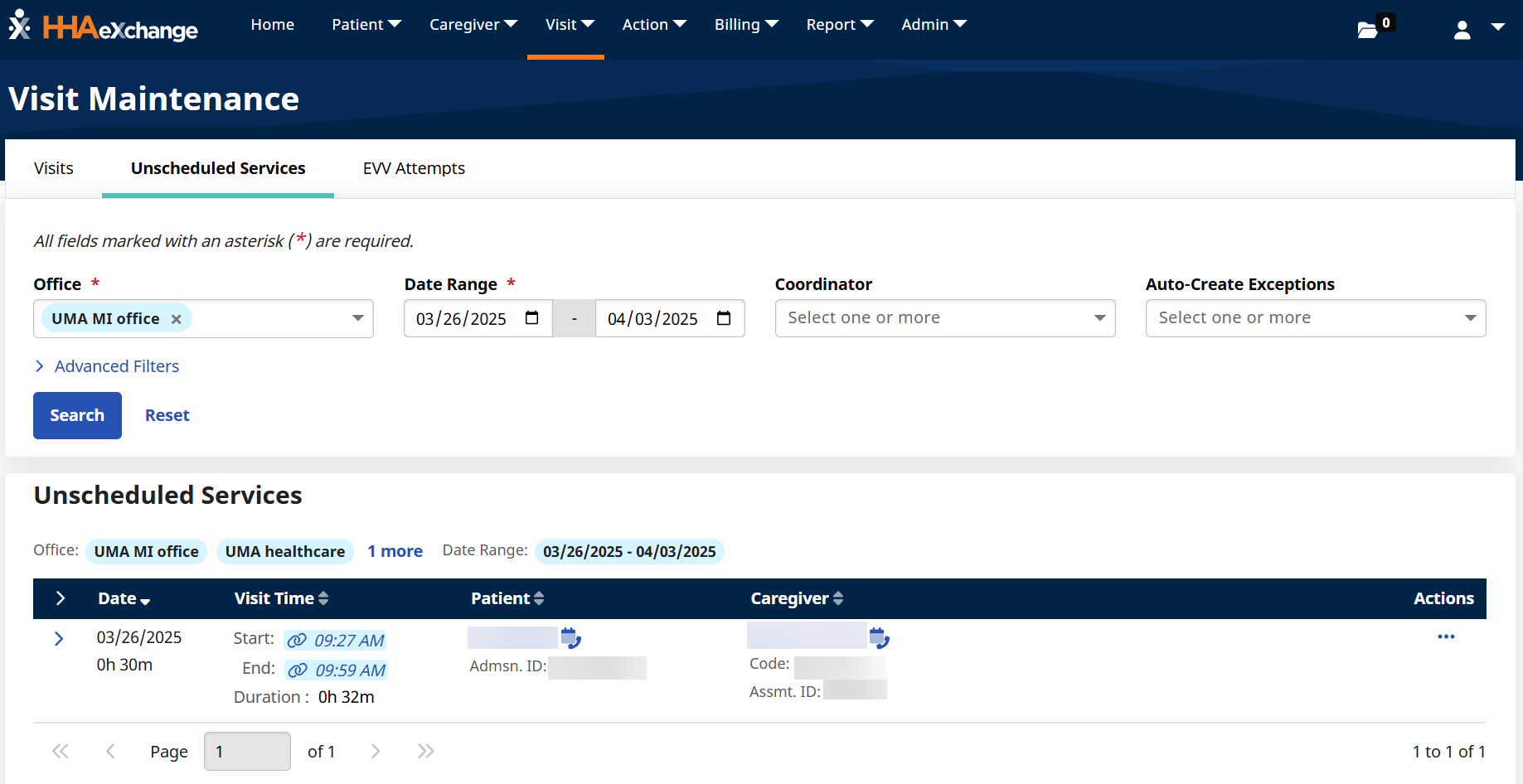
Select the Patient name or Caregiver name link to open the Patient profile or Caregiver profile pages.
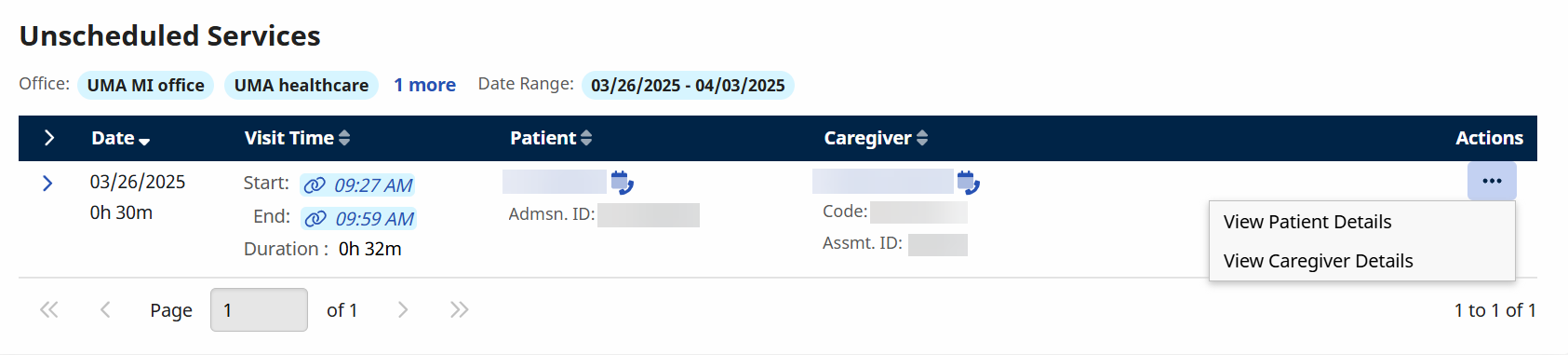
Select the Ellipses... under the Actions column for additional ways to access the Patient or Caregiver details. Select the Manual Entry radial button to manually complete the visit.
Select the Start or End date to open EVV details. Select the Convert to Visit button to convert the entry to a Visit.
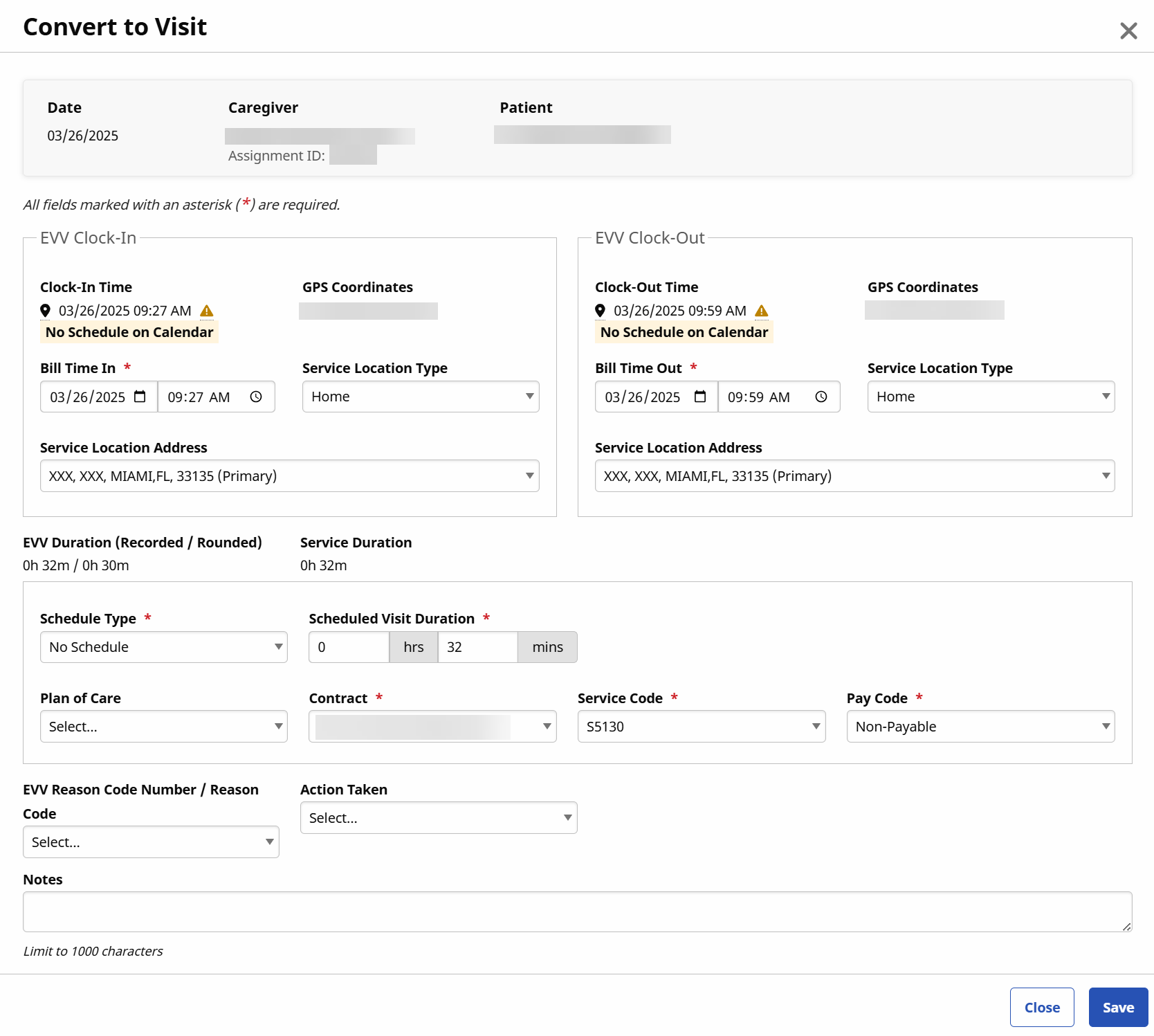
On the Convert to Visit window, fill out EVV details and then select Save. A visit is created.
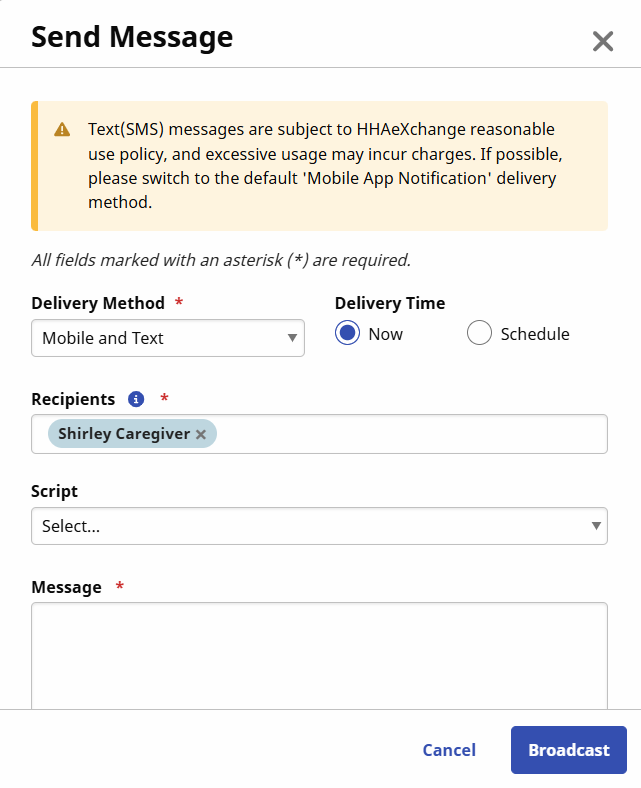
You can message Caregivers via the Visit Maintenance page. This can be done for a single Caregiver, or multiple Caregivers at once.
-
To message a single Caregiver:
-
Click the Ellipsis under the Actions column in the record's row.
-
Select Send Service Provider Message from the dropdown.

-
The Send Message window opens. Select the relevant fields and type your Message. Select Broadcast to send the message.
-
-
To message multiple Caregivers:
-
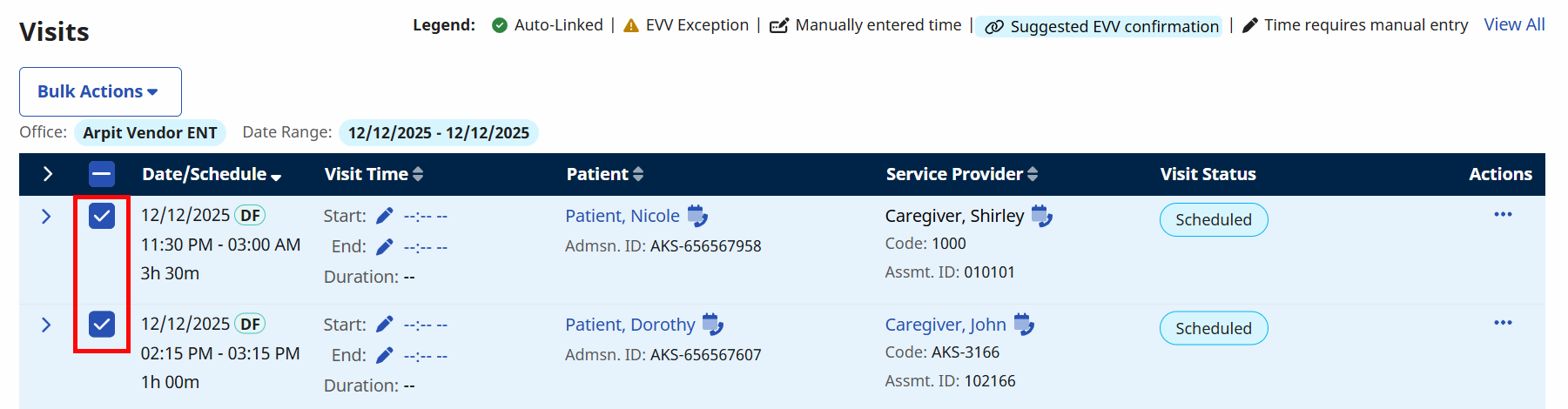
Select the Checkboxes of the Caregivers you would like to message.
-
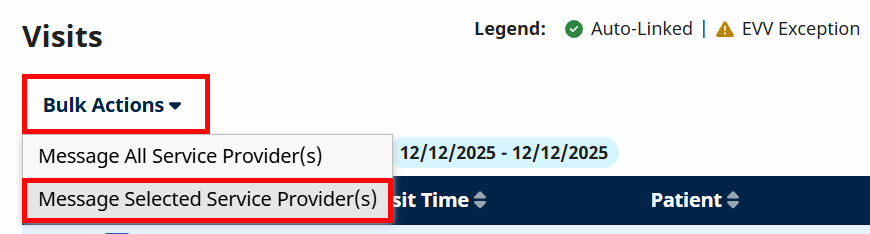
Select the Bulk Actions button.
-
Select Message Selected Service Provider(s) from the dropdown.
-
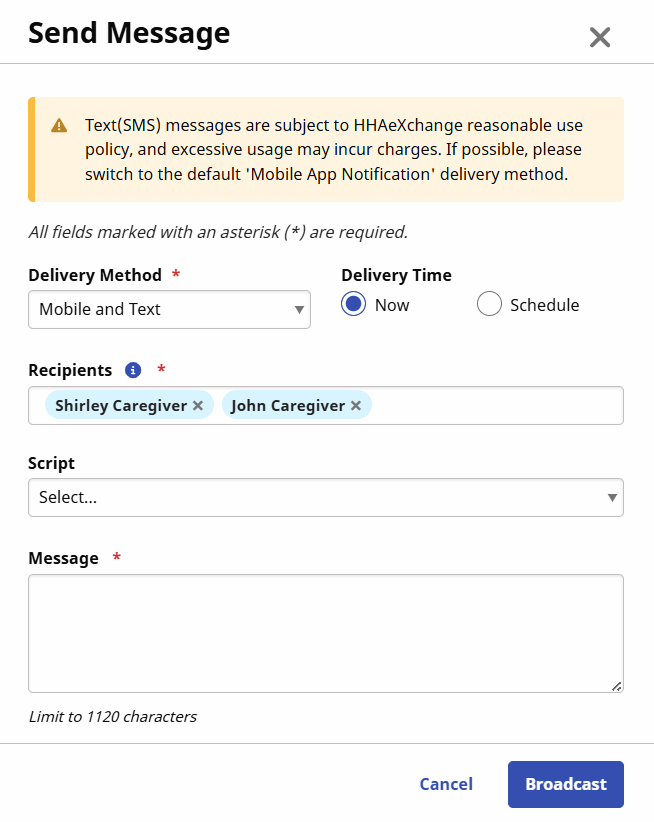
The Send Message window opens. You can choose to delete Caregivers from the Recipients field by clicking the X next to their name. Select the relevant fields and type your Message. Select Broadcast to send the message.
-
The EVV Attempts tab displays all unlinked EVV visits for review. EVV attempts are organized by the following statuses:
-
Linked: EVV is applied to a visit.
-
Suggested: EVV is suggested for a visit, but not yet linked.
-
Non-Matching: EVV cannot be suggested or linked because the system cannot determine the Patient based on EVV details, and the Caregiver is not scheduled that day.
-
Rejected: EVV was suggested, but rejected by a system user.
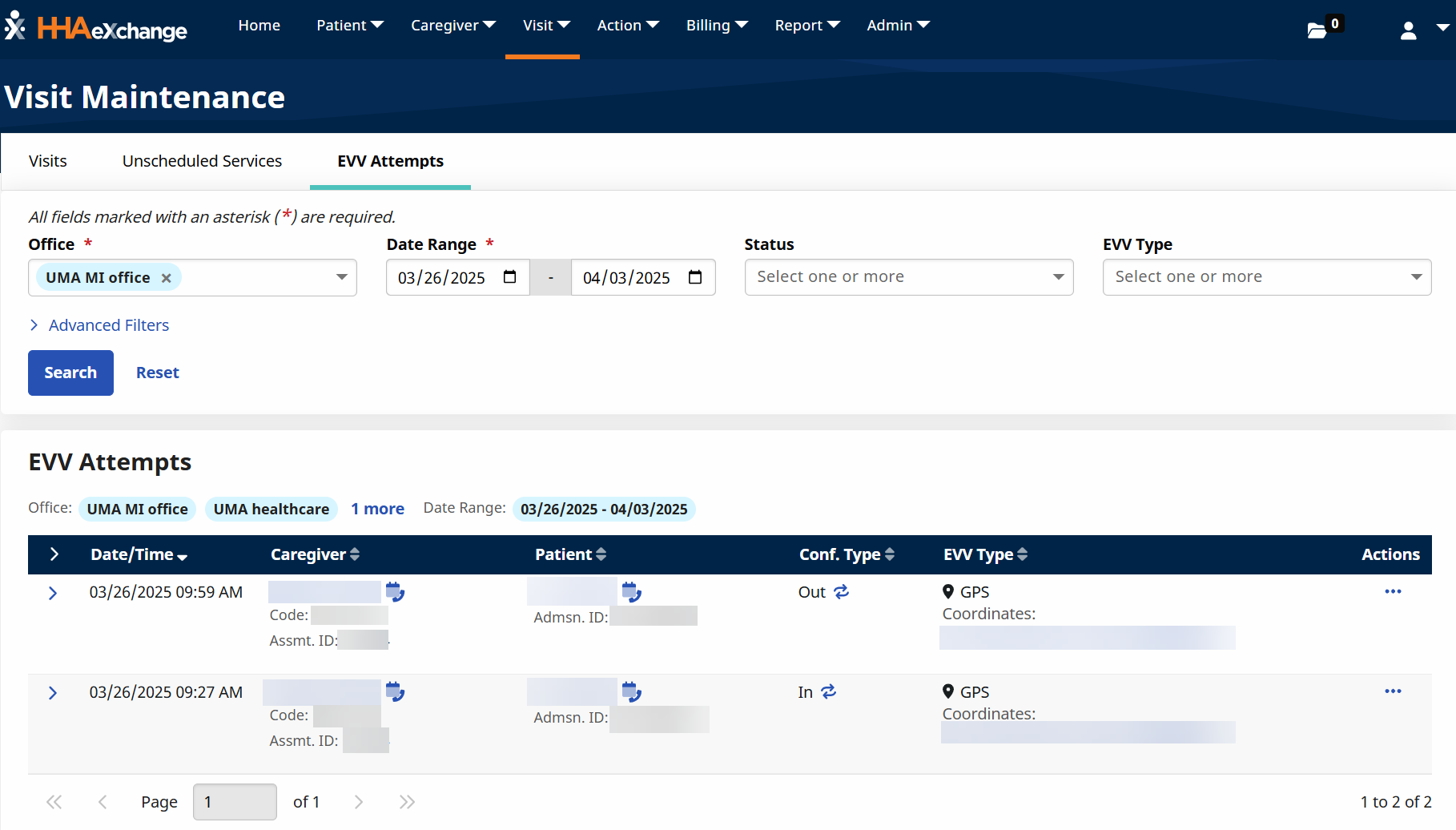
Select the Patient name or Caregiver name link to open the Patient profile or Caregiver profile pages.
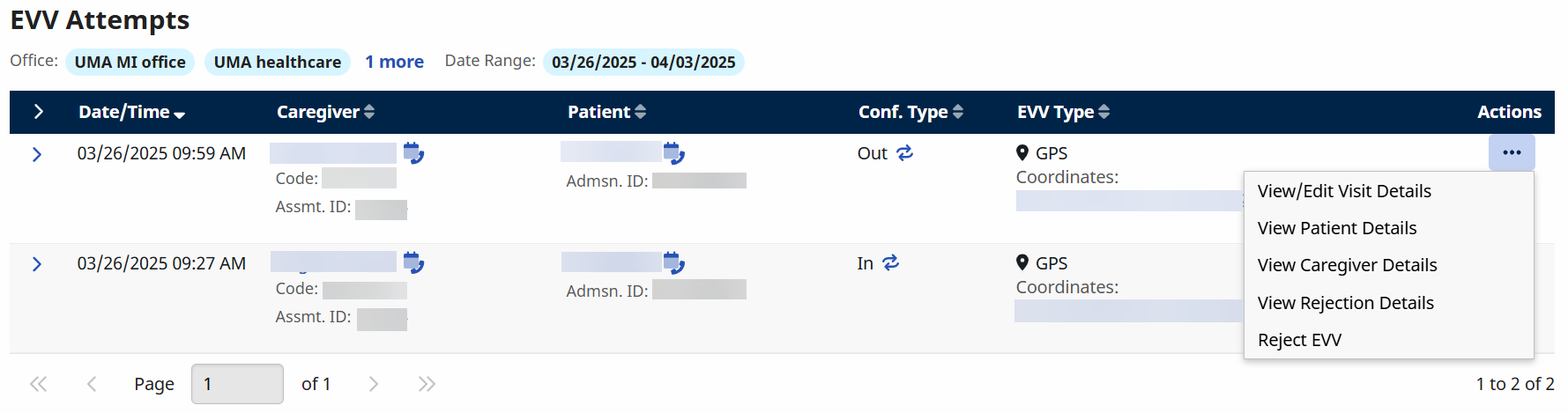
Select the Ellipses... under the Actions column for additional ways to access the Patient or Caregiver details. You can also edit Visit details or reject the EVV.
Review an Alternate Device EVV
The Alternative Device Review button is available in the EVV Attempts tab within Visit Maintenance and is used when researching and resolving an Invalid Alternative Device Passcode exception after a visit has occurred. This feature helps program providers and Financial Management Services Agencies (FMSAs) confirm whether a service provider or Consumer Directed Services (CDS) employee successfully called the EVV toll-free number using a valid alternative device passcode.
Scenario: A service provider accidentally enters the wrong passcode when calling in or out, which causes the visit to be rejected. The provider sees the visit as “Invalid FOB Passcode” in the Visit Maintenance and Call Dashboard modules.
In these situations, providers can use the Alternative Device Review button to review the passcode provided by the service provider and verify whether it's valid or not. This feature searches for matching passcodes generated within the last 30 days and, when a valid match is found, displays the associated date and time of the EVV call attempt. If confirmed, the service provider can call the toll-free number again within the seven-day validity window to complete the visit successfully. This feature is used as part of the EVV exception review process and helps providers investigate EVV attempts, validate caregiver activity, and resolve visit issues before visit confirmation and billing.
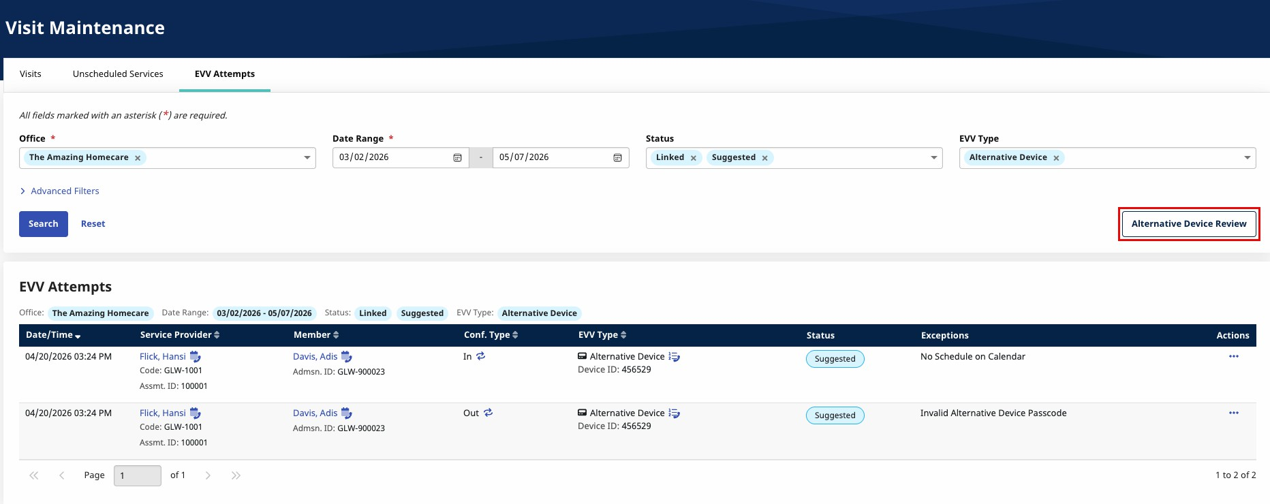
Invalid Alternative Device Passcode Exception Review
After a visit is completed, regularly review Visit Maintenance throughout the day for EVV exceptions. To review Invalid Alternative Device Passcode exceptions:
-
Locate the visit with the Invalid Alternative Device Passcode exception.
-
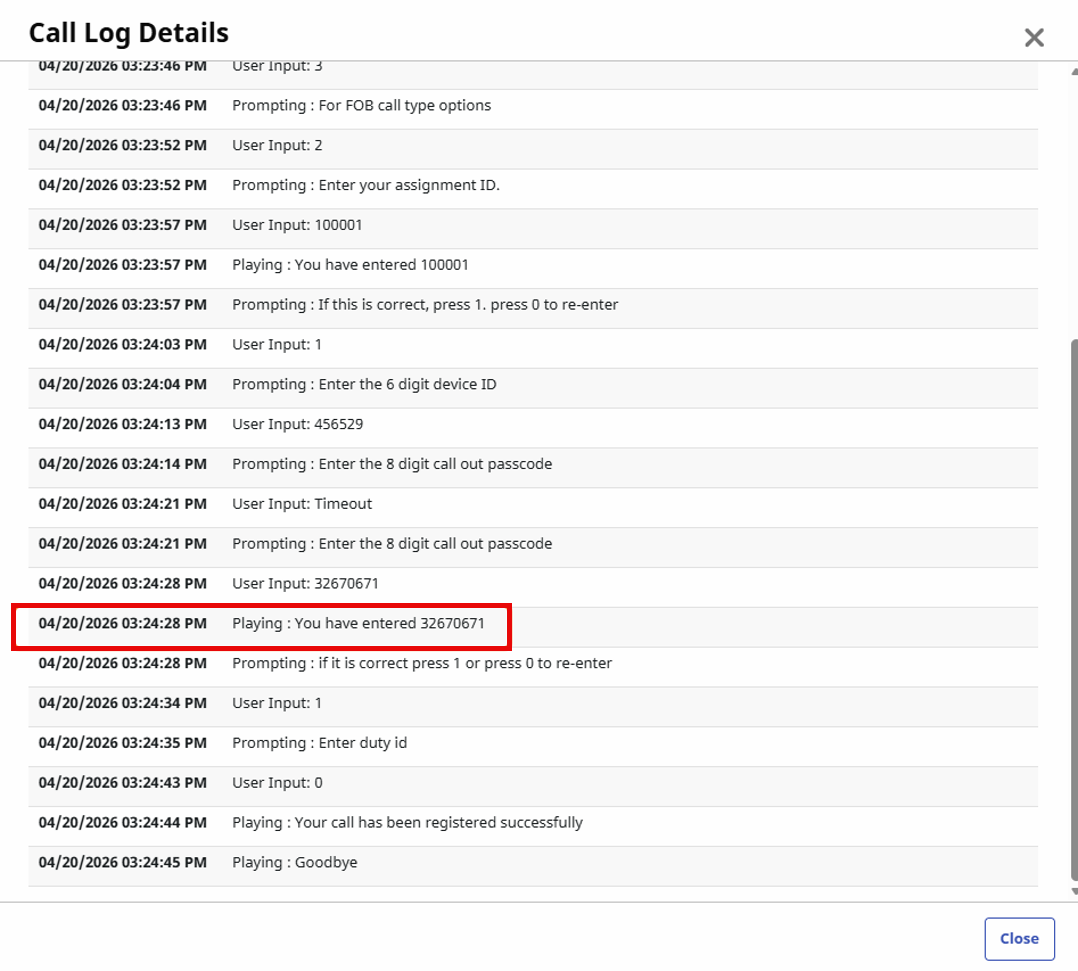
In the EVV Attempts tab, click View Call Log under the EVV Type column to review the service provider’s entered information.
-
Contact the service provider or CDS employee to confirm the alternative device passcode used during the visit.
-
Click the Alternative Device Review button.
-
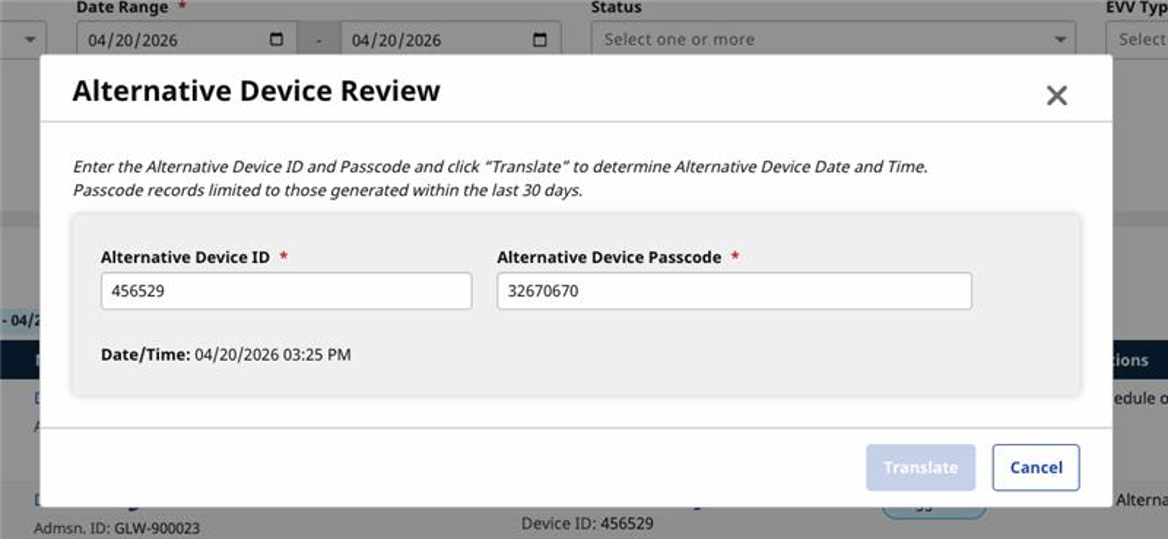
Enter the following information:
-
The Alternative Device ID
-
The passcode provided by the service provider or CDS employee (Please note: It is a best practice for the service provider or CDS employee to either write down the AD code or take a picture of the code to ensure that the code is recorded correctly in the IVR system.)
-
-
Click Translate.
-
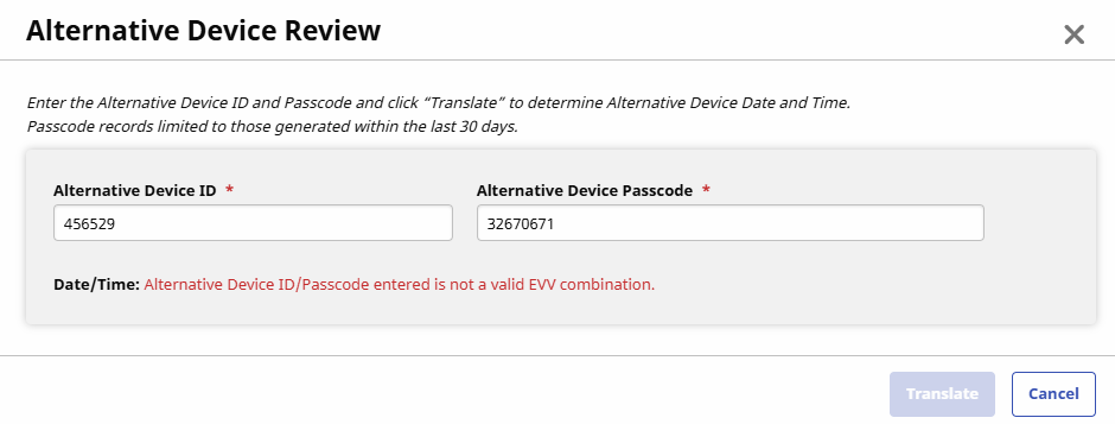
Review the results:
-
If the passcode is invalid, the following message displays: “Alternative Device ID/Passcode entered is not a valid EVV combination.”
Note: The system can only validate passcodes generated within the last 30 days. -
If the passcode is valid, the system displays the associated date and time of the EVV call attempt.
-
-
If a valid call is confirmed, instruct the service provider or CDS employee to call the EVV toll-free number again and re-enter the correct alternative device passcode to complete the visit.
Note: The service provider has up to 7 days from the passcode generation date to successfully complete the EVV call before the passcode expires. -
Return to the invalid EVV attempt, click the ellipsis menu, and select Reject EVV for the incorrect attempt.
Other Resources