What's New: June 2026
Enterprise Version 26.06.01
We’re excited to introduce the latest enhancements to your home healthcare experience! This release brings new features designed to simplify care coordination, reduce administrative work, and help your team focus on what matters most—delivering quality care. Explore what’s new and see how these improvements make your work more seamless than ever.
HHAeXchange is permission-based, so access to certain features may vary depending on your role and organization settings.
Feature Enhancements

|
What's New |
Why It Matters |
What You Need to Know |
|---|---|---|
|
Audit History now displays up to three years of audit activity directly in the history viewer, increased from the previous one-year view. A note in the viewer indicates the displayed time range. |
Audit History now runs on enhanced technology that delivers faster, more reliable performance while preserving all audit records. No data has been deleted—records older than three years are securely archived. |
You can instantly view the most recent three years of audit history in the application. If you need records older than three years, submit a support request to have the archived data retrieved. |
View the Audit History article for more information.
|
What's New |
Why It Matters |
What You Need to Know |
|---|---|---|
|
Two new discharge logics are now available: No Authorization, which discharges an active member from any placement where they have no authorizations loaded, and No Authorization and No Visits for X Days, which adds a check for confirmed visits — discharging a member from a placement only if they also haven't had a confirmed visit in a set number of days (X is configurable per payer or service code). Both logics run automatically every night, just like other custom discharge logic. |
Today, a member can lose their only authorization and stay marked Active indefinitely, since there's no auth end date to trigger a discharge. These new logics close that gap — automatically discharging members who truly have no authorization on file, without affecting members who simply have an expired authorization. If a member has several placements, only the ones with no authorization are discharged; placements with a valid authorization are left untouched. These logics can be used on their own, or alongside your existing "Authorization End Date + X Days" logic — for example, one payer could use "No Authorization" only, another could use "Auth + 30 Days" only, and a third could use both together. |
No action is required to receive this update. If you want to start using either logic, it will need to be configured for your payer profile. Please reach out to HHAeXchange Support or your CSM contact for assistance. |
|
What's New |
Why It Matters |
What You Need to Know |
|---|---|---|
|
We have added a new On Reprocess Log view to the Integration File Dashboard. This feature includes a toggle that allows you to switch between viewing only records currently being reprocessed and viewing all historical rejected records. The dashboard will now default to the On Reprocess Log view, which filters for records received within the last 90 days that have a valid reprocessing rejection code. |
This update makes the dashboard much easier to use by focusing on the most relevant data first. By defaulting to the reprocess log, you can immediately see the same records that are provided on the nightly fail log. These records are automatically reprocessed each night to attempt a successful import, while older records are only reprocessed by request. This reduces "noise" from older, inactive failures while still giving you the flexibility to research historical data whenever you need to. |
The default view will automatically be the On Reprocess Log view. If you can't find a specific record in the default view, it may be older than 90 days. Simply switch the toggle to All Records to see the full history. The record counts shown in the dashboard bubbles will automatically update based on which view you have selected. |
|
What's New |
Why It Matters |
What You Need to Know |
|---|---|---|
|
We’ve introduced a more robust download system in the Integration File Dashboard. Instead of waiting for a file to generate in your browser, the system now processes your request in the background. To support this, we’ve added a new Downloads tab in the Integration File Dashboard where you can:
|
With high volumes of data in the dashboard, downloads may sometimes fail or take a long time to generate. This new process eliminates those frustrations by moving the heavy lifting to a backend process. This means you can request a large data export and continue working elsewhere in the system without interruption, knowing your file will be waiting for you in the Downloads tab when it's finished. |
When you download a file from the dashboard, it won't pop up immediately. Instead, it will be sent to the new Downloads tab for processing. You can check the Downloads tab at any time to see if your file is In Progress or Completed. This update is specifically designed to handle high volumes of data, ensuring that large exports are successful every time. |
|
What's New |
Why It Matters |
What You Need to Know |
|---|---|---|
|
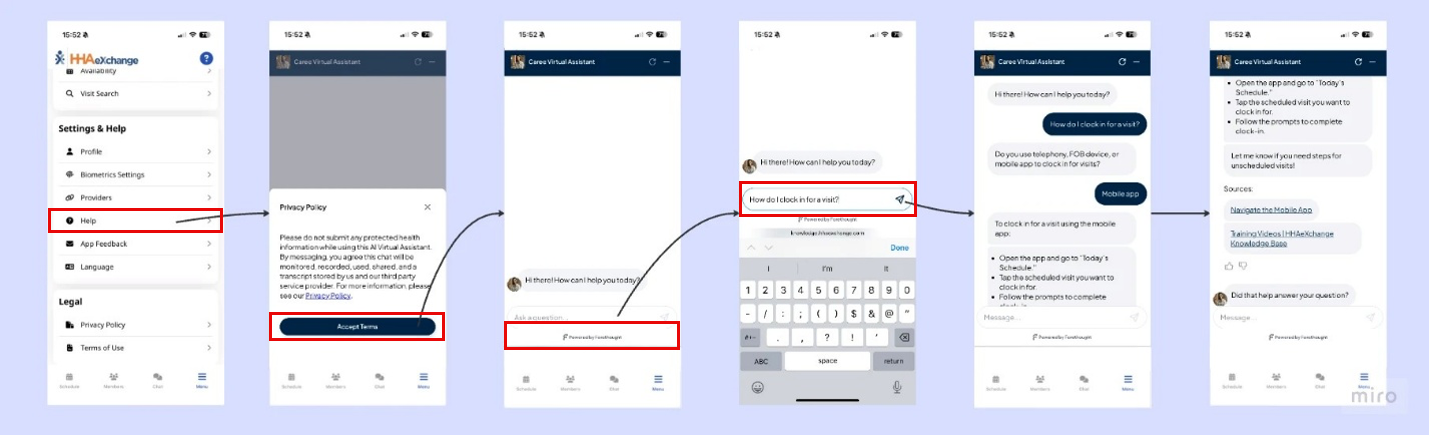
Caregivers now have access to an AI-powered Help Assistant, Caree, right from Menu > Help in the EVV mobile app. Instead of searching through static help articles, caregivers can ask questions in natural language and get guided, step-by-step troubleshooting for time-sensitive issues like clocking in/out, GPS problems, and validation errors. |
Caregivers — many of whom are non-native English speakers or less comfortable with digital tools — often need help in the moment, not after digging through articles. Caree answers in plain language and translates in real time, so caregivers can resolve issues themselves, faster, without missing a clock-out or stalling mid-shift. |
This is Phase 1 of the rollout, focused on embedding Caree as the primary support entry point via Menu > Help, replacing or enhancing the existing static Help content. Caree draws on knowledge base articles, FAQs, and its own AI learning data to provide answers and suggested actions. |
Here is a quick preview on how to access the AI-Powered Help Assistance:
|
What's New |
Why It Matters |
What You Need to Know |
|---|---|---|
|
A new secure messaging capability connects Payers, Providers, Members, Representatives, and Caregivers in one unified conversation thread — across the Payer Portal (NPP), Provider Portal (ENT), Services Portal (UCP), and CareHub. Users can message one-to-one or one-to-many, and can add new participants into an existing conversation at any point, with the full message history carrying forward for everyone on the thread. |
Care coordination today happens in silos — phone calls, emails, separate notes — making it easy to lose track of who said what, and to whom. With unified messaging, a caregiver can flag a change in a member's condition, loop in the provider, who loops in the payer to request additional hours, who then loops in the member or representative to confirm — all in a single thread, with nothing lost in translation between systems. This means faster approvals, fewer redundant conversations, and better visibility into care decisions for everyone involved. |
Each product has its own rules for who can be messaged and how messages are received: NPP and ENT route messages to a general queue, where they can be assigned to specific users, teams, or roles (or auto-assigned to the Case Manager/Coordinator on the member). UCP and CareHub deliver messages directly to the member's, representative's, or caregiver's account. Note that messages to a caregiver must always include the provider, and messages from a caregiver to a member or representative must also include the provider. Message status (Read/Unread) is tracked separately in each product — marking a message as read in one product does not update its status elsewhere. Replies go to everyone currently on the thread, and any user can add a new participant before replying to expand the conversation going forward. |
|
What's New |
Why It Matters |
What You Need to Know |
|---|---|---|
|
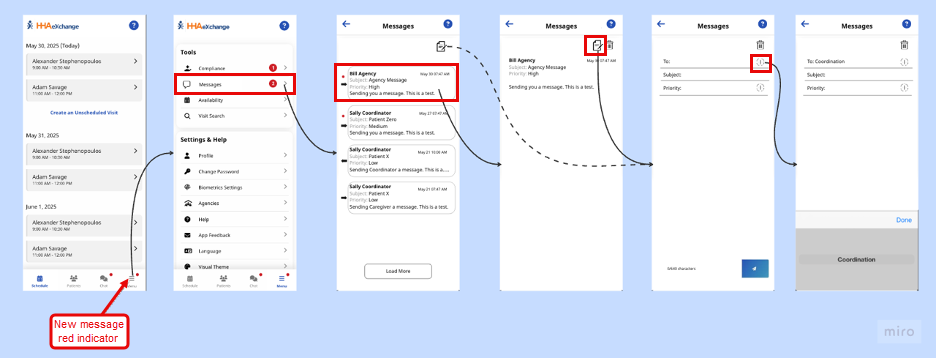
HHAeXchange+ now supports direct messaging between agencies and caregivers, bringing the same messaging experience caregivers already know from the HHAeXchange Caregiver Mobile App into HHAeXchange+. Agencies can send one-way messages to caregivers through the Enterprise Message Center, and caregivers can have two-way conversations with agency users directly from the new Direct Chat screen in HHAeXchange+. |
Caregivers and agencies need a reliable way to communicate in real time, without juggling separate apps or falling back on phone calls and texts. By bringing this messaging experience into HHAeXchange+, agencies get consistent, real-time communication aligned with their existing enterprise workflows — improving caregiver engagement while keeping messaging in one place. |
This feature replicates the core of HHAeXchange Caregiver Mobile App's direct messaging experience, with some changes from the original: a few lower-usage capabilities were intentionally left out, and the feature was also adjusted to address compliance concerns around caregivers sharing PHI (protected health information) through messages. Messages sent by the agency through the Enterprise Message Center are one-way; two-way conversations only happen through the in-app Direct Chat screen. |
Review the overview below to learn how to access Direct Messaging within HHAeXchange+.
|
What's New |
Why It Matters |
What You Need to Know |
|---|---|---|
|
The M27T and PERS HRA forms now automatically populate the Agency Address and Patient Address fields when the form is opened — Agency Address pulls from the agency's profile on file, and Patient Address pulls from the patient's demographic record. |
Manually entering addresses on every form is repetitive and prone to typos or inconsistencies with what's already on file. Auto-populating these fields removes that manual step entirely, saving time and ensuring the form always reflects the agency's and patient's current address on record. |
No action is needed to receive this update — addresses populate automatically as soon as the form is attached to a visit and opened, with no extra configuration required. If an address needs to be corrected, it should be updated at the source (the agency profile or patient demographic record), since the form pulls from those records each time it's opened. |
|
What's New |
Why It Matters |
What You Need to Know |
|---|---|---|
|
Forms can now be automatically attached to visits based on configurable rules, eliminating the need for manual attachment. A new Auto Attachment Configuration section has been added to the form creation screen, where users can define the Visit Type(s) and Contract/Payer that determine when a form should be auto-attached to a visit. |
Manually attaching the correct form to every visit is repetitive and easy to get wrong — the right documentation can get missed. With auto-attachment, agencies set the rules once, and the correct form is consistently included with every matching visit going forward, reducing manual work and documentation gaps. |
Once enabled for a form, the new Auto Attachment Configuration accordion is clearly labeled and visually separated from the rest of the form creation screen. A few rules to know when configuring it: Visit Type options are only available if the form's Document Category includes skilled and/or non-skilled visits, and the available Visit Types carry over from the Document Category selection. For the form to auto-attach, the visit's actual Visit Type must match the one configured on the form, and the configured Contract must match the visit's Primary Bill-To Payer — if the contract doesn't match, the form will not auto-attach. The form's Description and Document Type fields are also defined here; Document Type reflects the latest setup from Reference Table Management. Existing manual attachment functionality is unchanged — auto-attachment works alongside it, not in place of it. |
|
What's New |
Why It Matters |
What You Need to Know |
|---|---|---|
|
The forms administration disclaimer now only appears once. The first time a user accesses the forms admin screen, the disclaimer displays and must be acknowledged before proceeding — after that, the user goes straight to the admin screen on every future visit. |
Previously, the disclaimer appeared every single time the admin user accessed the screen, interrupting workflow with a repetitive step. Now users see it once, acknowledge it, and move on — saving time on every subsequent visit without losing the legal acknowledgment itself. |
No configuration is required — acknowledgment tracking happens automatically per user. The disclaimer text itself is unchanged and remains legally approved; this update only changes how often it's shown, not what it says. |
|
What's New |
Why It Matters |
What You Need to Know |
|---|---|---|
|
Payer administrators can now create, update, and manage custom Measure Gap Status options directly within the Reference Table Management (RTM) module for Quality Insights. Once configured, these statuses automatically sync across both the Payer and Provider views. |
Previously, payers had less flexibility to define their own status options for tracking measure gaps, which could lead to inconsistent or inaccurate status tracking between payer and provider teams. With configurable, synchronized statuses, both sides are always working from the same definitions — improving consistency and accuracy in how measure gaps are tracked and resolved. |
This configuration lives in Reference Table Management (RTM) and is managed by payer administrators. Once a status is created or updated, the change automatically reflects in both the Payer and Provider views in Quality Insights — no separate setup is needed on the provider side to keep the two in sync. |
|
What's New |
Why It Matters |
What You Need to Know |
|---|---|---|
|
A new option lets you group invoiced visits and claim line items by Export Code instead of Service Code when submitting claims. |
If your agency uses multiple Service Codes that map to the same Export Code — for example, "PCA Hourly Brooklyn" and "PCA Hourly Queens" both billing under "T1019" — claims were being rejected because the payer only expects to see one line per Export Code. This fix groups those visits together automatically, the way the payer expects, so claims go through cleanly. |
This is an optional setting — it won't change anything until it's turned on. It's recommended for any agency experiencing rejections tied to multiple Service Codes sharing the same Export Code. Reach out to your HHAeXchange representative for questions on how to enable it before your next billing cycle or review the Knowledge Base Instructions under: “Billing/Collections Tab” à “Invoice Creation” drop down field. |
|
What's New |
Why It Matters |
|---|---|
|
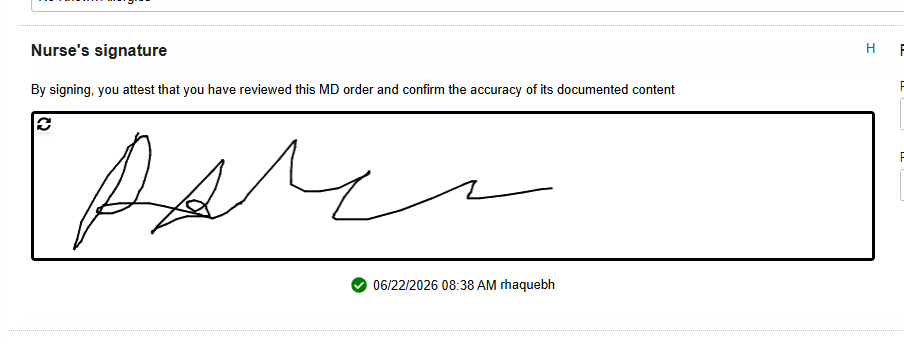
Physicians and authorized clinical staff can now sign MD orders electronically directly within the platform. Each signature is tied to the signer's unique login, includes a date and time stamp, and locks the document from changes once signed. |
MD orders require valid signatures to be auditable and clinically sound. This update reduces compliance risk, and ensures your records are audit-ready, ensuring the signee is accurately recorded and meets HIPAA, CMS, and state requirements. |
How the Electronic Signature for MD Orders works
Triggering the Signature
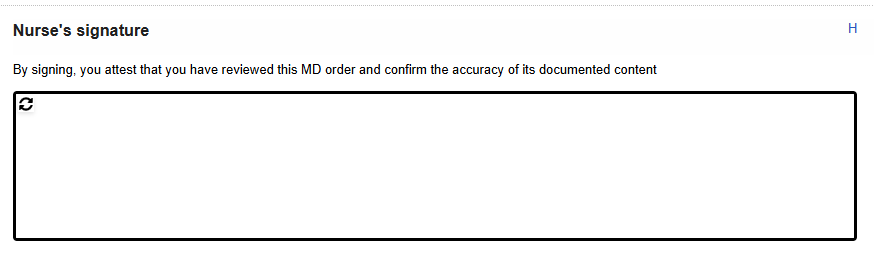
Once an MD order is marked as In Progress or Complete, the electronic signature option becomes available within the order workflow. There's a clear "Click to Sign" confirmation step so the signer's intent is explicitly captured.
Authentication
Each signer must be logged in with their own unique credentials — no shared logins. The system ties the signature to that specific user account along with the exact date and time it was signed.
What Happens After Signing
Once the order is signed:
-
The Signature Date field locks — it can't be changed
-
The signer's username displays directly on the order
-
The document is locked from edits — any tampering is detected and flagged (controlled by permissions). The document can be unlocked to edit.
Audit Trail
Every signature action is recorded — who signed, when, and any changes to signature status. MD Order signatures will appear in the history viewer.