Conflict Management Dashboard
The Conflict Management Dashboard feature under Provider and Caregiver > Conflict Management Dashboard.
Payers get visibility into conflict details, statuses, and financial impact across their network. The Conflict Management Dashboard offers improved conflict tracking and resolution capabilities, ensuring accurate billing and reducing improper payments. This powerful tool:
-
Ensures compliance with EVV regulations.
-
Strengthens payer confidence in patient care delivery.
-
Safeguards against fraud, waste, and abuse.


| Term | Definition |
|---|---|
| Conflict | A set of visits that overlap, either partially or entirely. |
| Conflict Type |
Refers to the nature of the conflict. Click the Information icon (i) next to the Conflict Type header in the dashboard and pages where Conflict Types are displayed to see the definition:
|
| Conflict Status |
Current status of the conflict, which matches the status in the provider portal:
|
| Unresolved Impact | Estimated monetary value of conflicts that are not yet resolved. It consists of a Shift calculation which takes into account the billable value of the entire duration of the visit and an Overlap calculation which only estimates the financial impact based on the amount of time the two visits overlap. |
| Restricted | This legend displays when the patient is associated with a different payer. In this case, Restricted is shown instead of PHI/PII. |
The Conflict Management Dashboard Chart View consists of several dashboards showing various helpful metrics about your conflicts.
At the top of the page, select which metric to display on the page by selecting one from the Show on Widgets dropdown. Select which conflicts to display by choosing the From and To date range, the Status of the conflict, the Cost Type, and the Visit Type. Click the → button to confirm your selection.

Below the search bar, a series of key metrics are displayed, allowing you to quickly see statistics such as your Conflict Count or Percentage of Visits or Members with Conflicts.

The Venn Diagram section of the page adjusts according to the Show on Widgets field, and shows the overlap of conflicts for Time Overlap, In Service, and Time Distance.

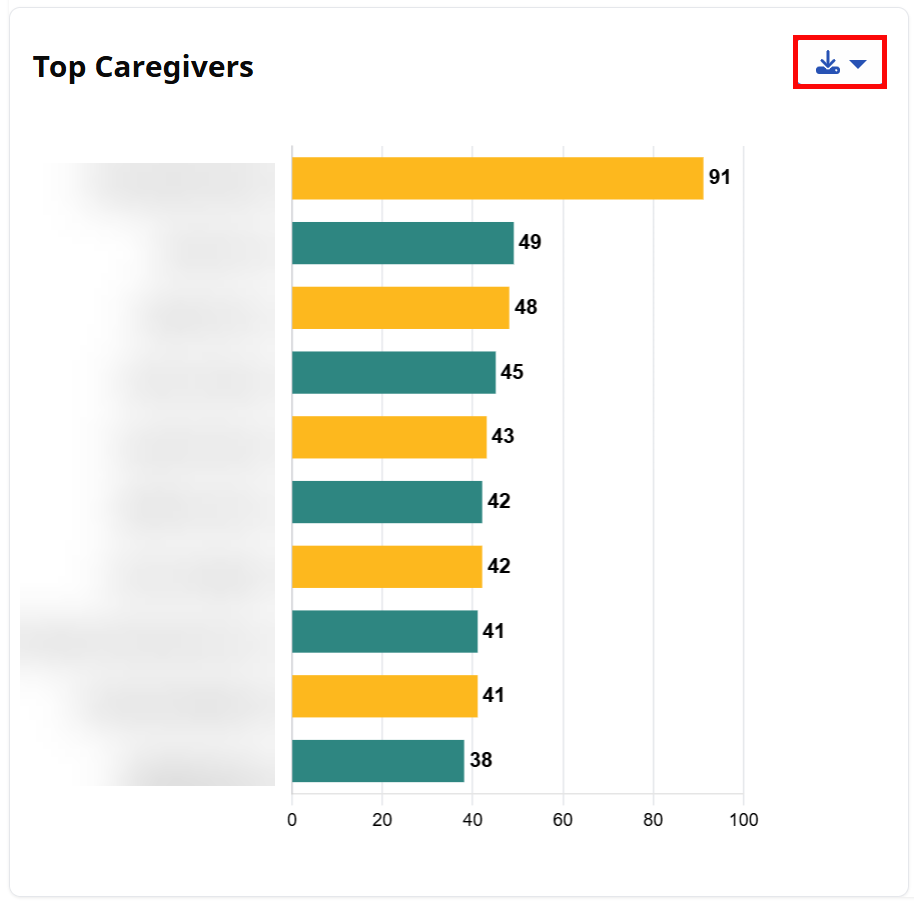
The Bar Charts show the Top Agencies, Top Members, Top Payers and Top Caregivers for the metric selected in the Show on Widgets dropdown. For example, if Conflict Count is selected, the Top Members bar chart shows a list of Members with the highest conflict count.

The data from any of the charts can be exported as an Excel or CSV file by clicking the Download button.
Other Resources
Conflict Summary Page
Enable Conflict Management Dashboard