Conflicts List Page
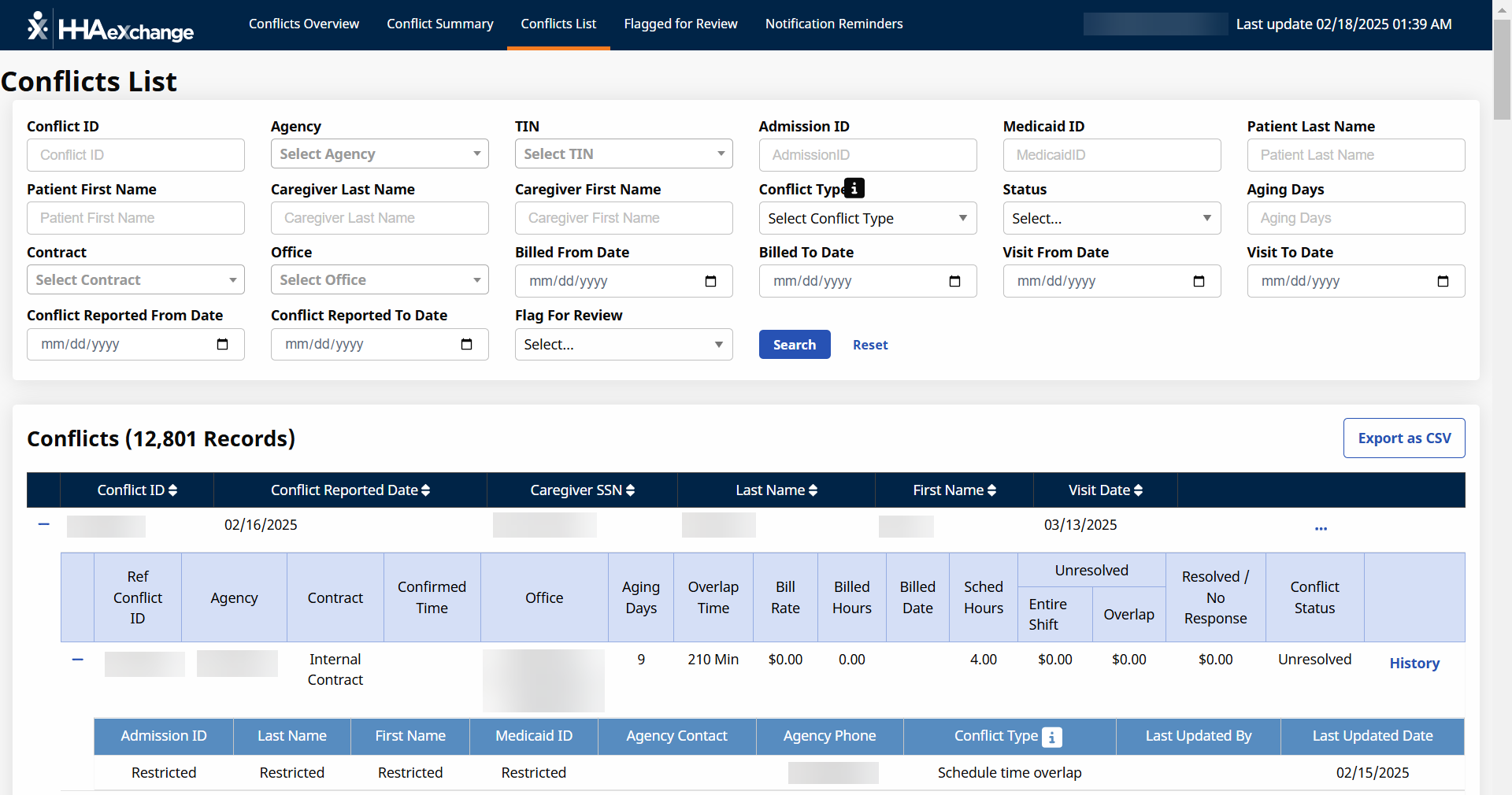
The Conflicts List page under Provider and Caregiver > Conflict Management Dashboard displays all information related to the conflict such as:
-
Conflict ID
-
Caregiver details - Code, Name, SSN, Caregiver PTO Indicator, Caregiver Inservice Indicator, Status
-
Patient Details - Admission ID, Medicaid ID, Name, Status, Address and Coordinates
-
Other details - Includes billing information and monetary impact data.

-
From the Provider and Caregiver > Conflict Management Dashboard page, click the number of conflicts in any of the dashboards. This opens the Conflict List page. The conflicts are filtered by the criteria selected. For example: Click the number next to Exact Visit Match in the Conflicts by Type dashboard, and only the Exact Visit Match conflicts display in the Conflict Lists page.
-
From the menu at the top of the Provider and Caregiver > Conflict Management Dashboard page, click Conflicts List. The Conflicts List page lists all available conflicts.
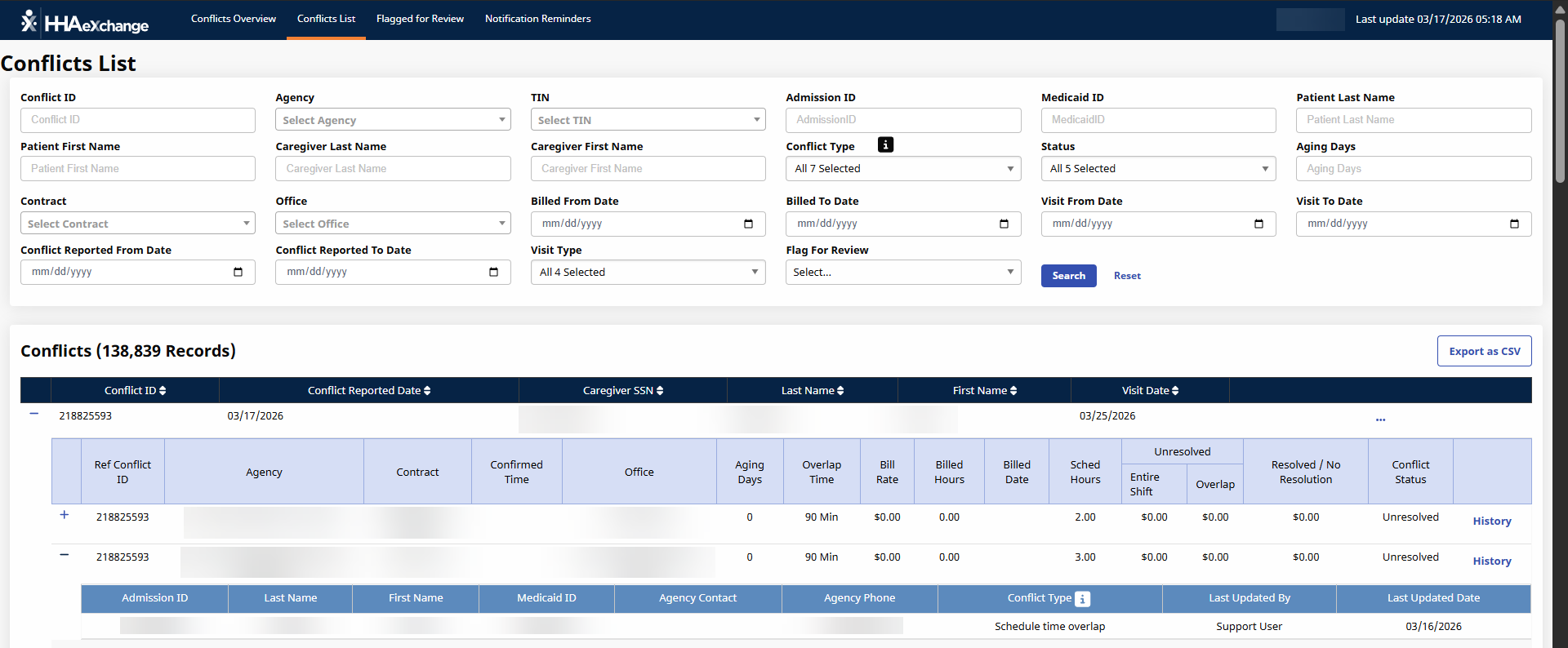
Use the filters at the top of the Conflicts List screen to filter for conflicts meeting the criteria selected. Once desired filters are entered, click Search to refresh the list.
|
If you are looking for conflicts associated with a |
Use the filter listed |
Description |
|---|---|---|
|
Provider |
|
|
|
Patient |
|
Identifiers associated with the patient |
|
Caregiver |
|
Identifiers associated with the caregiver |
|
Date |
Billed Date Range |
Range of dates when the conflicting visits where billed |
|
Visit Date Range |
Range of dates when the services occurred |
|
|
Conflict Reported Date Range |
Range of dates when the conflicts were flagged |
|
|
Conflict Type |
Conflict Type |
Lists the
types of conflicts that can be reported. For a brief description of each
one, click the Information |
| Status | Status of the conflict: resolved, unresolved, no response. | |
| Aging Days | Number of days since the conflict was flagged. | |
| No Response | Filter for additional options on reporting conflicts without a response. |
 icon.
icon.
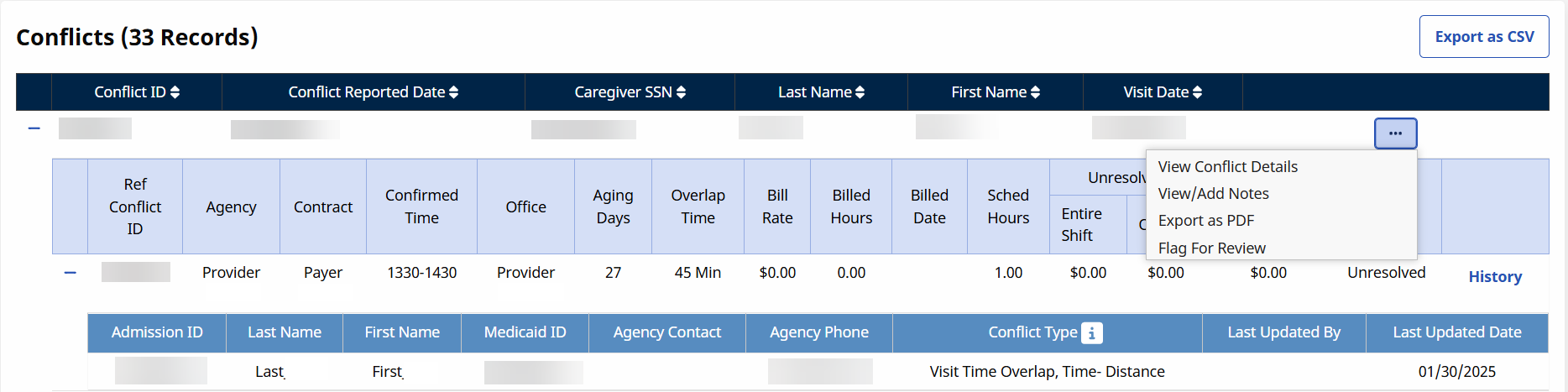
Each conflict under Provider and Caregiver > Conflict Management Dashboard > Conflict List are listed in separate rows which can be expanded by clicking the Plus sign or collapsed by clicking the Minus sign at the left side of the row.
When the conflict is expanded, the name and phone number of the conflicting agency displays. Other details available from this expanded view: Conflict Type, Status, Overlap Time, and Last Updated Timestamp. To download the conflict, click the Export as CSV button.
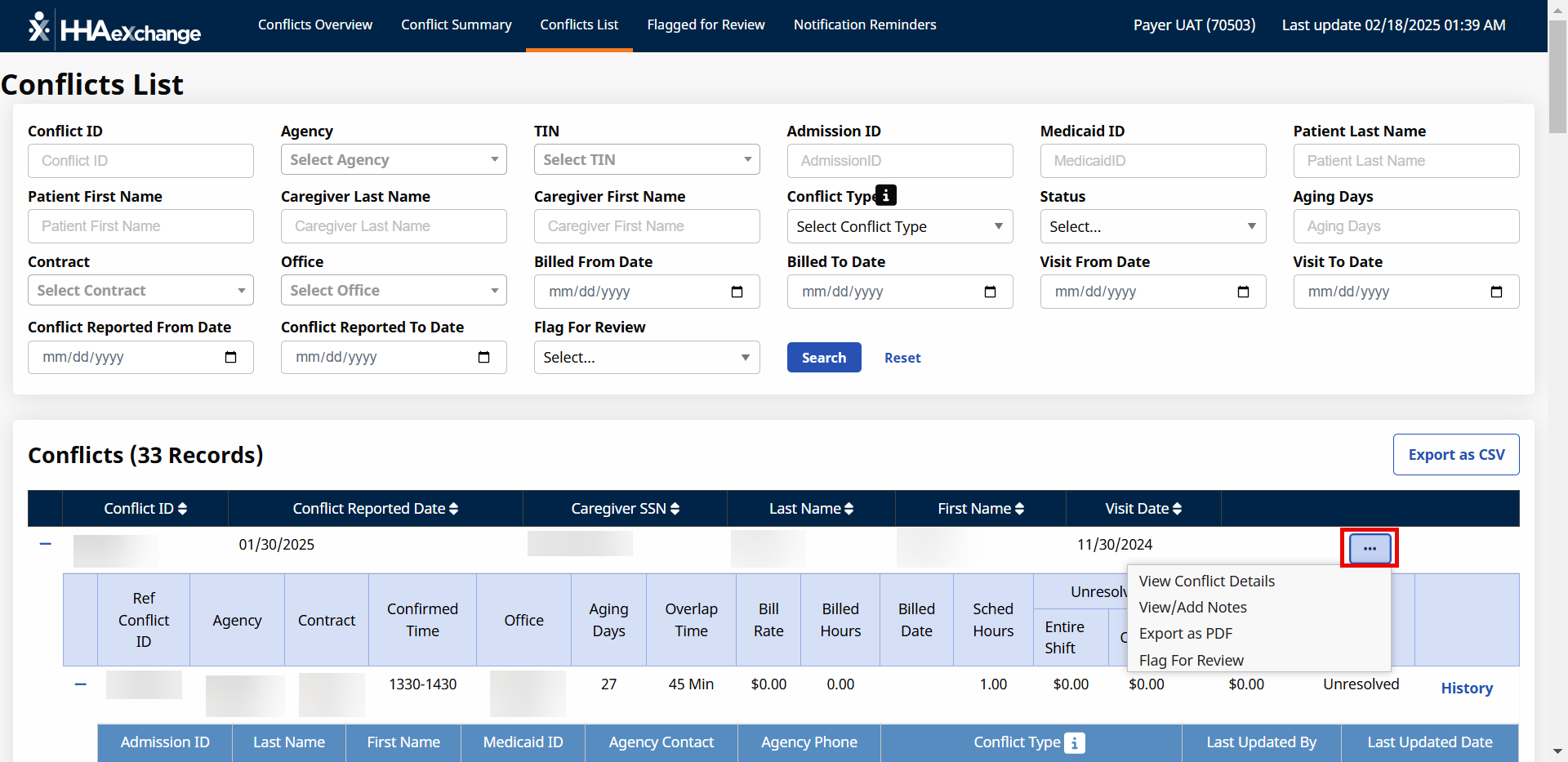
Click the Ellipses... button to access additional selections:
-
View Conflict Details
-
View/Add Notes
-
Export as PDF
-
Flag for Review
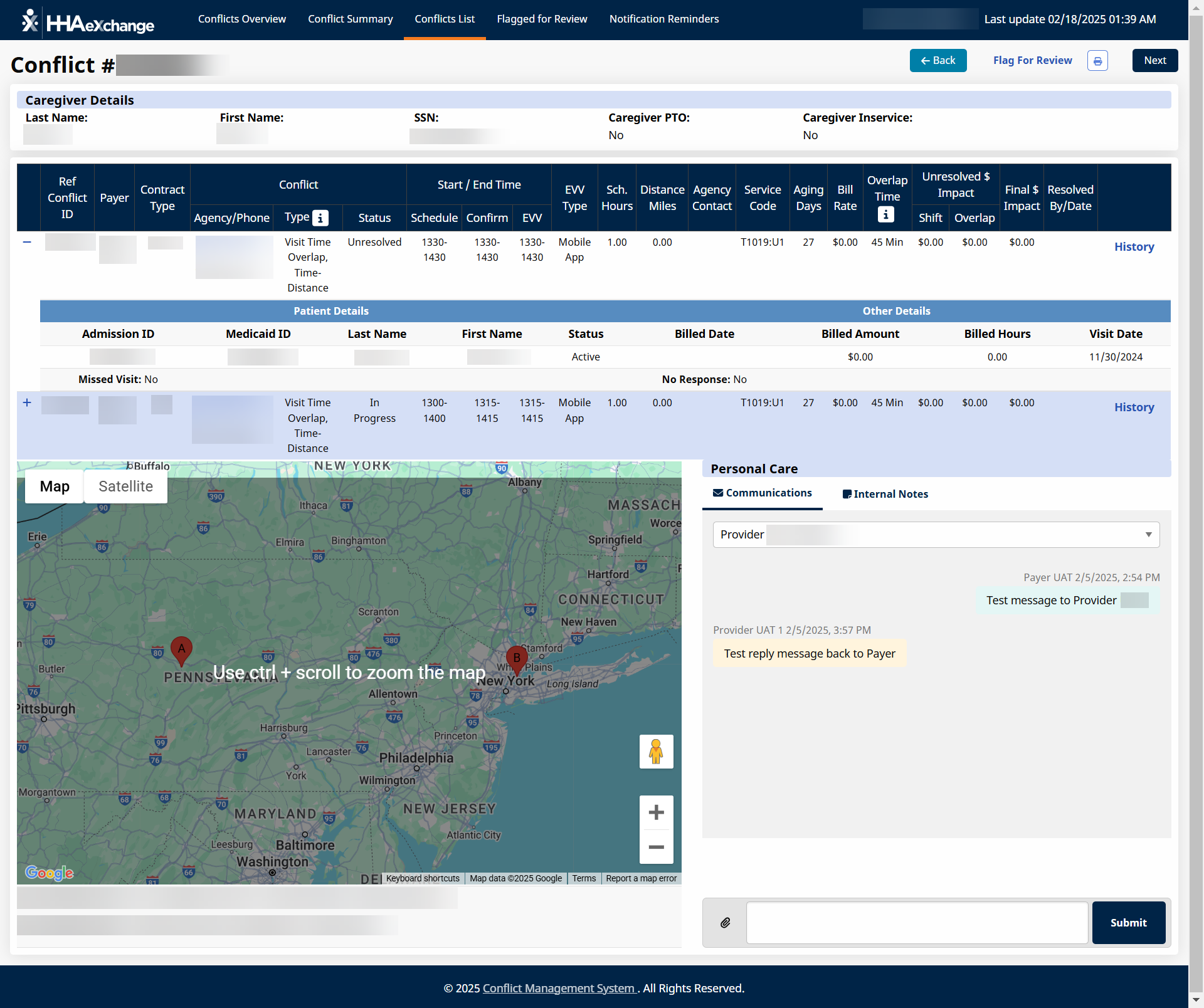
The Conflict Details page under Provider and Caregiver > Conflict Management Dashboard > Conflict List displays all information related to the conflict such as:
-
Conflict ID
-
Caregiver details - Code, Name, SSN, Caregiver PTO Indicator, Caregiver Inservice Indicator, Status
-
Patient Details - Admission ID, Medicaid ID, Name, Status, Address and Coordinates
-
Other details - Includes billing information and monetary impact data.
To open the Conflict Details page under Provider and Caregiver > Conflict Management Dashboard > Conflict List, select the Ellipses... from a conflict on the Conflicts List results. Select the View Conflict Details button to open theConflict Details page.
Use the menu at the top right of the screen to,
-
Back - To go to theConflicts List page.
-
Next - To go to the next conflict.
-
Flag for Review - Allows you to flag the conflict for review. If selected, this conflict displays on the Flagged for Review page.
-
Print - Allows you to print the conflict.
If the conflict involves a patient associated with another payer, that patient’s information is shown as Restricted but details of the visit displays.
The bottom half of the screen includes information about the conflicting visit, a map indicating the location of each of the clients involved, and a communications panel.
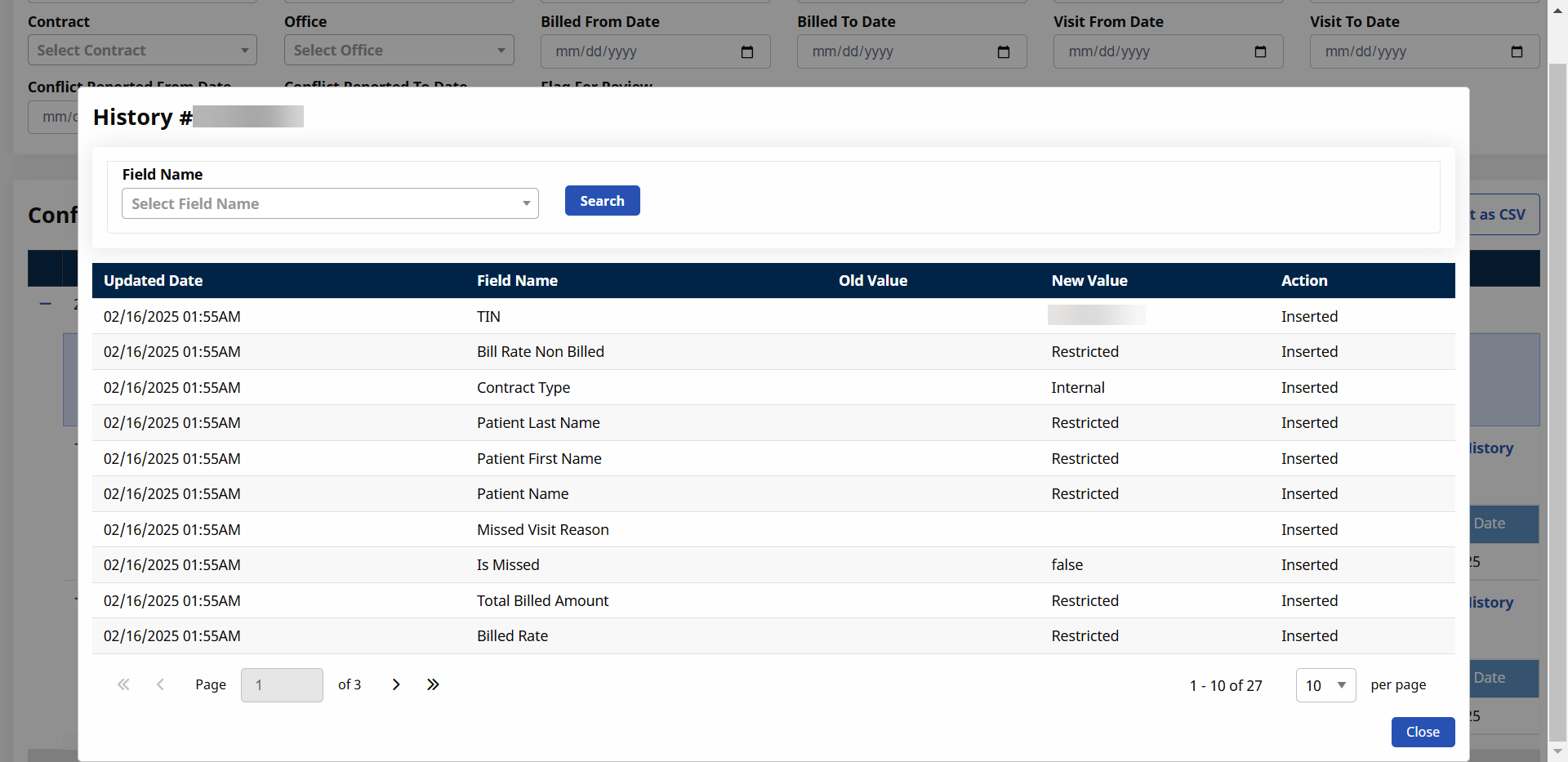
The History Log under Provider and Caregiver > Conflict Management Dashboard > Conflict List identifies the date and time stamp of the changes made to the conflicting visit.
Click the History button on the Conflicts List page or Conflict Details page to open the History Log.

Click Close on the History Log window to return to the Conflicts List page or Conflict Details page.
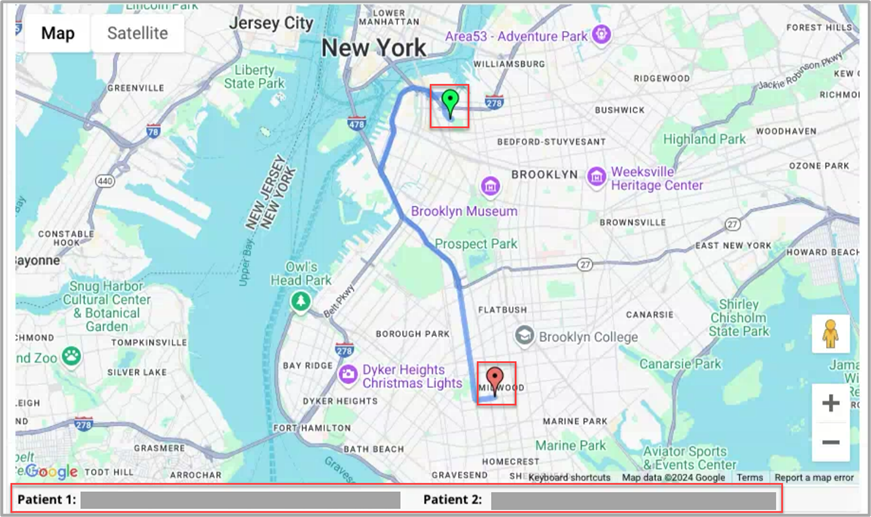
The map flags the location of the 2 patients involved in the conflicting visits under the Provider and Caregiver > Conflict Management Dashboard > Conflict List > Conflict Detail, one in green and the other one in red. The address of both patients is listed at the bottom. Patient 1 refers to your agency’s patient, while Patient 2 refers to the patient on the conflicting agency side.
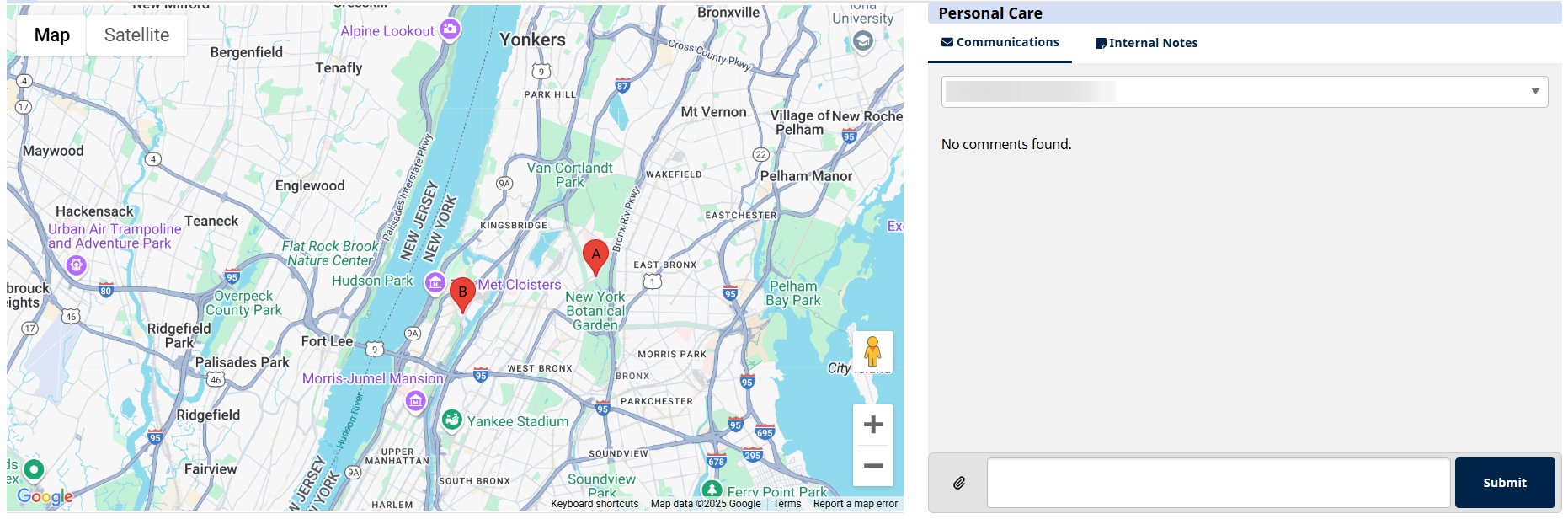
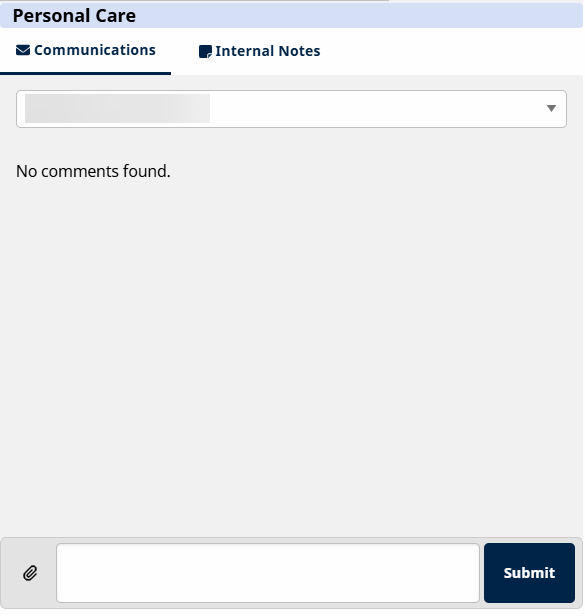
Use the Communications tab under Provider and Caregiver > Conflict Management Dashboard > Conflict List > Conflict Detail > Personal Care section to send and receive messages from the conflicting Providers associated with your health plans patients.
-
Select the Provider from the dropdown.
-
Type the message in the box at the bottom of the panel.
-
Click the Attachment icon to include any supporting files.
-
Click the Submit button to send. The new message displays.
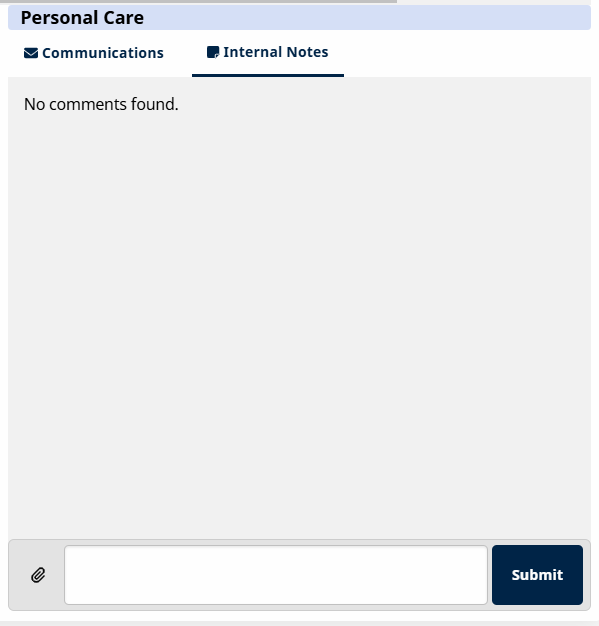
Click the Internal Notes tab under Provider and Caregiver > Conflict Management Dashboard > Conflict List > Conflict Detail > Personal Care section to add additional information regarding the conflict. Internal notes are not shared with the conflicting provider. Use this feature to document the steps you are taking to investigate and resolve this conflict.
By default, only 10 conflicts display per page. Select the dropdown to change how many conflicts display per page. Use the arrows to navigate between pages of conflicts.

Click Export as CSV to download the contents of the conflict list.
Other Resources
Conflict Summary Page
Conflicts Notification Reminders