Master Week Broadcasting

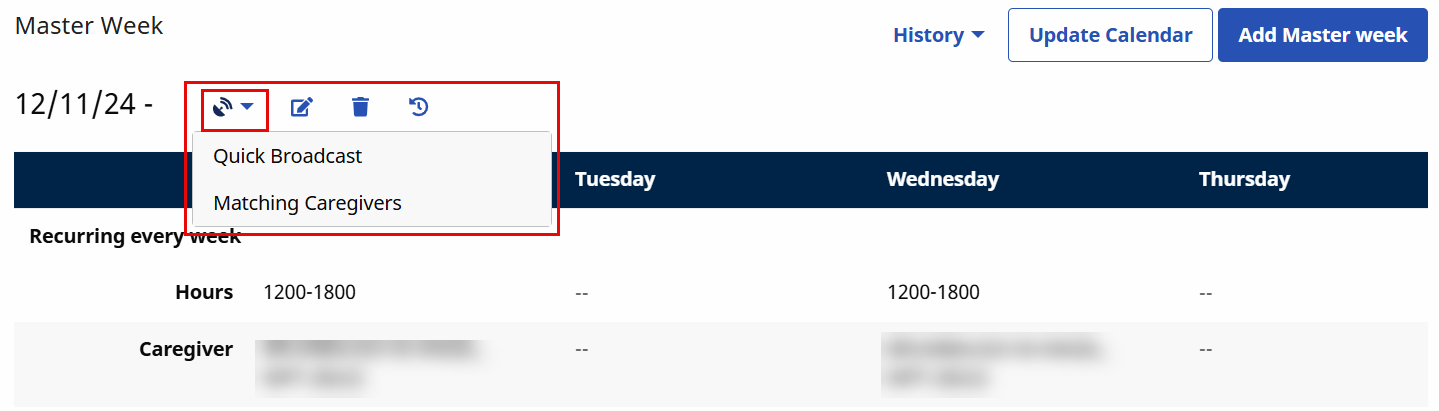
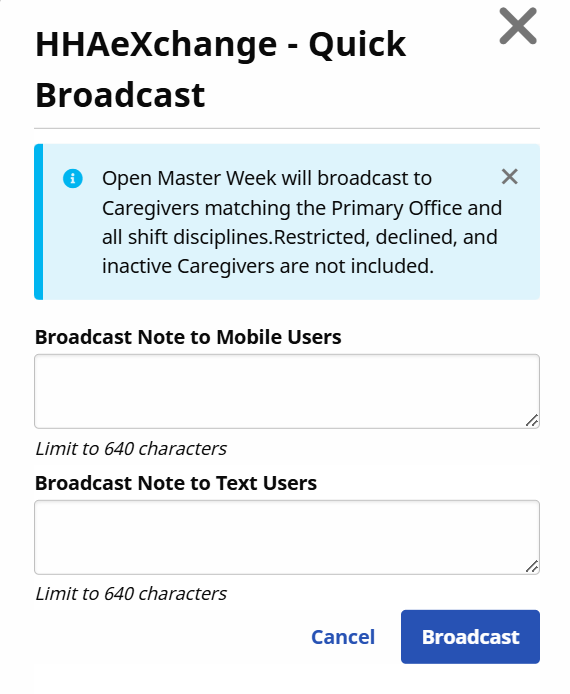
To find a Master Week schedule, go to Action > Broadcast Dashboard and select the Master Weeks radio button. Search for shifts. Next, select the patient name link and select Master Week from the side menu. Scroll down to find a Master Week. When selecting the Quick Broadcast option, the Quick Broadcast window opens prompting the user to create a note (such as Open Shift information) and click the Broadcast button to broadcast the visit.
Once the Broadcast is issued, the Quick icon button updates to include the word "Quick", indicating that the Broadcast is live. The Broadcast is issued to Caregivers who meet the following criteria:
-
Enabled to View Open Cases
-
Match the Patient’s Primary Office
-
Match all Master Week disciplines (such as HHA and/or PCA). Only Caregivers having required disciplines selected on their Caregiver Profile can see this Broadcast.
-
Are not listed as Restricted (shift Contract), Declined (shift Patient), or have an Inactive profile.
Caregivers added or updated to match criteria after broadcast still see matching cases.
If Matching Caregivers is selected from the Quick Broadcast window, the Matching Caregivers window populates as illustrated in the image below. From here, select scheduling requirements or preferences in available fields (such as Language, Gender or Location). The criteria listed above applies to this option as well.
The Availability Preference field (listed with a red asterisk) is required for Broadcasting with this option. The default selection is Preferred, however, other options such as Might Work, or Do not factor in availability can be selected.
Once complete, click the Broadcast button.
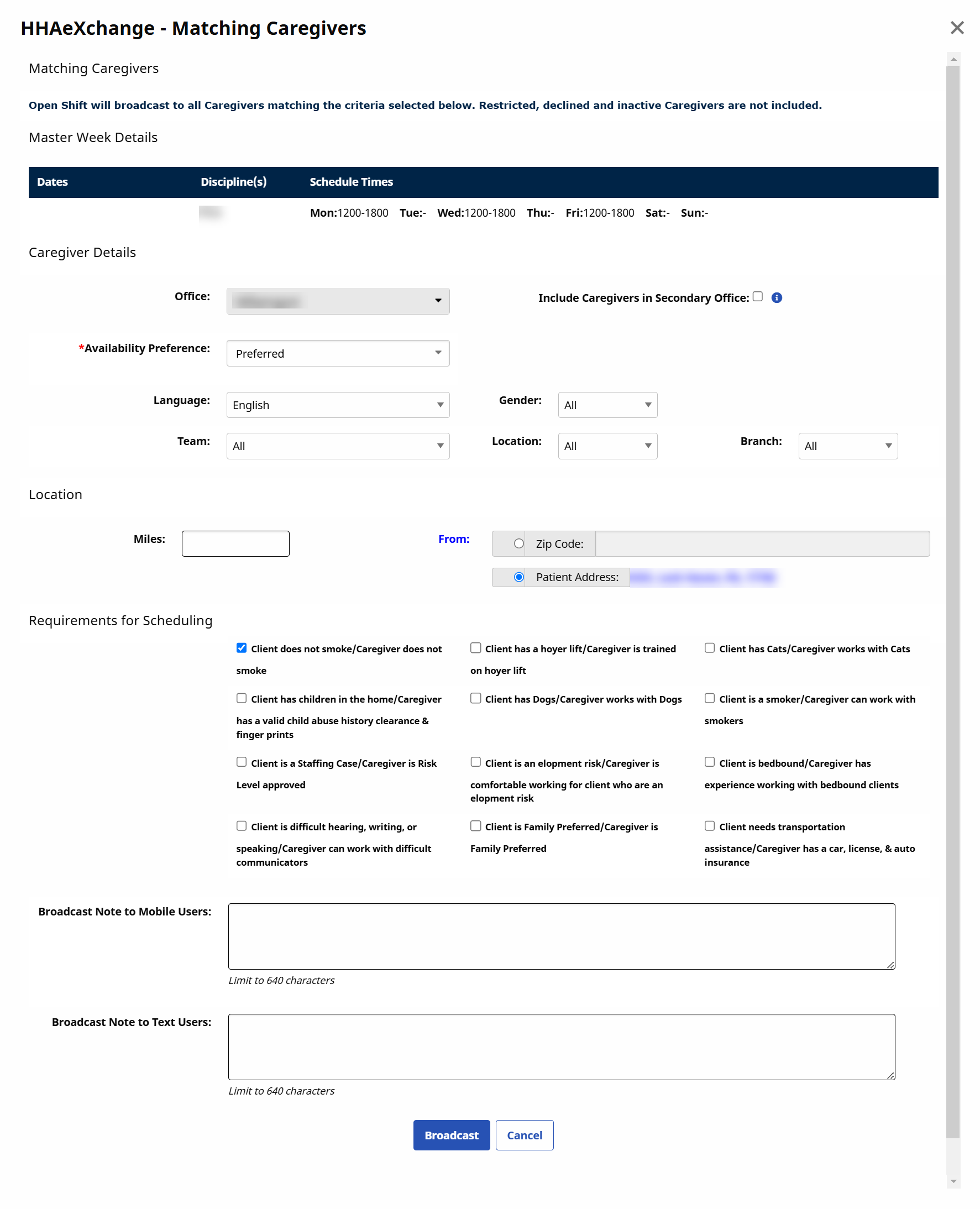
The system filters any selected criteria (such as Team, Branch, Miles) to match Caregiver database.
Once the Broadcast is issued, the Matching icon turns green showing that the Broadcast is live.
Go to Action > Broadcast Dashboard and select the Master Weeks radio button. Search for shifts. Next, select the patient name link and select Master Week from the side menu. Scroll down to find a Master Week. The Quick and Matching buttons are selectable once a Broadcast has been issued, providing the user with options as shown and described in the table below.

|
Option |
Description (If selected…) |
|---|---|
|
Edit Broadcast |
Allows the Coordinator to edit the Broadcast using the Matching Caregivers window. |
|
Revoke Broadcast |
Removes the Broadcast from all Mobile Apps, whether Caregivers have seen or requested the case. The Coordinator is prompted to confirm the removal. |
|
Review Requests |
Opens the Broadcast Dashboard to the Requests tab, prompting a search generating only the requests for the selected Master Week. |
|
Received Broadcast |
The Caregivers That Received This Broadcast pop-up window lists all Caregivers who gave the shift a Thumbs Up to request the case (shift) on their Mobile App. Selecting the Caregiver’s Name link opens the Caregiver’s Profile.
The Status column explains the Action taken by the Caregiver, as follows:
|
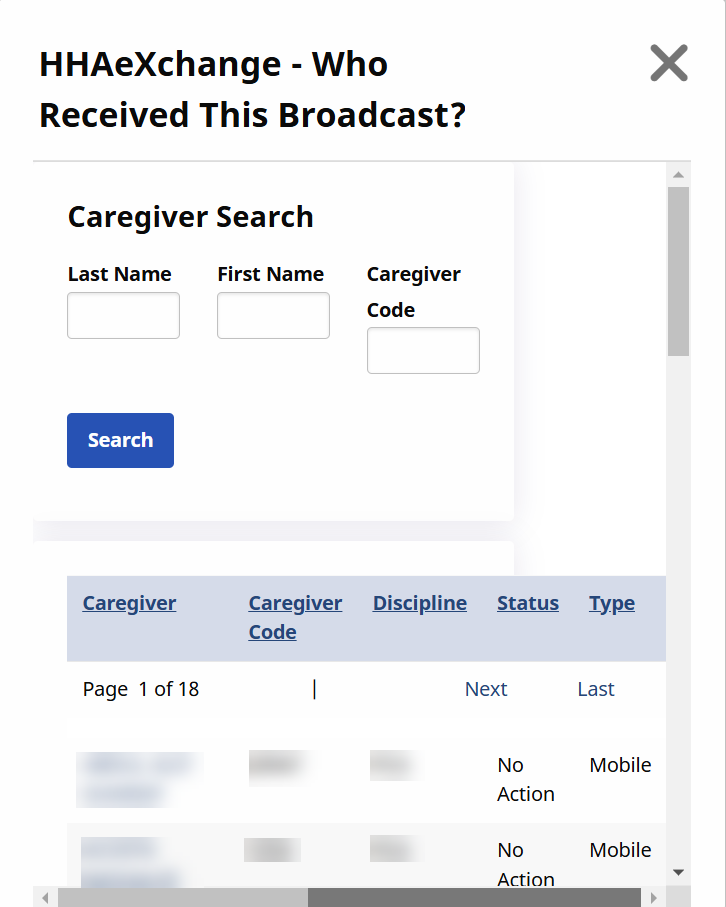
Once a Request has been assigned, the broadcast closes and the menu is no longer available.
A Master Week with a combination of Skilled and Non-Skilled disciplines cannot be broadcast. Broadcasts only reach Caregivers with the matching criteria to include the Employment Type disciplines in their profile as well as those disciplines shown on the Patient’s authorization.
With the exception of Temp Caregiver (1000), users cannot manually change a Caregiver on any shift once a successful Master Week Broadcast has been created. To change Caregiver details, Revoke the Broadcast and recreate it.
A Master Week Broadcast cannot be created with an Alternate Shift.
Other Resources