Order Tracking

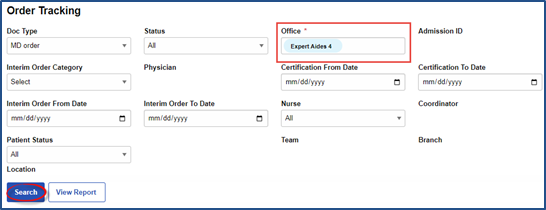
MD and Interim Orders can be managed from the Order Tracking page under Action > Order Tracking. Search filters are available to locate MD or Interim Orders by defining criteria such as the timeframe when the order was issued, the ordering Physician, or the Order Status.
To generate a search, select the required Office filter and click the Search button.
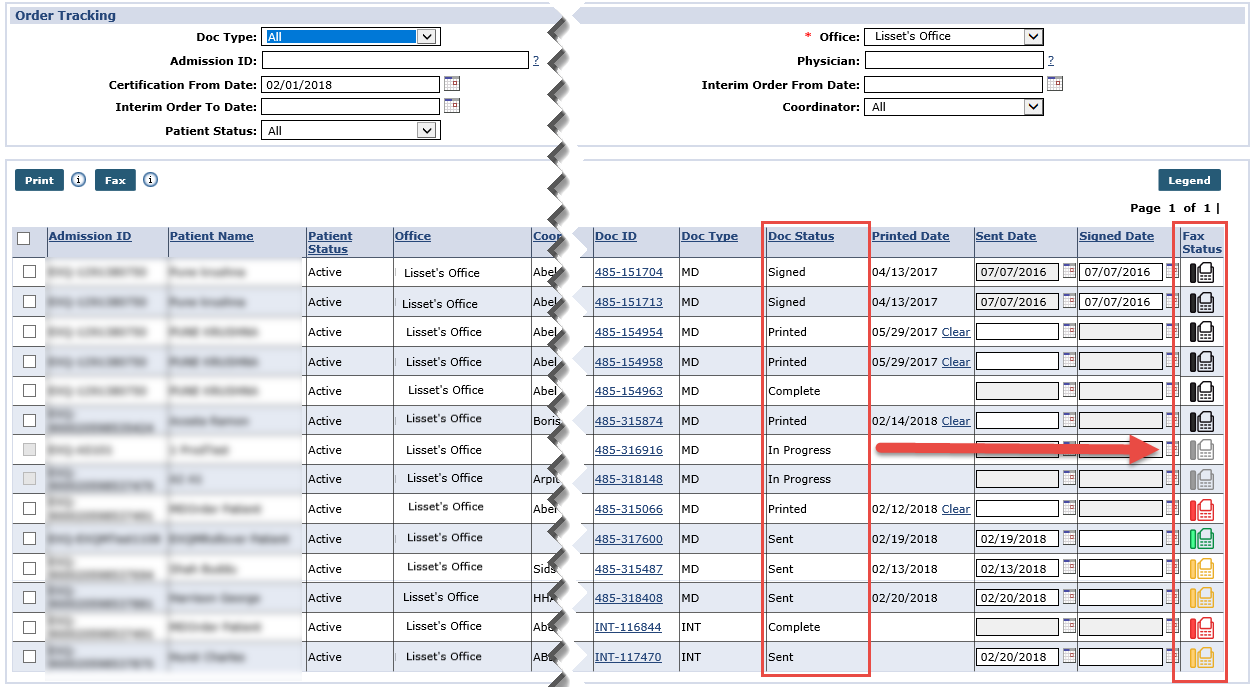
On the results panel, a Fax Status column with a Fax icon facilitates faxing directly from the page. Users can either fax or print individual Orders or in bulk from this page, providing that the Doc Status permits.
The Fax feature is activated by HHAeXchange System Administration. Contact HHAeXchange Support Team for details, setup, and guidance.
On the Order Tracking under Action > Order Tracking page, select the required Office field and click the Search button to generate a search.
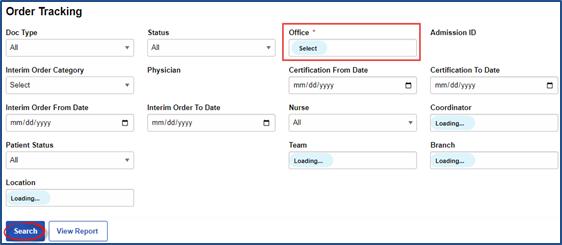
On the results panel, a Fax Status column with a Fax icon facilitates faxing and printing directly from the page.
The various colors indicate and correspond to the Status (as shown in the Fax Log Legend section of the Faxing MD Orders and Interim Orders topic):
-
Black icon signifies that the order is ready to fax;
-
Orange icon indicates that the fax is in progress;
-
Red icon indicates a failed fax attempt; and,
-
Gray icon means that the order is progress (not yet completed).
-
Green icon indicates that the fax transmission is complete and successful.

To fax a single record, select the checkbox (far-left) and click the Fax icon (far-right) to fax a Patient’s Clinical Documentation to the Physician on record. To fax multiple records, select the applicable checkboxes and click the Fax button.
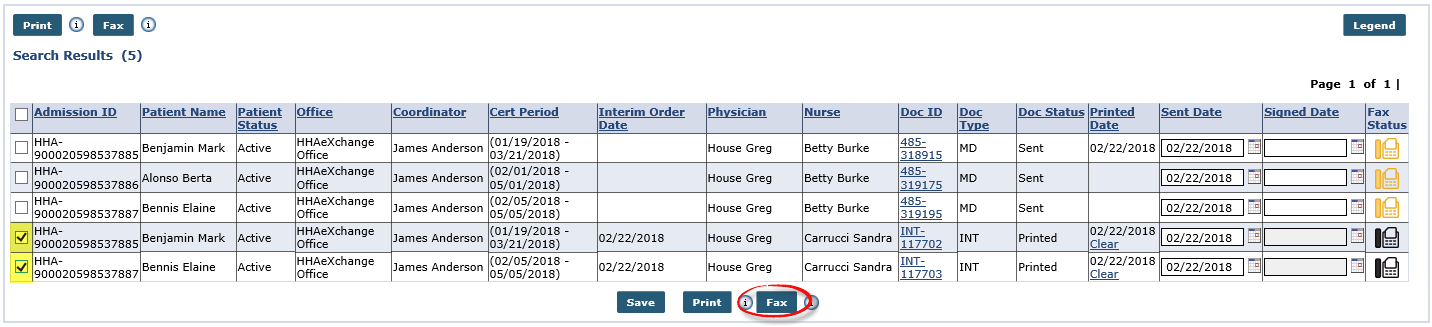
Faxes can only be sent to an assigned Physician with an associated fax number on record.
Once faxed, the Status changes to Sent and the system updates the Status and Sent Date of all sent orders.
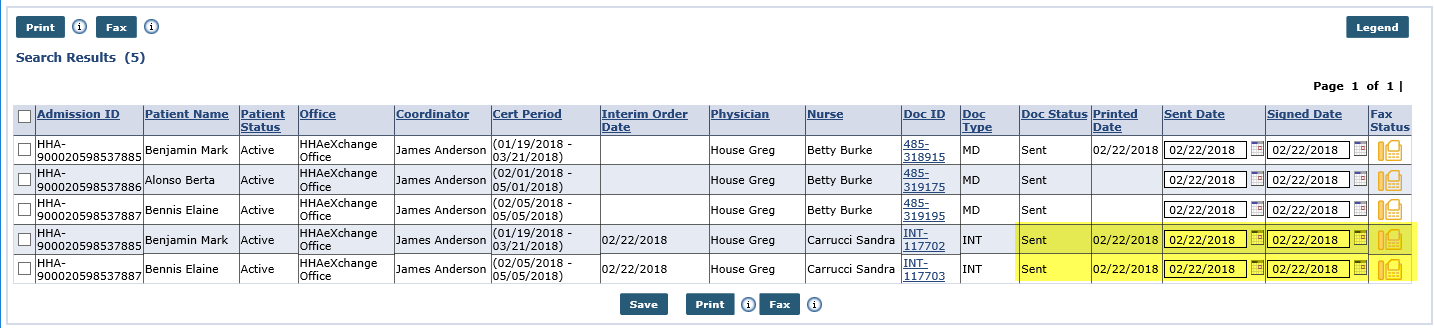
The system is set to reprocess fax attempts up to 5 times before a Fail status.
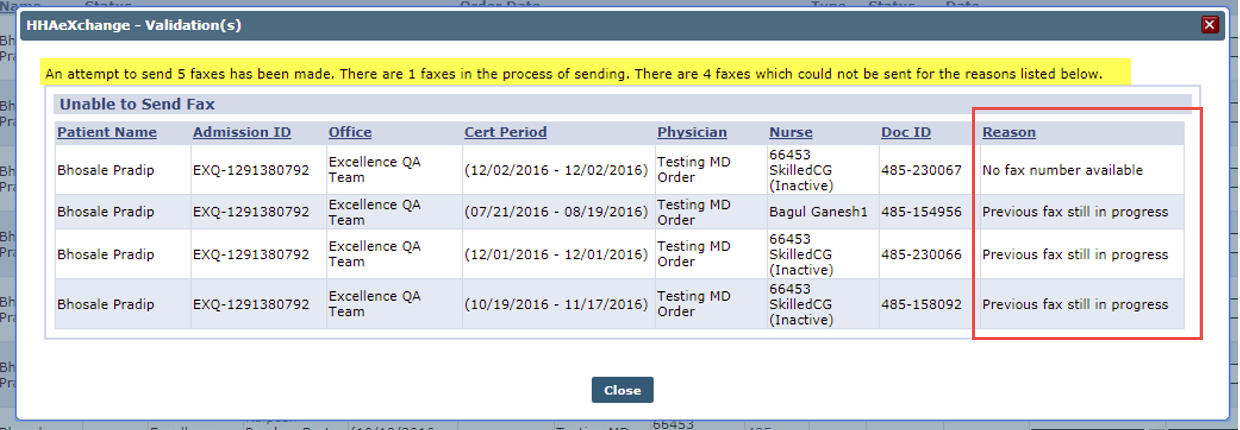
The image below illustrates the Validation(s) window summarizing a list of attempted faxes. This summary includes successful and unsuccessful attempts with the corresponding validation Reason of failure such as No fax number available or Previous fax still in progress.
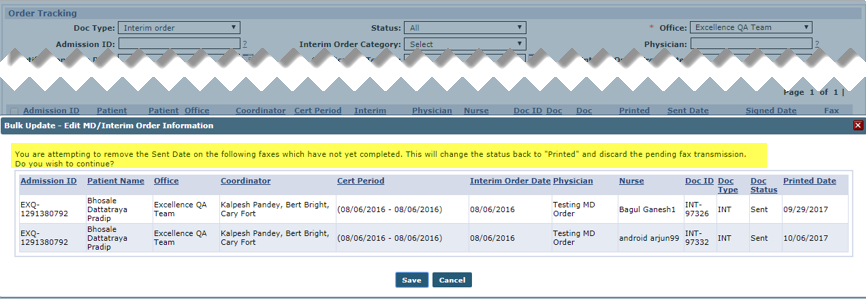
If a fax attempt fails, the icon appears in red. Hovering over the icon provides a pop-up window indicating the Date Sent, User (Sender), and the Fax Status.

The Sent Date field becomes blank, and the system checks for any faxes in the sending process. Thereafter, the system prompts the user with a confirmation message to OK (continue) or Cancel.
|
Select… |
To… |
|---|---|
|
OK |
Continue. The system marks the request as Failed with Cancelled by User reason. |
|
Cancel |
Cancel the entire operation. The system prompts for a confirmation to ensure cancellation of the pending fax. |
All other valid changes are saved on the Order Tracking page. The records which meet the same conditions as in the scenarios for MD Order and Interim Order are presented in the grid.
To re-fax an MD or Interim Order, ensure that the Doc Status is either Complete or Printed. Select the checkbox to the far-left and click the Fax button.

To print, select the checkbox (far-left) and click the Print button.
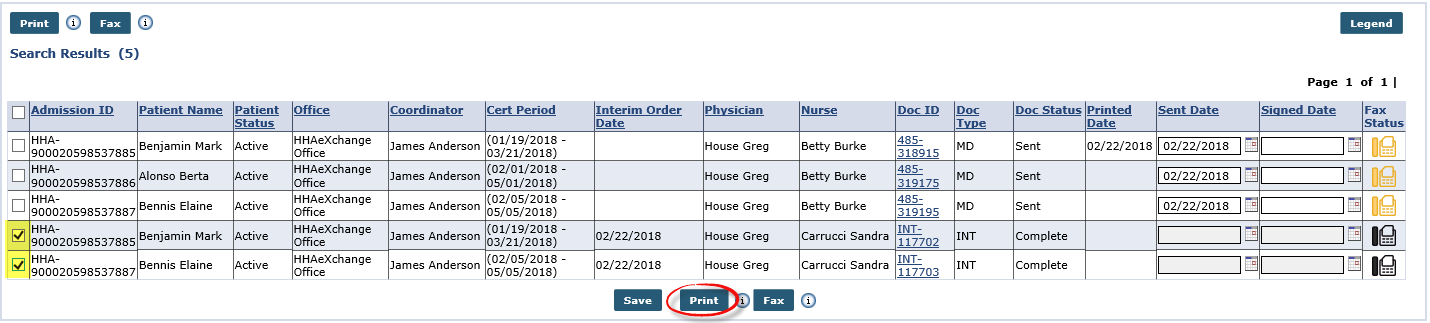
Once printed, the Status changes to Printed. Users can select/enter the Sent Date.
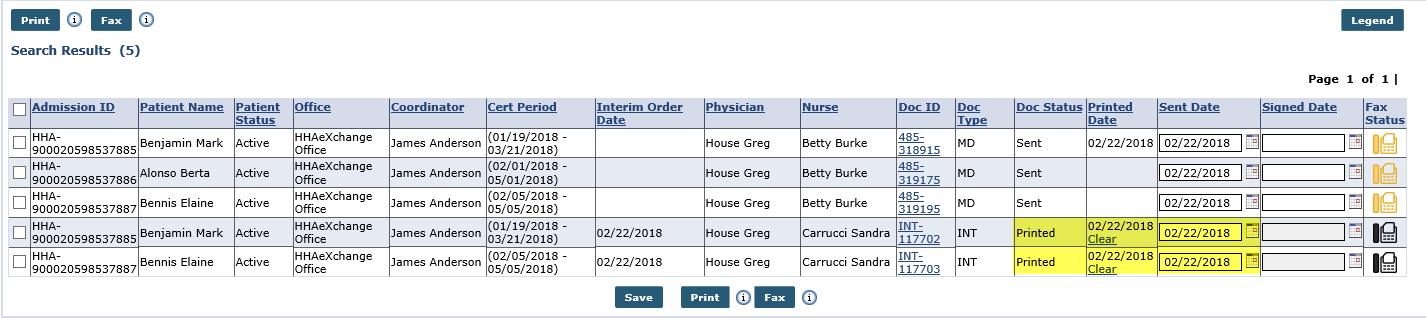
If printing multiple records, the Document Types must be the same. MD Orders and Interim Order cannot be printed simultaneously. HHAeXchange does not allow users to enter a Signed Date for an MD Order (meaning Physician-verified), until it has gone through the Status cycle as follows: In Progress > Printed > Sent > Signed.