Adjust a Shift in Services Portal
Occasionally, a shift may require adjustments. For instance, if a Caregiver arrives but is unable to clock in due to a dead phone battery, or if a Caregiver forgets to clock in at the beginning of the shift but remembers and clocks in later before the shift ends.
Complete the following steps to adjust a shift:
-
In the Services Portal, search for the shift to be adjusted. Refer to Search Shifts for details on searching for shifts.
-
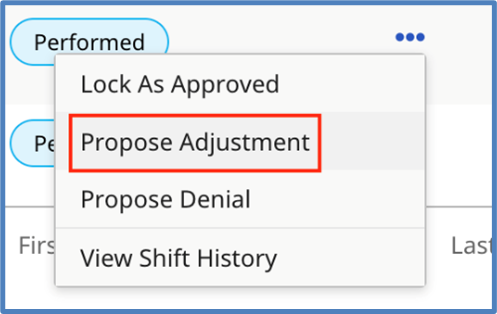
On the shift, click the Ellipsis in the Actions column and select Propose Adjustment.
-
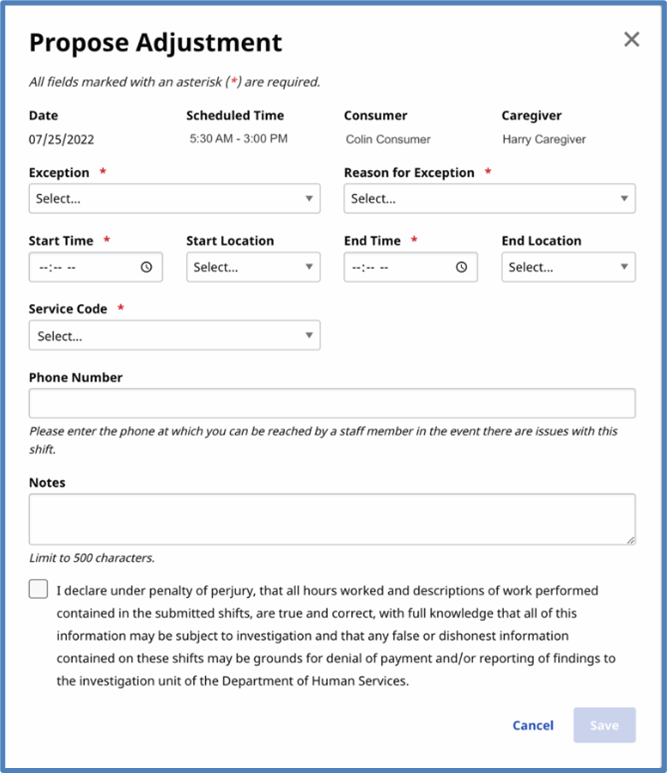
When the Propose Adjustment page is displayed, complete the required fields (marked with a red asterisk *).
-
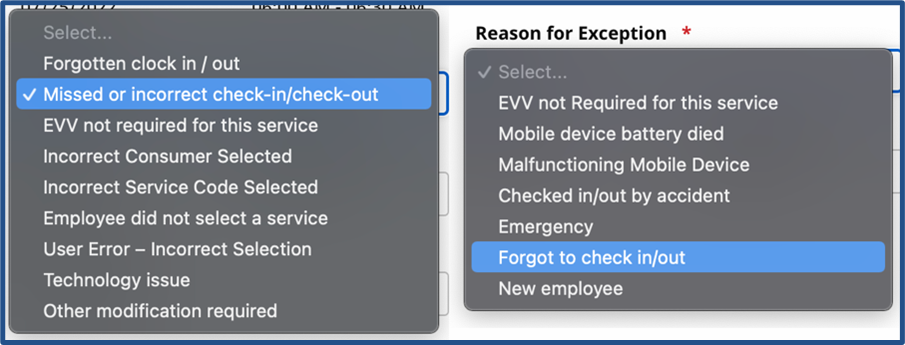
Select an Exception (why an adjustment is made) and a Reason for Exception (what led to the exception) that best matches the situation.
-
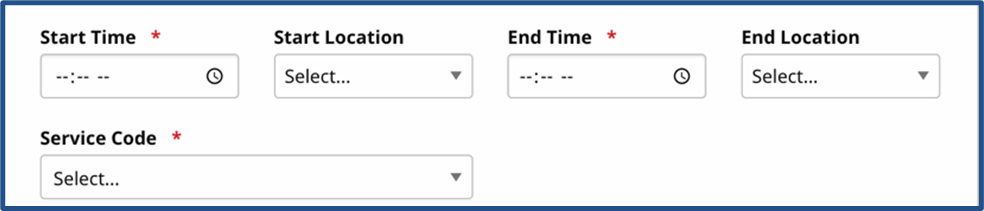
Adjust other fields (such as Start Time, End Time, Start Location, End Location, Service Code) as needed.
-
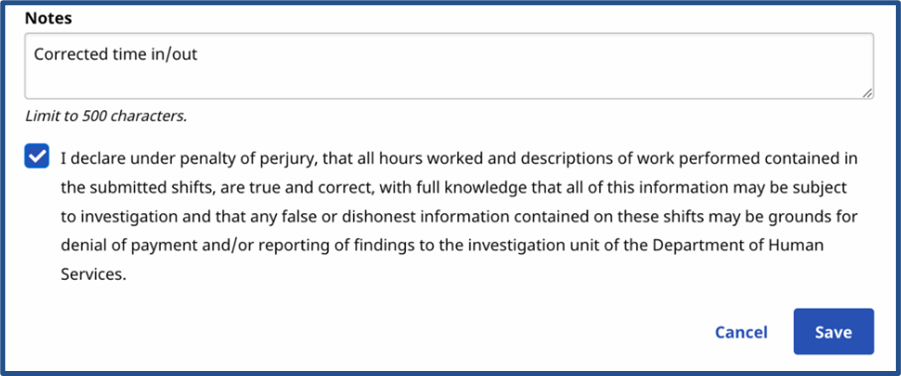
In Notes, type a comment to describe the change. This comment is seen by other parties when approving the changes. Select the confirmation statement checkbox and click Save.
-
The other party is notified of the shift adjustment.
-
If the Caregiver made the changes, the Consumer or Representative must review and approve the adjustment.
-
If the Consumer or Representative made the changes, the Caregiver must approve the adjustment.
Refer to Approve a Shift to finish the approval process.
-