Exclusion and Verification List Settings
Exclusion and Verification Lists settings are viewed at an office level. See the View Exclusion and Verification List Settings section on the Set Up a New Office page, for details. See the View Physician Verification Lists section of the same page to view applicable lists and to add or edit a physician's licensing information.

Go to the caregiver profile and select the Compliance page from the left navigation panel. On the Compliance page, select the Verification tab. The verification lists are included under the Compliance Verification section, as shown below.
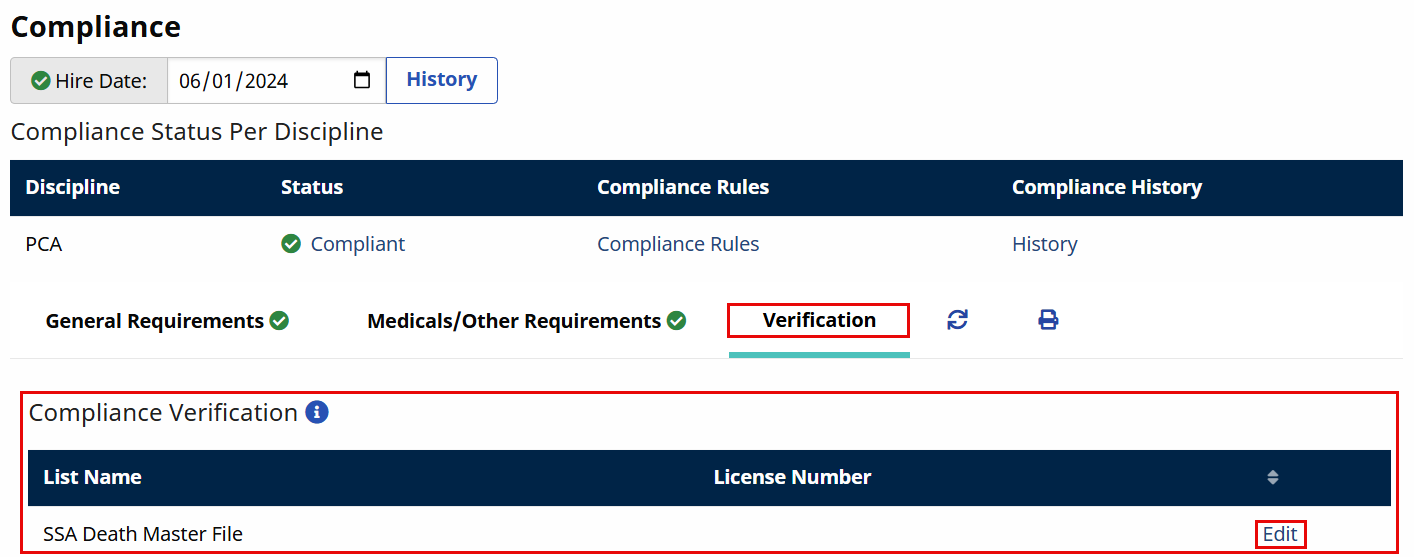
Unlike exclusion lists, note that license numbers are required to run verification lists. If no license number is available, the caregiver cannot be checked against any verification list that is run.
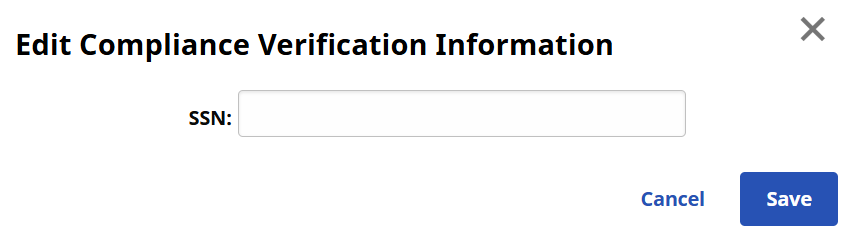
To add or edit a caregiver’s license number, click the Edit link (on the far-right column) for the applicable list, as shown above. The Edit Compliance Verification Information window opens. Enter or edit the existing number in the Social Security Number field and click the Save button.
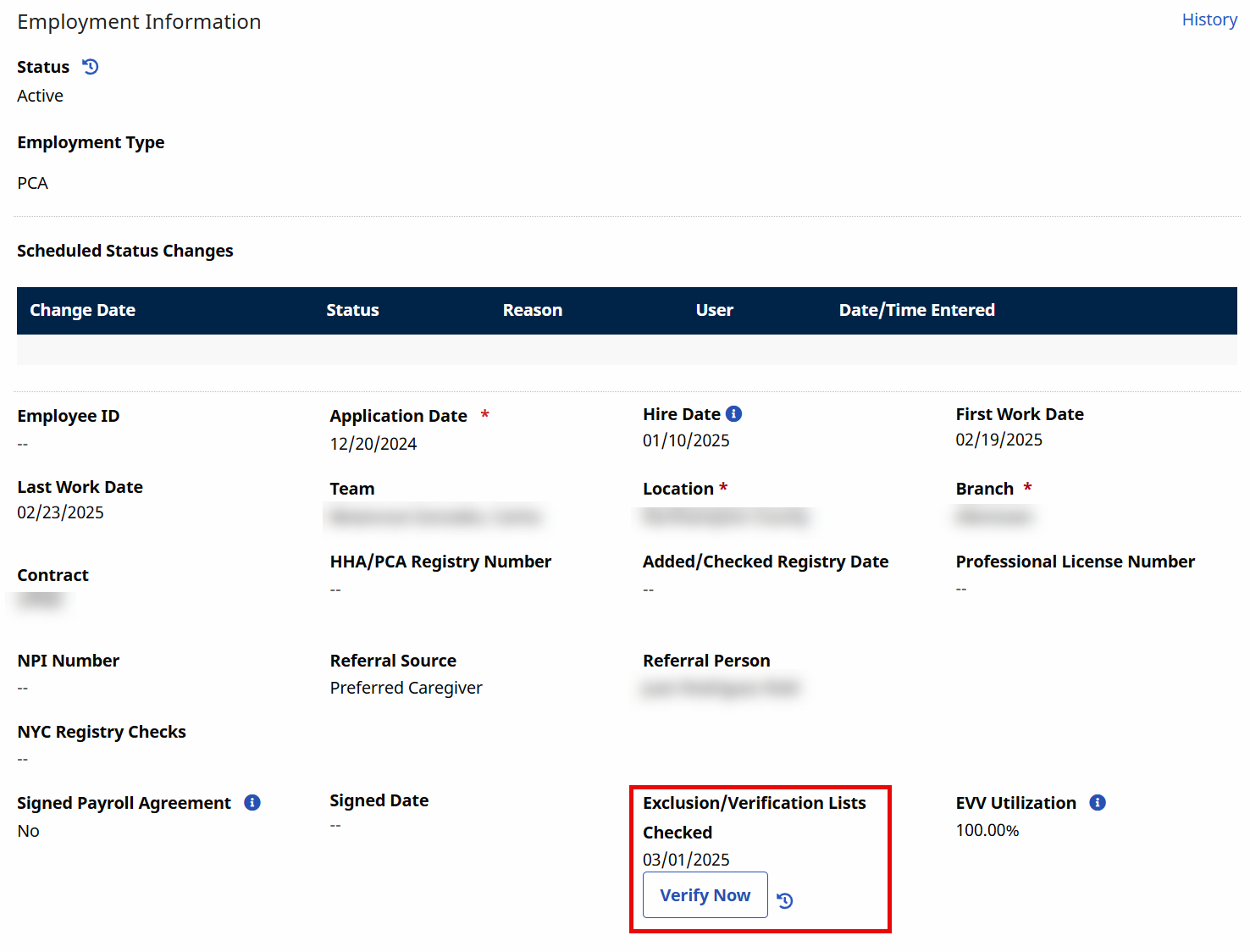
Exclusion and verification lists, managed under Action > Exclusion/Verification Lists, are automatically run by the system on a monthly basis for the office. To run an individual verification process for a caregiver at any time, select a caregiver profile. Scroll down to the Employment Information section and click the Verify Now button under the Exclusion/Verification Lists Checked field, located in the caregiver profile page. This initiates the verification process for the caregiver. The system displays the date of the last verification.
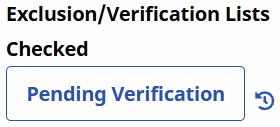
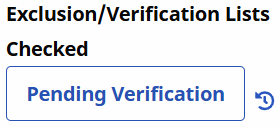
The button changes to Pending Verification, to show the status of the verification. To check the status of a verification, go to the Pending Requests tab as described in the Managing Exclusion/Verification Lists section.
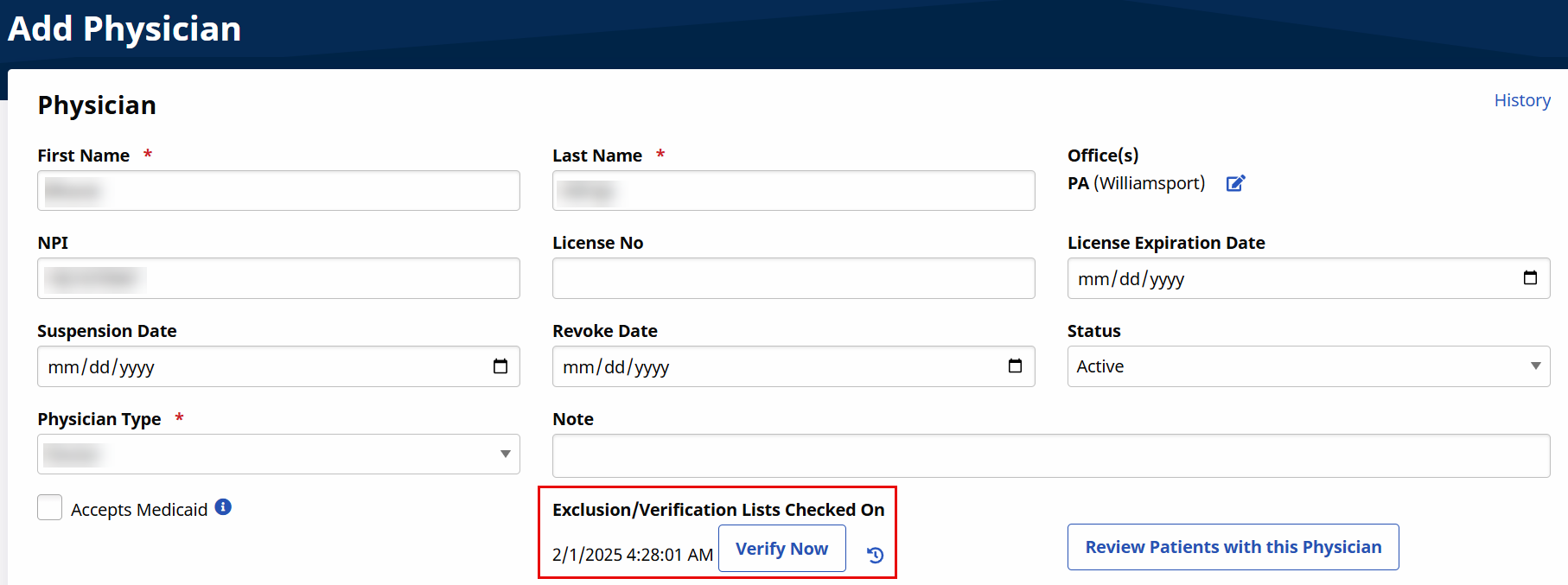
Exclusion and verification lists, managed under Action > Exclusion/Verification Lists, are automatically run by the system on a monthly basis for the office. To run an individual verification process for a physician at any time, select a physician profile and click the Verify Now button under the Exclusion/Verification Lists Checked On field, located in the Physician page. This initiates the verification process for the physician.
The button changes to Pending Verification, to show the status of the verification. To check the status of a verification, go to the Pending Requests tab as described in the Managing Exclusion/Verification Lists section.
Other Resources