Single Shift Broadcasting
Single Shift Broadcasting options under Action > Broadcast Dashboard, are available throughout HHAeXchange, including on the Visit Search page. As with the Master Week, the Broadcast icon appears in these pages allowing users to access the Broadcast functionality. Refer to the Broadcasting topic and to the Options after Broadcast section of the Master Week Broadcasting topic to review.

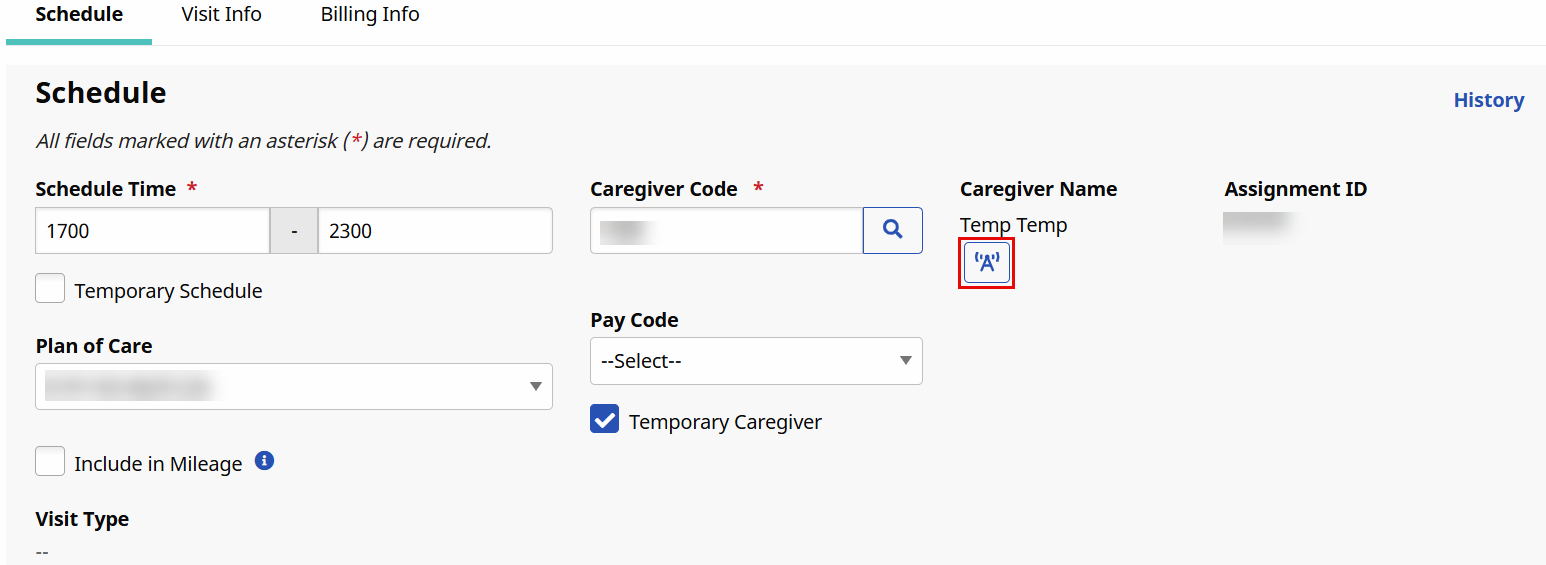
The Broadcasting icon is available under the Caregiver field in the visit Schedule tab, as illustrated in the following image. To find the icon:
-
Go to Action > Broadcast Dashboard and select the Single Shifts radio button.
-
Search for open shifts. A list of shifts appears.
-
Select a patient name link. The Patient page appears.
-
From the Calendar section of the page, select the visit link for the shift you want to broadcast. The Visit window opens. The Broadcasting icon appears in blue if a Broadcast has not been issued for this visit.
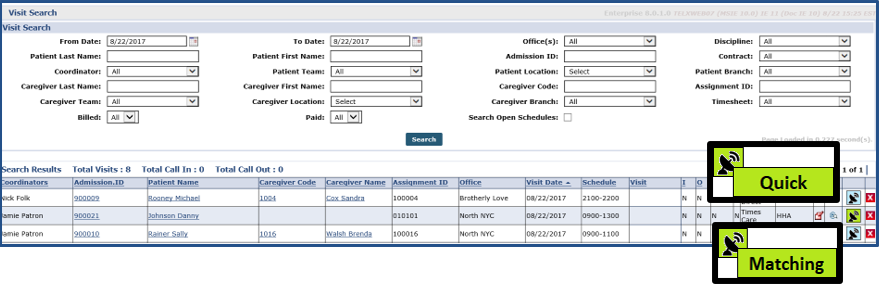
On the Visit Search page under Visit > Visit Search, users see visits and if a Broadcast has been issued; Broadcast icon options under the Broadcast icon menu indicate an issued Broadcast for the visit. Hovering over the icon indicates whether the Broadcast is Quick or Matching Caregivers.
Other Resources
Once a successful Open Case Broadcast has been created under Action > Broadcast Dashboard or Visit > Visit Search, a Caregiver Change causes the system to save the specific Caregiver on the schedule and revoke the Broadcast. If the change is confirmed, all Caregivers who requested the shift are declined.
If the change is for a Caregiver who is currently Pending Request the change is saved, the confirmation message is sent via the Case Acceptance process. If the newly scheduled Caregiver has requested for Broadcast, then the system accepts the Broadcast and all other Caregiver requests are rejected with Default Rejection Reason.
In this case, users can change the Caregiver to Temp Caregiver (1000) without having to confirm or revoke Broadcast.