Broadcast Dashboard
The Broadcast Dashboard page under Action > Broadcast Dashboard is where a Coordinator reconciles all existing shift requests, sorted by visit. This page loads based on a set of search filters such as the Visit Search page.
Each broadcast visit lists every Caregiver who has requested visits. From this page, a Coordinator can:
-
Assign a Request – Assigns the shift to a Caregiver and all other requests for the shift are rejected; OR
-
Reject the Request – Provides a Rejection Reason which is sent to rejected Caregiver(s).
Broadcast buttons are available in various locations throughout the system allowing users to perform a Quick Broadcast sent to all Caregivers or Matching Caregivers sent to select/applicable Caregivers.
The Broadcast Dashboard is divided into two views according to the selected radio button, Single Shifts view or Master Week view.

The Broadcast Reject Reason field is used to create and manage reasons for rejected, open shifts. The Reject Reason is required and at least one reason must be selected as default. For more information, see the Reference Table Management topic.
Settings for open shifts determine the configuration for all new Caregivers, who have a matching set of options on the Caregiver level. For more information on creating these settings, see the Mobile section of the Set Up a New Office page.
To setup the Caregiver Mobile App in the system, go to Caregiver > Availability page. The Caregiver-level fields are populated based on the default settings in the Office Setup. These settings are adopted for any new Caregivers created in the system.
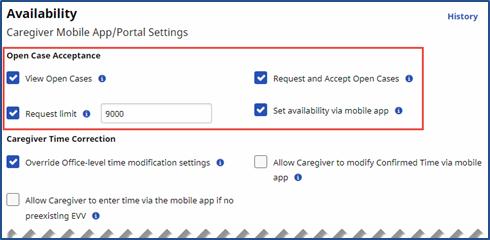
Changes at the Office Setup does not impact existing Caregiver-level settings. Enabling the Set Availability field allows the Caregiver to set their availability via their Mobile App.
The image below illustrates a Single Shift view, providing search filters associated with single shifts.
The following criteria apply to the results on this dashboard:
-
Broadcast is not Revoked
-
Visit Date is Current or Future Date
-
Visit is not Confirmed
-
Visit is not Billed
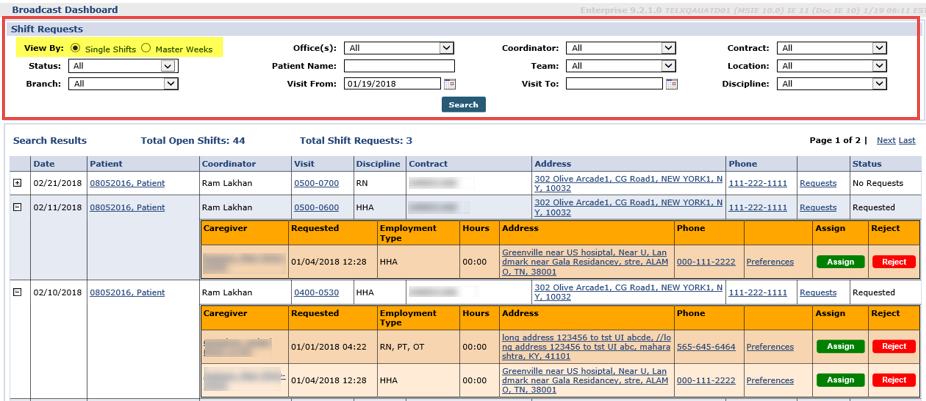
Above the results grid, the system summarizes and provides the Total (Number) of Open Shifts and the Total (Number) of Shift Requests.
Each line item contains information described in the following table - one row, per Patient, per Open Shift.
|
Column |
Description |
|---|---|
|
Expand/Collapse |
Click the + / - box to expand or collapse shift details. |
|
Date of Broadcast |
The date of the shift. |
|
Patient |
Patient Name. Click the link to access a summary pop-up and to go to the Patient Calendar. |
|
Coordinator |
Patient Coordinator. |
|
Visit |
Visit scheduled time. Click the link to access the Visit Edit details pop-up. |
|
Discipline |
Discipline of the Service Code scheduled. |
|
Contract |
Primary Contract for the visit. |
|
Address |
Patient’s Address. Click the link to open the pop-up and go to Google Maps for this location. |
|
Phone |
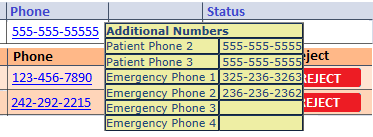
Patient’s Home Phone. Click the link to show additional phone numbers for the Patient to include Emergency Contact.
|
|
Requests |
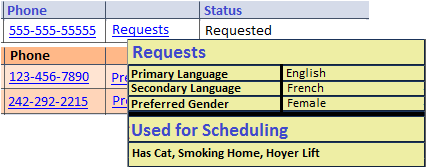
Hover over the Requests link to access Patient Preferences to include Primary and Secondary Language, Preferred Gender, and other preferences. Click the link to access the Caregiver’s Preferences.
|
|
Status |
Indicates the Status of the Open Shift:
|
If a Caregiver has requested an Open Shift, the records display under the Open Shift. Click the + / - box to expand/collapse the details. Each line item is described in the table underneath the image.

|
Column |
Description |
|---|---|
|
Expand/Collapse |
Click the + / - box to expand or collapse shift details. |
|
Caregiver |
Name of the Caregiver and Code (in parentheses) requesting the shift. Click the link to access the Caregiver’s Profile pop-up. |
|
Requested |
The Date and Time the Caregiver submitted the request. |
|
Employment Type |
Caregiver disciplines as noted in the system. |
|
Hours |
The Caregiver’s hours for the Payroll Week of the selected date. The system uses the Weekly Hours which are shown on the Caregiver’s Calendar. This value varies depending on the date of the Open Shift. |
|
Address |
Caregiver’s Address. Click the link to open the pop-up and go to Google Maps for this location. |
|
Phone |
Caregiver’s Home Phone. Click the link to show additional phone numbers for the Caregiver to include Emergency Contact. |
|
Preferences |
Hover over the Preferences link to access Caregiver Preferences to include Languages and other preferences. Click the link to access the Caregiver’s Preferences.
|
|
Assign / Reject |
Each row has an Assign (green) and Reject (red) button for Coordinators to assign Open Shifts. To assign or reject a shift, users must have Edit Schedule permissions. |
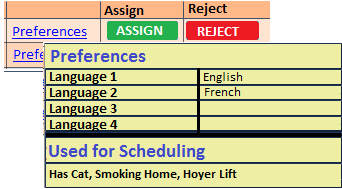
These line descriptions also apply to Master Weeks view.
When selecting  , the system attempts to match all Broadcast criteria with the Caregivers who have requested the shift. If a Caregiver Request does not match the Broadcast, the system generates a message informing the user of the mismatch. On the confirmation:
-
Select the OK (button) to open the Edit Visit window.
-
Select the Cancel (button) and the system closes the confirmation window and returns user to the Broadcast Dashboard with no action taken.
The Visit window opens to the Visit Schedule tab with the selected Caregiver. The Broadcast icon appears unavailable and the schedule Start Time, End Time, and Caregiver fields are un-editable. Click the Save button to proceed.
If the Caregiver is scheduled successfully (Assigned), then the system sends a confirmation to the Caregiver via the Mobile App with the visit details (Date, Times, Address, etc.). The system then rejects all other requests with the Default Reject Reason and returns user to the Shift Request page. The Accept shift is removed from the Open Shifts.
The system does not save if the Caregiver cannot be scheduled or if Cancel is selected which routes the user back to the Shift Request page.
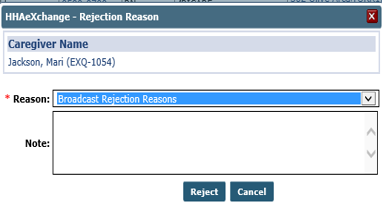
When selecting , the selected row is removed, and the Rejection Reason window opens. If all rows are rejected, then the Caregiver Requests grid is removed and the Status switches to No Requests.
Once a Patient visit begins, a rejection message is automatically issued to all Caregivers who have requested this visit, with the default Rejection Reason such as Shift no longer available.
The image below illustrates a Master Weeks view, providing search filters associated with Master Week shifts. The following criteria apply to the results on this dashboard:
-
Broadcast is not Revoked
-
End Date of Master week is either blank, Current Date or Future Date.
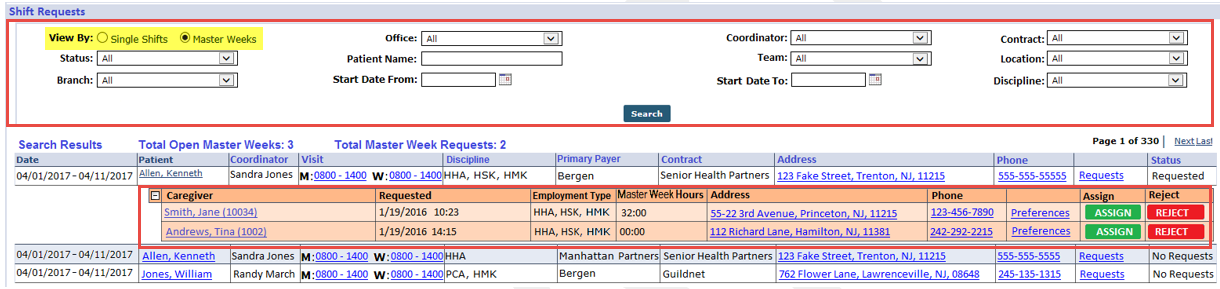
Above the results grid, the system summarizes and provides the Total (Number) of Open Master Weeks and the Total (Number) of Master Week Requests.
Each line item contains information as described in the following table.
|
Column |
Description |
|---|---|
|
Date |
The Master Week date range. |
|
Patient |
Patient Name. Click the link to access a summary pop-up and to go to the Patient Calendar. |
|
Coordinator |
Patient Coordinator. |
|
Visit |
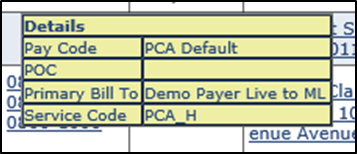
Scheduled Master Week Visits. Hovering over the details provides a quick-glance view (such as Pay Code, POC, Primary Bill To and Service Code).
|
|
Discipline |
Disciplines based on the Service Code scheduled on all Master Week shifts. |
|
Primary Payer |
Primary Payer for the visit. |
|
Contract |
Primary Contract for the visit. |
|
Address |
Patient’s Address. Click the link to open the pop-up and go to Google Maps for this location. |
|
Phone |
Patient’s Home Phone. Click the link to show additional phone numbers for the Patient to include Emergency Contact.
|
|
Requests |
Hover over the Requests link to access Patient Preferences to include Primary and Secondary Language, Preferred Gender, and other preferences. Click the link to access the Caregiver’s Preferences.
|
|
Status |
Indicates the Status of the Open Master Week:
|
Caregivers who have made a Master Week request are listed underneath the Open Master Week. Click the + / - box to expand/collapse the details. Refer to the Caregiver Single Shifts View table for the descriptions to each line item.

The Caregiver’s hours based on the current Master Week schedule. The system uses the existing Master Week Hours on the Caregiver’s Master Week Report go to Caregiver Profile > Calendar > Caregiver Master Week link to view.
When selecting , the system attempts to match all Broadcast criteria with the list of Caregivers who requested the Master Week shift. If a Caregiver Request does not match the Broadcast, the system generates a message informing the user of the mismatch. On the confirmation:
-
Select the OK button to open the Edit Master Week window.
-
Select the Cancel button and the system closes the confirmation window and returns user to the Broadcast Dashboard with no action taken.
The Edit Master Week window opens with the selected Caregiver. The Broadcast icon becomes unavailable and the schedule Start Time, End Time, Caregiver, the Masterweek From and ToDates as well as the Copy Masterweek link and Hours link are un-editable. Click the Save button to proceed.
If the Caregiver is scheduled successfully (Assigned), then the system applies a rollover of the same Master Week (based on the settings of the Master Week). The system sends a confirmation to the Caregiver via the Mobile App with the details (Date, Times, Address, etc.). The system then rejects all other requests with the Default Reject Reason and returns user to the Shift Request page. The Accept shift is removed from the Master Weeks Open Shifts.
If a Caregiver’s Master Week Request is approved during a current Master Week shift, then the Caregiver is assigned to begin the assigned shift at the beginning of the next whole shift; partial shifts are never assigned.
The system does not save if the Caregiver cannot be scheduled or if Cancel is selected which routes the user back to the Shift Request page.
When selecting , the selected row is removed, and the Rejection Reason window opens. If all rows are rejected, then the Caregiver Requests grid is removed and the Status switches to No Requests.
Once a Master Week has ended, a rejection message is automatically issued to all Caregivers who have requested the Master Week, with the default Rejection Reason such as Shift no longer available.
Case Broadcasting data is captured via the Reporting Tool using the Case Broadcast data source file. The following are some examples of what information can be retrieved:
-
Date Ranges (Sent, Received, Assigned Cases)
-
Number of Broadcasts (Sent, Received, Assigned Cases)
-
Number of Shifts assigned per Broadcast (Assigned, Rejected)