Shift Index in Services Portal

On the Shifts page, if no filters are applied to shifts, all shifts are displayed in search results. By default, shifts are sorted from newest to oldest. Each line contains shift data. To act on any shift, click the Ellipsis… in the Actions column (on the far-right of the line).
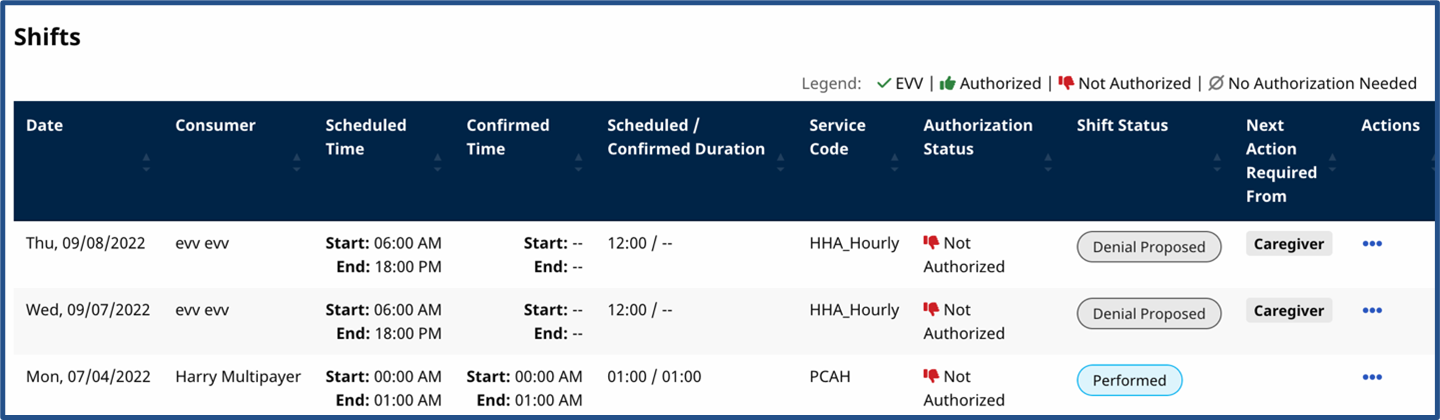
| Column |
Description |
|---|---|
|
Date |
Date of the shift. |
|
Consumer |
Name of the Consumer (CDS Employer) who received services. |
|
Scheduled Time |
Time the shift was scheduled to happen. |
|
Confirmed Time |
Actual time of the shift as recorded with clock-in and clock-out. If the shift was recorded with EVV, a green EVV checkmark appears near the confirmed time. |
|
Scheduled/Confirmed Duration |
Total shift time scheduled (in hours and minutes) and total shift time confirmed by the EVV clock-in and clock-out. |
|
Service Code |
System name for the service performed during the shift. |
|
Authorization Status |
Displays whether or not the Provider Agency entered an authorization. |
|
Shift Status |
Status of the shift. Details described in Search Shifts. |
|
Next Action Required From |
Name of the person who must perform an action on the shift. |
|
Actions |
Click the Ellipsis… to open a menu of actions to take on the shift. |
Click the Ellipsis… in the Actions column on the far-right of the list in the Shifts page to open a menu of actions to take on a particular shift. The actions available on a shift depend on the status of the shift. Each action is described in Approve a Shift, Adjust a Shift, and Deny a Shift.
