Reference Table Management
Users can view, add, and edit Payer Reference Table Management values in the New Payer Portal by selecting Reference Table Management from the Admin menu.

From the main page, search by Reference Table Name or select from the list of table items.
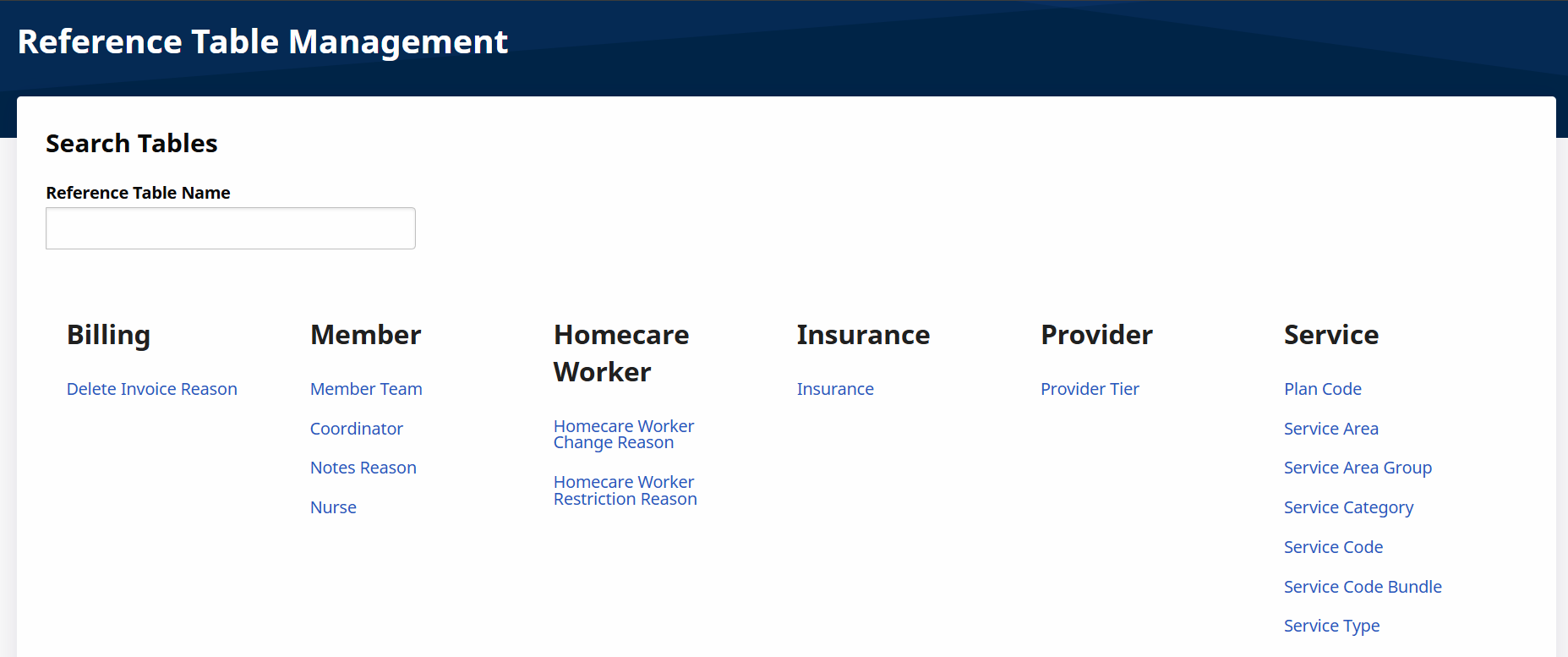
When a table item is displayed, the search function and list of tables is moved to the left of the page.
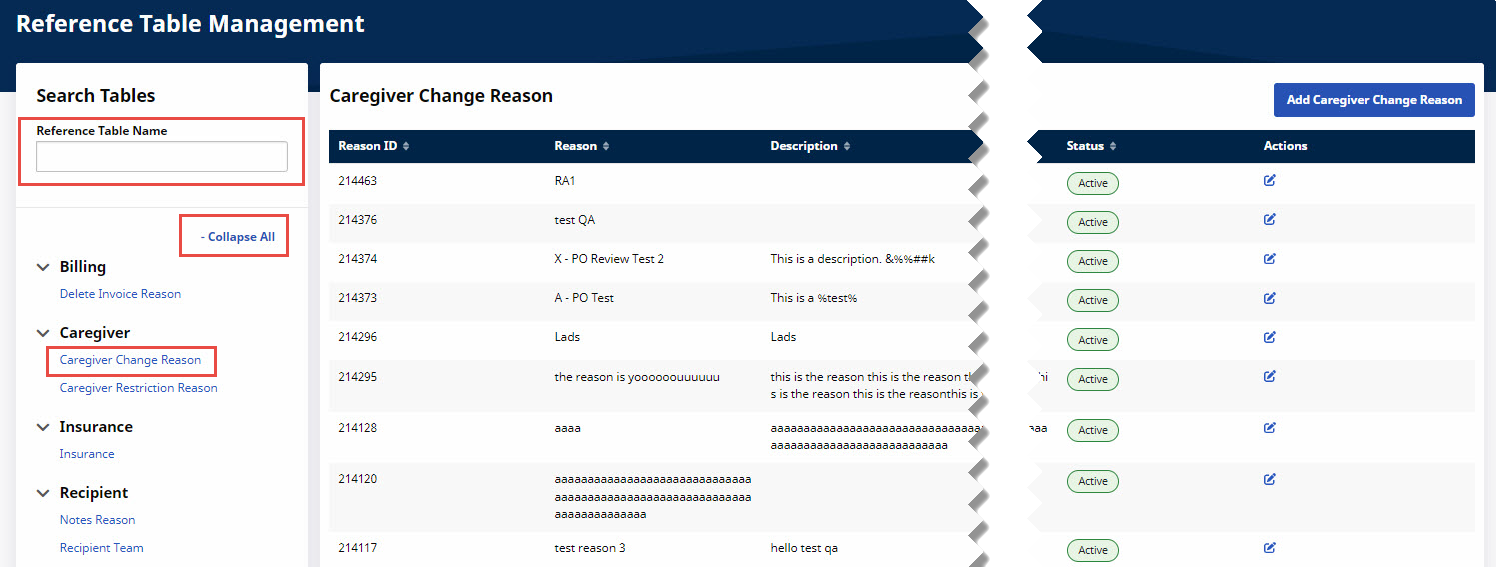
The user can search by Reference Table Name and Expand All or Collapse All tables. When the user selects an item from a table, details about the item are displayed at right.
The Reference Table allows Payers to view the accepted values for many fields in the Payer application, as described in the following tables.
| Item | Description |
|---|---|
| Delete Invoice Reason | Reason for deleting an invoice before its overnight export. Examples: Wrong Date of Service, Clerical Mistake, or Change of Insurance. Used in Billing, Deleting Invoices. |
| Item | Description |
|---|---|
| Caregiver Change Reason | Reason the Provider changed the Caregiver assigned to a Visit. Examples: Change in Service, Caregiver Absence. Used in Member, General. |
| Caregiver Restriction Reason | Reason a Caregiver is barred from working with all Members for a date range. Examples: Poor Performance, Theft, Not Compliant. Used in Caregiver Profile. |
| Item | Description |
|---|---|
| Insurance | Entity covering the Member’s homecare cost. Every Member must have at least one Primary Insurance designated to be placed with a Provider. Used in Member, Insurance. |
| Item | Description |
|---|---|
| Member Team | Team assigned to care of a Member. Used in Member Search and Alerts. |
| Coordinator | Coordinator assigned to a Member. Used in the Payer Coordinator dropdown in the Member Profile. |
| Notes Reason | Used to categorize correspondence notes about Member care. Examples: Change in Schedule, Member Change of Plan, Member Request, General Communication. Used in Member, General. |
| Nurse | Nurse assigned to care of a Member. Used in the Nurse dropdown in the Member Profile. |
| Item | Description |
|---|---|
| Provider Tier |
Payers can create and maintain groups of Providers, called Provider Tiers, that they can use to broadcast Placements. |
| Item | Description |
|---|---|
| Service Area | Used to set multiple rates to a single Service Code based on State/County or Zip Code. Used in Provider Setup, Rates. |
| Service Area Group | Area Template that includes one or more Areas defined by Zip Code or County. Used to assign rates based on one or more Areas in the group. Used in Provider Setup, Rate. |
| Service Category | Classification of service performed by the Provider. Set up during system implementation and not editable. |
| Service CodeS |
Used to set the billing rate for an Authorization. Service Codes are assigned to Providers. Providers can have multiple Service Codes. Examples: PCA Hourly, PCA Daily, HHA Hourly, HHA Daily. Used in Member, Create Visit. Home Healthcare Providers can perform some services without a placement from a Payer, but the Payer still needs visibility into those services.HHAeXchange supports Automatic Placement by Service Code for Contract Payers. Several Billing Configuration Settings are available for Home Care Service Codes. Invoice Rounding Rules are also available for Home Care Service Codes. Oversight Service Codes can be created to designate periodic face-to-face Skilled Visits with the Member. Some Payers group a set of Services that a Provider can perform under a single Service Code known as a Service Code Bundle. Some Home Health Service Codes must specify a maximum number of hours billable per day per Member. Some Payers assign Plan Codes to Service Codes for Providers that want Service Codes to support multiple Rates. Some Providers must use Dollar-Based Authorizations for specific services, but Payers are only authorized to create Authorizations by Hours or Units, not by Dollars. Payers can create Dollar-Based Service Codes that Providers can use to create Dollar-Based Authorizations. |
| Service Type | Caregiver Discipline types. Set up during system implementation and not editable. |
| Item | Description |
|---|---|
| Missed Visit Action Taken | Additional field when entering a missed visit. Allows Payers to track notes or measures taken for a missed visit. Examples: No Action Taken, Member Inquiry, Member Dismissed. Used in Member Calendar, Visit Info. |
| Missed Visit Reason | Reason a scheduled visit was missed. Examples: Member Unavailable, Caregiver Absence, Transit Issues. Used in Member Calendar, Visit Info. |
| Visit Delete Reason | Reason a Provider deleted a scheduled Visit. Examples: Cancellation, Termination of Service, Hospitalization. Used in Member, Visits. |
| Visit Edit Action Taken | Action taken based on New Reason (Visit Edit Reason). Providers must enter an Action Taken for every manual confirmation. Used in Member Calendar, Visit Info. |
| Visit Edit Reason | Reason a user changed a visit's confirmation details. Editing a manually confirmed visits requires a New Reason. Examples: Updated Authorization, Issues Contacting Member, Arrived Late. Used in Member Calendar, Visit Info. |
Users can add Reference Table values in HHAeXchange by completing the steps in the following table.
-
From the Admin menu, select Reference Table Management.
-
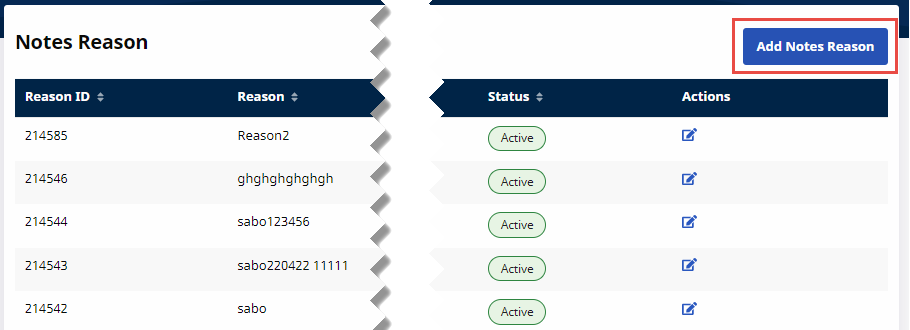
Select the Reference Table at left and click the Add button at top right (Add Notes Reason in this example).
-
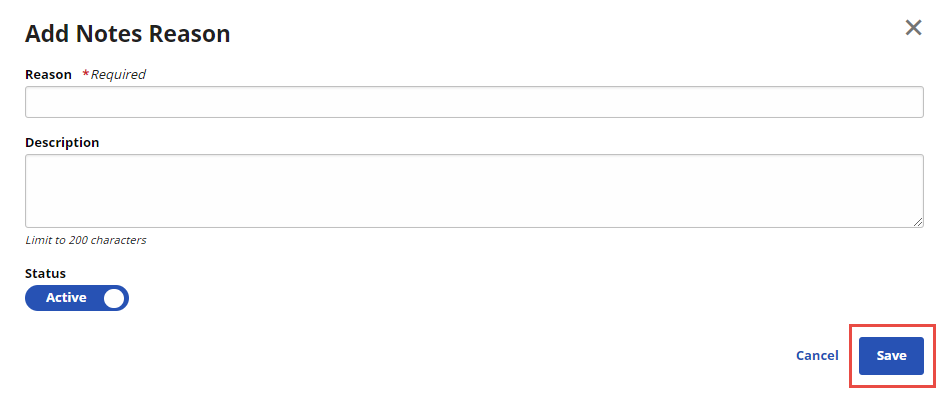
When the Add page is displayed, complete all required fields, verify that Status is set to Active, and then click Save.
-
After saving, the new value is displayed in the Reference Table and is available as a selection on various menus throughout the Payer Portal.
Users can change Reference Table values in HHAeXchange by completing the steps in the following table.
-
From the Admin menu, select Reference Table Management.
-
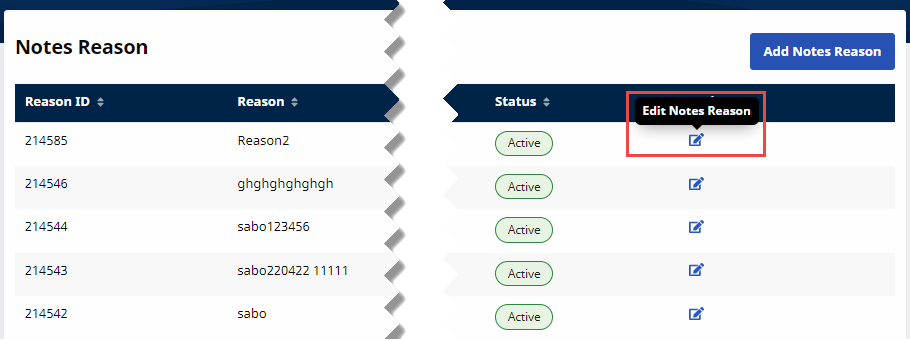
Select the Reference Table and click the Edit icon at right (Edit Notes Reason in this example).
-
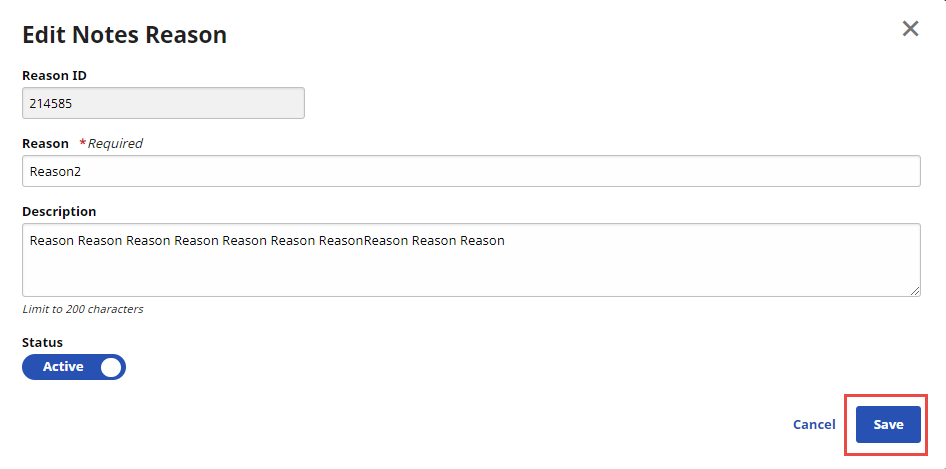
When the Edit page is displayed, make necessary changes, and then click Save.
-
After saving, the edited value is displayed in the Reference Table and is available as a selection on various menus throughout the Payer Portal.
Changing the table’s Status to Inactive removes all values from the Reference Table.